

Description
People use your forms to ask a question, report a fault or make a complaint. HolmesPortfolio Forms helps you ask clearly and act on what comes in. Most questions use GOV.UK Design System components. HolmesPortfolio is not part of, or approved by, GOV.UK or the Government Digital Service.
It’s for organisations that take requests, from shops and charities to housing associations and public bodies.
Build a form
- 13 starter forms, each saying who it suits. They include Subject Access Request and, for public bodies, Freedom of Information forms.
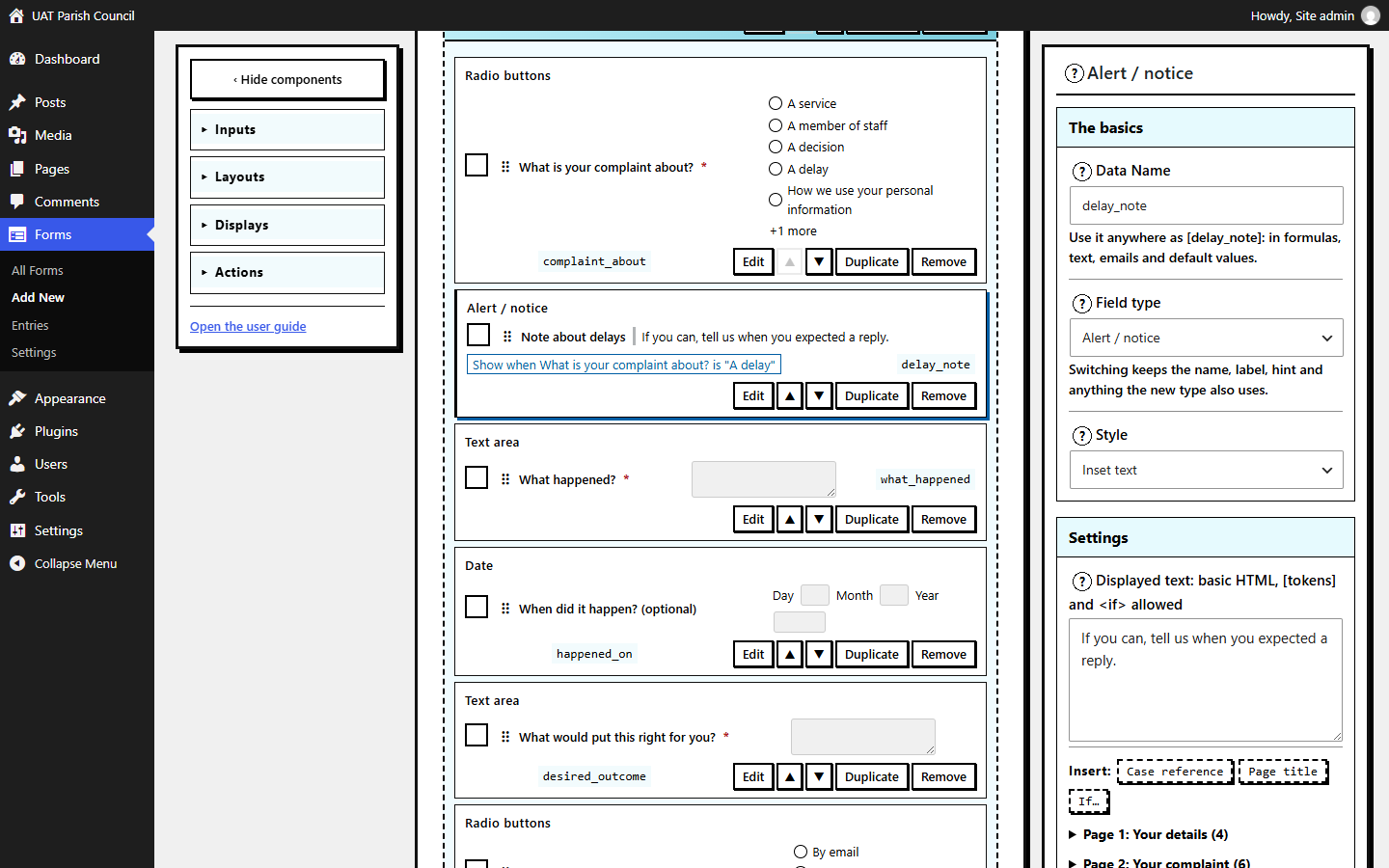
- A drag-and-drop builder with undo and redo, a setup wizard, tutorials and a full guide.
- Text, number, date, time, file upload, measurement and UK address questions.
- An optional postcode lookup through your own provider or the free postcodes.io, which may limit heavy use.
- Show and hide rules on questions, groups and pages.
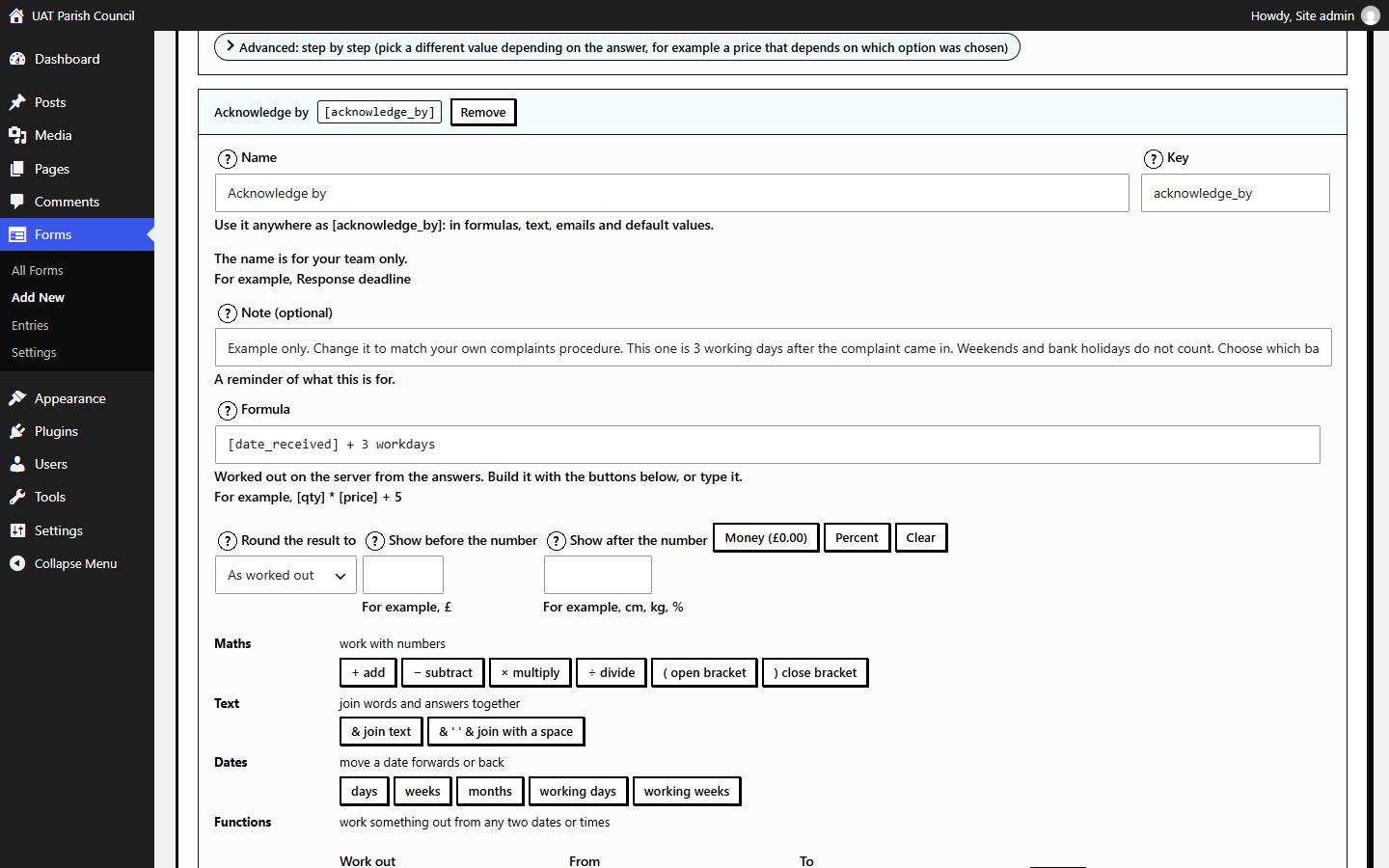
- Totals, value added tax (VAT), discounts, ages and deadlines in working days that skip the UK bank holidays you choose.
Clear to fill in
- Several pages and an optional Check your answers page.
- An error summary that links to each question that needs fixing.
These features alone don’t make a form accessible. Test each form yourself, including with a keyboard and a screen reader. Making your forms accessible is your responsibility.
Know what came in
- Emails to your team and to the person who sent it.
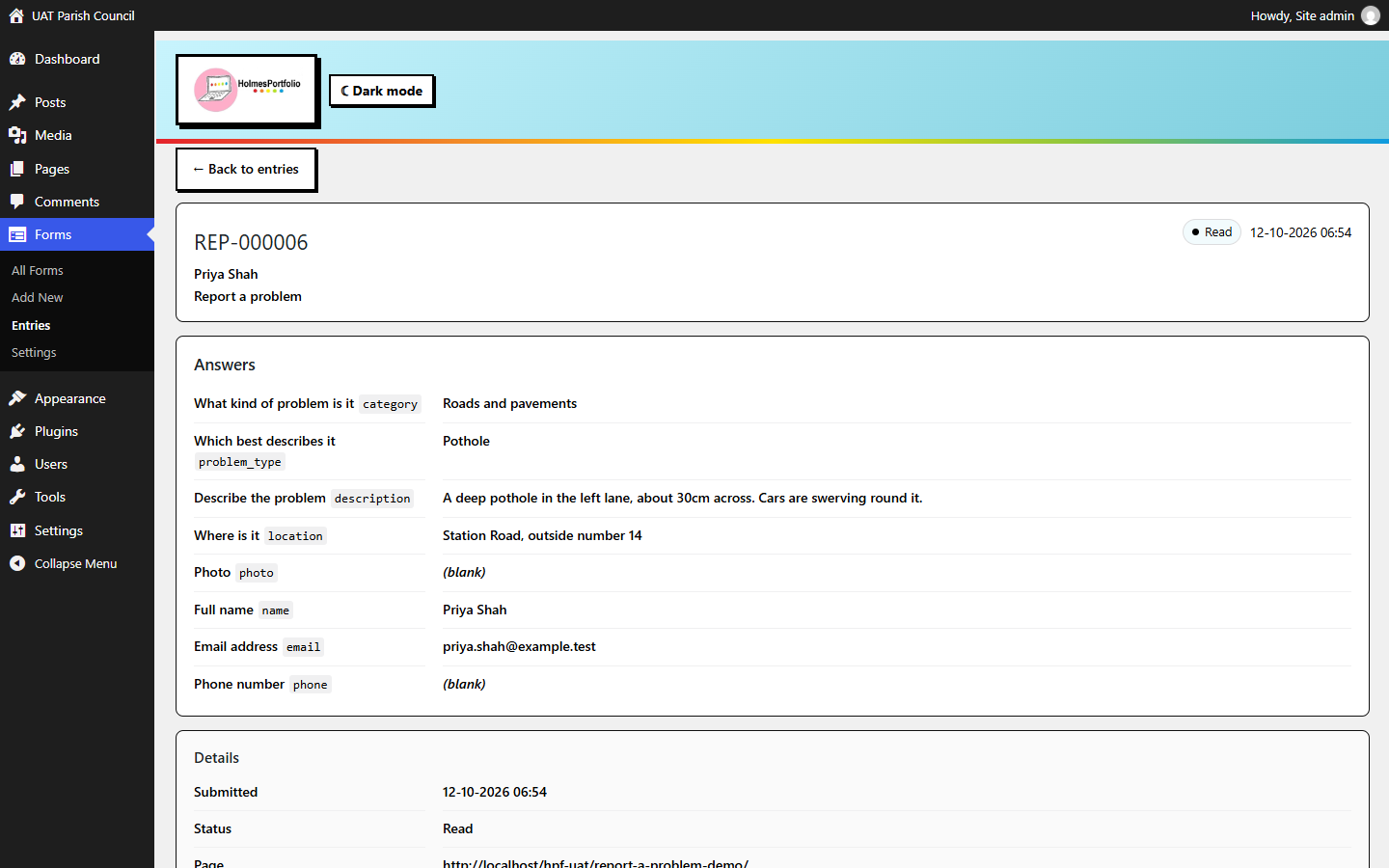
- An Entries screen with search, a form filter and spreadsheet (CSV) export.
- Built-in spam checks with no setup and no puzzle to solve. Turnstile or reCAPTCHA, if you want one.
Look after people’s data
- Keep entries for every form, some forms or none. Emails send either way.
- Kept entries are set to be deleted after 30 days to 2 years, as you choose. Emailed copies, exports and whole-site backups aren’t affected.
- Optional encryption for stored answers. Its key usually sits in your site’s files, so it helps only if the database leaks without them.
- The plugin sets no cookies of its own. Visitors’ internet (IP) addresses aren’t saved with entries unless you turn that on.
Keep your work safe
- An optional weekly backup of your forms and settings, without entries.
- The last 30 saves of each form, to compare and restore.
Read the guide at https://holmesportfolio.co.uk/guide/
HolmesPortfolio Forms is complete on its own, and we plan to keep everything in it free. We also make a paid add-on plugin for it, with two plans, Pro and Casework. Neither is on sale yet. Pro adds payments, booking calendars, signatures, a PDF of each entry, save and resume, polls, map questions, webhooks, Mailchimp and Brevo sign-ups, analytics, and a status and notes on each entry. Casework includes Pro and adds a case system for a team: pick-up and hand-over, teams, response-time targets, complaint stages, subject access request clocks, case reports, a reply link for the person who sent the form, and customer sign-in to check a case. Read more on the HolmesPortfolio Forms page on our website: https://holmesportfolio.co.uk/holmesportfolio-forms/
Privacy
- Entries. Each entry is stored in the
{prefix}holmesforms_submissionstable. It holds the answers, any calculated and hidden values, uploaded file names and sizes (not the files), the page address and a signed-in sender’s user ID. The IP address is stored only if you turn on “Record the submitter IP” in Settings. It’s off by default. - Storage can be on for every form, per form, or off (Forms Settings). Notification emails still send in every mode. The setting only decides whether a copy of the answers stays in the database.
- Answers in progress stay on your site until a day after the person’s last step, even if they never send the form.
- Retention. A daily job deletes entries older than your retention period, which is 30 to 730 days (365 by default). There’s no “keep forever”. It runs on WordPress’s scheduled jobs (WP-Cron), so check they run on your host.
- Export and erase. WordPress’s Personal Data Export and Erase tools cover a person’s entries, matched by their email address. Entries that only mention the address in another answer aren’t exported or erased. The erase tool lists them so you can check them by hand. Both tools also cover any send still waiting in the send queue, or stuck after failing, that holds the person’s email address. The export lists it with its answers and file names, and the erase tool deletes it with its files. A notice on the Export Personal Data screen lists what to check before you send someone their data.
- Search index. The
{prefix}holmesforms_entry_searchtable holds a hash of each entry’s reference and contact email. Without encryption it’s a plain SHA-256 hash, so anyone with a copy could check a known address against it. - Encryption at rest is optional and off by default. To turn it on, define
HOLMESFORMS_ENCRYPTION_KEYinwp-config.php. New entries’ answers and page address are then sealed with libsodium. Their date, form, status, user ID and any IP address aren’t. Back the key up separately. If it’s lost, entries saved after it was set can’t be read. The key usually sits in your site’s files, and a full site backup usually holds it too. So encryption helps only if a copy of the database leaks on its own. - Email. Answers leave your site by email, through WordPress’s own mail function (
wp_mail()) and your site’s mail setup. They’re sent from the address set on the form or in Settings, otherwise from your site’s own address. A visitor gets a copy only when the form is set to send them one. Copies then sit in recipients’ mailboxes, outside the plugin’s control. - Send queue. A form’s emails, and any files they attach, wait in a queue on your site until they’ve gone. This happens whether or not the form stores entries. While a send waits, its answers are in the database and its files in
uploads/holmesforms-held. Both are encrypted only when a site encryption key is set. A failed send is tried 3 times, and the reason the mail system gave is recorded each time. After that, it’s stuck: it’s listed on the Issues tab under Entries, and admins see a banner on every admin page. The tab’s Sending issues section shows what failed and why, and lets an admin download the waiting files to forward by hand. The send stays, with its answers and files, until an admin presses Try again or Remove. If nobody does, it’s deleted with its files once it’s older than the form’s retention period. A held file that no waiting send needs is deleted about 2 days after it was saved. Waiting files can use up to 200 MB between them. Past that, new emails still go, but without their files, and the Issues tab says so. - Activity log. The plugin logs what staff do with entries and settings: exporting, marking as read or unread, moving to Spam or Trash, deleting, and changing settings. It also logs what happens to sends that fail. Each record holds the staff member’s user ID, the entry number, what they did and when. It never holds anyone’s answers or what a setting was changed to. Only admins can see it. Each record is kept for two years.
- Spam checks. A hashed form of each visitor’s IP address is kept for up to an hour. When the plugin emails a visitor, a hashed form of their email address is kept for an hour. Neither is saved with the entry.
- Cookies. The plugin sets no cookies of its own and stores nothing in visitors’ browsers. Signed-in users still have WordPress’s login cookie. If you turn on a spam challenge, its provider can set its own cookies. The admin screens keep a few working notes, such as unsaved form changes, in staff members’ own browsers.
- What leaves your server. By default, only the emails you set up. Address lookup, spam challenges, bank holiday updates and sign-up are listed under External services.
- Optional sign-up. Signing up with the plugin author and joining the mailing list are separate choices. Nothing counts as confirmed until you press the button in the confirmation email. Your site keeps a private sign-up code, and holmesportfolio.co.uk keeps only a hash of it. You can leave the list or remove your sign-up from Settings Help & support.
The guide that comes with the plugin has the full detail, under Technical details, then Privacy. The public guide is at https://holmesportfolio.co.uk/guide/
External services
The plugin contacts these services only once you turn on the matching feature.
- postcodes.io (address lookup). When a visitor presses “Find address”, the postcode they typed is sent from your server to api.postcodes.io to find its town, county and area. Nothing else is sent. You can change this address in Settings Connections to your own copy of postcodes.io or another service with the same format. postcodes.io is a free, open-source service maintained by Ideal Postcodes. It has no service guarantee and no privacy policy of its own. Service details: https://postcodes.io/docs/overview and Ideal Postcodes’ privacy policy: https://terms.ideal-postcodes.co.uk/website/privacy.html. Data licences: https://postcodes.io/docs/licences/. Great Britain postcode data is open data; Northern Ireland postcodes (starting BT) are free for non-commercial use only, and commercial use needs a licence from Land & Property Services in Northern Ireland. The data’s owners ask for this credit: Contains Ordnance Survey data © Crown copyright and database right. Contains Royal Mail data © Royal Mail copyright and database right. Contains National Statistics data © Crown copyright and database right. Contains NRS data © Crown copyright and database right.
- GOV.UK bank holidays (working-day dates). A copy of the public list comes with the plugin. Only if you turn on Keep the list up to date, your server fetches https://www.gov.uk/bank-holidays.json once a week. No personal data is sent. Terms: https://www.gov.uk/help/terms-conditions and privacy: https://www.gov.uk/help/privacy-notice
- Cloudflare Turnstile (optional spam check). The visitor’s browser loads Cloudflare’s script, and your server sends the challenge token and the visitor’s IP address to Cloudflare to verify it. Cloudflare’s script reads information from the visitor’s browser for the check, and Cloudflare can set its own cookies. When you press “Test key” in Settings, your server sends your saved secret key to Cloudflare with a dummy response, to check the key is recognised. That happens only when you press the button, and nothing else is sent. Terms: https://www.cloudflare.com/website-terms/ and privacy: https://www.cloudflare.com/privacypolicy/
- Google reCAPTCHA (optional spam check). The visitor’s browser loads Google’s script, and your server sends the challenge token and the visitor’s IP address to Google to verify it. Google sets a cookie called _GRECAPTCHA in the visitor’s browser. When you press “Test key” in Settings, your server sends your saved secret key to Google with a dummy response, to check the key is recognised. That happens only when you press the button, and nothing else is sent. Terms: https://policies.google.com/terms and privacy: https://policies.google.com/privacy
- holmesportfolio.co.uk (optional sign-up and mailing list). Nothing is sent until you tick a box and press Sign up. Then your email address, business type, site address, consent version and mailing-list choice are sent, with your site’s private sign-up code. If the server can’t be reached, your site tries again up to 6 times over about a day. Once you’ve signed up, your site sends its private sign-up code (not your email address) when you open Settings Help & support or the setup wizard’s Sign up step. The reply shows whether you’re signed up and on the mailing list. Your site remembers the reply for 5 minutes, so the code is sent at most once every 5 minutes. Leaving or joining the mailing list, or removing your sign-up, sends the same code with that choice. Nothing else is sent to holmesportfolio.co.uk. Privacy notice: https://holmesportfolio.co.uk/privacy-policy/ and terms: https://holmesportfolio.co.uk/terms-and-conditions/
Every one of these services sees your server’s internet address. Requests to postcodes.io (or the lookup service you set) also include your site’s address. Requests to Cloudflare, Google, GOV.UK and holmesportfolio.co.uk name only the plugin. A sign-up still sends your site’s address, as listed above.
Disclaimer
HolmesPortfolio Forms is free software under the GNU General Public License
(GPL), version 2 or later. It is provided “as is”, without warranty of any
kind, so far as the law allows. Sections 11 and 12 of the GPL say more.
- It is a tool. Nothing in the plugin, this readme or the guide is legal,
accessibility or security advice. - We don’t promise that the plugin, or any form made with it, meets any law,
standard or guidance. That includes UK GDPR, the Equality Act 2010, the
Public Sector Bodies Accessibility Regulations 2018, the Web Content
Accessibility Guidelines (WCAG) and the GOV.UK Design System. - You are responsible for your site, your forms and their wording, the data
you collect and your own legal duties. That includes making your forms
accessible. - The starter forms, consent text, deadlines and working-day sums are
examples. We wrote them in good faith, but the law and your own rules can
differ or change. We don’t promise they are correct or up to date. Check
each one and set your own before you publish. Meeting your legal deadlines
is your responsibility. - Spam checks, encryption, retention and email sending reduce risk, but they
don’t remove it. They depend on your host and setup. Test them on your own
site, and keep your own backups.
So far as the law allows, we are not liable for any loss or damage from using
the plugin, or from not being able to use it. That includes lost data,
undelivered emails, lost income, and complaints, claims or penalties against
you. Nothing in this disclaimer or the GPL limits any right you have, or any
liability, that the law does not allow to be limited, such as liability for
death or personal injury caused by negligence, or for fraud.
If a form handles personal data or a statutory process, have your setup
checked by someone qualified before you rely on it.
Third-party libraries and data
- GOV.UK Frontend 5.7.1 (CSS only): MIT. The compiled CSS from the release page, with its font rules changed: the GDS Transport rules are removed and the font stack is “Helvetica Neue”, Helvetica, Arial, sans-serif. No GDS Transport typeface, crown, logotype or GOV.UK header is included.
assets/css/vendor/govuk-frontend.LICENSE.txt. Source: https://github.com/alphagov/govuk-frontend/releases/tag/v5.7.1 - Bootstrap 5.3.3 (CSS only): MIT. The compiled CSS from the release page, unchanged.
assets/css/vendor/bootstrap.LICENSE.txt. Source: https://github.com/twbs/bootstrap/releases/tag/v5.3.3 - GOV.UK bank holidays (data): Open Government Licence v3.0, https://www.nationalarchives.gov.uk/doc/open-government-licence/version/3/.
data/bank-holidays.jsonis a copy of https://www.gov.uk/bank-holidays.json. Contains public sector information licensed under the Open Government Licence v3.0.
Screenshots



Blocks
This plugin provides 1 block.
- HolmesPortfolio Form Embed a HolmesPortfolio form by id.
Installation
- Upload the
holmesportfolio-formsfolder to/wp-content/plugins/. Or, in WordPress, go to Plugins Add Plugin and search for HolmesPortfolio Forms. Some versions call it Add New Plugin. - Activate the plugin.
- Go to Forms Add New, build a form, and save.
- Embed it with the HolmesPortfolio Form block, or the shortcode
[holmesforms_form id="123"].
FAQ
-
Does it work without JavaScript?
-
Not by default. A visitor with JavaScript turned off sees a short message asking them to turn it on or contact you another way. Under Settings General you can let them fill forms in without it. Every page that applies then shows as a section and the form submits once to
admin-post.php. The settings screen lists what stops working on each form, such as show and hide rules on the same page. -
Where are submissions stored?
-
In a dedicated database table,
{prefix}holmesforms_submissions. Uninstalling the plugin drops the table and deletes every form. -
Can an email go to the address someone typed in the form?
-
Yes. In the email action, press the email question’s button under To. It adds the question’s name in square brackets, like
[email]. The message is still sent from your site’s own address. Only the form’s settings decide who gets each email. A visitor can’t add other recipients. -
My host limits how many emails my site can send. Will form emails fail?
-
Setting your limit helps. Enter it under Settings Email Sending limit, which has a box for an hourly limit and one for a daily limit. Over the limit, form emails wait in the send queue and go out once there’s room, without using up any of their 3 tries. Only this plugin’s form emails are counted, so leave some room for other plugins’ emails. For reliable sending, use an SMTP plugin that sends through a real email service.
-
Is the GOV.UK Transport font included?
-
No. That typeface is only for services on GOV.UK. The forms use Helvetica or Arial instead.
-
Are the forms accessible?
-
That depends on how you build each form, your wording, your theme and your CSS. Making your forms accessible is your responsibility, and the plugin is there to help. Most question types use GOV.UK Design System components. A few are our own design, and some have known limits. The guide’s “Which questions follow GOV.UK” section lists them all. Every style mode uses the same ARIA wiring, except that the standard GOV.UK hints only show in GOV.UK style: labels tied to inputs, hint and error text linked with
aria-describedby,aria-invalidon failed fields,fieldsetandlegendfor grouped inputs, an error summary with links to each question, focus moved to each new page’s heading, to the error summary and to the thank-you message, and optional fields marked “(optional)”. Any field can be given an input purpose from the full WCAG 2.1 list, so itsautocompleteattribute is set. None of this on its own makes a form accessible. The test results in our guide are for the setup we tested, not your site. Test each form yourself, including with a keyboard and a screen reader. -
How does it deal with spam?
-
The GOV.UK Service Manual advises against CAPTCHA, so there’s no CAPTCHA and no third-party spam service by default. Built-in checks are always on and need no setup. Entries they catch go to Spam, where staff can rescue a real person, and no emails are sent for them. An alert can email the site admin when a form suddenly gets far more entries than usual. These checks cut spam, but they won’t catch all of it.
A blocked-words check is also on by default. It looks for swear words and slurs in text answers. You choose whether the visitor is asked to reword, the words are highlighted for staff, or the entry goes to Spam.
If you need more, you can turn on Cloudflare Turnstile or Google reCAPTCHA v2. Both read information from visitors’ browsers and can set cookies, and the settings screen warns you while one is on. A visitor without JavaScript sees a note to contact you another way instead of a form that uses one.
-
How should I secure the staff accounts?
-
People who sign in to build forms or work entries are ordinary WordPress users. WordPress handles password hashing (bcrypt as of 6.8), the reset email, sessions and “log out everywhere”. The plugin stores no separate credentials and doesn’t handle sign-in itself.
On a live site, add these, because WordPress doesn’t do them by itself:
- Two-factor sign-in for anyone with a Forms role or higher. Use the official Two-Factor plugin, or your own SSO or MFA.
- A failed-login limiter, such as Limit Login Attempts Reloaded, or the same protection at your host or CDN.
- A lock on wp-admin and the login page to your own network, in your server’s .htaccess file or your host’s firewall. The guide has the lines to copy.
Password resets and account recovery are handled by WordPress. There’s nothing to configure in the plugin.
-
How do I report a security problem?
-
Please tell us privately, not in the public support forum. Email security@holmesportfolio.co.uk or use the contact form at https://holmesportfolio.co.uk/support/. Include the plugin version, what you found and the steps to see it happen. We aim to reply within 5 working days.
Security fixes are free. We fix security problems in HolmesPortfolio Forms that we find, or are told about, before the end of December 2031. We release a fix only when there is a problem to fix, not on a schedule. Fixes come in the latest version, so keep the plugin up to date. Changelog lines for security fixes start with “Security:”. Our security notices page at https://holmesportfolio.co.uk/security/ explains each one once the fix is out. SECURITY.md in the plugin folder has the details, including what happens if we stop trading before then.
Reviews
There are no reviews for this plugin.
Contributors & Developers
“HolmesPortfolio Forms” is open source software. The following people have contributed to this plugin.
Contributors
Translate “HolmesPortfolio Forms” into your language.
Interested in development?
Browse the code, check out the SVN repository, or subscribe to the development log by RSS.
Changelog
1.0.0
Builder
- Drag-and-drop builder with a grouped component palette (collapsible, closed by default), page tabs and a right-hand options panel.
- Undo / Redo, Save and Save-and-continue, and saved multi-field blocks you can delete.
- One HolmesPortfolio look across every admin screen.
- A “?” by every field, setting and the variables area opens a short explanation with a “Read more” link into the user guide.
- Form tutorial: one button on the Forms list opens a practice form with short, hands-on topics. They cover your first form, kinds of question, groups, labels and hints, lists of choices, dates and times, numbers and units, addresses, files, show/hide rules, pages, calculations with two worked examples, hidden fields, emails, thank-you messages, HTML and tokens, publishing, entries, settings, backups and saved blocks. Nothing on the practice form is saved unless you press Save. Save asks you first, because it makes a real form.
- Saved blocks: pick from a searchable box and press Insert. Three come built in and start locked: “Privacy notice”, “Terms and conditions” and “Customer contact” (name, email, phone). The first two have placeholder wording the builder flags for replacement. Settings decides which built-ins appear. To save a whole group, right-click it and choose Save as a block.
- Version history keeps the last 30 saves, each with the person, the time and a note. Restore an earlier version, delete one, or compare any two.
- Version history keeps backslashes, such as those in a Windows file path, however often the form is saved.
- The builder checks the markup in every HTML box, such as a notice’s text or an email body. The check accepts a link with a query string, such as ?a=1&b=2.
- A form open in the builder is locked to one editor. Another editor sees who has it and can take over.
- Saving a form with a Data Name that belongs to a built-in token, or that another question already uses, renames it with a number on the end and tells you. Form check warns first, and imported forms are checked the same way.
- Deleting, duplicating, exporting, restoring a version, taking over a lock and importing over a form all check the same per-form access as saving it.
- The builder accepts a repeatable group’s answer token, so one form can have both a repeatable group and an Answers summary.
Fields
- Text: input mode, character limits, a pattern check, an optional “must match another field” check for confirm-email pairs, and a default value.
- Email questions spot likely typos in common addresses, such as sam@gmial.com. When the visitor leaves the box, a line asks “Did you mean sam@gmail.com?” with a button to use it. A confirm email box never shows the line, because typing the address twice is its job. It’s only a suggestion and never stops the form being sent. The check runs in the visitor’s browser and sends nothing anywhere.
- Text area: word limit with a live counter, resizable on the front end, and a default value.
- Radio, checkbox (stacked or side by side, with optional fewest and most selections), dropdown and slider.
- Date: format, allowed range, a default such as “today” or “today + 20 workdays”, and a check against another date field (on or after, on or before, a minimum gap, or within a number of days).
- Time: one box for a time like 09:30, 24-hour by default, with an optional earliest and latest time.
- Measurement: a length, weight, volume, area or temperature. The visitor picks the unit, such as feet and inches or centimetres. Formulas and rules get the answer in one unit you choose.
- Numbers and money: a text input in Number mode takes a unit after the box, decimal places and a lowest and highest value. Money mode puts £, € or $ in front and keeps 2 decimal places.
- Address: line 1, town and postcode, with the postcode checked against the UK format. Optional line 2, county and country follow the field’s own required setting and have their own error messages. Save / Change address, and an optional Find address postcode lookup.
- File attachments: PDF, JPEG, PNG and BMP, checked by real content, with size and count limits. Files are emailed and not kept with the entry. They wait on your site only until their emails have gone. A note when you add the field, and a line on the notification email, cover safe handling.
- When a visitor adds too many files to a one-file upload, the message reads “You can attach 1 file.”
- Alert notices (notification banner, inset text, warning or error) with an optional confirmation tick.
- Hidden fields (fixed value, another field, calculation, URL or user), navigation buttons, email actions and the submit message.
- Read only: text, text area, dropdown, radio, checkbox and date can show their value greyed out and still submit it. A read-only box never keeps anything the visitor’s browser posted. The server puts its own value back on submit, so editing the page can’t change it.
- Radios, checkboxes and dropdowns can pre-select an option when a matching word appears in the page’s query string. The query string is kept for the whole form, so this works on later pages too.
- Every field takes a width, a “*” / “(optional)” marker and custom error messages, and can change its type in place.
- A hint can run to several lines and hold a link.
- Groups: a plain Group and a Conditional group shown or hidden by a rule. A group’s optional title is a real heading, and answers are grouped under it on the check-your-answers step and in emails. Groups are optional: questions work the same in or out of one.
Logic and pages
- Multi-page forms with page rules, computed variables and show/hide rules on fields.
- Rules that test a choice on the same page work in the browser. A notice with an answer in its text still waits for the server. Other rules are checked on the server as soon as a field they depend on changes, and on every page move. Every rule is checked again at submit.
- When a question appears or is hidden, the form tells screen readers which one. Under a browser rule, a hidden question or notice stays in the page, hidden. Under a server rule, it leaves the page.
- A Back button appears whenever there’s a previous page. It keeps what was typed on the page without checking it. Only Continue checks a page and saves its answers. The browser’s own Back and Forward buttons do the same.
- A page opened from Check your answers has a Back button that returns there and drops the edit. Continue saves the edit and returns there too, after any new question the change needs. Send only sends the answers Check your answers showed. If they changed in the meantime, the page shows again with a message.
- On a form with more than one page, the browser tab’s title changes with each step. It names the page and the step, such as “The fault – Step 1 of 3 – Report a repair”. Check your answers has its own step in the title too. A one-page form keeps its usual title until it’s sent.
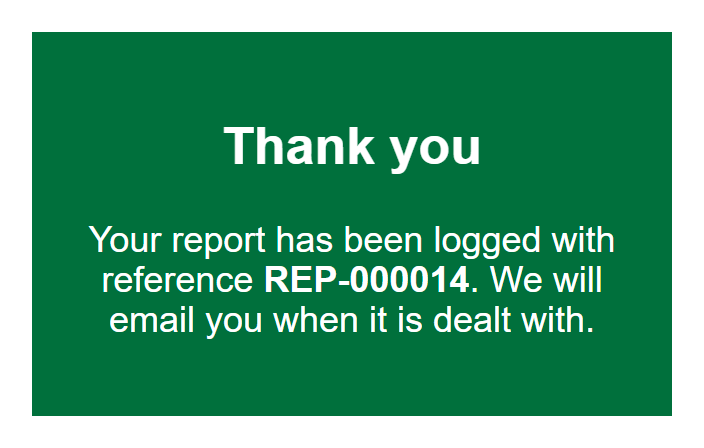
- After a form is sent, the browser tab’s title names the thank-you message instead of the last step. It starts with the message’s heading, or “Form sent” when there’s no heading, then the page’s usual title.
- A question can be set to clear its answer whenever Continue changes an answer on another page, so a declaration tick box on Check your answers only ever stands for the answers the visitor saw when they ticked it.
- Working days skip the days outside your working week and the UK bank holidays you pick in Settings. A form can pick its own bank holidays. The Freedom of Information starter leaves out bank holidays in every part of the UK, to follow the Freedom of Information Act 2000’s definition of a working day, as we understand it.
- Visitors with JavaScript turned off see a message by default. A setting lets them fill forms in without it instead.
- The plugin’s stylesheet decides what a form shows when JavaScript is off. A small script in the page head marks the page when JavaScript runs. No style tags are printed in the form.
- An add-on can check each page as the visitor presses Continue, with the holmesforms_validate_page_errors filter. A problem then shows on the page it belongs to.
Answers, emails and export
- A confirmed alert reads Yes / No. A multi-select checkbox lists each option with Yes or No. A radio shows only the chosen option.
- The check-your-answers page keeps every question, blank if unanswered. Emails leave blank questions out. The CSV has a column for every question in the form.
- A question label ending in a question mark drops it when it labels an answer, in emails, the check-your-answers page and the entry view.
- Email actions: To / CC / BCC with one-click chips for the form’s email fields, and a From name that defaults to the form title.
- Each action has a switch for whether uploaded files go with it. It’s on by default. Turn it off for an action whose recipient doesn’t need them, such as the visitor’s confirmation. An email that carries files adds a short safe-handling line.
- The email body is written in a line-numbered editor that checks the markup and [tokens] before it saves. [all-fields] / [all-data] expand to a clean list of answers.
- When a new question is missing from an email that lists answers one by one, the builder offers to add its line.
- Settings “Email appearance” adds a header and a footer to every email. A developer can add CSS to emails with a filter, which is applied after the Email look settings.
- The “Fill in the basic example” button on Settings, Email can be translated, along with its confirm box and the footer line it adds.
- An Email look panel on the Email tab sets the colours, font, text size and width of every email, with a colour picker for each colour, a rough preview and a Back to the default look button. Text, headings and links need a contrast of at least 4.5 to 1 against the colour behind them, or the colour isn’t saved.
- Links in the email template are clickable. Web addresses a visitor typed show as plain text.
- An answer used inside a link in an HTML email or the Answers summary is made safe for the link. A javascript: answer becomes an empty link.
- Confirmation emails to an address a visitor typed are limited to 5 an hour per address, across the site.
- A send whose emails fail is tried 3 times, then kept with its answers and files until an admin acts or the form’s retention period ends.
- A Sending issues section on the Issues tab under Entries lists every send still on its way, oldest first, with Try again and Remove for stuck ones, singly or all at once. A message then says what each press did.
- The reason the mail system gave for each failed try is recorded and shown there, in red.
- Files waiting to go with a stuck send can be downloaded from the Issues tab and forwarded by hand.
- When a send fails its first try, the Issues tab shows a warning while the other tries run. The issues email, if it’s on, goes straight away.
- An admin who opens an entry whose emails are stuck sees “The emails for this entry haven’t been sent.”, with the reason and a Try again button.
- When a send belongs to a stored entry, every try builds its emails from the entry’s answers as they are now, automatic retries and Try again alike. An email address corrected on the entry is the one Try again sends to. A form that saves no entries uses the answers as they were sent.
- Files waiting to go with emails can use up to 200 MB between them. Past that, new emails still go, but without their files. The Issues tab warns at 80% and says when a file was left off. The holmesforms_held_files_max_bytes filter changes the limit.
- On Settings, Email, the sending limit boxes and the test email box have bold labels above them, like the other settings.
Entries and data
- Entries are stored in their own table, with CSV export. You can delete the exported rows straight after.
- Filter and sort by form, and search from the Forms list.
- Forms can be tagged with a named group (Contact forms, Highways, Licensing). The group has its own column, and the list can be filtered to one group.
- The Entries screen and CSV export are open to any admin, or to a role given the
holmesforms_view_entries/holmesforms_export_entriescapability. That gives entry access without full admin. - Each form can pick which answers make up the entry title.
- Admin times show in the site’s time zone.
- An entry page shows a data address only when it’s an image. Any other data address is left out.
- Data & privacy: store every form, per form, or never. Retention defaults to 365 days, can be set from 30 to 730, and always applies. A plain “storage used” read-out shows what’s in the database and what the next clean-up will remove.
- The note under “What is using the most” says uploaded files and photos aren’t kept in entries, so they don’t count towards entry sizes.
- Each submission gets a reference like
ENQ-000042. A form can have its own prefix and count. - Personal Data Export / Erase integration. Both cover any waiting or stuck send that holds the person’s email address. The export lists it under “Form sends waiting to go”, and the eraser deletes it with its files.
- A notice on Tools, Export Personal Data lists what to check before you send someone their data. The holmesforms_privacy_export_notice_points filter lets an add-on add its own points.
- An activity log on the Issues tab, for admins. It shows who exported, marked or deleted entries, and who changed a setting. It also shows what happened to sends that failed. Filter it by person, what happened or entry number, and download what the filters show as a CSV file. Each entry has a “What has happened to this entry” panel. The log holds no answers or setting values, and each record is kept for two years. Add-ons can add their own records with HP_Forms_Activity::add().
- Optional encryption at rest for stored answers when
HOLMESFORMS_ENCRYPTION_KEYis set inwp-config.php(libsodium, off by default).
Bundled forms
- The plugin comes with 13 ready-made forms for you to open, copy or put on a page. Activating the plugin adds the Simple enquiry form. The setup wizard can add the others. They are:
- a simple enquiry form
- an informal feedback form
- a complaint form (example acknowledge and full-response dates)
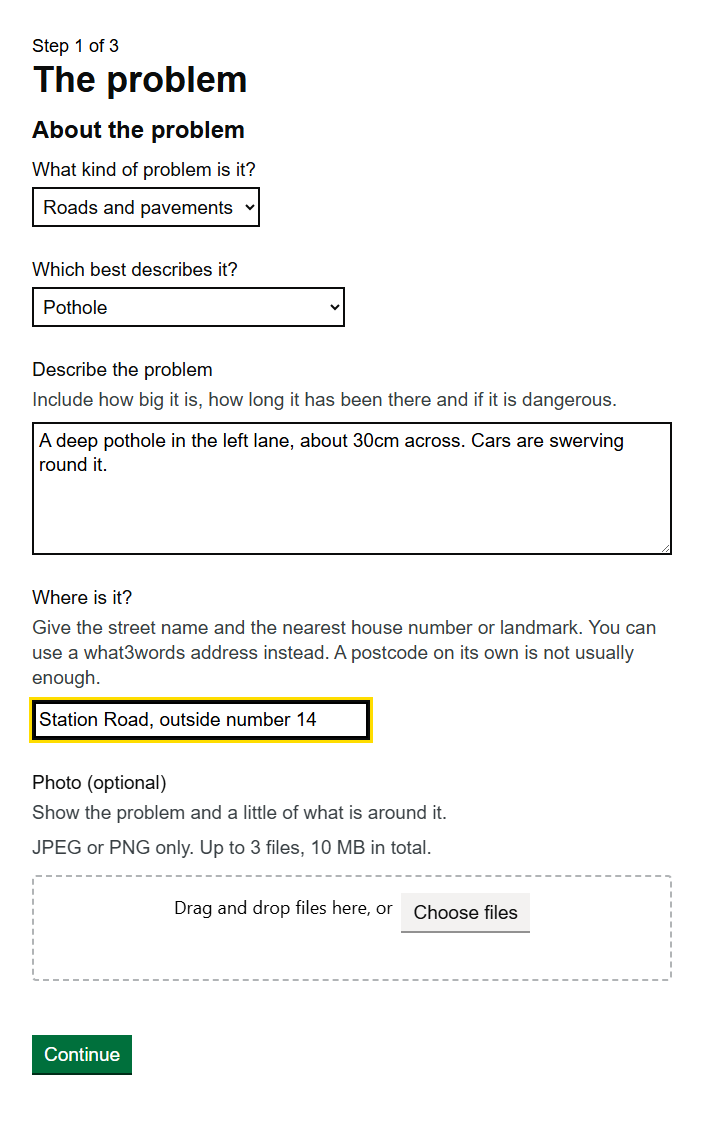
- a “Report a fault” form for buildings, equipment and safety. Its “Which best describes it?” dropdown is filtered by the choice above it
- an appointment or callback form
- an event or room booking form
- a Freedom of Information request, for public bodies only. It works out an example deadline of 20 working days from the date received. Its acknowledgement points to an internal review, then the Information Commission’s Office (ICO). The guide shows a Scottish public authority what to change
- a Subject Access Request (an example one-month deadline, notes on identity checks, extensions and how to complain)
- three council forms: “Report a problem”, “Book a council appointment” and “Council feedback, compliment or complaint”. In “Report a problem”, the “Which best describes it?” dropdown is filtered by the category above it, and both can be pre-filled from the query string
- “Calculation examples”, showing every kind of calculation step by step
- “Costs and pay examples”, showing costs, pay and dates
- Every recipient starts as the site admin address and never appears on the public form.
- Each starter team email lists every answer on its own line, which you can edit. Worked-out values, such as a deadline, get their own lines too. A question you add later isn’t added by itself. The builder offers to add it.
- The setup wizard’s “Starter forms” step offers them in six groups: Customer contact, Complaints & reports, Bookings & appointments, Data & information requests, Council services, and Worked examples. Each form says who it suits. Pick any or none. Each form is tagged with its group.
- Settings General “Restore starter content” re-creates the starter forms you tick, and any starter block that was deleted. It skips anything locked or open in the builder, and only resets an existing one after you confirm.
- Opening a starter form in the builder shows a note: rename it before making it your own, so a restore leaves it alone.
Backup, checks and presentation
- Backup and import: an optional weekly backup (or Back up now) of every form, the saved blocks and all Settings, add-on settings included, as one JSON file you can download and import again.
- Export a single form from the Forms list.
- Backup files hold forms and settings only, with no submissions, entries, uploads or drafts. They include email addresses you entered, so keep them private. Secret keys are locked or left out.
- Form check: a bar at the bottom of the builder that lists problems by severity. It covers missing labels and legends, blank options, duplicate keys, required fields with no custom message, empty notices, autofill purposes worth setting, fields narrower than their answer needs, and an email or Answers summary that leaves out a question.
- The Form check count is red for errors, amber for warnings and plain blue when only notes remain, on the button and on each row of the Forms list.
- It checks structure only. A clean result isn’t proof of WCAG conformance or an accessibility statement, so test the published page with a keyboard and a screen reader. It links to the W3C guide to accessible forms.
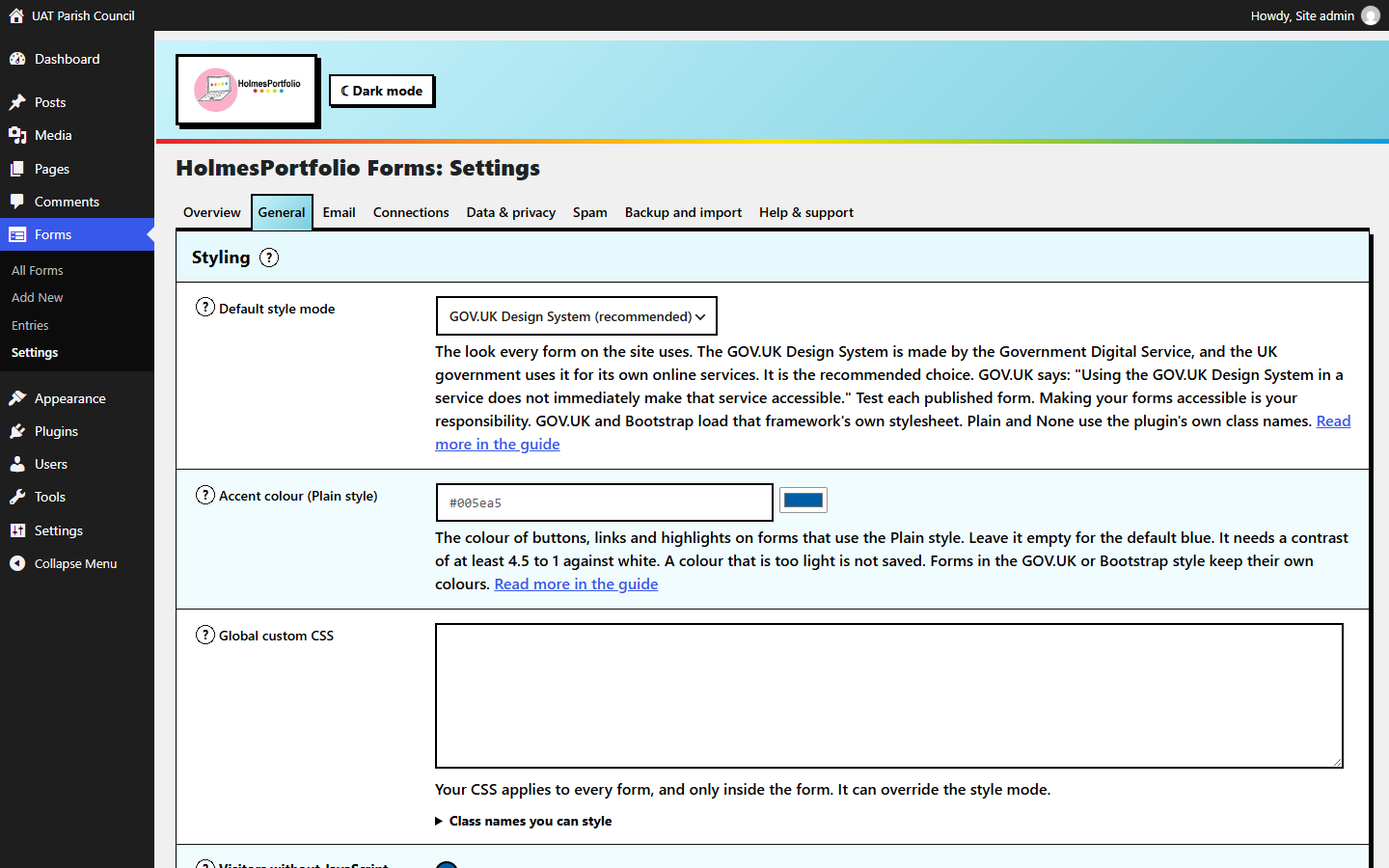
- Presentation: a site-wide style mode (GOV.UK, Bootstrap, Plain, or the theme’s own), with a list of class names you can style from your theme’s Additional CSS.
- An Issues tab under Entries, for admins: everything the plugin has found that needs an admin, worst first. Each issue says what’s wrong, when it started and what to do, with a link to the right screen. The tab is always there for admins, and each issue clears itself once the problem has gone.
- It covers stuck sends, a send that failed and is being tried again, the space for waiting files filling up, uploaded files that could not be kept, a spam check that is refusing every visitor, an email action with no valid To address, stored entries that cannot be read, background sending that has fallen back to the slow way, an overdue scheduled job, and the address lookup service not answering.
- A banner on every admin page while there’s an issue: red when something needs fixing, amber otherwise, with up to three titles and an Open Issues button. Staff who can view entries but aren’t admins are asked to tell a site admin.
- An optional email about new issues, to an address you choose, once an hour. When a send fails its first try, it goes straight away. It says what’s wrong and what to do, and never includes anyone’s answers.
- Three checks on Tools Site Health: the PHP extensions the plugin needs, how your host handles visitor addresses and form replies, and HolmesPortfolio Forms issues.
- The issues check is critical when any issue needs fixing, and recommended when every issue is only worth a look. It lists each issue’s title, with a link to the tab.
- The holmesforms_issues filter lets an add-on list its own issues on the tab, and holmesforms_form_saved fires after a form is saved.
- The holmesforms_send_first_failure action fires when a send fails its first try. Filters starting holmesforms_activity_ let an add-on change what the activity log records and how it describes it.
- Admin screens escape their output at the moment it’s printed. They use one list of allowed tags and attributes. The holmesforms_admin_allowed_html filter lets a developer change that list.
- Data sent from the admin screens is checked for its security token first. It’s then cleaned before it’s read. This covers the builder, rename records, calculation previews, saved blocks, imports and the Describe your form page.
- An optional front-end debugger, visible only to logged-in editors. It shows every field and computed value by page, marked shown or hidden, with a Refresh button and an Errors panel.
Spam
- Built-in spam checks that are always on and need no setup.
- Blocked words, on by default: text answers are checked for swear words and slurs, matched as whole words. Ask the visitor to reword, accept and highlight the words for staff, or save the entry as spam. Each form can have its own rule.
- Cloudflare Turnstile or Google reCAPTCHA as an opt-in extra. The widget sits above the submit button, and the token is checked on the server.