

Description
Suite Form is a mail form plugin designed for Japanese business websites.
- Visual form builder — no HTML knowledge required to add fields or edit mail templates
- Route the admin notification to different recipients and Cc depending on the option the visitor selects in a select or radio field
- Show a field only when a specific option is selected in a select, radio, or checkbox field. A hidden field is not required, and its value is not sent
- Test sending: while it is on, the admin notification for your own submissions goes only to you, with the usual recipients listed in the body, and visitors’ submissions are not affected
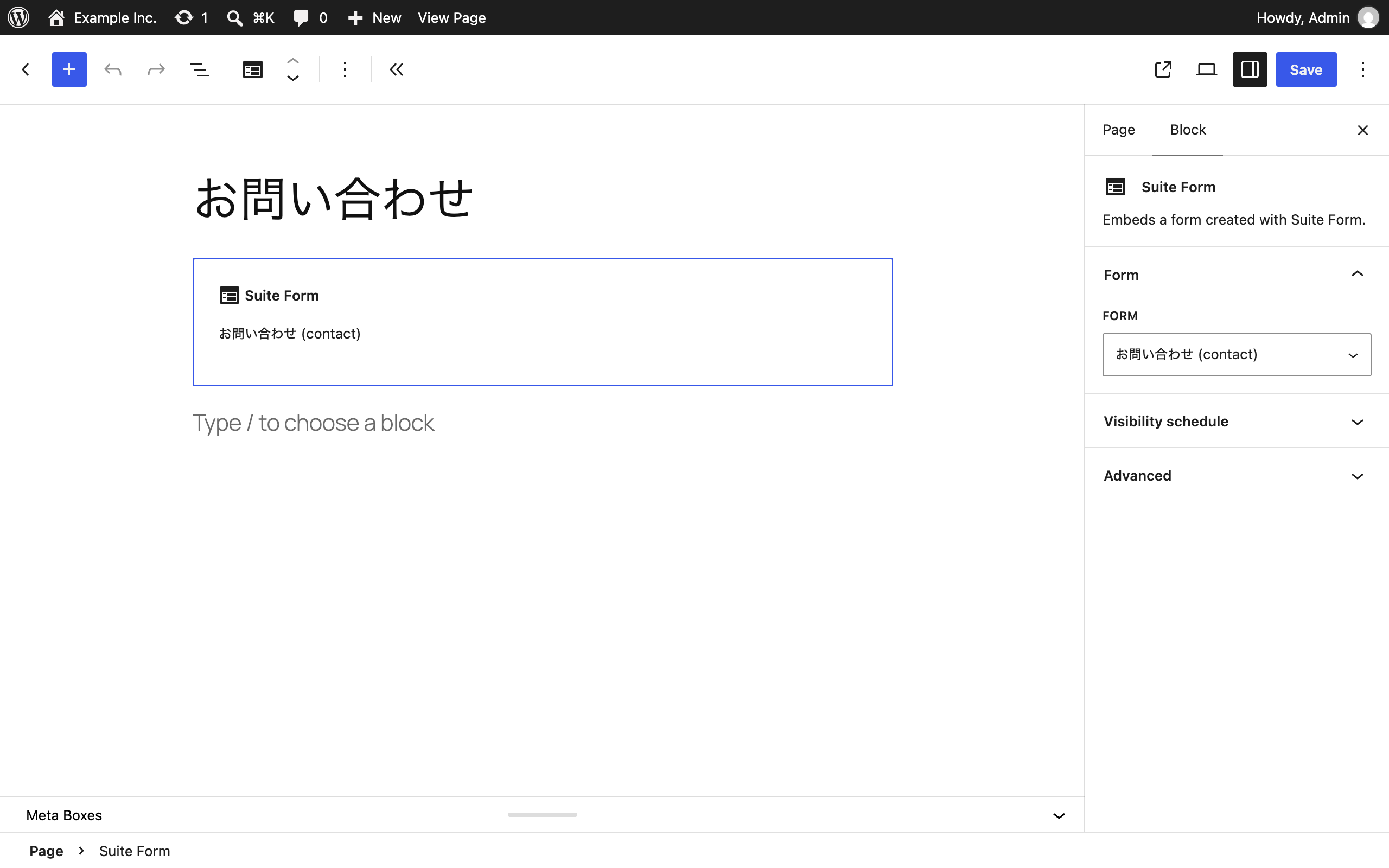
- Gutenberg blocks — pick a form from a dropdown, no shortcode typing
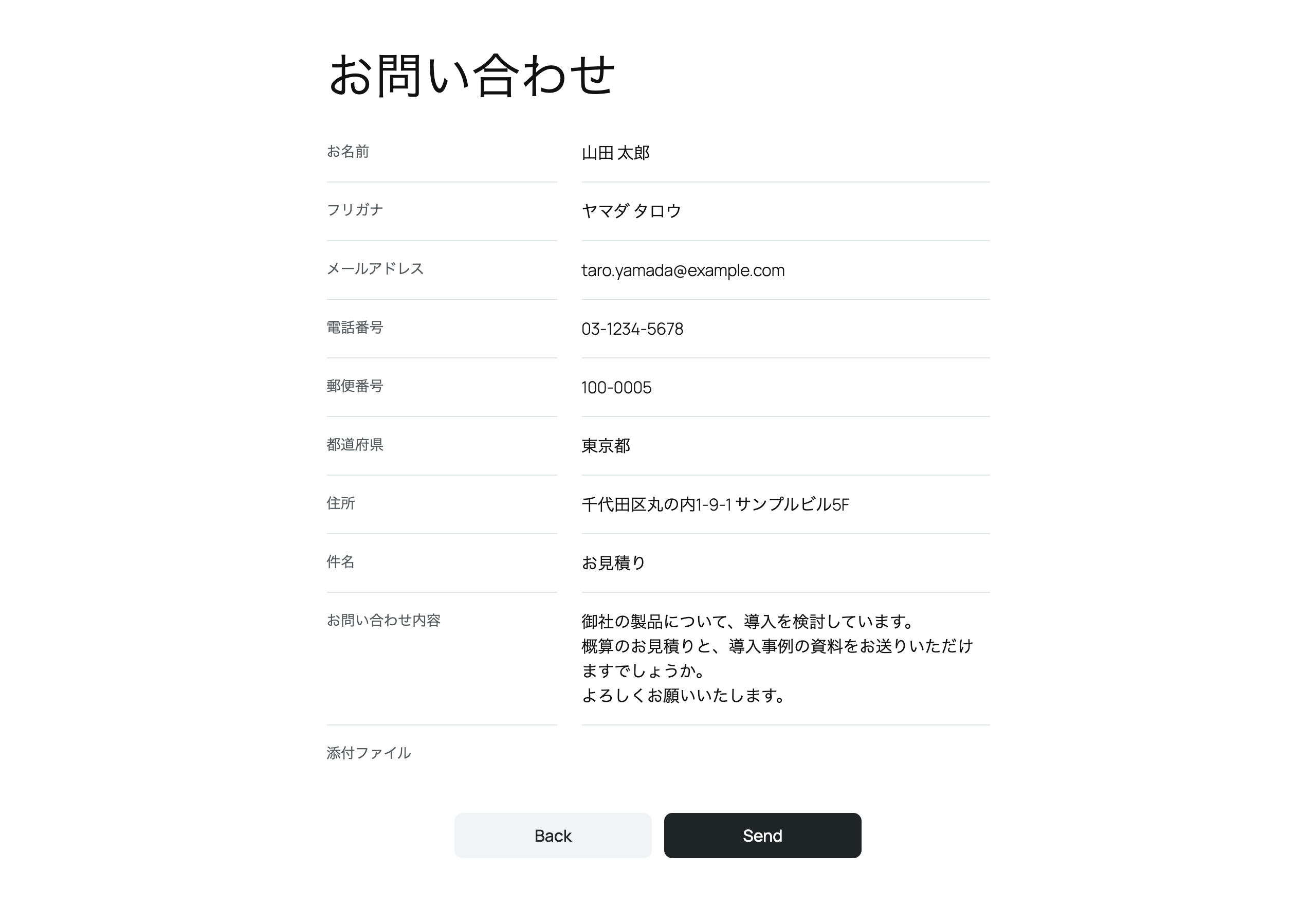
- Confirmation screen and thank-you page with its own URL (trackable in analytics)
- Postal code to address autofill without any external API — the postal code data ships with the plugin
- Prefecture select field, katakana/hiragana validation, and automatic input normalization (full-width to half-width, half-width kana to full-width)
- Form definitions live in the WordPress database and can be exported and imported as JSON to reuse them across sites
- Import forms from MW WP Form: fields, validation rules, mail settings, and the confirmation and complete screens are converted, and a report shows everything that could not be carried over before anything is created
- Import forms from Contact Form 7: form-tags, mail settings, the
[confirm]button of the Contact Form 7 add confirm plugin, and the redirect ofon_sent_okare converted, with the same report - Submissions are stored as files in a protected directory, never in the database
- File attachments with MIME inspection
- reCAPTCHA v3 support
- Works on typical Japanese shared hosting (XSERVER, lolipop, and others)
External Services
This plugin can optionally connect to Google reCAPTCHA v3 to help protect your forms from spam. It only connects to Google if the site owner enables reCAPTCHA by entering a site key and a secret key under Suite Form > Settings. Both keys are required: once both are set, reCAPTCHA is active on every form, and you can turn it off for an individual form from the Form Settings tab of the form builder. If either key is empty, reCAPTCHA is disabled and the plugin makes no external requests at all.
When reCAPTCHA is enabled:
- Every page that displays a Suite Form form with reCAPTCHA turned on loads Google’s reCAPTCHA API script (
https://www.google.com/recaptcha/api.js). - When a visitor submits a form, the plugin sends the visitor’s IP address and a reCAPTCHA verification token to Google’s siteverify endpoint (
https://www.google.com/recaptcha/api/siteverify) to confirm the submission was not made by a bot.
This service is provided by Google LLC. See Google Privacy Policy and Google Terms of Service for more information.
Screenshots



Blocks
This plugin provides 2 blocks.
- Suite Form Embeds a form created with Suite Form.
- Suite Form Complete Screen Shows the completion message after a Suite Form submission.
Installation
- Upload the plugin files to the
/wp-content/plugins/yuiamijp-suite-formdirectory, or install the plugin through the WordPress plugins screen directly. - Activate the plugin through the ‘Plugins’ screen in WordPress.
FAQ
-
Where are submissions stored?
-
In a randomized, access-protected directory under
wp-content/uploads/. Submission data is never written to the database. -
Where are form definitions stored?
-
In the WordPress options table, one option per form (
suite_form_form_{id}) holding the definition as JSON. Because they live in the database, form definitions are included in any database backup or migration, and on a multisite network each site has its own forms. To move a form between sites, use Export and Import in the form list, or read the option with WP-CLI (wp option get suite_form_form_contact). -
What remains after uninstall?
-
Form definitions (options named
suite_form_form_*andsuite_form_forms) and submission data (wp-content/uploads/yuiamijp-suite-form/) are kept, because they are your data. The optionsuite_form_data_dir_namethat records where the submission data is stored is kept as well, so if you install the plugin again it keeps using the same data and keeps deleting submissions after their retention period. Delete them manually if you no longer need them. Development builds before 1.0.0 kept definitions inwp-content/suite-form/, where they were readable over the web; delete that directory too if it is still present. -
What personal data does Suite Form store?
-
Each saved submission record includes the values the visitor entered, plus the visitor’s IP address and browser user agent (useful for spam diagnosis). All of it stays in the access-protected directory on your server and is never sent to any external service. The only exception is reCAPTCHA: when you enable it, the visitor’s IP address is sent to Google as described under External Services.
-
Which file types can visitors attach?
-
The file field accepts only the extensions you list in its
acceptsetting, and each upload is additionally verified against the file’s actual content (MIME inspection). The verified formats are: pdf, jpg/jpeg, png, gif, webp, heic/heif, avif, txt, md, csv, mp4, mov, doc/docx, xls/xlsx, ppt/pptx. Executable files (php, exe, sh, and similar) and archives (zip, rar, 7z, tar, gz, and similar) are always rejected even if listed inaccept. Other extensions are effectively blocked by the content check. In the Mail tab, the{{field_name}}placeholder of a file field inserts the name of the attached file (the same name as the attachment of the admin notification, or nothing if no file was attached). -
Does Suite Form need its own SMTP settings?
-
No. Suite Form sends mail through WordPress’s built-in
wp_mail(), the same function core and most plugins use, so it never handles SMTP credentials itself. Plainwp_mail()delivery is often unreliable or lands in spam on shared hosting. For production use, install an SMTP plugin such as WP Mail SMTP and configure it with your mail provider (SPF/DKIM); Suite Form will use it automatically. In each form’s Mail tab, set the sender address to an address on your site’s domain; a sender on another domain (for example a free webmail address) is likely to fail DMARC checks and land in spam. If your SMTP plugin forces the sender address, that setting takes precedence. The auto-reply’s Reply-To defaults to the admin notification’s recipient addresses, so a visitor who replies to the auto-reply can see all of them; set the auto-reply’s own Reply-To in the Mail tab if you’d rather not expose them.Suite Form also sets the envelope sender (Return-Path) of its own messages to the From address. Without an SMTP plugin,
wp_mail()falls back to PHP’smail(), and on some hosts the envelope sender then becomes a host-side address instead of your From address. SPF is then checked against the host’s domain rather than yours, so the message cannot pass DMARC through SPF and may land in spam or be rejected, even thoughwp_mail()reports success. On hosts that already use the From address as the envelope sender (lolipop, for example), and when sending through an SMTP plugin, this changes nothing. With the envelope sender aligned, SPF is evaluated against your domain, so make sure your domain’s SPF record includes your hosting provider’s mail servers. Bounces now return to the From address; if your domain’s SPF record lists only an external mail provider (for example Google Workspace) and not your host, aligning the envelope sender can make SPF fail where the host’s default used to pass. Developers can add their host to the SPF record, or turn this off (or point it at a dedicated bounce address) with thesuite_form_envelope_senderfilter (seedocs/hooks.mdin the plugin folder; written in Japanese). -
What happens when an email cannot be sent?
-
The visitor still sees the thank-you page, and the submission is written to the protected data directory with
_statusset tomail_failed(even on forms that do not otherwise store submissions), so nothing is lost. Suite Form then shows a red notice at the top of the admin screens (the block editor hides such notices) to users who can manage forms, with the number of affected submissions per form and the last error reported bywp_mail()(for example, an SMTP authentication failure). Fix the mail settings, usually in your SMTP plugin, handle the stored submissions, then click “Mark as checked” in the notice. The same notice reports submissions that were interrupted mid-send and recovered by the hourly cleanup task (_status: unknown), and submissions that could not be saved at all. The notice never contains what the visitor entered; it only counts failures and keeps the error message with email addresses masked. -
Can the admin notification go to different people depending on what the visitor selects?
-
Yes. In the form’s Mail tab, under Admin Notification, choose a select or radio field in “Route by field”, then enter recipients and Cc for each option. An option whose recipients or Cc are left empty uses the form’s main recipients or Cc. The auto-reply’s Reply-To follows the routed recipients, so a visitor who replies reaches the people who received the notification. Addresses are always the ones you enter in the form settings; what the visitor selects only decides which of them are used. Because an empty field falls back to the main setting, you cannot make a single option skip a Cc that the main setting sends to everyone else. If you need that, leave the main Cc empty and enter the address explicitly in every rule that should receive it.
-
Can I show a field only when a specific option is selected?
-
Yes. Open the field in the Fields tab, choose the select, radio, or checkbox field it depends on in “Show this field” under Display condition, then check the options that should show it. The field is shown only while one of the checked options is selected, and a required field is required only while it is shown. When it is hidden, its value is discarded on the server and is neither sent in emails nor stored, even if the visitor typed something before changing the option. A field used in a display condition cannot have a display condition itself.
-
How can I test a form without sending email to the real recipients?
-
In the form’s Form Settings tab, turn on “Send the admin notification only to the tester” under Test sending. While it is on, when a user who can edit forms submits the form while logged in, the admin notification is sent only to the address entered there (or, if it is empty, to that user’s own email address), without Cc or Bcc. Its subject starts with [Test], and its body lists the To, Cc, and Bcc it would normally be sent to, so you can check the recipients and routing as well. The auto-reply is sent as usual to the address entered in the form. Submissions from visitors who are not logged in are not affected, so forgetting to turn it off does not lose real inquiries, but turn it off when you are done. The form list shows a “Test mode” badge while it is on.
-
Where does the postal code data come from?
-
The bundled data is derived from Japan Post’s freely redistributable ken_all data and is refreshed through plugin updates.
-
Can I move my forms from MW WP Form?
-
Yes. When the site has MW WP Form forms, the form list shows an “Import from another plugin” button. Pick a form, and Suite Form shows how it will be converted (fields, validation rules, mail settings, the confirmation screen, and the complete page) together with a report of what cannot be carried over, before anything is created. The original form is not changed, and the import works even when MW WP Form is deactivated, as long as its forms remain in the database. Pages are not rewritten: after checking the new form, replace the old form on each page with the Suite Form block or shortcode. Past submissions are not imported.
-
Can I move my forms from Contact Form 7?
-
Yes, in the same way. Pick a Contact Form 7 form in the “Import from another plugin” dialog, check the report, and create the form. Form-tags become fields (an acceptance checkbox becomes a required checkbox, a select of the 47 prefectures becomes a Prefecture field), mail tags in the mail templates are rewritten, and literal Reply-To, Cc, and Bcc addresses of Mail are carried over. Contact Form 7 has no confirmation screen: the imported form gets one when the original used the
[confirm]button of the Contact Form 7 add confirm plugin. The complete page is taken from anon_sent_okredirect when there is one; otherwise create a complete page after the import. Mail (2) is carried over as the auto-reply when it is addressed to an email field of the form. Error messages, reCAPTCHA keys, and submissions stored by Flamingo are not imported. The original form is not changed, and the import works even when Contact Form 7 is deactivated. -
Can I customize Suite Form with code?
-
Yes. Suite Form provides filters and actions for changing the form definition at runtime, generating select options dynamically, setting initial values, adding cross-field validation, adjusting what gets stored, customizing mail merge tags, choosing the completion page, and reacting after a submission (for example, to notify Slack). See
docs/hooks.mdin the plugin folder (written in Japanese) for the full list with examples. -
Can I change the error messages?
-
Yes. Suite Form > Settings > Error messages sets the site-wide defaults, and the Error messages group in each field’s settings in the form builder overrides them for that field. Leave a message empty to use the built-in text shown as its placeholder. In the messages for character limits,
%dis replaced with the limit.
Reviews
There are no reviews for this plugin.
Contributors & Developers
“yuiami.jp Suite Form” is open source software. The following people have contributed to this plugin.
Contributors
“yuiami.jp Suite Form” has been translated into 1 locale. Thank you to the translators for their contributions.
Translate “yuiami.jp Suite Form” into your language.
Interested in development?
Browse the code, check out the SVN repository, or subscribe to the development log by RSS.
Changelog
1.1.1
- Documentation: corrected the list of file types that visitors can attach. ZIP and other archive files are always rejected.
1.1.0
- Added display conditions: show a field only when a specific option is selected in a select, radio, or checkbox field. A hidden field is not required, and its value is discarded.
- The
{{field_name}}placeholder of a file field now inserts the name of the attached file in mail subjects and bodies. Thesuite_form_merge_tagfilter no longer runs for these placeholders. - Added test sending: while it is on, the admin notification for submissions from logged-in users who can edit forms is sent only to the tester, with the usual recipients listed in the body.
1.0.0
- Initial release.
- reCAPTCHA v3 is active on every form once the site key and secret key are set. Turn it off per form from the Form Settings tab.