
Description
Botveil scores every checkout attempt, on the classic shortcode checkout and the Checkout block, and decides what to do:
- Allow – normal orders go straight through.
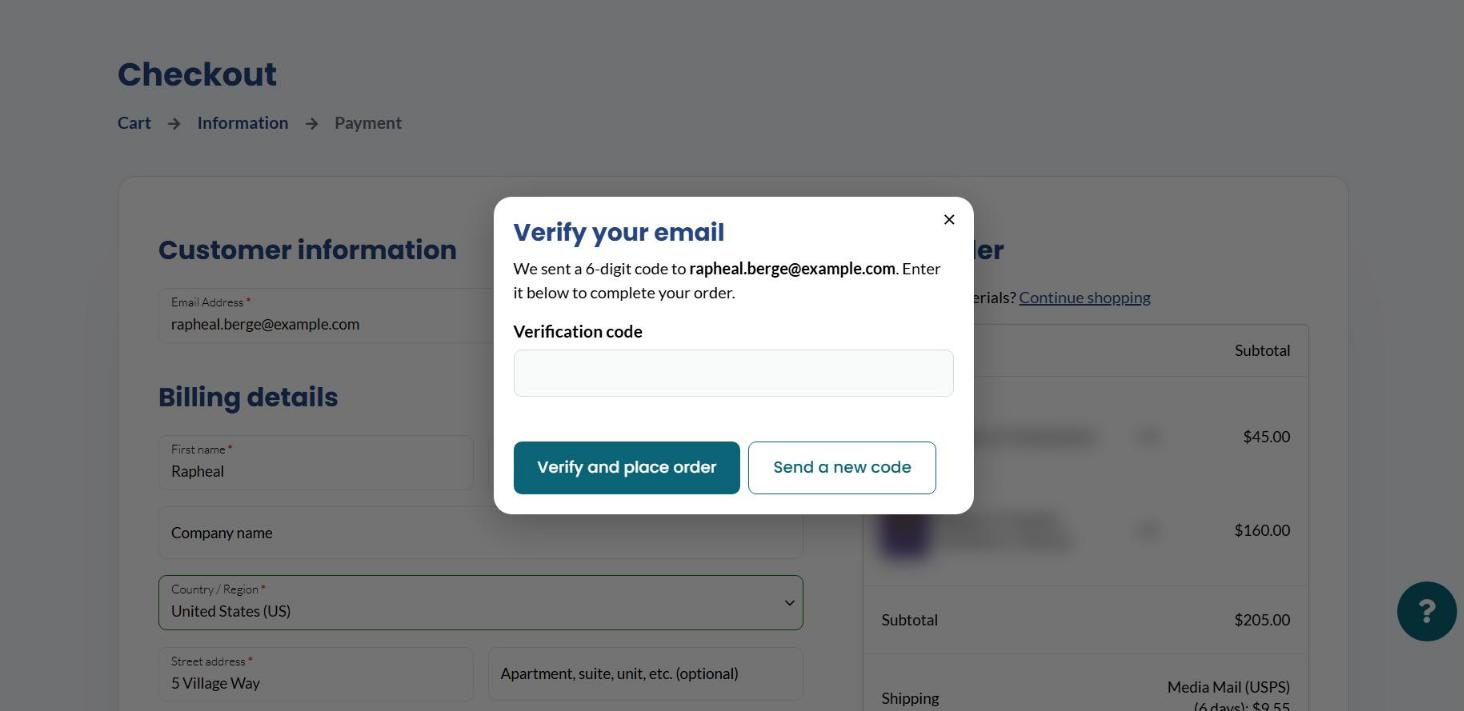
- Require email code – risky orders must enter a 6-digit code sent to the billing email.
- Hold for review – the order is placed but put on hold.
- Block – the checkout is refused with a generic message.
How the score works
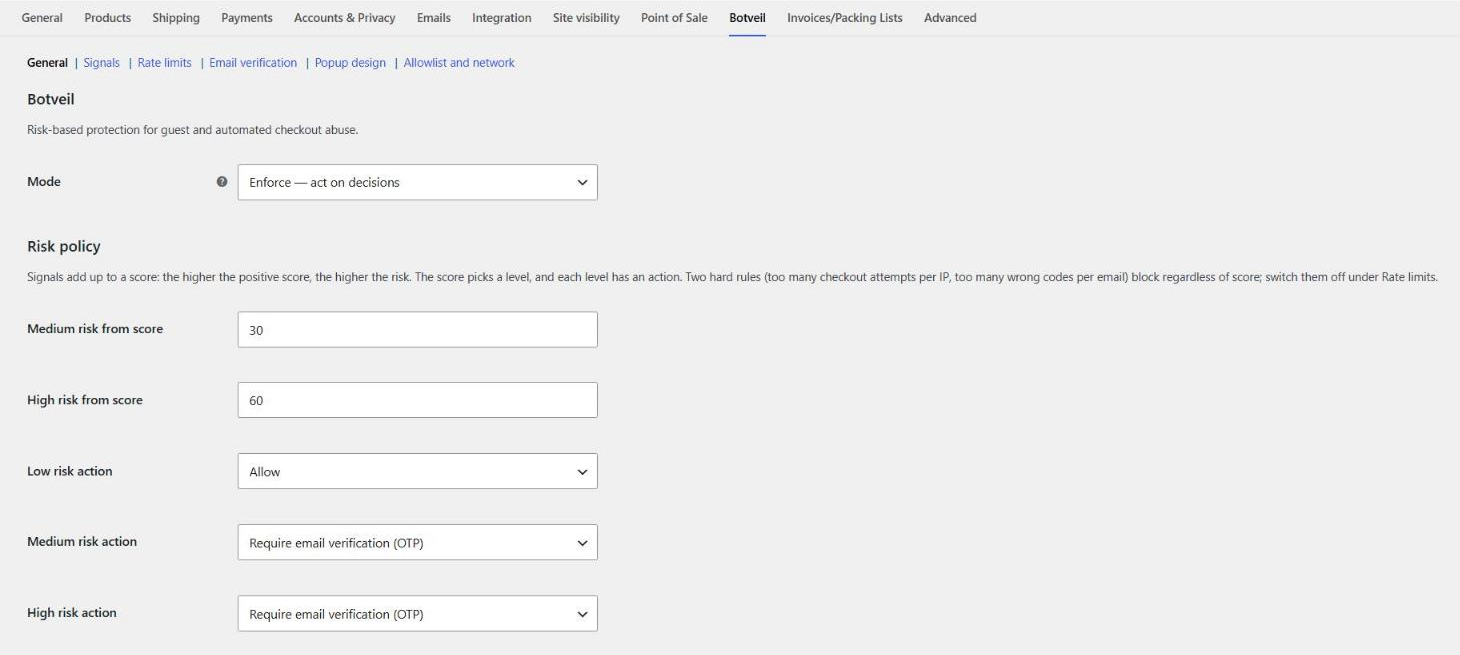
Signals add points: guest checkout, many checkout attempts from one IP, failed payments (card testing), wrong or excessive verification codes, high order value. Trusted returning customers subtract points. You choose the thresholds and the action for low, medium and high risk.
Limits and bans
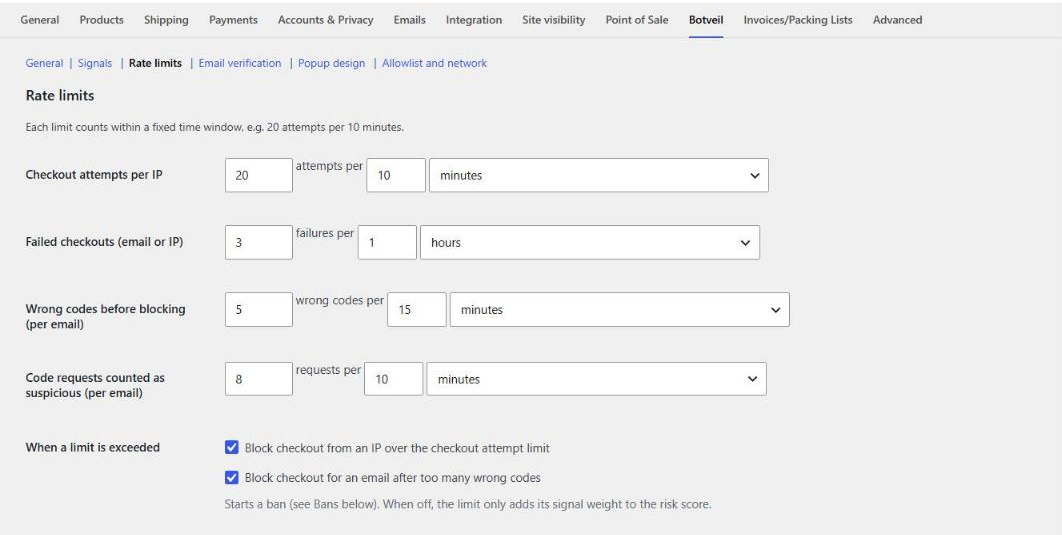
- Rate limits per IP and per email, with an inline “N attempts per X seconds / minutes / hours” setting.
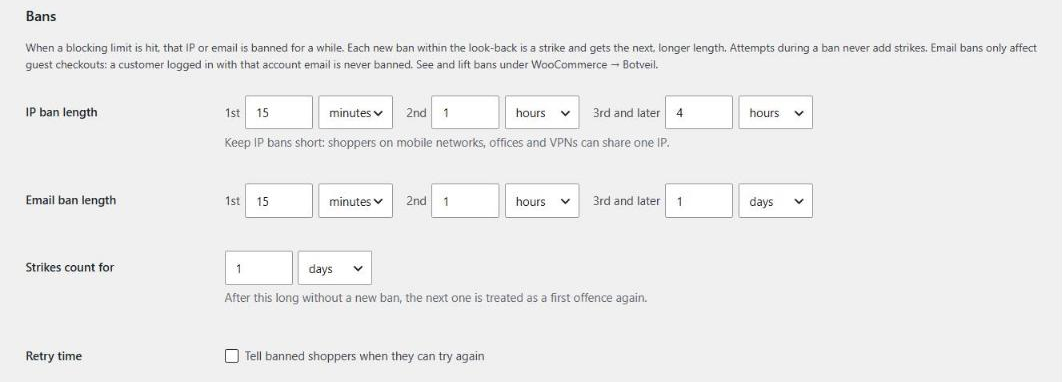
- Too many checkout attempts from an IP, or too many wrong codes for an email, blocks and bans that IP or email for a while. Repeat offences get longer bans (15 min 1 h 4 h for IPs by default). Email bans never affect a customer logged in with that email.
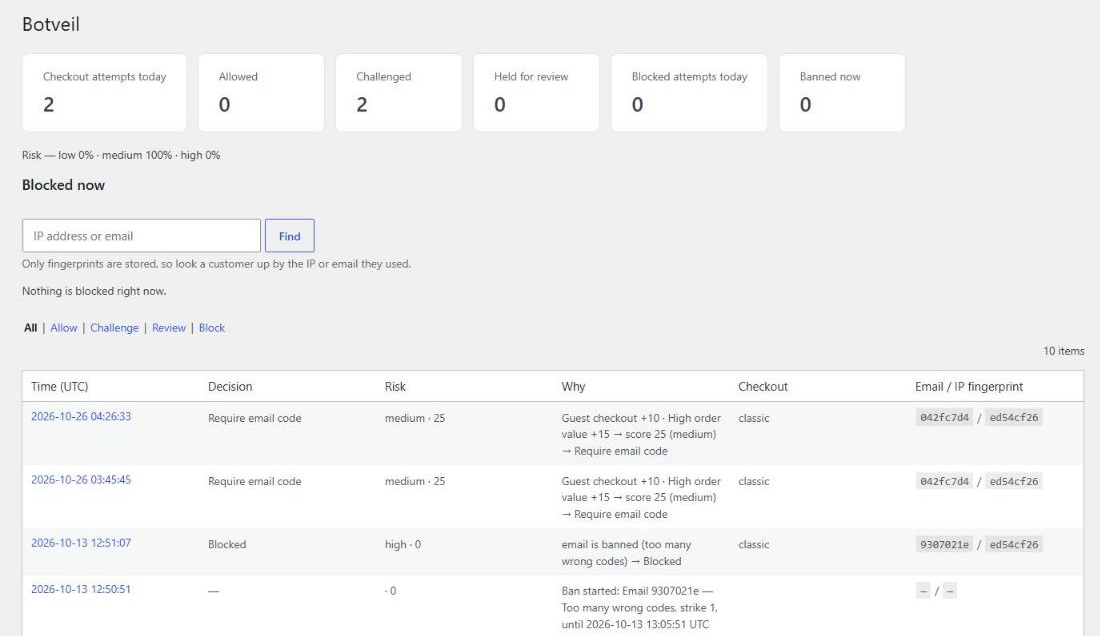
- The dashboard lists active and recent bans with the IP or email, the matching customer, a link to their events, and Unblock.
Verification popup
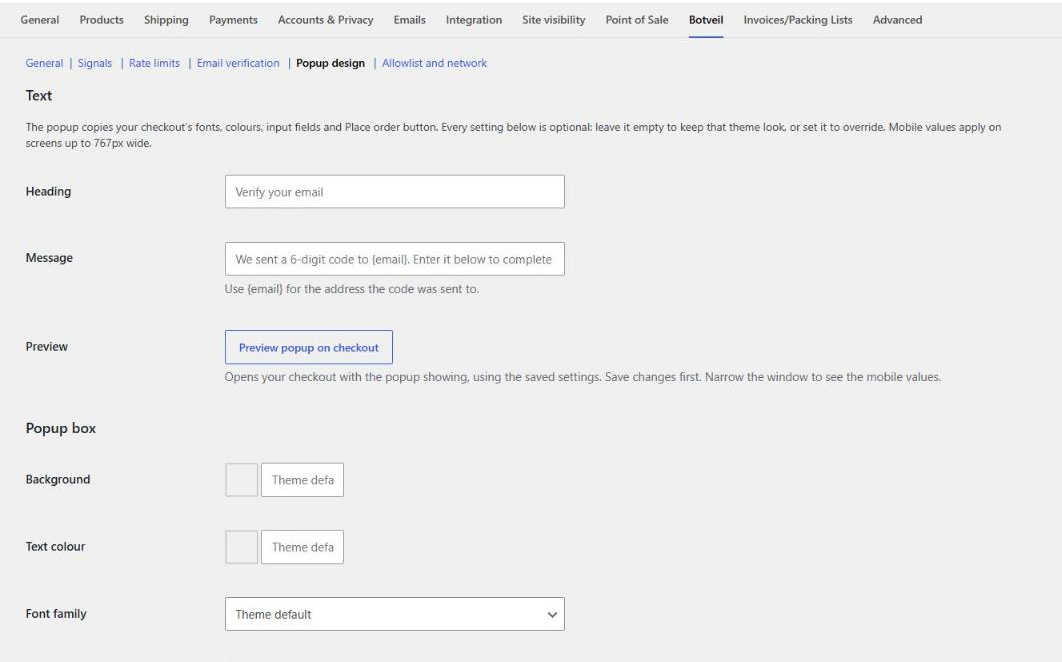
The code popup copies your checkout’s fonts, colours, inputs and Place order button, so it looks like part of your theme. Every element can be restyled (typography, colours, spacing, borders, hover states, separate mobile values), with theme, system or Google Fonts. The code email uses your WooCommerce email design and is editable under WooCommerce Settings Emails.
Privacy by design
Emails and IP addresses are stored only as keyed hashes (HMAC-SHA256) for scoring and the event log. Only an active ban keeps the banned IP or email, encrypted, so staff can identify and lift it; it is deleted with the ban. Personal data export and erasure are supported, and the plugin suggests privacy policy text.
Monitor mode
Start in monitor mode to see what would be challenged or blocked without affecting customers, then switch to enforce.
External services
This plugin connects to Google Fonts only if an administrator picks a Google Font in Settings Botveil Popup design.
- What and when: when the popup design is saved, the site downloads the stylesheet for the chosen families from
https://fonts.googleapis.comand the font files fromhttps://fonts.gstatic.com, and stores them inwp-content/uploads/cshield-fonts/. Shoppers’ browsers then load the fonts from your own site and never contact Google. - Data sent: the font family names and weights, plus the request metadata any HTTP request carries (your server’s IP address and a user agent). No visitor, customer or order data is sent.
- Provider: Google LLC — Terms of Service, Privacy Policy, Google Fonts FAQ.
No other external service is used. Verification emails are sent through your site’s own mailer (WooCommerce / wp_mail).
Screenshots

Installation
- Install and activate WooCommerce.
- Upload the plugin and activate it, or install it from Plugins Add New.
- Go to WooCommerce Settings Botveil. New installs start in Enforce mode with safe defaults. To trial first, switch to Monitor, review WooCommerce Botveil for a few days, then switch back to Enforce.
- Behind Cloudflare, a CDN or a load balancer: add its IP ranges under Settings Botveil Allowlist and network Trusted proxies, and set Client IP header (e.g.
CF-Connecting-IP). - Optional: style the code popup under Settings Botveil Popup design, and edit the code email under WooCommerce Settings Emails Checkout verification code.
- Optional, for developers: define
CSHIELD_SECRETinwp-config.phpto keep the hashing and encryption key out of the database. Set it before going live; changing it later makes existing fingerprints and stored bans unreadable.
Settings overview
All settings are under WooCommerce Settings Botveil:
- General – mode (Enforce, Monitor only, Off), score thresholds (medium from 30, high from 60) and the action for each risk level.
- Signals – the weight of each signal, plus the high order value amount and the number of paid orders that make a customer trusted.
- Rate limits – checkout attempts per IP (20 per 10 min), failed checkouts (3 per hour), wrong codes (5 per 15 min), code requests (8 per 10 min); whether the IP and wrong-code limits block; ban lengths, strike look-back and the “try again in …” message.
- Email verification – code lifetime (5 min), attempts per code (5), wait between codes (60 s), new codes per verification (3), and how much the total may rise after verifying (10%).
- Popup design – text, colours, fonts, spacing, borders and hover states for every popup element, with separate mobile values.
- Allowlist and network – allowlisted IPs and emails, trusted proxies, client IP header, event retention (30 days) and delete-on-uninstall.
FAQ
-
Do I need an account or API key?
-
No. Botveil runs entirely on your own site. There is no sign-up and no API key, and no outside service is used unless you pick a Google Font for the popup. Verification emails are sent by your store like any other WooCommerce email.
-
Can I try it without affecting customers?
-
Yes. Set Mode to Monitor only under WooCommerce Settings Botveil. Every checkout is checked and logged, but nobody is challenged or blocked. Review what would have happened under WooCommerce Botveil, then switch to Enforce.
-
Will it block real customers?
-
Normal checkouts go straight through. Risky ones are asked for a code sent to their email rather than blocked. Blocking only happens for clear abuse, such as many checkout attempts from one connection or many wrong codes, and you can switch both off. You can also allowlist your own IPs and trusted customers.
-
Does it work with the Checkout block and my theme?
-
Yes. It works with both the Checkout block and the classic checkout page. The code popup copies your checkout’s fonts, colours and buttons, and you can restyle it under Settings Botveil Popup design.
-
Will it slow down checkout?
-
Checks run only when an order is placed, not while shoppers fill in the form, and add about four quick database lookups. Sites with a persistent object cache use it instead.
-
Real customers are asked for a code too often. What should I change?
-
Open WooCommerce Botveil and check the “Why” column to see what triggered the code. Then raise Medium risk from score under Settings Botveil General, or lower the weight of that signal (usually Guest checkout) under Settings Botveil Signals.
-
Everyone is suddenly blocked. Why?
-
Your site is probably behind Cloudflare, another CDN or a load balancer, so every visitor appears to come from the same address. Under Settings Botveil Allowlist and network, add its IP ranges to Trusted proxies and set Client IP header (
CF-Connecting-IPfor Cloudflare). Then unblock the address under WooCommerce Botveil. -
How do I lift a ban?
-
Go to WooCommerce Botveil Blocked now and click Unblock, or use Find to look up an IP address or email.
-
What happens to orders held for review?
-
They are placed with status On hold and get an order note saying Botveil flagged them. The reasons are in the WooCommerce Botveil event log. Process or cancel the order as usual.
-
Shoppers don’t receive the code email.
-
Codes are sent through your site’s normal mailer, so check that your store’s emails are delivered reliably (an SMTP plugin helps). You can edit the email under WooCommerce Settings Emails Checkout verification code.
-
How do I preview the popup?
-
Click Preview popup on checkout under Settings Botveil Popup design. No code is checked in preview.
-
What customer data does it store?
-
Emails and IP addresses are stored only as scrambled fingerprints, not as readable values. A ban keeps the banned email or IP encrypted so you can see who is blocked, and it is deleted along with the ban record. Events are deleted after 30 days by default, and WordPress’s personal data export and erase tools are supported.
-
Something went wrong. How do I turn it off quickly?
-
Set Mode to Off under WooCommerce Settings Botveil. If you can’t reach the admin, add
define( 'CSHIELD_EMERGENCY_DISABLE', true );towp-config.php.
Reviews
There are no reviews for this plugin.
Contributors & Developers
“Botveil Checkout Protection for WooCommerce” is open source software. The following people have contributed to this plugin.
Contributors
Translate “Botveil Checkout Protection for WooCommerce” into your language.
Interested in development?
Browse the code, check out the SVN repository, or subscribe to the development log by RSS.
Changelog
0.6.0
- Renamed to “Botveil Checkout Protection for WooCommerce” (slug botveil-checkout-protection-for-woocommerce).
- Settings and Botveil links on the Plugins screen.
0.5.2
- Fix: the verification popup did not open on the Checkout block with WooCommerce 11+.
0.5.1
- Removed one-time upgrade code used during development.
0.5.0
- Renamed to “Botveil Checkout Protection for WooCommerce” (slug
botveil-checkout-protection-for-woocommerce); settings, tables and hooks now use thecshield_prefix. - Added
readme.txtwith external services documentation. - Monitor/off notice can be dismissed per admin and reappears if the mode changes.
- Settings script moved to an enqueued file; database queries simplified.
0.4.4
- Dashboard: “Blocked attempts today” and a “Recently banned” list.
0.4.3
- Ban list shows the IP or email (encrypted at rest), customer link and events link.
0.4.0
- Timed bans with escalation for repeat offenders.
0.3.0
- Full popup style controls, self-hosted Google Fonts, separate mobile values.
0.2.0
- Popup matches the theme; verification code email is a WooCommerce email.
0.1.0
- First release.