
Description
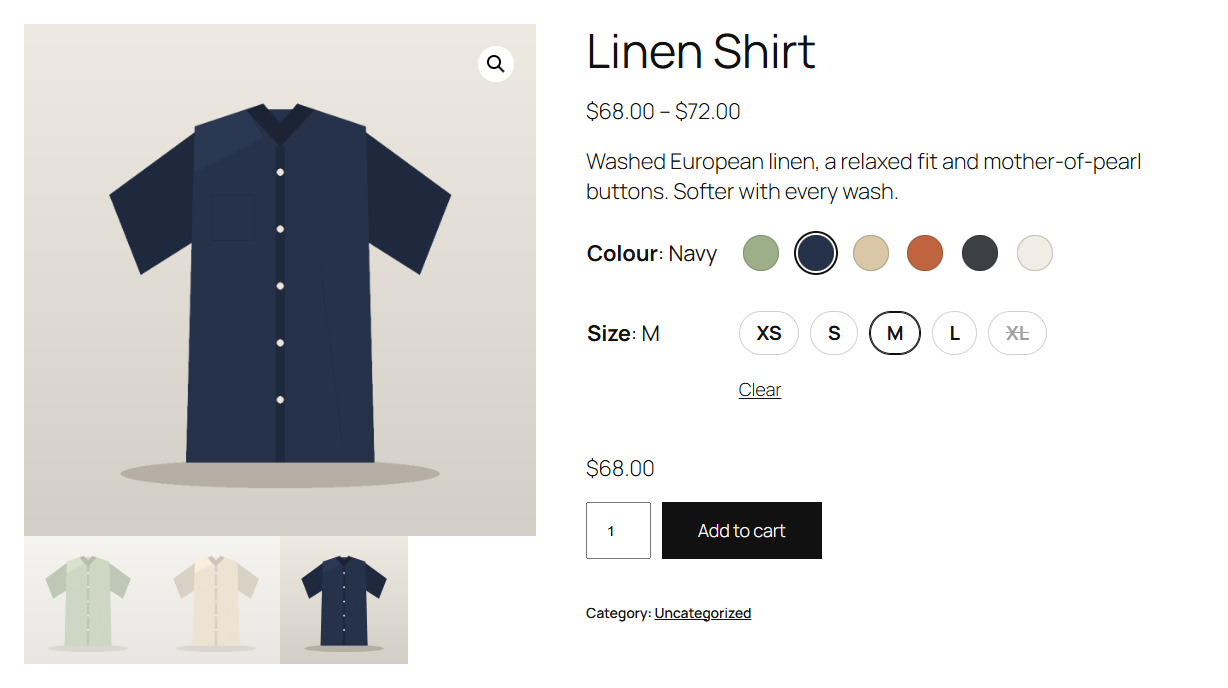
Let customers pick a colour by its colour, a finish by its photo and a size by a button. Swatchline turns the attribute dropdowns of your variable products into swatches. No code, and nothing to change on your products.
Set up once, per attribute
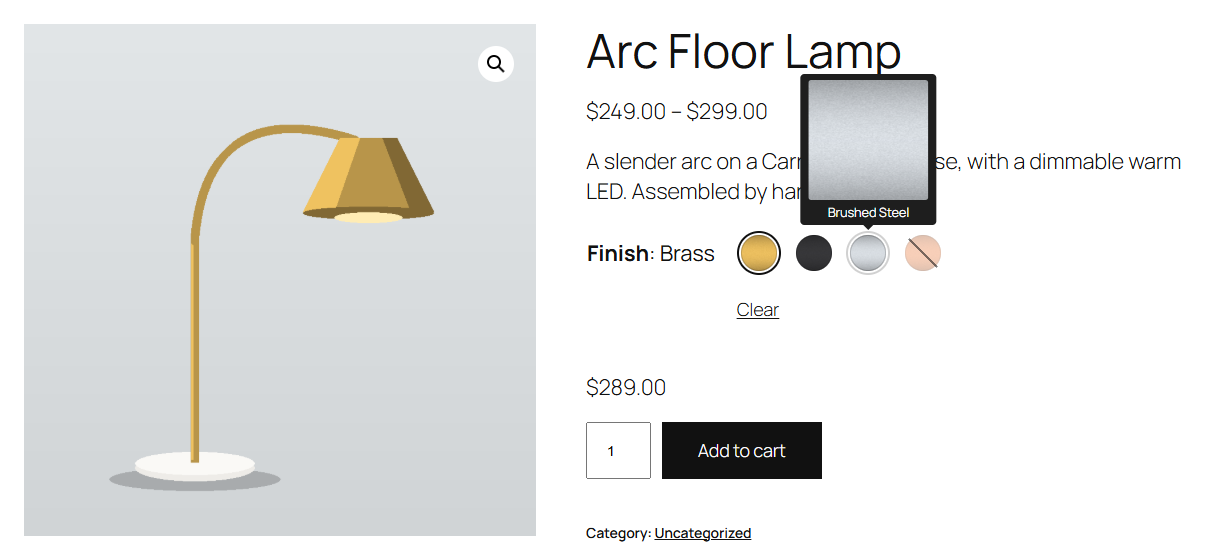
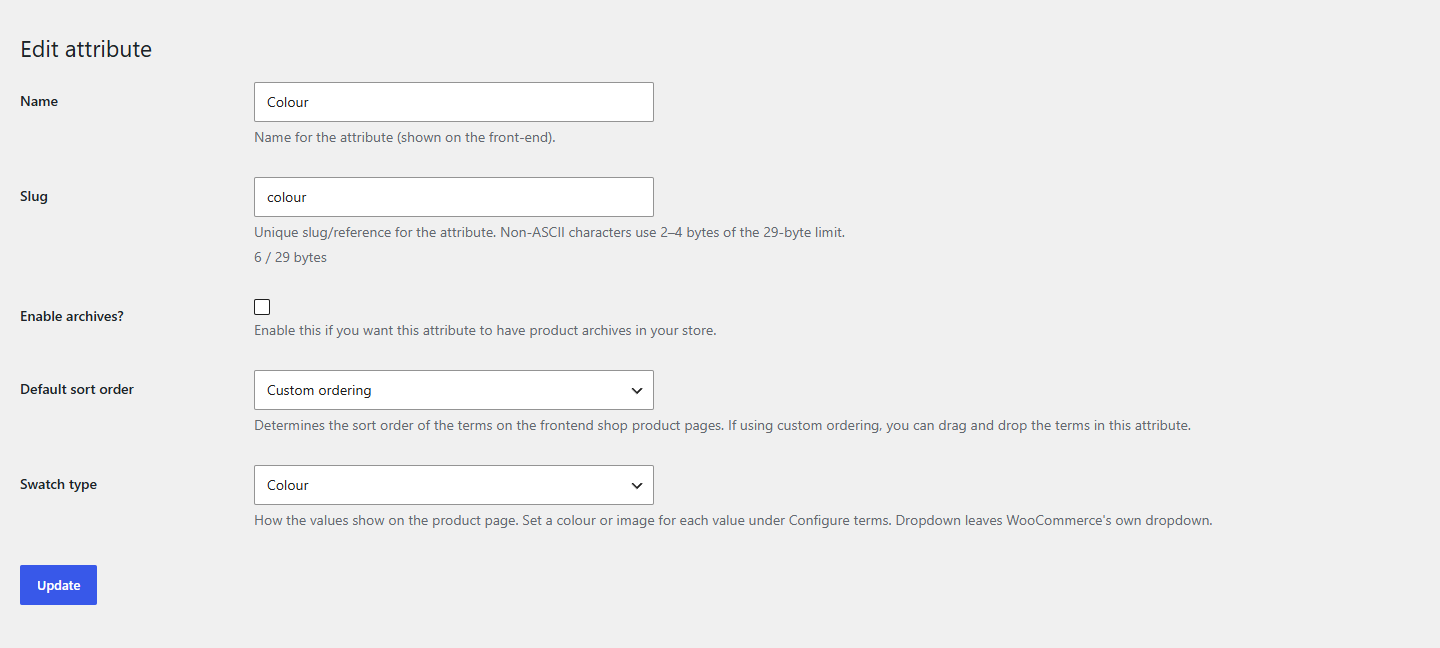
- Choose a swatch type for each global attribute under Products Attributes: Colour, Image, Label (buttons) or Dropdown (WooCommerce’s own, the default).
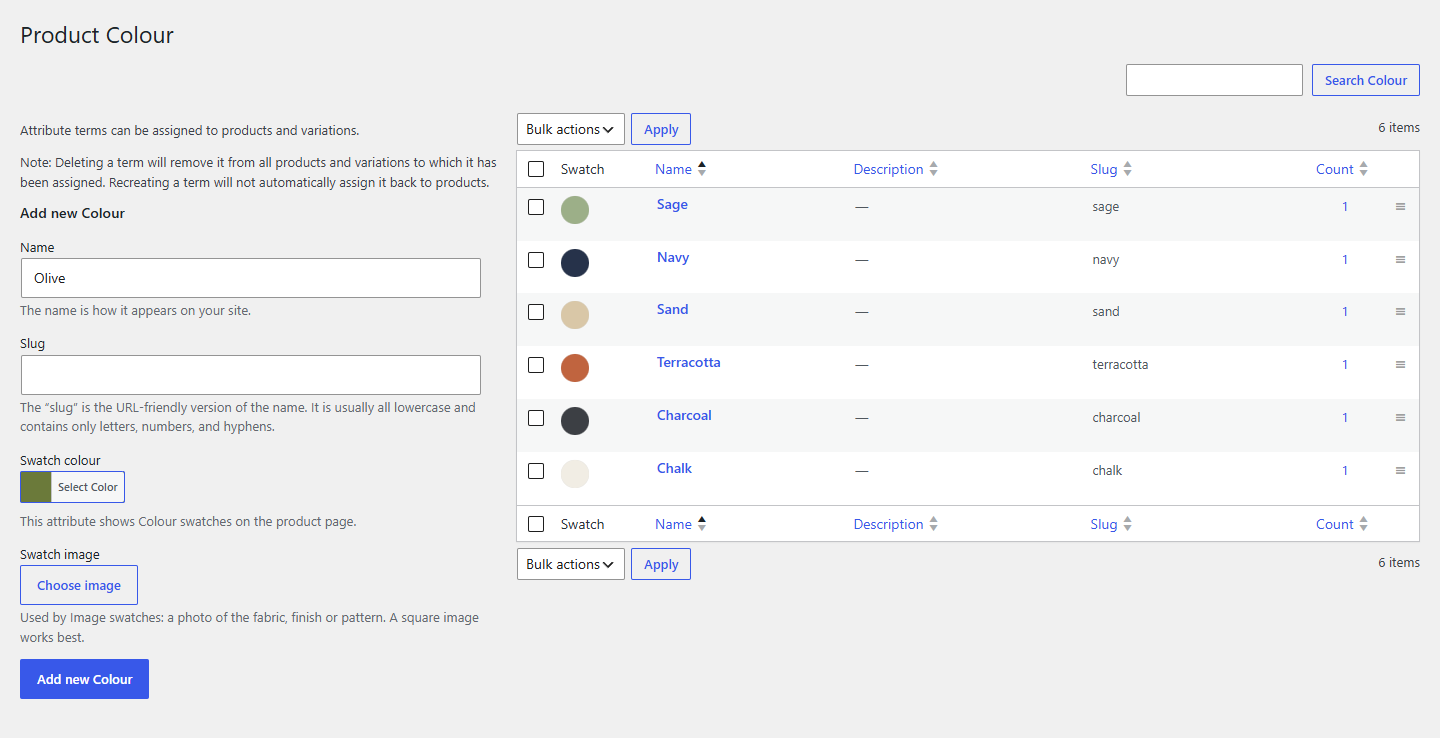
- Give each value a colour (WordPress’s colour picker) or an image (from the media library) under Configure terms. The term list shows them in a Swatch column.
- Attributes you type on a single product can show as label swatches too, if you switch that on.
On the product page
- Swatches replace the dropdowns of the variation form. WooCommerce’s dropdowns stay in the form, hidden, so the price, image, stock and add to cart update exactly as they always do, and so does anything else that works with them.
- Combinations that can’t be bought are crossed out: out of stock, or no such variation with what the customer already chose. That works for products with any number of variations, also above the number where WooCommerce stops loading them all into the page.
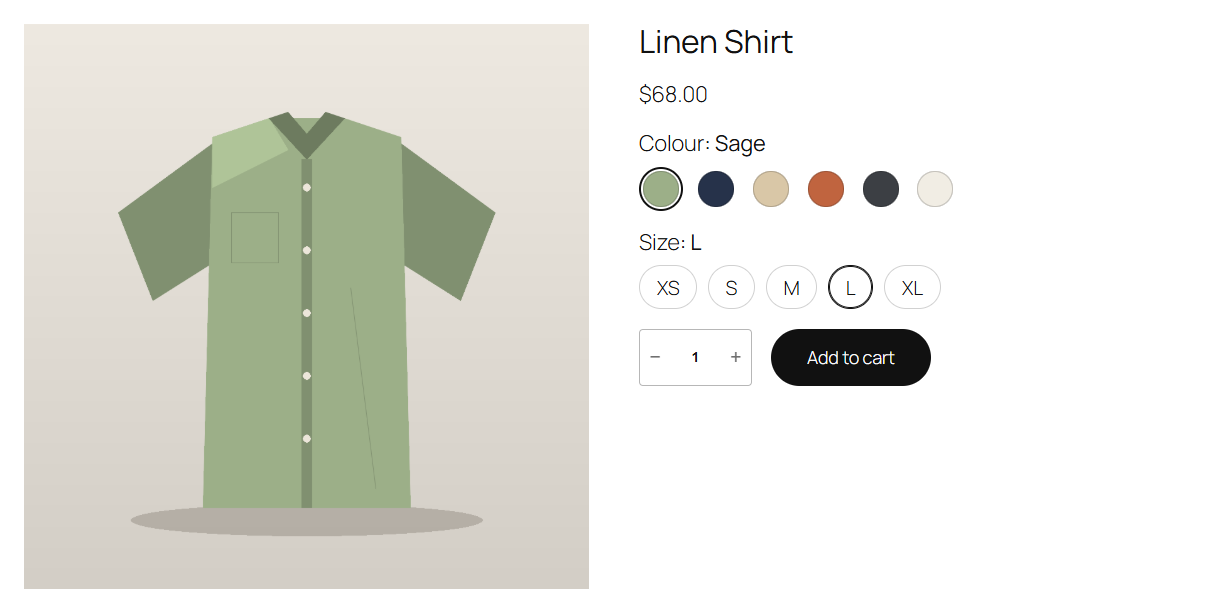
- The chosen value shows next to the attribute’s name (“Colour: Sage”). WooCommerce’s Clear link clears the swatches; choosing a chosen swatch again clears it too.
- Tooltips with the value’s name, and a larger preview for image swatches.
- Accessible: each attribute is a radio group, so the keyboard’s arrow keys move between swatches, the focus is clearly visible, and screen readers read out each value and whether it’s out of stock.
- Works in classic themes such as Storefront and in block themes: in the Add to Cart Form block and in the Add to Cart + Options block, where Swatchline’s swatches take the place of the block’s text chips.
Settings
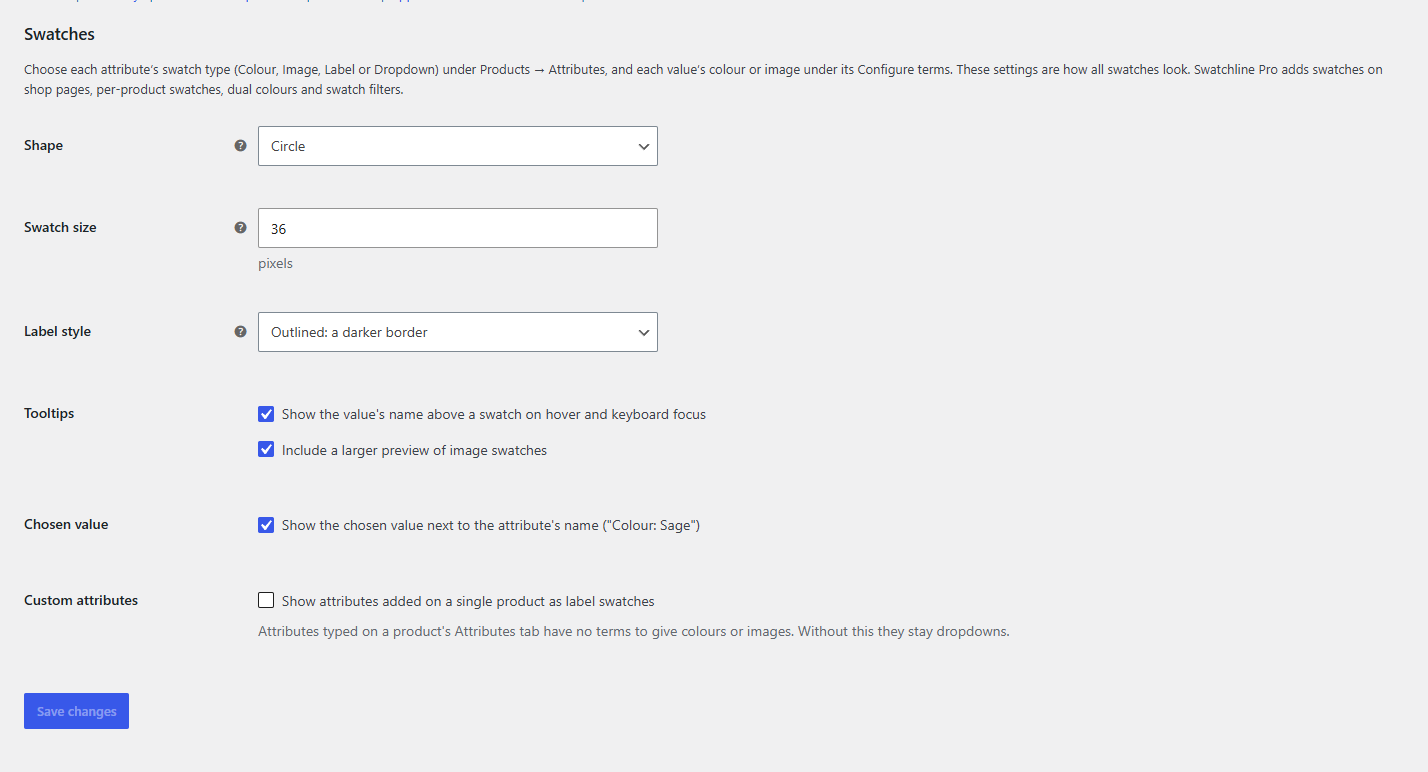
Under WooCommerce Settings Products Swatches: the shape (circle, rounded or square), the size, how the chosen label swatch looks, tooltips and image previews, the chosen value next to the name, and label swatches for custom attributes.
For developers
Swatchline is built to be extended: add swatch types (swatchline_swatch_types), change an attribute’s type on a product (swatchline_attribute_type), its swatches, colours and images (swatchline_attribute_swatches), the variation data the page uses (swatchline_variation) and the script’s settings (swatchline_frontend_config). swatchline_loaded fires once Swatchline has loaded. The hooks are documented on extendiment.com.
Swatchline Pro
The separate Swatchline Pro add-on adds swatches on shop and category pages and in Product Collection blocks (with the product image changing to the variation’s, and add to cart from the shop), swatches set per product (also for custom attributes), sold-out swatches blurred or hidden, two-colour swatches, image swatches from the variations’ own images, and swatches in the shop’s attribute filters. Everything described above is in this plugin and works without it. See extendiment.com/plugins/swatchline.
Screenshots
Installation
- Install and activate Swatchline from Plugins Add New Plugin, or upload the zip there. WooCommerce must be active.
- Go to Products Attributes, edit an attribute (or add one) and set its Swatch type to Colour, Image or Label.
- For Colour and Image, click Configure terms, edit each value and choose its colour or image.
- Open a variable product that uses the attribute: its dropdown is now a row of swatches.
FAQ
-
Which products show swatches?
-
Variable products, for each attribute used for variations whose swatch type isn’t Dropdown. Attributes you added on a single product (not under Products Attributes) show as label swatches when “Custom attributes” is switched on in the settings.
-
Does it work with my theme?
-
Swatchline adds its swatches where WooCommerce draws the attribute dropdowns, so it works with themes that use WooCommerce’s variation form: classic themes like Storefront, and block themes with the Add to Cart Form or Add to Cart + Options block. Its styles follow your theme’s text colour and font.
-
Why is a swatch crossed out?
-
No variation can be bought with it and the values already chosen: either the variation is out of stock, or it doesn’t exist (for example, Navy only comes in S and M, and the customer chose L). Hover over it, or focus it with the keyboard, for the reason.
-
My product has hundreds of variations. Does crossing out still work?
-
Yes. Above 30 variations WooCommerce no longer puts them all in the page and looks a variation up only once everything is chosen. Swatchline adds a compact list of which combinations exist and are in stock, read in two quick database queries, so swatches are crossed out the same way.
-
What about WooCommerce’s own swatches in block themes?
-
WooCommerce’s Add to Cart + Options block shows an attribute’s values as text chips. For an attribute with a swatch type, Swatchline shows its swatches there instead, through the block’s own dropdown, so the block keeps working as WooCommerce built it. Attributes left on Dropdown keep the block’s chips or dropdown.
-
What happens to my data if I delete Swatchline?
-
When you click Deactivate on the Plugins screen, Swatchline asks what should happen to its data if you then delete the plugin. Keep it (the default) and the swatch types, colours and images are still there if you install Swatchline again. Choose Delete it permanently when the plugin is deleted to have them removed when you delete it. Your attributes and products are never touched: they show WooCommerce’s dropdowns again.
-
Can I translate Swatchline?
-
Yes, on translate.wordpress.org. The template is also included as
languages/swatchline.pot. Attribute and value names are what you type under Products Attributes.
Reviews
There are no reviews for this plugin.
Contributors & Developers
“Swatchline – Variation Swatches for WooCommerce” is open source software. The following people have contributed to this plugin.
Contributors
Translate “Swatchline – Variation Swatches for WooCommerce” into your language.
Interested in development?
Browse the code, check out the SVN repository, or subscribe to the development log by RSS.
Changelog
1.0.1
- Fixed: On a multisite network, deleting the plugin now removes a site’s data only if that site chose to; deactivating it on one site no longer decides for the others.
- Fixed: Saving an attribute no longer resets a swatch type that an inactive add-on had set for it.
- Fixed: The Swatch image field of an attribute value is now named by its label, for screen readers and keyboard users.
1.0.0
- First release.