Description
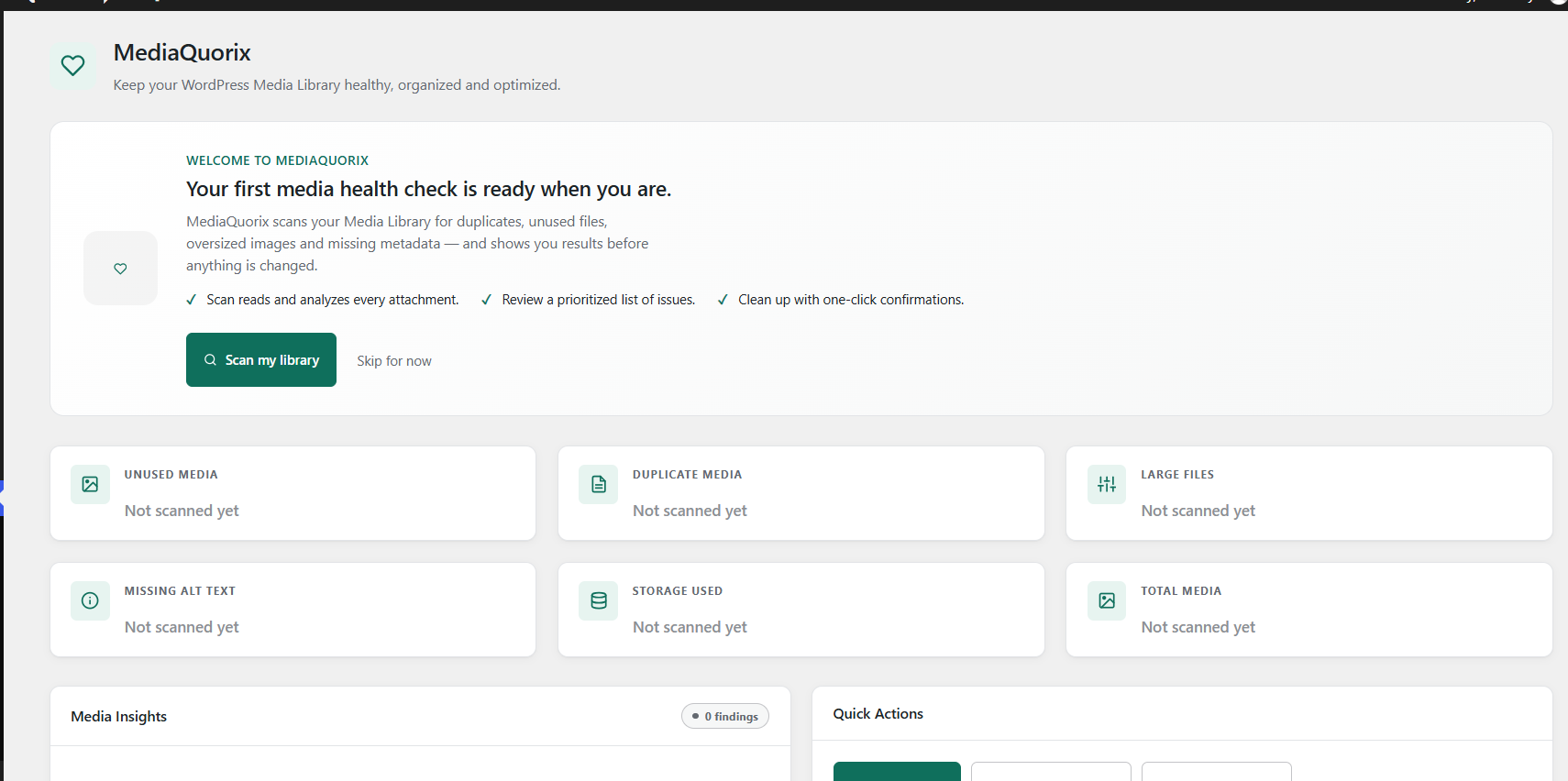
MediaQuorix helps you keep your WordPress Media Library healthy, organized and easier to maintain.
Use MediaQuorix to review your media library, identify potential issues and manage media files from a dedicated administration area.
Features include:
- Media Health Dashboard: View your media health score, summary cards and key media insights.
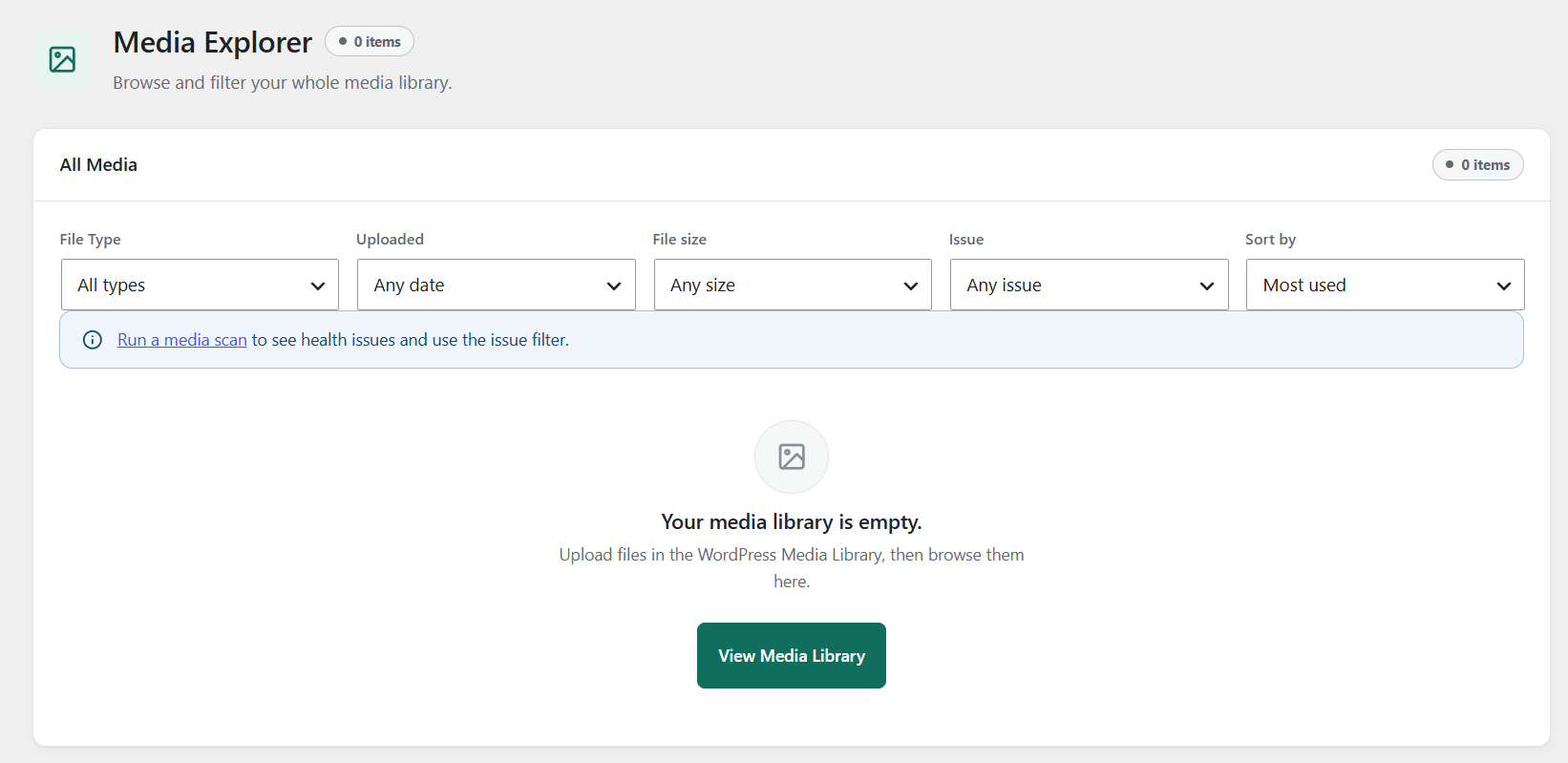
- Media Explorer: Browse and filter media files by file type, upload date, file size, issues and sorting options.
- Media Scanning: Scan your library to identify potential issues, including unused media, duplicates, large files, oversized images and missing metadata.
- Issues Hub: Review findings from the latest scan, grouped by issue type, with links to affected media and relevant management screens.
- Missing Alt Text: Find images with missing alt text, titles or captions and edit available metadata inline.
- Large Media: Review files by size, identify unusually large files and use the available bulk actions.
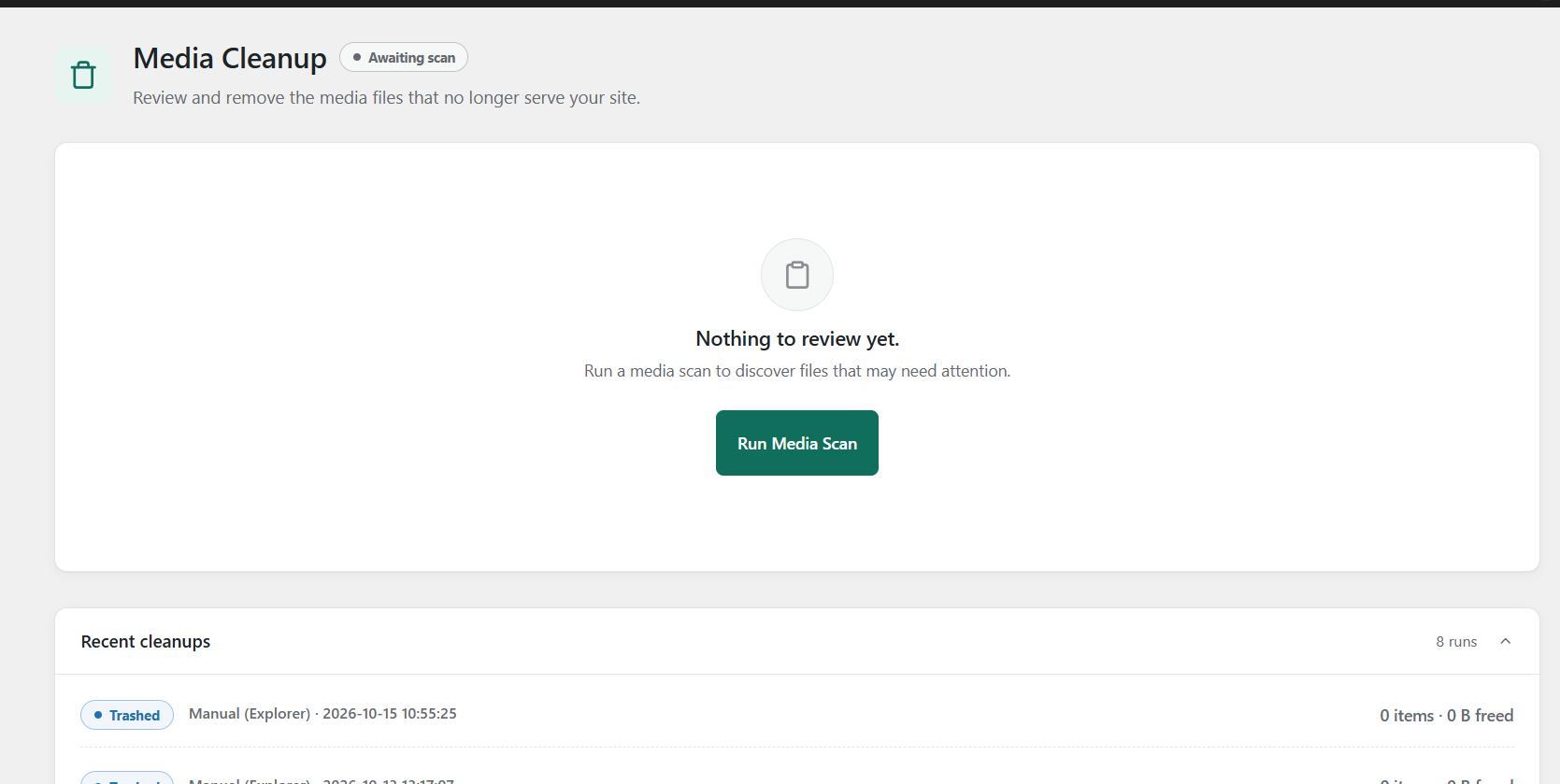
- Media Cleanup: Review frequently used and potentially unused media using the available cleanup tools.
- Recycle Bin: Browse trashed media by category, restore items and permanently delete files using the available controls.
- Storage Overview: Review storage usage by file type and access lists of large media files.
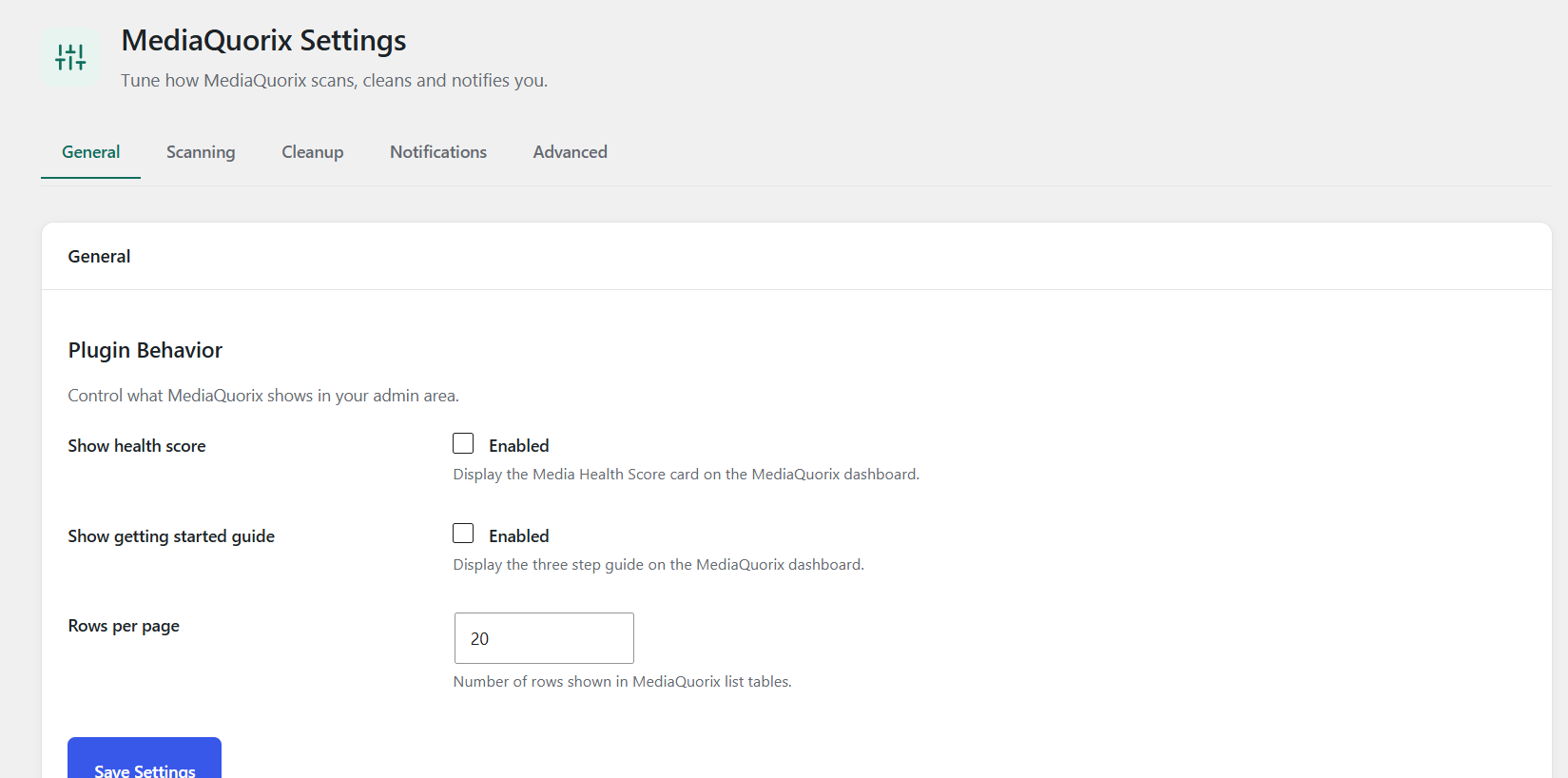
- Settings: Configure available scanning, cleanup, notification and advanced options.
- Help & Support: Find contextual guidance throughout the administration area.
Designed with safety in mind
Scanning is intended to inspect your media library without modifying the original media files. MediaQuorix provides review and cleanup controls to help you make informed decisions before removing files. Always review the available confirmation options before performing destructive actions.
MediaQuorix is designed to make media library maintenance easier while keeping important management information accessible.
Third-Party Resources
MediaQuorix does not bundle or load any third-party libraries, scripts, fonts or
external services.
Everything shipped with the plugin is part of MediaQuorix and is licensed under
the same license as the plugin, GPL-2.0-or-later:
- PHP source files (plugin code).
admin/css/admin.cssandadmin/css/explorer.css(stylesheets).admin/js/admin.jsandadmin/js/explorer.js(scripts).assets/icons/mediacare.svg(plugin icon, a custom SVG graphic).
No external fonts, CDNs, tracking scripts or third-party APIs are contacted at
runtime.
Screenshots

Installation
- Upload the
mediaquorixfolder to/wp-content/plugins/. - Activate “MediaQuorix – Media Library Health Manager” in the Plugins screen.
- Open MediaQuorix in the admin sidebar to reach the dashboard.
FAQ
-
Does MediaQuorix delete my media files?
-
No. Scanning reads your library and never modifies, moves or deletes any media.
Cleanup always asks for confirmation first, and folders only store names —
your files stay exactly where they are. -
Where are my settings stored?
-
In a single
mediacare_settingsoption. Scan history is stored in the
{prefix}mediacare_scans table, findings in{prefix}mediacare_issuesand
folders in{prefix}mediacare_folders. -
Will deactivating the plugin remove my data?
-
No. Deactivation keeps all settings and history. Data is only removed on
uninstall if you enable “Delete MediaQuorix data when the plugin is uninstalled”
under Settings MediaQuorix Advanced.
Reviews
There are no reviews for this plugin.
Contributors & Developers
“MediaQuorix – Media Library Health Manager” is open source software. The following people have contributed to this plugin.
Contributors
Translate “MediaQuorix – Media Library Health Manager” into your language.
Interested in development?
Browse the code, check out the SVN repository, or subscribe to the development log by RSS.
Changelog
1.7.0
- The Media Organizer and Media Explorer screens are now a single, focused Media
Explorer: browse and narrow the library by file type, upload date, file size,
issue and sort order, and see the results update as you change them. - Dashboard Media Insights panel and per-issue review links in the storage
breakdown, plus an audio bucket, faster media display and a first-run
onboarding panel. - Contextual help snippets on every screen and a broader accessibility pass.
- Database indexes for scan queries so large libraries stay responsive, with a
safe automatic upgrade. - A dedicated daily maintenance event that enforces the new “keep scan history”
retention setting and prunes unused file rows automatically. - Bulk selection on the Large Media screen so files can be moved to the trash
straight from any category tab. - Large Media now lists every media file by size, largest first, and flags the
largest 10% of your library (minimum one file once there are at least five)
against the library average, with a summary of total, average, median and
largest size plus per-file multipliers and top-percent position. Comparison
columns are hidden when there are too few files to compare, and the dashboard
card always shows the real count and combined size. - A Recycle Bin screen with category filters (images, video, audio, documents
and more) to browse trashed media, restore items in bulk, and permanently
delete them when confirmation is enabled. - Orphaned files — anything left in the uploads folder with no Media Library
entry — are now detected during a scan and reported alongside unused media so
stray files are easy to review. - New Issues hub: every finding from the latest scan in one list, grouped by
type with counts and reclaimable sizes, each row linking to the affected
media and the screen that owns the fix. - New Missing Alt Text screen: filter images by missing alt text, title or
caption and fix each field inline without leaving MediaQuorix. - Cleanup now shows your Most Frequently Used media and folds unused media in
as “Potentially Unused Media” with the full removal toolset; the standalone
Unused Media menu item is gone. - Dashboard cards now open the matching screen: Large Media, Missing Alt Text
and Potential Issues all link straight to real, filtered results. - Storage Overview now shows the total at the top and each file-type card links
straight to the matching Large Media tab, with “Review files” links on the
breakdown chart. - Fixed “Sorry, you are not allowed to access this page” when opening the Large
Media screen directly. - Media Explorer Favorites count now matches the visible list; favorites whose
file has been trashed are no longer counted. - Media Explorer was streamlined down to its filters: the search bar, folder
management, favorites, smart folders, suggestions, bulk move, bulk favorites,
bulk metadata editing and bulk trash controls were removed (together with
their per-item checkboxes and stars) so the screen focuses on finding media.
Filters still apply automatically as they change. - The Issues, Missing Alt Text and Duplicate Media screens stay reachable from
the links that use them but are hidden from the menu to keep navigation
focused. - Cleanup’s “Most Frequently Used” and “Potentially Unused Media” sections are
now collapsible, and large sizes show two decimals. - The dashboard “Unused Media” count and the health score now ignore stray
orphaned uploads (for example WebP or resized variants with no Media Library
record), so the number reflects real unused media. Orphans are still listed
in the Issues hub.
1.6.0
- Phase 6: full smart folder rule builder — create and edit smart folders with
your own rule combinations across ten fields (file name, type, size, upload
date, title, alt text, caption, health status, usage status and folder),
with a live one-click preset filler and a dedicated “edit rules” action on
every smart folder. Every rule list is validated and sanitized server side.
1.5.0
- Phase 5: Smart Folders in the Media Organizer — ready-made smart views
(Most Recent, Large Files, Large Images, Potentially Unused, Duplicates,
Missing Alt Text and Recycle Bin), user-defined smart folders created from
rule templates, per-user media favorites with a dedicated view, and keyword
based folder suggestions that can be applied or dismissed.
1.4.0
- Phase 4: Media Organizer — create, rename and delete folders, browse All
Media or Unorganized, search and sort, and move items in bulk. Folder
membership is shown in the Media Explorer and the media viewer.
1.2.0
- Phase 2 completion: live Storage, Metadata and Reports screens backed by the
latest completed scan.
1.1.0
- Phase 2: full media scanning pipeline — usage index, issue detection and media
health scoring. Media Explorer now filters real results and opens the viewer.
1.0.0
- Phase 1: plugin foundation, admin navigation, dashboard UI, reusable design
system, settings, security and database foundation.