Description
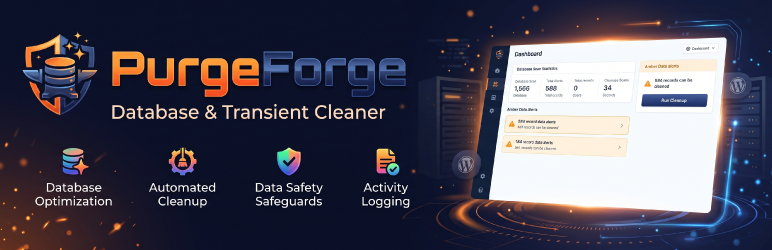
PurgeForge cleans the leftovers that slowly bloat a WordPress database. It scans first, shows you exactly what it found, and deletes only when you click Clean.
Every deletion runs in small batches of at most 500 rows (100 for posts) with a short pause in between. Large tables are never locked for long, and a cleanup that is interrupted can simply be run again.
What it cleans
- Expired transients. Temporary cached options that are past their expiry time, together with their timeout records. Transients that have not expired are never touched.
- Expired WooCommerce sessions. Customer session rows in the WooCommerce sessions table that are past their expiry time. This item only appears as available when WooCommerce’s sessions table exists.
- Orphaned post meta. Post meta rows that belong to a post that no longer exists.
- Orphaned comment and term meta. Comment meta rows whose comment no longer exists, and term meta rows whose term no longer exists.
- Stale oEmbed caches. Embed results (video, social posts and similar) that WordPress cached in post meta. They are fetched again the next time an embed is displayed.
- Orphaned user meta. User meta rows whose user no longer exists.
- WooCommerce webhook logs. Delivery logs of WooCommerce webhooks older than 30 days. Customer download permissions are not logs and are never touched.
- Abandoned checkout drafts. Draft orders that the WooCommerce checkout block created and that were never completed, untouched for 30 days. Deleted through WooCommerce, and only on request.
- Completed Action Scheduler tasks. Background tasks older than 7 days that finished successfully, with their log entries. WooCommerce and many other plugins use Action Scheduler, and its tables can grow to hundreds of megabytes on a busy store.
- Failed and canceled Action Scheduler tasks. Failed or canceled tasks older than 7 days, with their log entries. Pending and running tasks are never touched.
- Posts of unregistered post types. Posts whose type is not registered by WordPress, the active theme or an active plugin. These include the posts of a plugin that is only deactivated, so they are listed for review, with the types found, and removed only on request.
- Old post revisions. Revisions beyond the newest N of each post. You choose N in Settings (default 5), so editors keep their recent safety backups. The autosave is never touched.
- Old trashed and auto-draft posts. Posts that have been in the trash, or saved as auto-drafts, for more than 30 days. These are deleted permanently with WordPress’s own
wp_delete_post(), so terms, comments and attachments are cleaned up in the normal way. - Spam and trashed comments. Every comment marked as spam or moved to the trash, whatever its age. These are deleted permanently with WordPress’s own
wp_delete_comment(), so comment meta, replies and comment counts are handled in the normal way.
Scheduled cleanups, as many as you like
Create any number of scheduled tasks. Each one picks the safe items to clean and runs daily, weekly, monthly or every N hours with WP-Cron. Every run is recorded in an execution log (time, items, rows purged, duration and status) that keeps the last 20 runs and can be cleared in one click. Posts, revisions and comments are never cleaned automatically.
Options
The Options section shows how much data WordPress loads from the database on every page view (the autoloaded options), with a gauge against the 800 KB guideline, and lists the largest autoloaded options so you can turn autoload off for the ones you do not need. It also lists options that are not part of WordPress and are not named after any installed plugin or theme. PurgeForge cannot tell which plugin an option came from, so this list is only a starting point: nothing is selected for you, WordPress’s own options can never be changed, and the most recent deletion can be undone.
Know your database
PurgeForge records the size of the database and the number of tables once a day and keeps 90 days of history. The Analytics section charts both over the last 7, 30 or 90 days, or over a range you pick, and highlights the days when tables were added or removed. Its Tables Analytics view shows how the size and row count of the largest tables grew or shrank, with a search box. The charts are plain SVG drawn by the plugin; no chart library is loaded. Analytics also lists the ten largest tables, splits the database into WordPress core tables and plugin or theme tables, and shows the autoload gauge. The Database Tables section shows the total size, the reclaimable overhead, the number of tables by storage engine, how the database has grown since an earlier snapshot, and the five heaviest tables.
Support and troubleshooting
The Info & Logs section has three views. System info is a short report of your WordPress, server, database and PurgeForge settings that you can refresh, copy or download as purgeforge-system-info.txt, ready to paste into a support request. Errors log lists the problems PurgeForge ran into while cleaning (the last 50). WP debug shows the newest lines of your debug.log, 100 at a time, when WP_DEBUG_LOG is on. Passwords, keys, salts and tokens are hidden in all three.
Tune it for your server
Choose how many rows each cleanup query handles at a time: 200 for shared hosting, 500 (the default) or 1,000 for a powerful VPS.
Reclaim disk space
After records are deleted, MySQL does not always hand the space back. The Database Tables card shows how much unused space (“overhead”) your tables hold and rebuilds them with OPTIMIZE TABLE when you click Optimize Tables. Only InnoDB and MyISAM tables that start with your site’s table prefix are touched.
How it works
- Go to PurgeForge DB Cleaner in the main admin menu.
- Click Scan Database. This is a dry run and deletes nothing. You see the number of records and an estimated size for each item.
- Click Run cleanup next to an item, or tick several items and click Run selected cleanups, then confirm. The cleanup runs in batches and reports how many records were removed.
- Optional: open Database Tables in the sidebar and click Optimize Tables to rebuild fragmented tables and reclaim disk space.
- Optional: open Cron / Automation, click Add task, choose the items and how often it should run, and save. Past runs appear under Execution logs.
- Optional: open Settings to change the batch size or how many revisions to keep.
Built for safety
- Only users with the
manage_optionscapability can use it, and every request is protected by a nonce. - All queries use
$wpdb->prepare(). - No tracking, no external requests, no ads and no upsells. Nothing runs in the background unless you switch on the optional schedule.
- It creates no database tables and loads its assets on its own screen only.
Icons are inline SVGs drawn from Lucide, released under the ISC licence.
Back up first. Cleanups delete data permanently. Take a database backup before running one on a site that matters.
Privacy
PurgeForge does not collect, store or transmit any personal data, and it makes no external requests.
Installation
- Upload the
purgeforge-db-cleanerfolder to/wp-content/plugins/, or install the plugin from the Plugins screen in WordPress. - Activate the plugin through the Plugins screen.
- Go to PurgeForge DB Cleaner in the main admin menu.
- Click Scan Database to see what can be cleaned, then Clean on the items you want to remove.
FAQ
-
Is it safe to use?
-
PurgeForge only removes data that WordPress itself considers expired, orphaned or discarded, and the scan lets you review the counts first. Deletions are permanent, so always keep a recent database backup.
-
Does the scan delete anything?
-
No. Scan Database only reads from the database.
-
Will it delete transients that are still valid?
-
No. Only transients whose timeout is in the past are removed.
-
Does it need WooCommerce?
-
No. The WooCommerce sessions item is shown as “Not available” when the WooCommerce sessions table does not exist on your site.
-
Why is some post meta not removed even though it has no matching post?
-
Rows with a post ID of 0 are deliberately left alone, because some plugins use that ID to store global values.
-
Which posts count as old trashed or auto-draft posts?
-
Posts with the status Trash or Auto Draft whose last-modified date is more than 30 days ago. Recent trash is never touched.
-
Can it time out on a very large database?
-
Each request works for a limited time, and the page keeps sending requests until the item is finished. If you close the page part way through, nothing is left half-deleted. Run the cleanup again to continue.
-
What does the Activity Log show?
-
The last cleanup: when it ran, how many records it removed, the estimated space it freed, and whether you ran it by hand or the schedule did. It is saved in the database, so it is still there after you reload the page. The space figure is an estimate based on the size of the stored data, not on disk usage.
-
How do revisions work? What does “keep the last N” mean?
-
For every post, PurgeForge ranks its revisions from newest to oldest and keeps the newest N. Everything older is deleted. The default is 5, you can set 1 to 100 in Settings, and at least one revision is always kept. The single autosave WordPress stores for each post is left alone and does not count towards N. Because revisions are your editing history, cleaning them is a manual action that asks for confirmation; it is not part of scheduled tasks.
-
What is Action Scheduler, and is it safe to clean?
-
Action Scheduler is the background job queue used by WooCommerce and many other plugins. Finished tasks stay in its tables as history, and the tables can become very large. PurgeForge only removes tasks that finished, failed or were canceled more than 7 days ago, together with their log entries. Pending and running tasks are never touched. If you are investigating a failed task, look at it in WooCommerce under Status, Scheduled Actions before cleaning.
-
Can PurgeForge find the options left behind by plugins I uninstalled?
-
Not with certainty. A database does not record which plugin an option belongs to, so no tool can know. PurgeForge lists options that are not part of WordPress and are not named after any installed plugin or theme, largest first, and shows the start of each value. Some of them will still be in use, for example when a plugin stores its options under a different name from its folder. That is why nothing is ticked for you, why WordPress’s own options and registered settings cannot be selected at all, and why every deletion saves a backup you can restore with one click. The server re-checks every name at the moment of deletion, so a request cannot delete an option that is not on the list. Turning autoload off is much safer than deleting: the option stays in the database and is read only when something asks for it.
-
Is it safe to remove posts of unregistered post types?
-
Only if you are sure you will not need them. A post type disappears when the plugin that registers it is deactivated, not only when it is uninstalled, and those posts come back if you activate the plugin again. PurgeForge shows which types it found and how many posts each has before you delete anything, and it will not run at all if WordPress’s list of post types looks incomplete.
-
What does PurgeForge clean for WooCommerce?
-
Expired customer sessions, webhook delivery logs and Action Scheduler tasks older than the retention period are safe and can be scheduled. Abandoned checkout drafts are orders, so they are removed only when you ask. WooCommerce does not record when a shopping cart was last used, so PurgeForge cannot tell old carts from new ones; the checkout drafts are the stale carts that can be identified. The table that stores customers’ download permissions is never touched.
-
How many scheduled tasks can I create?
-
As many as you like. Each task has its own items and schedule, and its own entries in the execution log. Scheduled tasks can only clean the safe items; nothing that deletes content can be scheduled.
-
What does the batch size setting do?
-
It sets how many records each cleanup query handles at a time. 200 rows is gentle on shared hosting, 500 is balanced, and 1,000 is faster on a dedicated server. Records that are deleted through WordPress one by one (posts, revisions and comments) use a fifth of this number, because each one runs many queries.
-
Does it run automatically?
-
Only if you create a scheduled task. There are none by default. A task cleans the safe items you choose, in small batches, using WP-Cron. Old trashed posts, revisions and spam or trashed comments are never cleaned automatically.
-
Why did a scheduled run not start on time?
-
WP-Cron runs when your site receives a visit, so a run can start late on a quiet site. If your host disables WP-Cron (
DISABLE_WP_CRON), a server cron job has to callwp-cron.php. PurgeForge shows a notice on its screen in that case. -
What does Optimize Tables do? Is it safe?
-
It runs MySQL’s
OPTIMIZE TABLEon tables that hold a meaningful amount of unused space (at least 1 MB and at least 10% of the table). For InnoDB this rebuilds the table, which is safe for your data but uses disk space and time while it runs; on MyISAM the table is locked while it is rebuilt. Run it at a quiet time, ideally after a backup. PurgeForge never optimizes automatically, and only handles tables that start with your site’s table prefix. -
Why does it say “Not available” or show no overhead?
-
The figure comes from MySQL’s table statistics. If InnoDB stores all tables in one shared file (
innodb_file_per_tableis off), the unused space cannot be measured per table and a rebuild would not shrink the file, so those tables are skipped. MySQL 8 can also cache statistics for up to a day; scanning again asks for fresh figures. The reclaimed space shown after optimizing is an estimate. -
Which items are “safe”, and which need review?
-
Expired transients, expired WooCommerce sessions, orphaned meta, stale oEmbed caches and finished Action Scheduler tasks are expired, orphaned or regenerated automatically, and they are the only items scheduled tasks can touch. Old trashed and auto-draft posts, old revisions, and spam and trashed comments, are content or editing history, so they are never cleaned automatically. If you tick one of them for “Run selected cleanups”, PurgeForge asks you to confirm permanent deletion in a red warning dialog.
-
Will it delete spam comments I might still want to review?
-
Yes, if they are still marked as spam or in the trash, whatever their age. Look through your Spam and Trash comment screens first. Comments on trashed posts are not included.
-
Does it work on multisite?
-
It works on individual sites of a network and cleans the site you are currently in. Network-wide site transients, which WordPress stores in a separate table on multisite, are not handled in this version.
-
I use an external object cache such as Redis or Memcached. Is that a problem?
-
No. PurgeForge cleans the leftover rows in the database. Transients that live only in the object cache are not affected.
-
What does the database history record?
-
Once a day PurgeForge stores the date, the total size of the database, the number of tables and the name, size and row count of the 20 largest tables. It does not store any content, and nothing leaves your site. Days older than 90 days are dropped. The history starts the first time the Analytics section is opened or the daily event runs, so it fills in over the following days.
-
The charts have only a few days of data. Why?
-
PurgeForge cannot know the past size of your database, so it records from the day it is installed. Days without a record show as gaps rather than zeros. On a site that gets few visits WP-Cron may not run every day; opening the Analytics section also records today.
-
WordPress and PHP versions, memory limits, whether cURL, JSON and mbstring are loaded, the database version, total size, number of tables, options and transients, the table prefix, and PurgeForge’s own settings and next scheduled run. It never contains the database host, user, name or password, your keys and salts, or any post content. PurgeForge also masks anything that looks like a password, token or key before showing the report. Read it before you share it all the same.
-
Why does the WP debug view say logging is turned off?
-
WordPress only writes wp-content/debug.log when WP_DEBUG_LOG is on. Add define( ‘WP_DEBUG’, true ); define( ‘WP_DEBUG_LOG’, true ); and define( ‘WP_DEBUG_DISPLAY’, false ); to wp-config.php, and turn them off again when you are done. If WP_DEBUG_LOG is set to a file path, PurgeForge reads that file. PurgeForge only reads the log; it never changes or deletes it. A very large log is fine, because PurgeForge reads it from the end.
-
What goes into the Errors log?
-
A scheduled cleanup that failed, a database error during a cleanup, a table that could not be optimized, and a daily history snapshot that could not be taken. The same error repeating is shown once with a count. It is not WordPress’s PHP error log; that is the WP debug view.
-
What happens when I delete the plugin?
-
PurgeForge removes its own settings (version, scheduled tasks, execution logs, batch size, revisions to keep, activity log, database history and error log) and every scheduled event. It leaves everything else in your database alone.
Reviews
There are no reviews for this plugin.
Contributors & Developers
“PurgeForge – Database & Transient Cleaner” is open source software. The following people have contributed to this plugin.
Contributors
Translate “PurgeForge – Database & Transient Cleaner” into your language.
Interested in development?
Browse the code, check out the SVN repository, or subscribe to the development log by RSS.
Changelog
1.0.1
- Enhancement: Added theme-matched, dismissible review request banner with secure AJAX handling.
- UI/UX: Replaced raster images with crisp monochrome white vector SVG brand icons in both admin sidebar menu and dashboard header badge.
- Performance: Optimized icon rendering and ensured 100% PHPCS compliance across all new notice components.
1.0.0
- Initial release.
- Dry-run scan with record counts and estimated sizes.
- Options screen: autoload size gauge against the 800 KB guideline, the largest autoloaded options with one-click autoload off, and a reviewed, undoable list of unrecognized options.
- Info & Logs: System info report (refresh, copy, download), an Errors log of the problems PurgeForge met, and a paged WP debug viewer for debug.log. Secrets are masked.
- Analytics history: a daily snapshot of database size, table count and the 20 largest tables, kept for 90 days, with size and table-count charts, a date range filter and per-table growth trends.
- Analytics screen: ten largest tables, core against third-party table sizes, and the autoload gauge.
- Cleanup of orphaned user meta, WooCommerce webhook logs, abandoned checkout drafts and posts of unregistered post types.
- Unlimited scheduled tasks (daily, weekly, monthly or every N hours) with an execution log of the last 20 runs.
- Cleanup of old post revisions, keeping the newest N of each post.
- Cleanup of completed, failed and canceled Action Scheduler tasks and their logs.
- Database overview: total size, overhead, tables by engine, growth and the five heaviest tables.
- Settings for the batch size (200, 500 or 1,000 rows).
- One-click optimization of fragmented database tables, with the overhead shown first.
- Activity Log that remembers the last cleanup, with records removed and estimated space freed.
- Batched cleanup of expired transients, expired WooCommerce sessions, orphaned post, comment and term meta, stale oEmbed caches, spam and trashed comments, and trashed or auto-draft posts older than 30 days.