

Description
Edit products together. See what will change. Keep a way back.
Updating a catalog should not mean opening every product in a separate tab. Lumo Bulk Product Editor for WooCommerce brings your products and variations into one spreadsheet, with guided tools for the changes you make most often.
Raise prices by a percentage, prepare a sale, update stock or tidy product details. Choose the products first, review the old and new values, then apply the change. History records what happened so you can undo a whole job, a particular product or a single field.
The spreadsheet, bulk price editor, preview, history, CSV import and CSV export described below are included in this free plugin. No account or license key is required to use them.
A product spreadsheet inside WordPress
Keep the fields you need together instead of switching between product pages.
- Edit supported cells directly, copy and paste tabular values, and fill a value down a column.
- Search by product name, SKU or ID.
- Expand a variable product to see and edit its variations.
- Choose and reorder columns, keep columns visible while scrolling, and save column sets.
- Switch between roomy and compact rows.
- Keep cell edits pending until you save them. Keyboard undo can also undo pending grid edits.
Bulk price changes that you can check
Increase or decrease regular and sale prices by a percentage or fixed amount. Set an exact price, or calculate a sale price as a discount from the regular price.
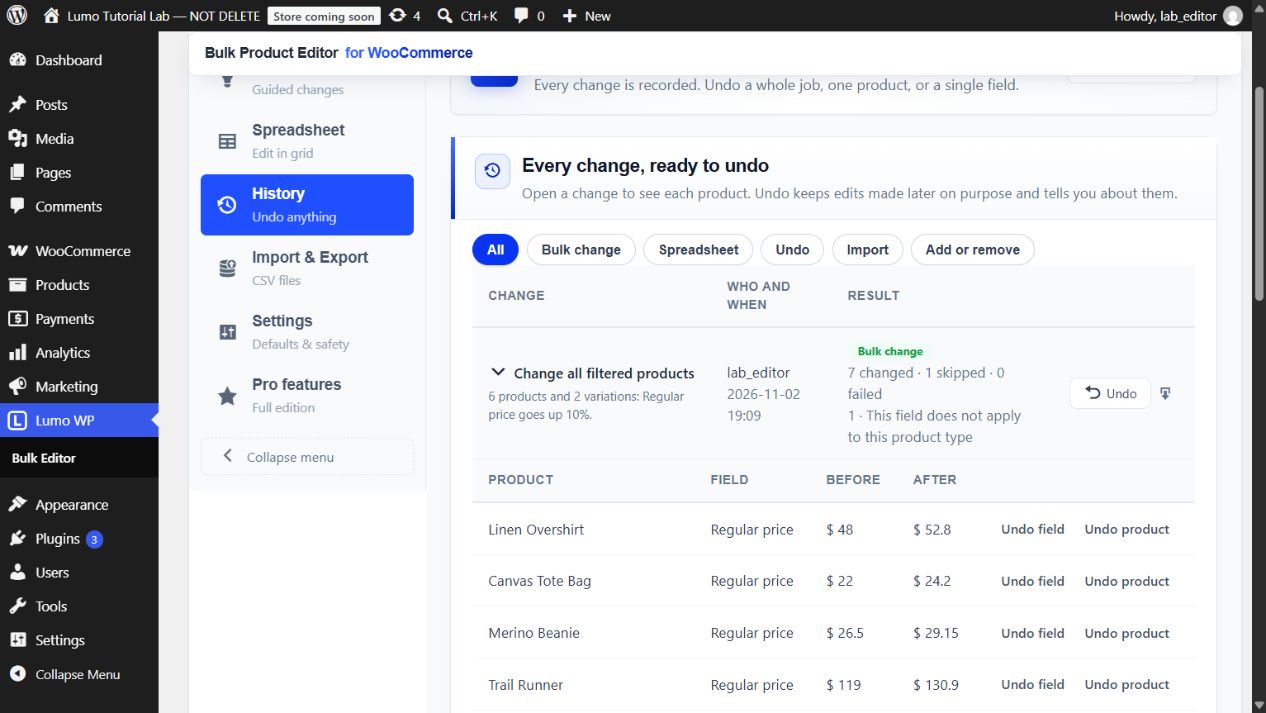
For example, a 10% increase changes a product priced at 48.00 to 52.80. Preview the result before applying it. Optional rounding lets you choose a step, direction and price ending to suit your catalog.
Use Start a sale to set sale prices and WooCommerce sale dates, or End all sales to clear sale prices and dates. Product types that cannot accept a particular field are handled separately; a variable parent’s price comes from its variations.
Stock, categories and everyday catalog work
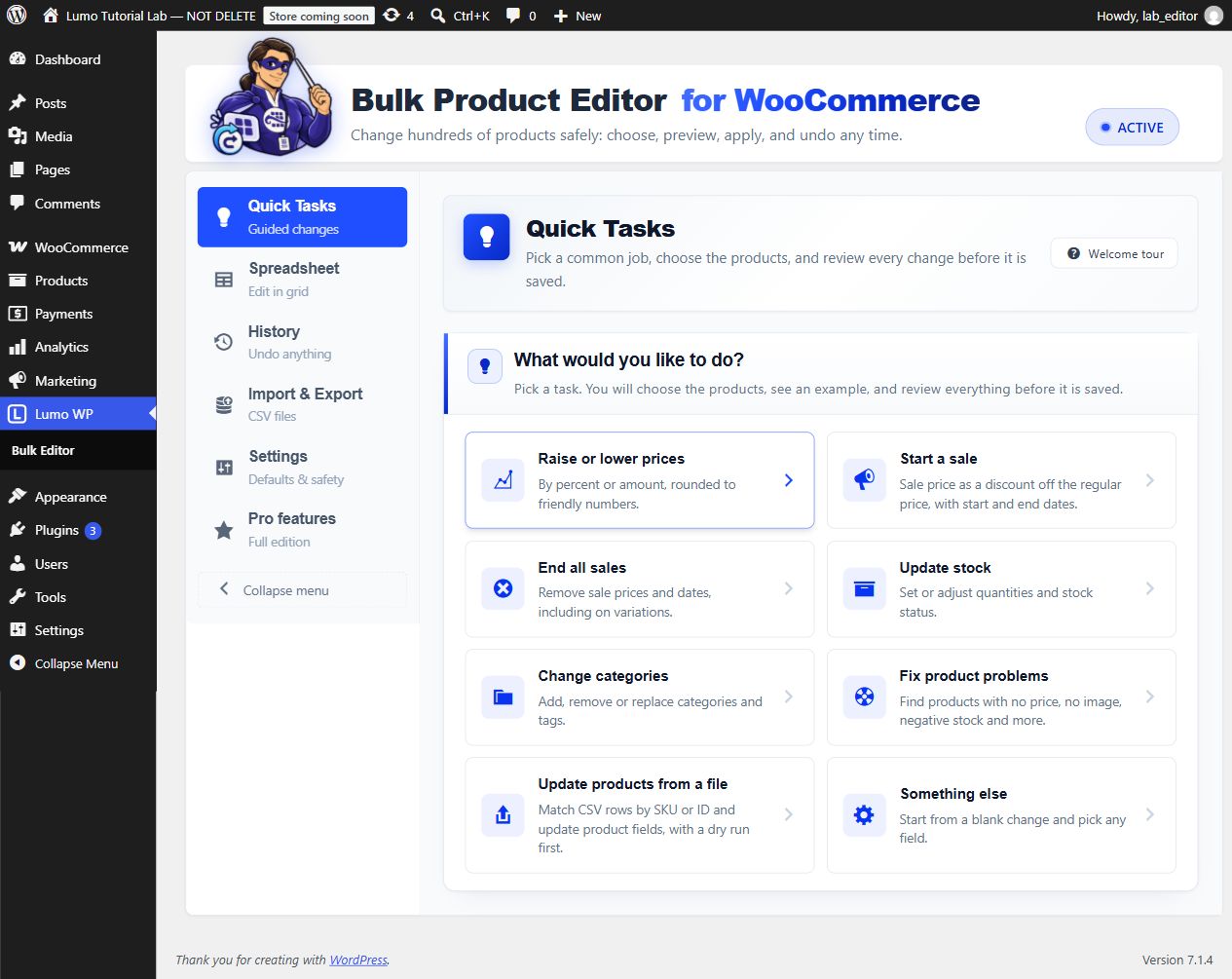
Quick Tasks guide you through price updates, sales, stock changes, category changes and common product problems. You can also build your own change from the available fields.
- Set or adjust stock quantities and change stock status.
- Add, remove or replace product categories and tags.
- Edit titles, descriptions, short descriptions and other supported product fields.
- Update product images from existing media or an image URL.
- Edit basic Yoast SEO and Rank Math title and description fields when the corresponding plugin is active.
- Find catalog issues such as missing prices, missing images and negative stock.
Select the right products before changing anything
Choose categories with a searchable selector, then narrow the selection with product text, prices, stock, dates or other available filters. Control whether the change includes parent products, variations or both, and choose the relevant product statuses.
The editor shows the matching product and variation counts. Save filters you use regularly so the next catalog update starts with the right selection.
Preview, apply and track progress
The review screen shows before-and-after values, unchanged items and reasons for skipped items. For a larger selection, the initial preview is a sample: use Check all products first to run a dry run and calculate totals across the full selection.
Applying a change creates a background job. Its progress and results are available in the editor and History. Processing uses WooCommerce’s Action Scheduler; the site’s background-processing setup must be working for jobs to continue after you leave the page.
Undo a job, a product or one field
History stores the fields and values changed by each job. Restore an entire change, limit an undo to one product, or restore a single field. The normal undo checks whether a value has changed again since the original job and reports conflicts instead of silently overwriting later work.
History retention is configurable and defaults to 180 days. Undo relies on the retained history; keep your normal store backups as well.
CSV updates with a dry run
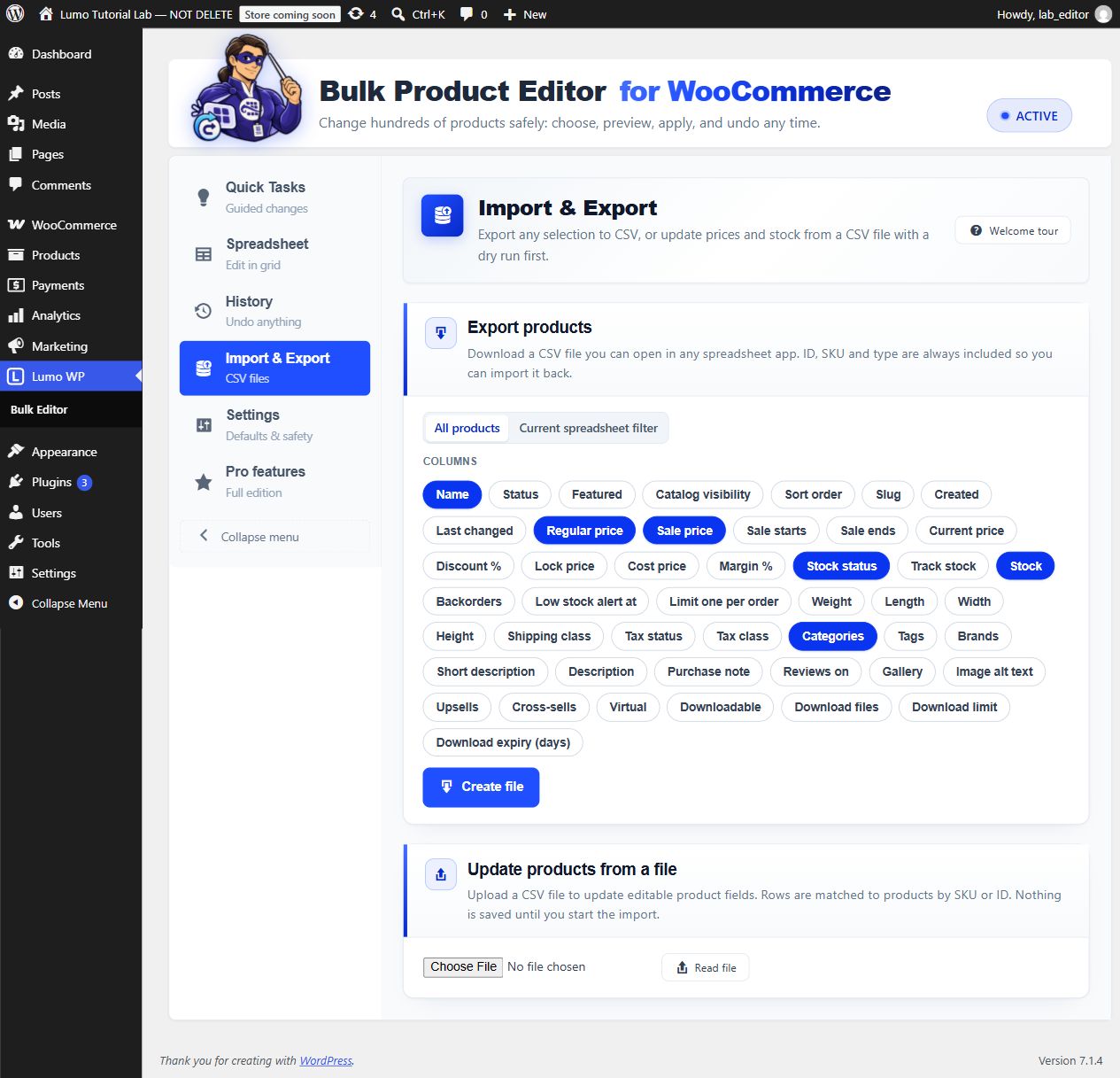
Export a product selection to CSV, or use a CSV file to update existing products matched by ID or SKU. Map the file’s columns to supported editable product fields, run the dry run, inspect the results and then start the import.
CSV import supports fields with a set-value operation, including prices, stock, titles, descriptions, categories and images. Unknown or read-only fields cannot be imported. Native Excel file import and export belong to the separate Pro edition; you can save an Excel sheet as CSV for use with this plugin.
Built for different store languages
The editor supports right-to-left layouts, Persian digit entry and Jalali dates. These are interface and input tools; they do not translate product content automatically.
Need more automation?
Lumo Bulk Editor Pro is a separate plugin with currency- and gold-based pricing, scheduled jobs with automatic revert, supplier feeds, Excel files, formulas, saved recipes, multiple rules in one run and additional integration tools.
Those Pro tools are not included in this free download. The free plugin already includes product and variation editing, bulk price and stock changes, preview, history and CSV tools. Both editions use the same settings and history. When switching editions, keep only one active.
Guides and related reading
Further reading from the LumoWP team:
- WooCommerce Advanced Bulk Edit tutorial – A walkthrough of WPMelon’s WCABE classic editor, with a comparison to Lumo. Its interface instructions are for WCABE, not this plugin.
- WooCommerce bulk editor comparison – Our comparison of Lumo and other bulk editors, with guidance on choosing a workflow. Some discussed features belong to paid editions.
External services
This plugin does not contact any external service on its own.
When you set a product image from a web address (in the spreadsheet, a bulk change or a CSV file), WordPress downloads that image from the address you entered and adds it to your Media Library. Only a standard download request is sent to that address. The terms and privacy policy of the site that hosts the image apply.
Source code and build instructions
The complete readable source for build/index.js and build/index.css is included in this plugin under src/ (entry point: src/index.js; styles: src/styles/). The scripts and styles in assets/ are maintained directly as readable source files.
Build tooling and exact dependency versions are included in package.json, package-lock.json and babel.config.json. From the plugin directory, use Node.js 24.15.0 or newer in the Node.js 24 series and run:
- npm ci
- npm run build
The build uses @wordpress/scripts 37.0.0 from https://github.com/WordPress/gutenberg/tree/trunk/packages/scripts (GPL-2.0-or-later). It regenerates build/index.js, build/index.css, build/index-rtl.css and build/index.asset.php. WordPress JavaScript packages, including React through wp-element, are loaded from WordPress rather than bundled as separate runtime libraries. babel.config.json keeps the classic wp.element JSX runtime for compatibility with the declared WordPress minimum. No npm installation is needed to use the plugin.
The additional features described in the Pro section are implemented in a separate plugin distributed outside WordPress.org. Their implementations are not included or locked in this package.
Screenshots


Installation
- Install and activate WooCommerce 8.0 or newer. This plugin requires WordPress 6.3 or newer and PHP 7.4 or newer.
- In Plugins > Add New, search for Lumo Bulk Product Editor for WooCommerce, install it and activate it. You can also upload the plugin ZIP.
- Open Lumo WP > Bulk Editor.
- Choose a Quick Task, or open Spreadsheet to edit individual cells.
- Start with a small product selection. Check the matching count and the before-and-after preview before applying a bulk change.
- Open History to inspect the result or undo the change. Use Import & Export for CSV files and Settings for defaults and history retention.
FAQ
-
Which features are free?
-
The spreadsheet, product and variation editing, bulk price and stock changes, product filters, preview, history with undo, CSV import and CSV export are included. They do not require a license key. The separate Pro edition adds the automation and advanced tools listed in the description.
-
Can I increase all prices in a category by 10%?
-
Yes. Open Quick Tasks > Raise or lower prices, choose the category, select Regular price and Increase by %, and enter 10. Review the selection and results before applying. Choose the variation scope deliberately when working with variable products.
-
Can I edit variations separately?
-
Yes. Expand a variable product in Spreadsheet to see its variation rows, or choose a scope that includes variations in a bulk change. Fields are checked against the product type. Edit variation prices rather than trying to set a variable parent’s calculated price.
-
Does the preview check every selected product?
-
The initial preview can be a sample. For larger jobs, use Check all products first to run a dry run across the selection and see complete totals before you apply it. The interface identifies sampled results.
-
Are grid edits saved immediately?
-
No. Edits stay pending in the spreadsheet until you save them. The bulk-change workflow has a separate review and apply step. After a saved job runs, use History to inspect or undo its changes.
-
Can I undo only one field without undoing the whole job?
-
Yes. History supports a whole-job undo, a single-product undo and a single-field undo. Undo depends on retained history, and the normal conflict check can skip values that have changed again since that job.
-
How long is history kept?
-
The default is 180 days. Change the retention period in Settings > Safety. Once a history entry is removed, its old values are no longer available for the plugin’s undo feature.
-
Will a job continue if I close the browser?
-
Jobs are designed to run in chunks through WooCommerce’s Action Scheduler. Closing the page does not cancel a queued job, but the site’s scheduled tasks must be able to run. Return to History to check progress, skipped items or errors.
-
Can I import an Excel spreadsheet?
-
This free edition accepts CSV files. Save your sheet as CSV, upload it in Import & Export, map the columns and run the dry run. Native Excel file support is a Pro feature. Pasting cells into the free spreadsheet is also supported.
-
Does CSV import create new products?
-
The CSV workflow updates existing products matched by ID or SKU. Review unmatched rows and mapping errors in the dry run before starting the import. Do not use it as a new-product creation tool.
-
Are sales and scheduled jobs the same feature?
-
No. The free edition can edit WooCommerce sale prices and the products’ sale start/end dates. Scheduling an entire bulk job to run later, repeat or automatically revert is part of Lumo Bulk Editor Pro.
-
Does it work with Yoast SEO or Rank Math?
-
The free plugin includes basic title and description fields for those SEO plugins when the relevant integration is available. It does not generate SEO copy or guarantee search rankings.
-
Does the plugin send my catalog to an external service?
-
It does not contact an external service on its own. If you provide an image URL, WordPress downloads the image from that address into the Media Library. See External services below for details.
-
What happens when I switch to Pro?
-
Settings and history are shared. Deactivate the free edition before activating Pro. If Pro is already active, the free edition stays idle to avoid running two copies. Keep a backup before changing plugins on a live store.
Reviews
There are no reviews for this plugin.
Contributors & Developers
“Lumo Bulk Product Editor for WooCommerce” is open source software. The following people have contributed to this plugin.
Contributors
Translate “Lumo Bulk Product Editor for WooCommerce” into your language.
Interested in development?
Browse the code, check out the SVN repository, or subscribe to the development log by RSS.
Changelog
1.0.6
- Updated: Distinctive Lumo plugin name, slug, text domain, translations and related references.
1.0.5
- Removed: Unused multi-rule processing and formula preparation code from the free distribution.
- Improved: CSV imports support all editable columns with a set operation.
- Fixed: Preserve all operations in a bulk change instead of silently truncating the list.
- Developer: Include readable JavaScript/CSS sources and reproducible build instructions.
1.0.3
- Improved: Show a translated preparation message alongside the initial loading spinner.
1.0.2
- Improved: Prominent searchable category selection, visible selected categories and a clear all-categories state.
- Improved: Progressive disclosure of advanced filters and product scope, with Persian labels.
- Fixed: Ignore stale product-count and sample responses after changing filters.
1.0.1
- Fixed: Preserve trailing integer zeros in prices when currency decimals are zero, including preview, spreadsheet and history.
1.0.0
- First release.