
Description
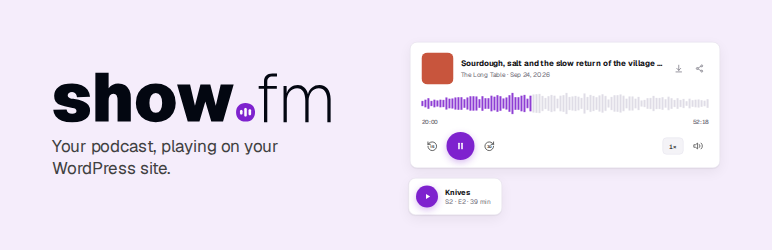
show.fm hosts podcasts. This plugin brings a show.fm show into WordPress.
Blocks for any public show, with no account
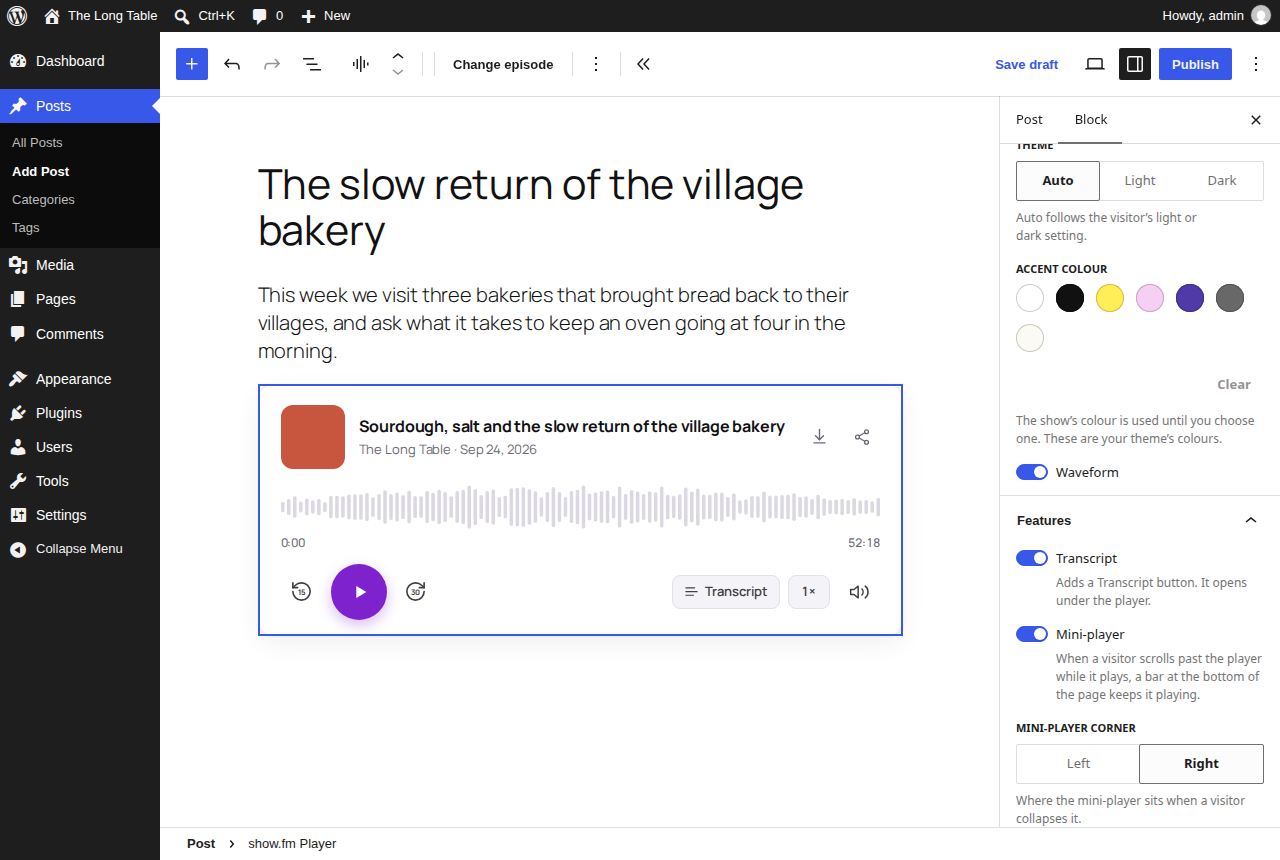
- Player: one episode, or always the latest, in standard or compact size, with a waveform, an optional transcript, and an optional mini-player that keeps it playing at the bottom of the page when the visitor scrolls away.
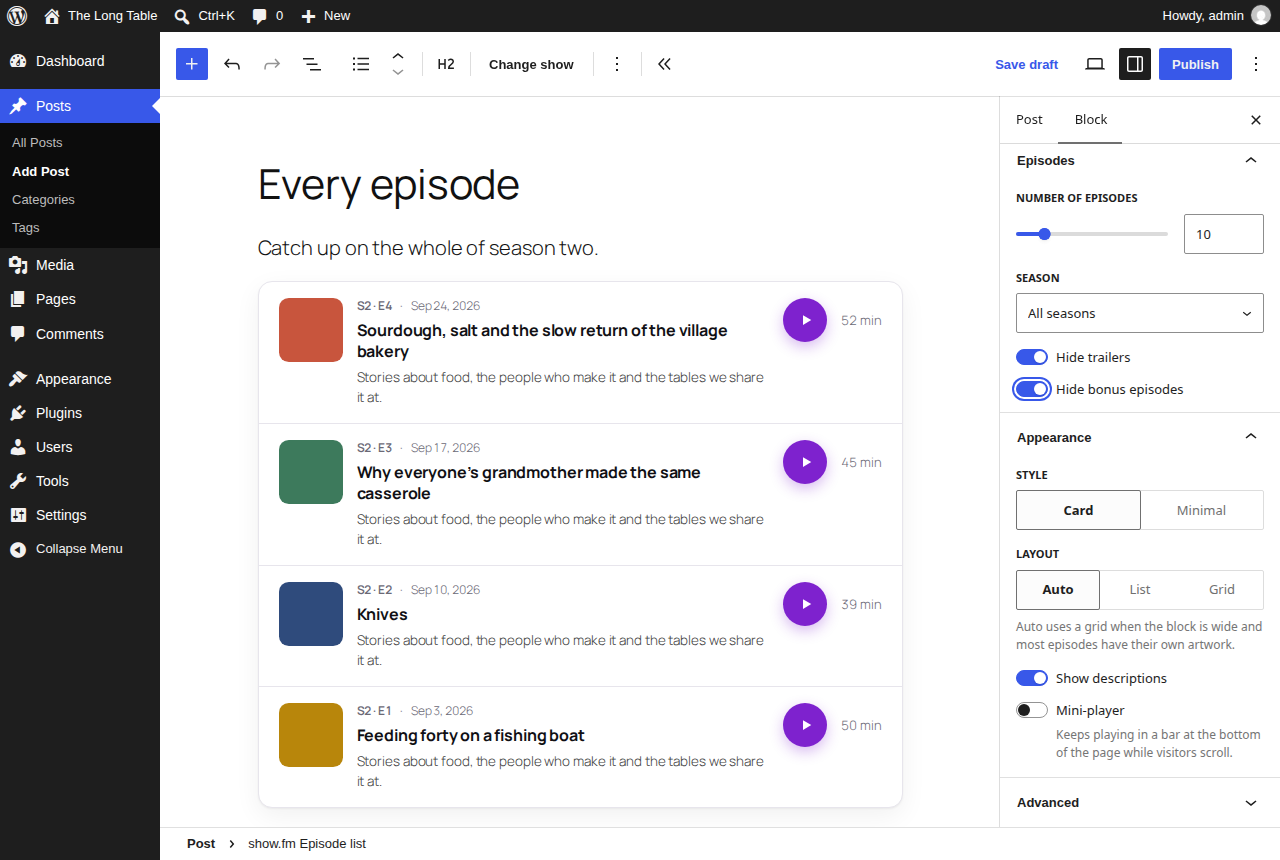
- Episode list: a show’s episodes as cards or a minimal list, filtered by season, with or without trailers and bonus episodes. The playing episode has a Transcript button when its transcript is on show.fm.
- Play button: a button or a link in a sentence that plays an episode in a mini-player along the bottom of the page.
- Transcript: a follow-along transcript that highlights the words as they are spoken.
Each block previews the real player in the editor. Type the show’s address, then pick an episode or “Latest episode”. The same elements are available as the [showfm] shortcode, and a pasted show.fm link becomes a player.
Publish to WordPress, for show.fm accounts
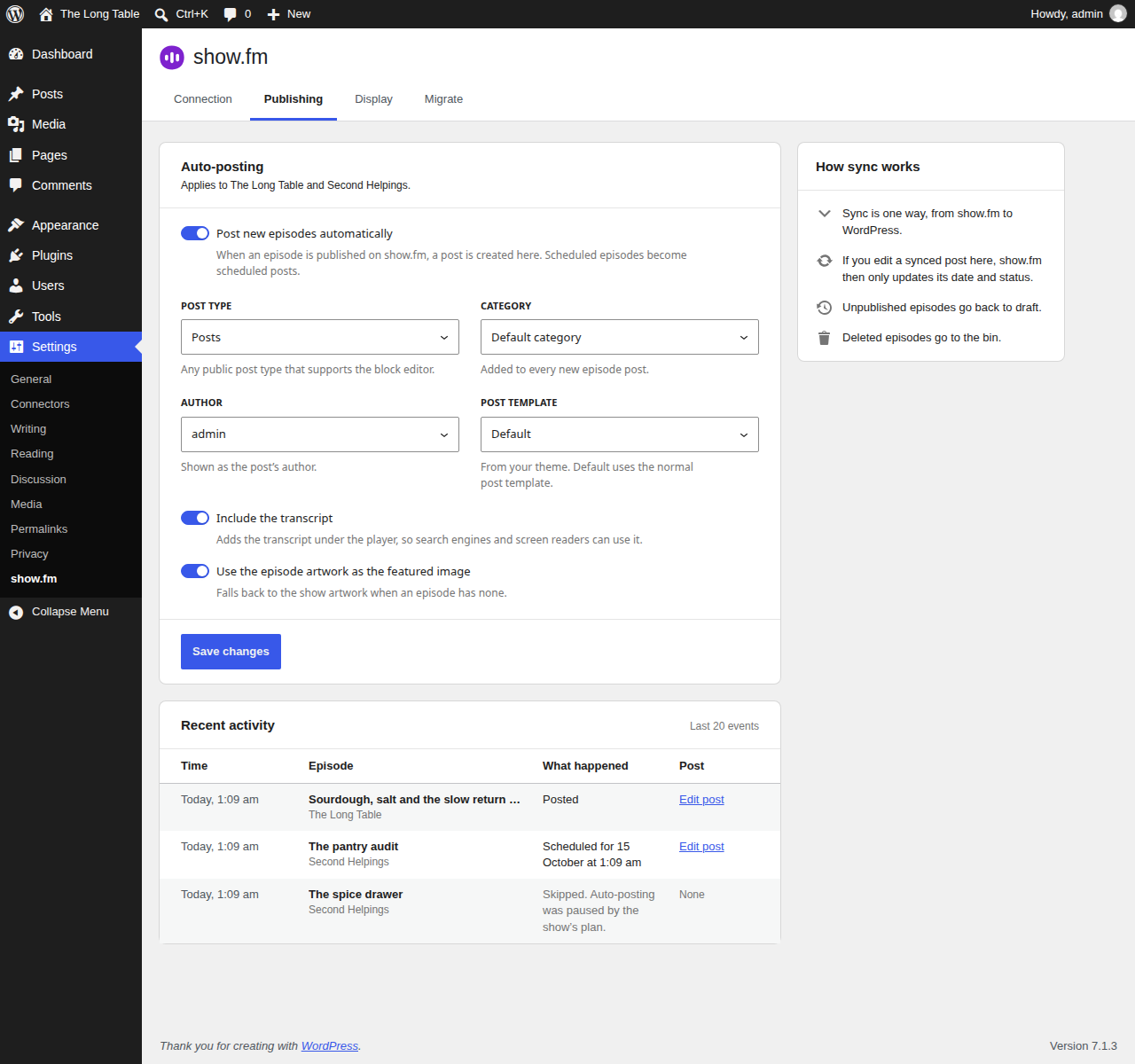
Connect the site to show.fm in Settings > show.fm and each new episode becomes a post: scheduled episodes are scheduled, unpublished ones go back to draft and deleted ones go to the bin. You choose the post type, category, author and template, and whether to add the transcript and use the episode artwork as the featured image. Posts you edit in WordPress keep your edits.
Move from another podcast host
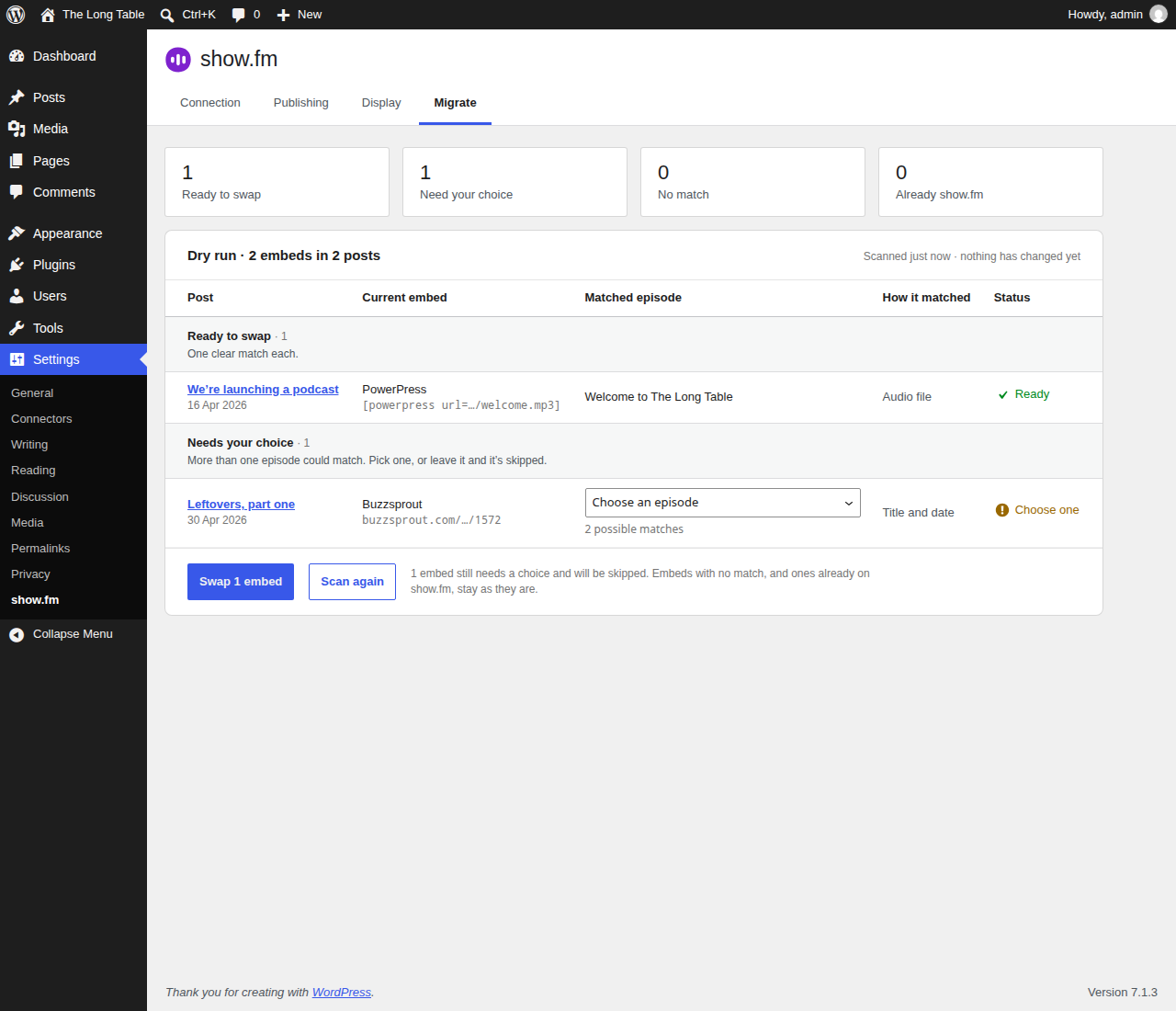
The Migrate tab finds players from Buzzsprout, Libsyn, Captivate, Transistor, Spotify, Podbean, PowerPress and Seriously Simple Podcasting in your posts and pages. It shows a dry run first, and swaps them for show.fm blocks only when you confirm. WordPress keeps a revision of every post it changes.
Built for WordPress
- Players render on the server from a local cache, so pages never wait for show.fm.
- The player scripts ship with the plugin. Nothing loads from a CDN.
- The “Powered by show.fm” credit is off for every show unless you turn it on.
- WP-CLI:
wp showfm connect,status,disconnect,sync,cache flushandmigrate-embeds. - Multisite: each site connects separately.
Source code
The plugin’s source and build instructions are on GitHub at ShowDotFM/showfm-wordpress. The block editor scripts in build/ are compiled from src/ there with @wordpress/scripts. The player scripts in assets/showfm-embed/ are copied unchanged from the MIT-licensed @showfm/embed 1.6.2 package, and a test checks every file byte for byte. The package’s MIT licence is in assets/showfm-embed-license.txt. With “Load players only after a visitor clicks” on, the plugin loads the package’s self-hosting click loader (click-loader-local.js) instead of the player script. It names no host: it loads only the bundled v1.js the plugin gives it, after a visitor presses a block, and without that it does nothing. The package’s CDN click loader is not in the plugin, and a release check fails if any script in the plugin names embed.cdn.media.
External services
This plugin connects to show.fm, a podcast hosting service run by show.fm Ltd. It sends nothing until you add a show or an episode to a page, paste a show.fm link, or connect the site to show.fm. It collects no analytics or telemetry. show.fm’s Terms of Service and Privacy Policy apply to every service below.
A site’s own code can point the plugin at a different show.fm environment for testing, with the showfm_environment filter. The plugin then uses that environment’s hosts instead of the ones below, and sends the site key only to that environment’s API.
show.fm public API (api.show.fm)
Gives the titles, descriptions, artwork, audio links and transcript links of public shows and episodes.
- When: WP-Cron refreshes a show or episode you added to a page when its cached copy is missing or more than 15 minutes old. Pages read only the cache and never wait for a request. While the site is connected, the sync also fetches each newly published episode’s public details (/v1/episodes/{id}) in the background, so the post’s first view already has them. With featured images on, that same answer gives the artwork. In the block editor, the site looks up a show when someone who can edit posts enters its address or opens a show.fm block. WordPress asks /v1/oembed about a pasted show.fm link once, and keeps the answer in post meta.
- On a connected site, opening Settings > show.fm may schedule a WP-Cron refresh of each connected show’s public details (/v1/podcasts/{id}), for the artwork shown there. The screen itself makes no request.
- In visitors’ browsers: see “What visitors’ browsers request” below.
- What is sent: the show or episode identifier, and your site’s address in the User-Agent header. show.fm sees your server’s IP address. From a browser, show.fm sees the visitor’s IP address and browser details, as with any web request. No visitor data is sent from your server.
show.fm API for connected sites (api.show.fm)
Used only after an administrator connects the site to a show.fm account.
- Connecting: once, when the administrator returns from my.show.fm. Sent: a one-time code and the verifier this site created. show.fm answers with a site key and ping secret, which the plugin stores encrypted. With
wp showfm connect, the plugin sends the site key you give it, the site’s address and REST API address, and a one-time state and challenge. - Reporting in: right after connecting, and again before the next sync if that fails. Sent: the site key, the plugin, WordPress and PHP versions, and the site’s name.
- Health report: once a day while connected. Sent: the site key, the plugin, WordPress and PHP versions, the time of the last sync and the number of sync errors. After connecting and after each report, the plugin reads the account holder’s name and the shows the key can read, to show on the settings screen. For a connection made before 1.0.1, the plugin also reads them once in the background, at most hourly, when an administrator opens the Publishing tab, to learn whether transcripts were approved.
- Sync: every 15 minutes, when show.fm sends a wake-up ping, and when someone runs
wp showfm sync. Sent: the site key and the last change the site applied. After each post is created, published or moved to the bin, the plugin reports the episode ID, post ID, post address, post status and the content hash show.fm sent for that post, so show.fm knows which version the post holds. No post text and no visitor data are sent. - Block editor: while connected, when someone who can publish posts adds a show.fm block, the site lists the account’s shows and episodes, including scheduled ones. Sent: the site key, and show and episode IDs. The key never reaches the browser.
- Migrate: when an administrator runs a scan, the plugin lists the account’s shows and published episodes, with fingerprints of their audio files, to match old players. Post content and old player addresses stay on your site.
- Disconnecting: one request asks show.fm to revoke the site key. The plugin removes the key from the site whatever the answer.
Requests from show.fm to your site
- While an administrator connects, show.fm requests
/wp-json/showfm/v1/challengeonce to confirm the site asked to connect. The site answers with the one-time challenge only. - While connected, show.fm sends signed, empty requests to
/wp-json/showfm/v1/pingwhen an episode changes. The plugin checks the signature, then syncs in the background.
show.fm media (m.cdn.media and media.podcasterplus.com)
Serves the artwork, audio and transcript files of show.fm shows and episodes. media.podcasterplus.com is show.fm’s older media host, which some older episodes still use.
- When, in visitors’ browsers: see “What visitors’ browsers request” below. A page with a Player or an Episode list contacts the media host on every view, for the artwork. The settings screen also shows each connected show’s artwork in the administrator’s browser.
- When, from your server: with “Use the episode artwork as the featured image” on (Settings > show.fm > Publishing), the sync downloads each episode’s artwork once into the media library.
- What is sent: the file’s address. show.fm sees the visitor’s IP address and browser details, or your server’s IP address for artwork downloads. No site key is sent.
What visitors’ browsers request
The Player loads the episode’s details from api.show.fm and its artwork as soon as it appears, the audio when the visitor plays it, and the transcript file when the visitor opens the transcript (or as soon as it appears, if the transcript is set to open). The Episode list loads the show’s episode details from api.show.fm and each episode’s artwork as soon as it appears, the audio when the visitor plays an episode, and that episode’s transcript file when the visitor opens its transcript. The Play button loads the episode’s details from api.show.fm as soon as it appears, and the audio and artwork when the visitor plays it. The Transcript loads the episode’s details from api.show.fm and the transcript file as soon as it appears. Artwork, audio and transcript files come from m.cdn.media, or media.podcasterplus.com for some older episodes. With “Load players only after a visitor clicks” turned on, each block first shows a button (“Play podcast episode”, “Load episodes” or “Load transcript”), and nothing is requested from show.fm until the visitor presses it. The block then makes the requests above. Each request shows show.fm the visitor’s IP address and browser details, as with any web request.
show.fm embed CDN (embed.cdn.media)
Not used. The plugin’s own code never loads anything from a CDN: the player scripts ship inside the plugin, and the click loader loads only the bundled copy. show.fm embeds in pasted links are always replaced with the plugin’s local player, or with a plain link to the show.fm page when the plugin can’t play them locally.
show.fm account (my.show.fm)
- When: an administrator clicks Connect to show.fm. my.show.fm opens in their browser, where they sign in and approve the connection.
- What is sent, in the address the browser opens: your site’s address, its REST API address, the settings page to return to, a one-time state and challenge, and a partner code if your host set one. The address never holds a key.
Screenshots
Blocks
This plugin provides 4 blocks.
- show.fm Episode list List a show’s episodes, newest first.
- show.fm Transcript A follow-along transcript for a Player on this page.
- show.fm Play button A play button for one episode, for use anywhere on the page.
- show.fm Player Play one episode, with an optional transcript.
Installation
- Install and activate the plugin from Plugins > Add New.
- Add a show.fm Player, Episode list, Play button or Transcript block to a post or page, and type your show’s address.
- To post new episodes automatically, go to Settings > show.fm and choose Connect to show.fm.
FAQ
-
Do I need a show.fm account?
-
Not for the blocks. They work for any public show.fm show. Publish to WordPress and the Migrate tab need a show.fm account and a connected site.
-
How do I add an episode to a post?
-
Add a show.fm Player, Episode list, Play button or Transcript block. Type the show’s address (such as the-long-table.show.fm) or its slug, then choose an episode or “Latest episode”. On a connected site you pick from your own shows instead, including scheduled episodes, which the editor marks with the date they go live. Visitors see nothing for an episode until it is public.
-
Who can see scheduled episodes in the editor?
-
On a connected site, only people who can publish posts (Authors, Editors and Administrators) see the account’s shows and scheduled episodes. Contributors can add public shows and episodes by address. A scheduled episode’s title is never saved in the post.
-
Can I use a shortcode?
-
Yes.
[showfm type="player" episode="<episode ID>"]adds a player.typecan beplayer,episodes,playortranscript, and the other attributes match the blocks’ settings. -
Where are the settings?
-
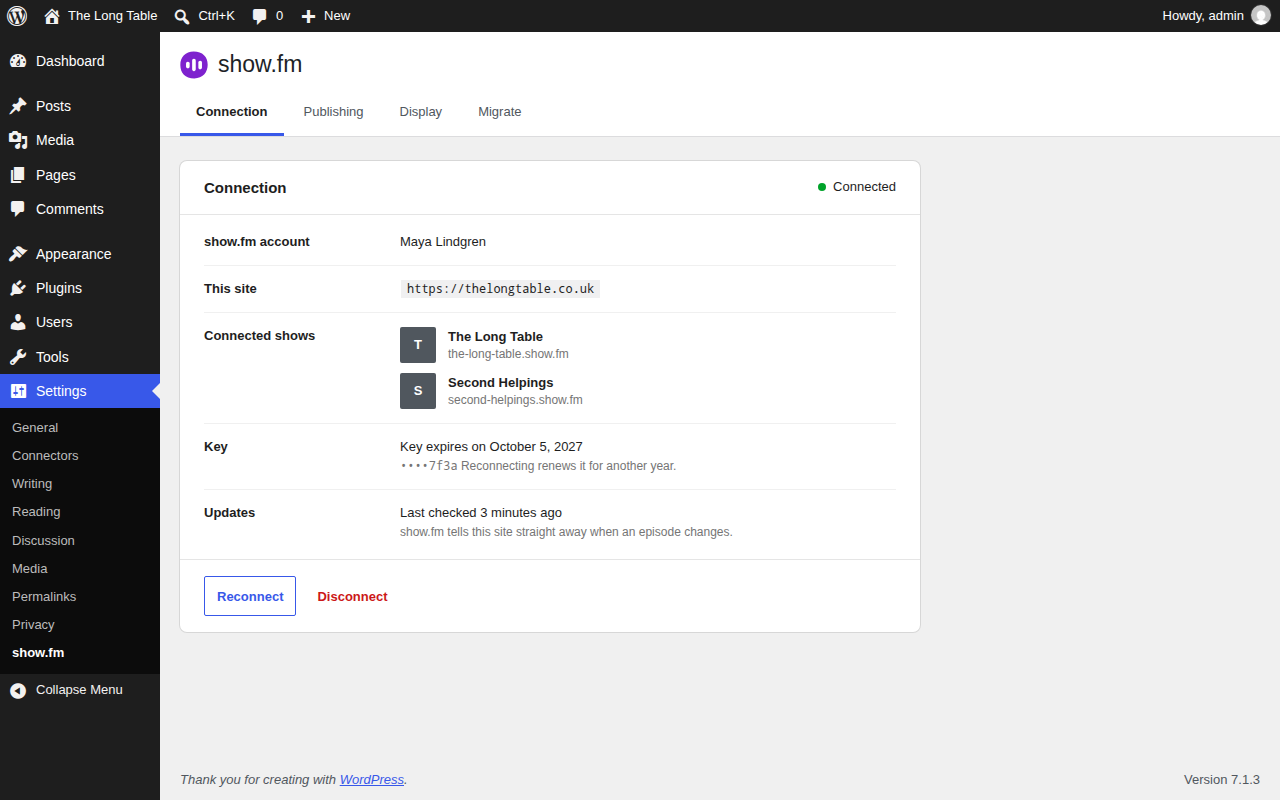
Settings > show.fm. The Connection tab connects the site and shows the account, the connected shows and when the key expires. The Display tab has four site-wide switches: the “Powered by show.fm” credit (off), loading players only after a visitor clicks (off), episode structured data for search engines (on) and using your theme’s colours and fonts (on). Publishing and Migrate appear once the site is connected.
-
How do I choose how episodes are posted?
-
Settings > show.fm > Publishing. Choose whether new episodes are posted automatically, the post type, category, author and template, and whether to include the transcript and use the episode artwork as the featured image. These settings shape new posts only. The tab also lists the last 20 things the sync did, with a link to each post.
-
What if I edit a post that show.fm created?
-
Your edits stay. Once a post is edited in WordPress, show.fm only updates its date and status. The “show.fm” panel in the post sidebar says so.
-
Can I move my old podcast players to show.fm?
-
Yes, on a connected site. In Settings > show.fm > Migrate, choose Scan posts. You then see a dry run: players ready to swap and how each was matched, players where you pick the episode, players with no match, and posts that already use show.fm. Nothing changes until you confirm. The results link to the revision WordPress keeps of each changed post, so you can restore any of them. From the command line, run
wp showfm migrate-embeds --dry-run --user=<administrator>, thenwp showfm migrate-embeds --resume --yes --user=<administrator>. -
What do the admin notices mean?
-
The plugin shows at most one notice, on the Dashboard, Plugins and show.fm screens only, and only to administrators. It warns 30 and 7 days before the site key expires, when show.fm stops accepting the key, when the shows’ plan pauses auto-posting, and when a publishing setting stops new episodes being posted. Each notice has one button that fixes the problem, and you can dismiss it.
-
Can I connect from the command line?
-
Yes. Create a site key in show.fm under Connected sites, then run
wp showfm connect. It asks for the key with the input hidden, or reads it from theSHOWFM_KEYenvironment variable or standard input (--key=-). On a multisite network, add--url=to pick the site. -
How do I clear the plugin’s cache?
-
Run
wp showfm cache flush. It clears the show and episode details the blocks render from and the block editor’s lookups, and says how many stored entries it removed. Pages show each block’s saved copy until the background refresh fetches the data again. On a multisite network,wp showfm cache flush --networkdoes it for every site. Nothing else in your site’s cache is touched. -
How is the connection stored?
-
The site key and ping secret are encrypted with a key derived from your WordPress salts, and are never shown in full, logged or sent to the browser. Set the salts in
wp-config.php. If they change, connect again. -
Does disconnecting cancel the site key?
-
Yes, when show.fm can be reached. Disconnect asks show.fm to revoke the key, then removes it from the site whatever the answer. If show.fm didn’t confirm, the message links to Connected sites in show.fm, where you can revoke it by hand. Posts already created stay.
-
What does uninstalling remove?
-
The plugin’s settings, cache, scheduled events and its own post meta. Your posts and media stay.
Reviews
There are no reviews for this plugin.
Contributors & Developers
“show.fm Podcast Player” is open source software. The following people have contributed to this plugin.
Contributors
Translate “show.fm Podcast Player” into your language.
Interested in development?
Browse the code, check out the SVN repository, or subscribe to the development log by RSS.
Changelog
1.0.4
- The plugin’s licence and the bundled player’s MIT licence are now
license.txtandassets/showfm-embed-license.txt, so every file in the plugin has a standard file type. Nothing else changes.
1.0.3
- Renames a block editor CSS class whose selector text was read as a remote file host. The editor looks and works the same, and the plugin still loads no files from other sites.
1.0.2
- The plugin’s built-in hosts are show.fm’s production services only. A site’s own code can select another show.fm environment for testing with the
showfm_environmentfilter, which replaces theSHOWFM_API_URLandSHOWFM_APP_URLconstants. The block editor gets the same hosts from the site. - Bundles @showfm/embed 1.6.2, which names only production hosts.
- A connection is tied to the show.fm API that issued its key. If the site’s environment changes, the plugin asks to reconnect and never sends the old key to the new one.
1.0.1
- Posts created by Publish to WordPress save the episode’s title, listen page and audio in their blocks, as the editor does, so their first view has a readable fallback. The plugin also fills its cache for the episode during the sync and clears the post’s cache whenever that changes, so page caches don’t keep an empty first render.
- The Connection tab shows each show’s address from show.fm.
wp showfm cache flushreports the new cache version when the site uses a persistent object cache.- With “Load players only after a visitor clicks” on, a Transcript block for an episode without a transcript shows nothing instead of a “Load transcript” box, and a Transcript block with its own height reserves that height before it loads.
- “Include the transcript” (Settings > show.fm > Publishing) starts the way the connection was approved: on with “Include transcripts in posts”, off without it. For a connection made before 1.0.1 it starts on until show.fm tells the site, which the plugin asks soon after you open the Publishing tab.
- Disconnecting, or reconnecting to another site, clears the last sync time and the sync errors, so the new connection shows “never” until it first syncs. Reconnecting the same site keeps them.
1.0.0
- First public release.
- Player, Episode list, Play button and Transcript blocks, the
[showfm]shortcode and show.fm oEmbed, rendered on the server from a local cache with no request on page view. - Block editor pickers for shows and episodes, block settings, the heading level control and in-block messages for scheduled, unavailable, paused and unreachable episodes.
- Settings > show.fm with Connection, Publishing, Display and Migrate tabs, and admin notices for key expiry, a refused key, a plan pause and a publishing problem.
- Connect a site to show.fm in the browser or with WP-CLI. The site key is stored encrypted.
- Publish to WordPress: new episodes become posts that follow the episode when it is rescheduled, unpublished or deleted, and keep any edits made in WordPress.
- Embed migration from eight podcast hosts, with a dry run, episode picks and revisions to undo.
wp showfm cache flush(with--networkon multisite) clears the plugin’s cache of show.fm data.- show.fm embeds in pasted links are always replaced with the plugin’s local player, or a plain link when it can’t play them locally.
- The Player, Episode list and Play button can open a mini-player, with a choice of corner. The Player’s is off by default and takes over when a visitor scrolls past it while it plays.
- Bundles @showfm/embed 1.6.1. Every element carries
platform="wordpress", so with the credit setting off, no show displays “Powered by show.fm”.