
Description
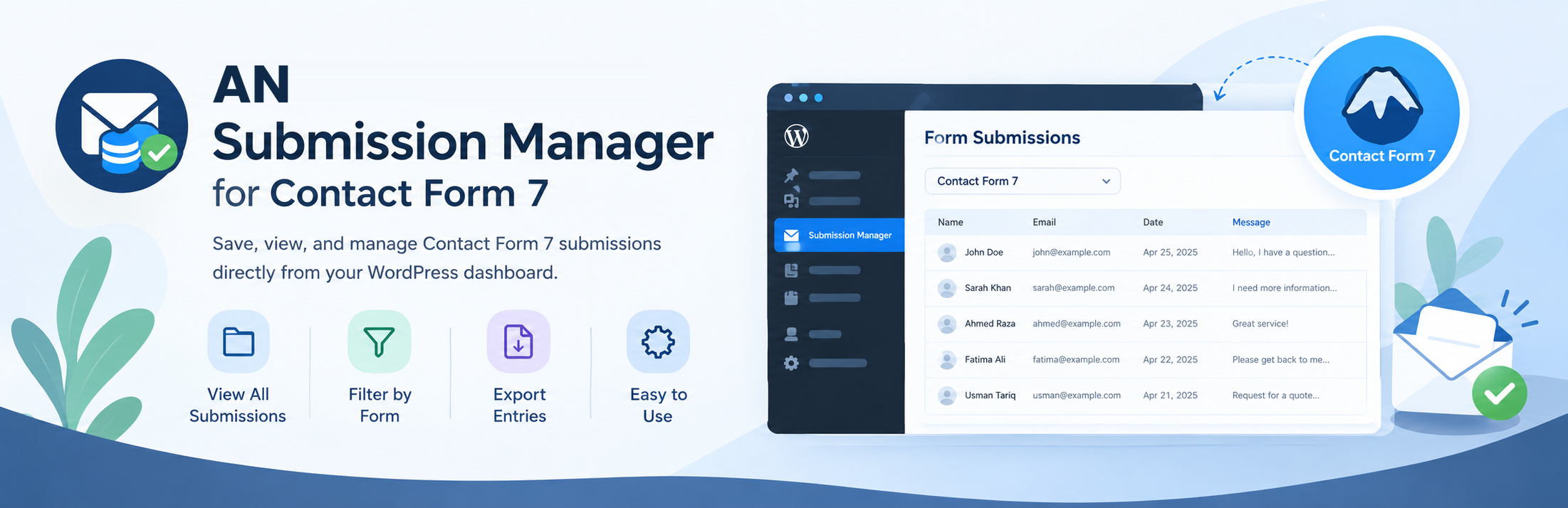
AN Submission Manager for Contact Form 7
allows administrators to view and manage saved form submissions
directly from the WordPress dashboard.
Instead of searching through different forms or dealing with raw database records, you can view your Contact Form 7 forms first, select a form, and then view the submissions belonging to that specific form.
Features
- 📋 List all Contact Form 7 forms
- 📥 View submissions by form
- 📄 Export all entries for a form or one individual entry as CSV
- 🔢 Submission count for each form
- 🗃️ Store submissions in a dedicated database table
- 🆔 Associate submissions with the Contact Form 7 form ID
- 🕒 Record submission date and time
- 🎨 Clean and modern WordPress admin interface
- 📱 Responsive admin layout
- 🔒 WordPress capability-based admin access
- ⚡ Lightweight and simple
- 🧩 Works with existing Contact Form 7 forms
- 🛠️ No complicated configuration required
How It Works
= 1. Open Submission Entries =
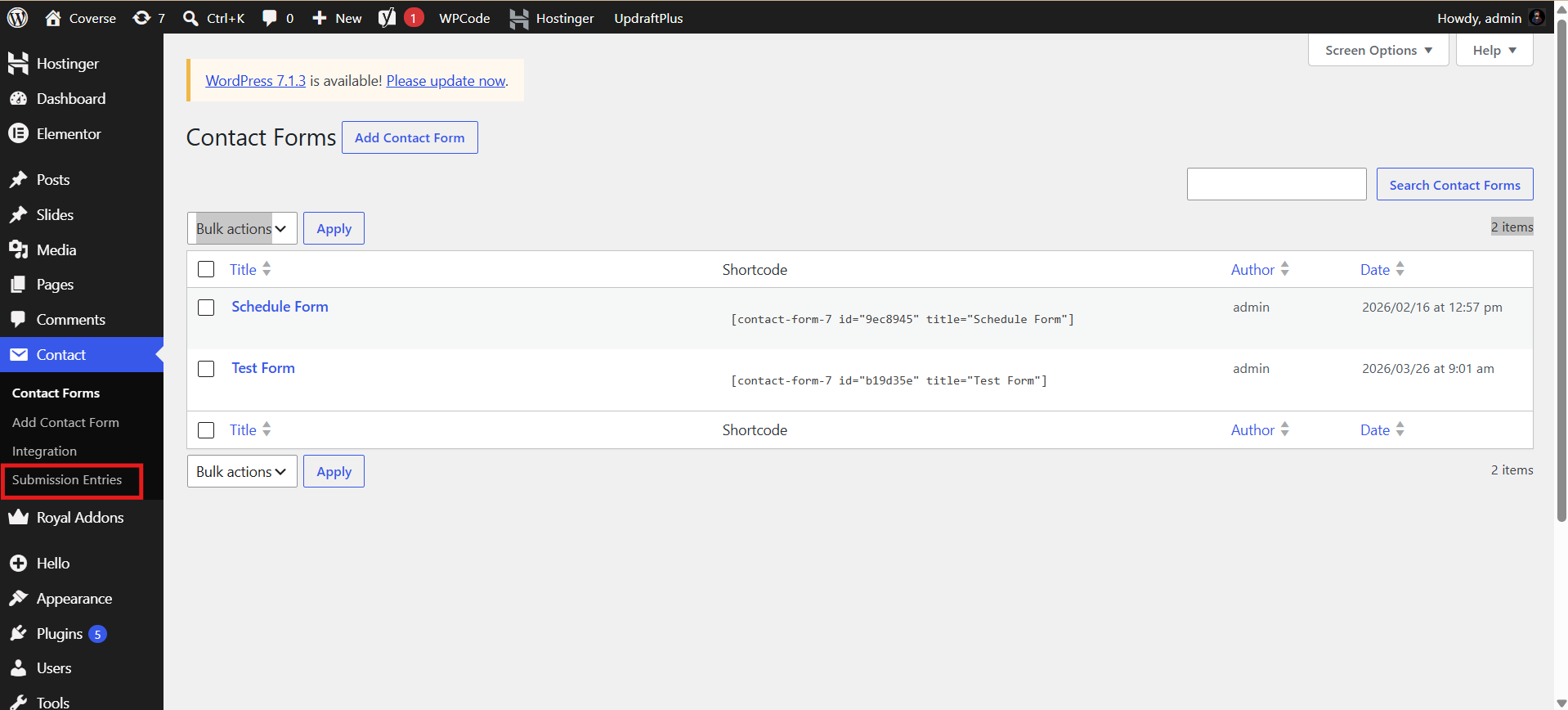
After installation, you’ll find a new menu in your WordPress dashboard:
AN Submission Entries
The plugin provides a dedicated interface for managing your form submissions.
2. Select a Form
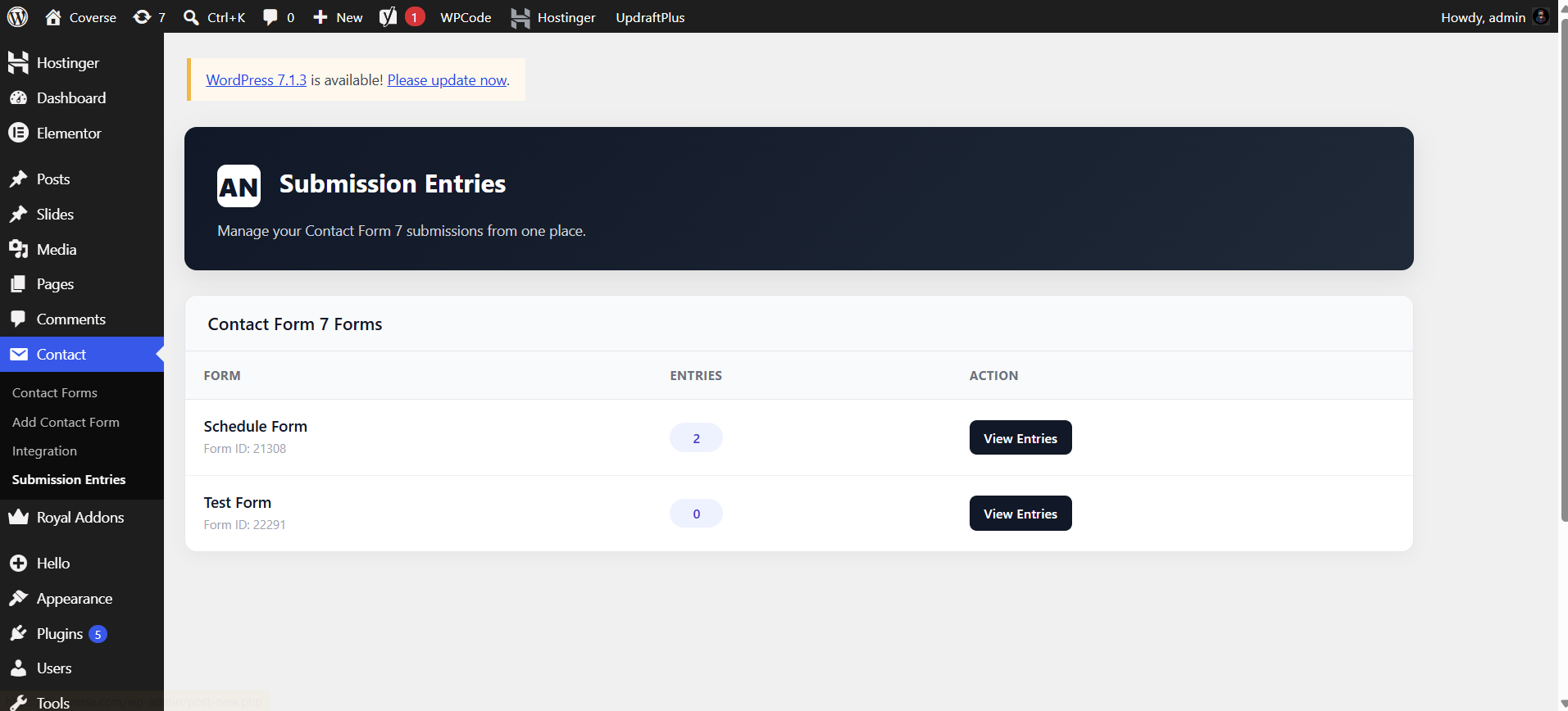
The first screen displays your available Contact Form 7 forms.
Each form shows:
- Form name
- Contact Form 7 form ID
- Number of stored submissions
- View Entries button
3. View Form Entries
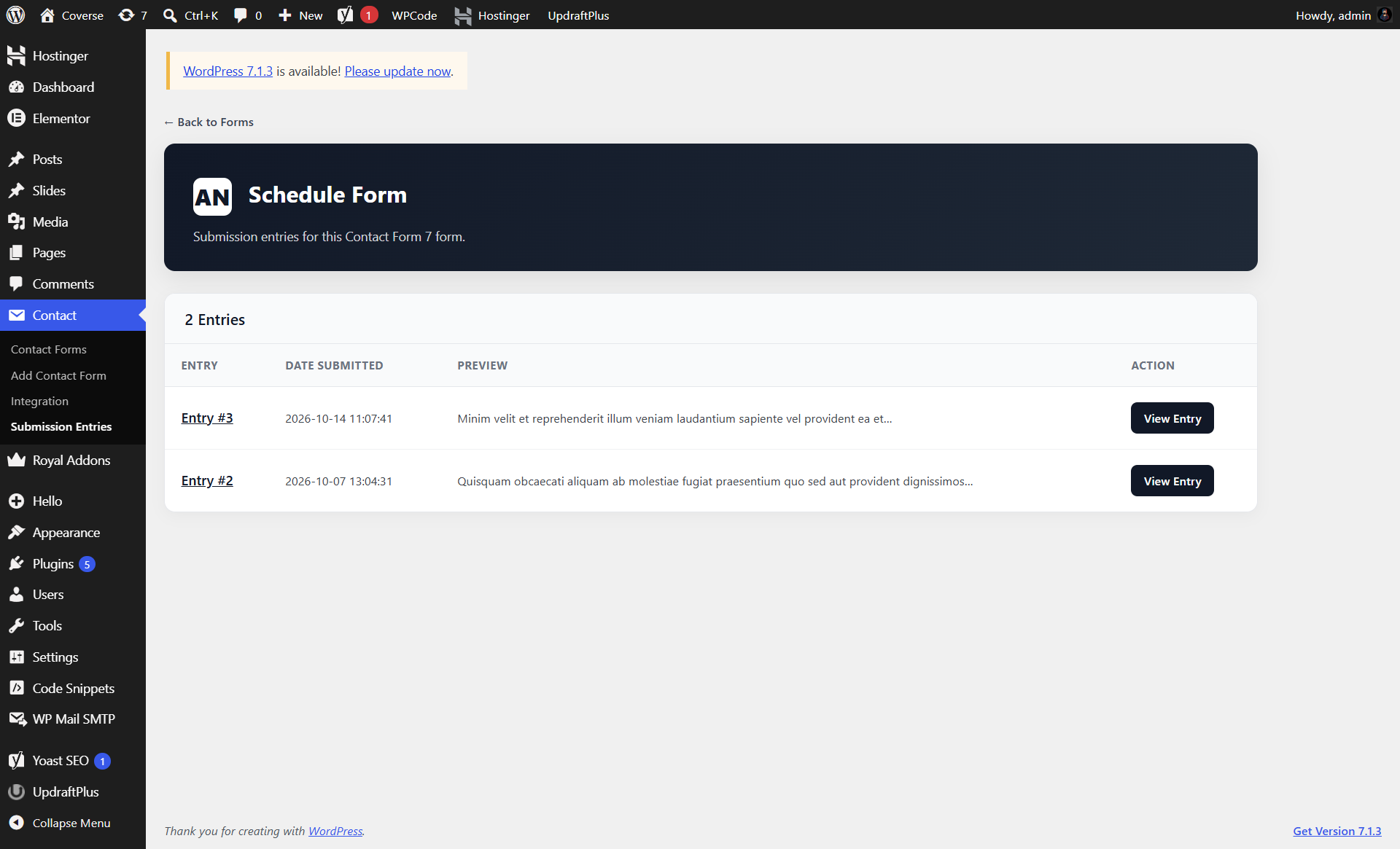
Click View Entries to see submissions belonging to that specific form.
The entries list displays:
- Entry ID
- Submission date and time
- A short preview of the submitted data
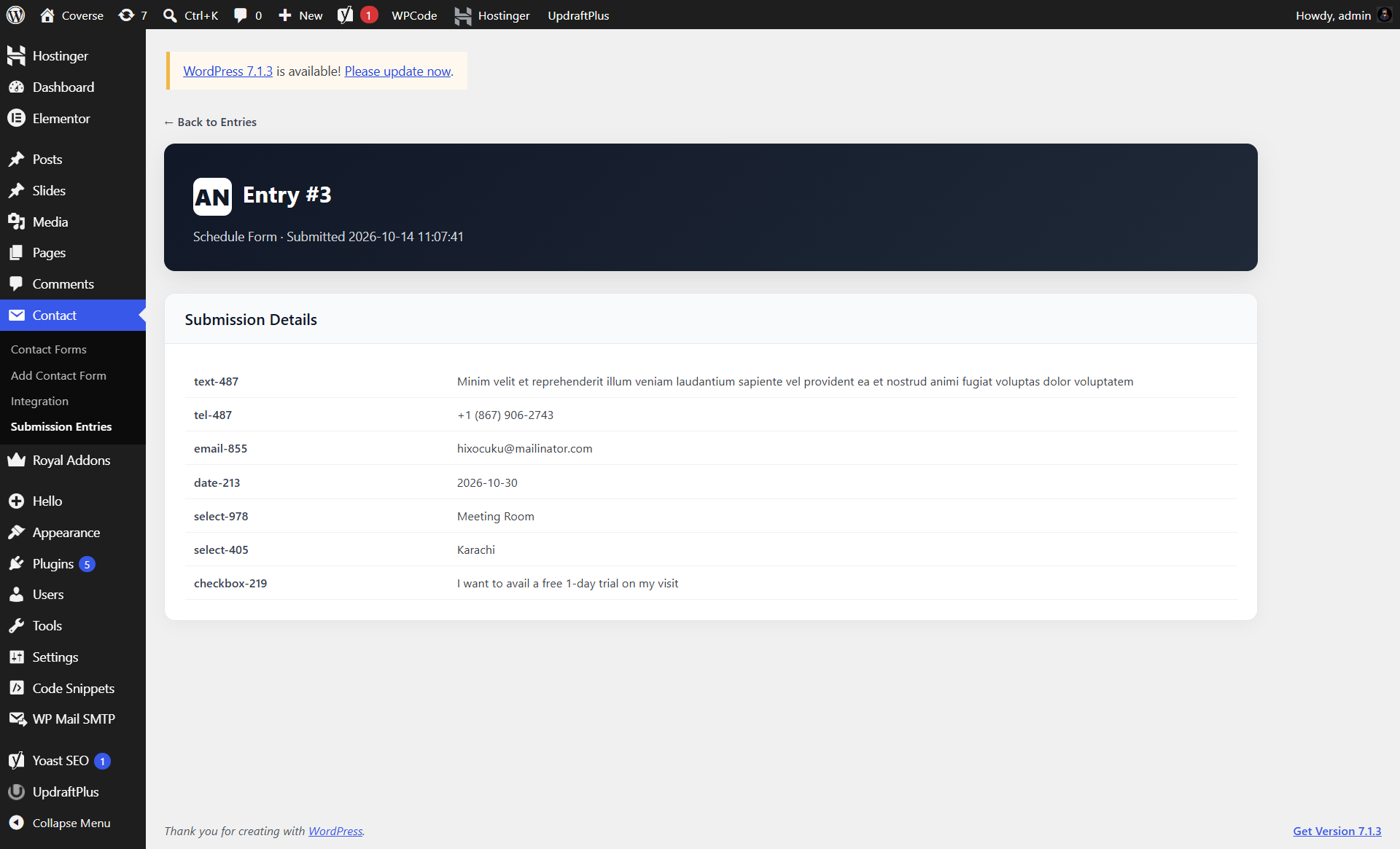
Open an entry to see all submitted fields and values. Use Export All CSV on the entries list to download that form’s submissions, or Export This Entry CSV on an individual entry page to download just that submission.
This keeps submissions organized and prevents entries from different forms from being mixed together.
Admin Interface
The plugin is designed around a simple workflow:
Forms Select a form View entries Open an individual entry or export CSV
This makes it easy to manage submissions even when your website contains multiple Contact Form 7 forms.
Requirements
Before using the plugin, make sure your website has:
- WordPress 6.5 or higher
- PHP 7.4 or higher
- Contact Form 7 installed and activated
The plugin is designed to work alongside Contact Form 7 and stores submissions when forms are submitted.
Usage
After activating the plugin:
- Create or use an existing Contact Form 7 form.
- Add the form to a page.
- Submit the form from the frontend.
- Open:
WordPress Dashboard AN Submission Entries
- Select the form.
- Click View Entries.
- Open an entry to review its submitted information, or export all entries for the form as CSV.
No shortcode or additional configuration is required for the WordPress admin submission manager.
Data Storage
The plugin stores submissions in a dedicated WordPress database table:
wp_cf7_submissions
The actual table prefix depends on your WordPress installation.
For example:
wp_cf7_submissions
or:
wp123_cf7_submissions
The table stores information such as:
- id: Unique submission ID
- form_id: Contact Form 7 form ID
- form_title: Contact Form 7 form title
- submitted_data: Submitted form data
- submit_time: Submission date and time
The plugin uses WordPress’s database API and dbDelta() for database management.
Security
AN Submission Entries uses WordPress security practices including:
- WordPress capability checks
- Sanitized form IDs
- Escaped admin output
- Prepared database queries
- WordPress database APIs
- Serialized submission data for structured storage
Only users with the appropriate WordPress administrative capability can access the submission management interface.
Why Use AN Submission Entries?
Contact Form 7 focuses on creating and processing forms, while AN Submission Entries provides a convenient way to keep and review submitted entries inside WordPress.
Instead of building a custom submission management system for every website, you can use one dedicated interface:
Forms Select Form View Entries
It’s intentionally lightweight and focused on making submission management easier.
Roadmap
Future versions may introduce additional submission management features, including:
- 🔍 Submission search
- 📄 Pagination
- 🗑️ Delete submissions
- ☑️ Bulk actions
- 📅 Date filtering
- 🔔 New/unread submission indicators
- 📊 Submission statistics
- 📎 File attachment handling
- 📧 Submission notifications
- 📤 Advanced export options
Privacy
This plugin stores form submission data in your WordPress database.
The type of information stored depends on the fields included in your Contact Form 7 forms.
Website administrators should review their site’s privacy policy and ensure that storing submitted information complies with applicable privacy requirements.
If your forms collect personal information, clearly inform visitors about how their submitted data is stored and used.
External Services
Submission data is stored in your WordPress database. The plugin also includes Appsero, an optional diagnostics and usage tracking service. Tracking data is sent only if a site administrator opts in. See the Appsero privacy policy for details.
Contact Form 7 is a separate plugin and is required to capture submissions.
License
AN Submission Entries for Contact Form 7 is licensed under the:
GNU General Public License v2.0 or later
GPL-2.0-or-later
You are free to use, modify, and distribute the plugin according to the terms of the license.
Author
Abdullah Naseem
GitHub:
https://github.com/abdullahnart/
Support and Contributions
Found a bug, have an idea, or want to contribute?
You can open an issue or submit improvements through the project’s GitHub repository:
https://github.com/abdullahnart/an-submission-entries
About
A lightweight way to turn Contact Form 7 submissions into an organized, easy-to-manage WordPress dashboard experience.
Create forms. Receive submissions. Manage entries.
Privacy Policy
AN Submission Manager for Contact Form 7 uses Appsero SDK to collect some telemetry data upon user’s confirmation. This helps us to troubleshoot problems faster & make product improvements.
Appsero SDK does not gather any data by default. The SDK only starts gathering basic telemetry data when a user allows it via the admin notice. We collect the data to ensure a great user experience for all our users.
Integrating Appsero SDK DOES NOT IMMEDIATELY start gathering data, without confirmation from users in any case.
Learn more about how Appsero collects and uses this data.
Disclaimer
This is an independent plugin and is not affiliated with or
endorsed by the Contact Form 7 project or its developers.
Screenshots
Installation
Method 1: WordPress Admin
- Download the plugin.
- Log in to your WordPress dashboard.
- Go to Plugins Add New Plugin.
- Click Upload Plugin.
- Upload the plugin ZIP file.
- Click Install Now.
- Activate the plugin.
Method 2: Manual Installation
- Download the plugin ZIP file.
- Extract the ZIP file.
- Upload the
an-submission-entriesfolder to:
/wp-content/plugins/
- Go to WordPress Dashboard Plugins.
- Find AN Submission Entries for Contact Form 7.
- Click Activate.
FAQ
-
Does this plugin require Contact Form 7?
-
Yes. Contact Form 7 must be installed and active. This plugin stores submissions from Contact Form 7 forms.
-
Where do I find my submissions?
-
In the WordPress dashboard, go to Contact Submission Entries. Select a form and click View Entries to open its entries list.
-
How do I view one submission?
-
On the entries list, click an entry ID or View Entry. The individual page displays that submission’s fields and values.
-
Can I export submissions to CSV?
-
Yes. Use Export All CSV on a form’s entries list to download its submissions, or Export This Entry CSV on an individual entry page to download just that submission.
-
Does this plugin change my Contact Form 7 forms?
-
No. The plugin works with your existing Contact Form 7 forms and does not require you to rebuild them.
-
Where are submissions stored?
-
Submissions are stored in a dedicated database table in your WordPress database. The fields saved depend on the Contact Form 7 form.
-
Can I use the plugin with multiple forms?
-
Yes. The plugin lists available Contact Form 7 forms separately and organizes each form’s submissions under that form.
-
Do I need to add a shortcode or configure anything?
-
No. After activating the plugin, submissions are captured automatically from Contact Form 7 forms.
-
Why don’t I see an entry?
-
Check that Contact Form 7 is active and that the form submission completed successfully. Only submissions captured by the plugin after activation are available in its entries list.
Reviews
There are no reviews for this plugin.
Contributors & Developers
“AN Submission Manager for Contact Form 7” is open source software. The following people have contributed to this plugin.
Contributors
Translate “AN Submission Manager for Contact Form 7” into your language.
Interested in development?
Browse the code, check out the SVN repository, or subscribe to the development log by RSS.
Changelog
1.1.2
- Added an entries list for each Contact Form 7 form.
- Added a separate detail page for each submission.
- Added CSV export for all entries belonging to a form.
- Added CSV export for an individual entry.
- Updated the FAQ and usage documentation to match the current workflow.
1.1.0
- Added dedicated AN Submission Entries admin menu.
- Added Contact Form 7 form listing.
- Added submission count for each form.
- Added form-specific submission viewing.
- Added Contact Form 7 form ID to stored submissions.
- Improved database structure.
- Added modern WordPress admin styling.
- Added responsive admin interface.
- Improved submission data presentation.
- Added admin capability checks.
- Improved database queries and escaping.
- Added activation-based database setup.
- Initial submission management functionality.
- Added Contact Form 7 submission storage.
- Added basic submission display.