
Description
Rankzaar Subscriptions Manager for Stripe brings your Stripe subscriptions into the WordPress admin and gives you a simple way to sell one-time or recurring services on any page.
No Stripe.js, no card fields on your site: customers pay on the secure, Stripe-hosted Checkout page.
Rankzaar Subscriptions Manager for Stripe is not affiliated with or endorsed by Stripe, Inc.
Manage subscriptions
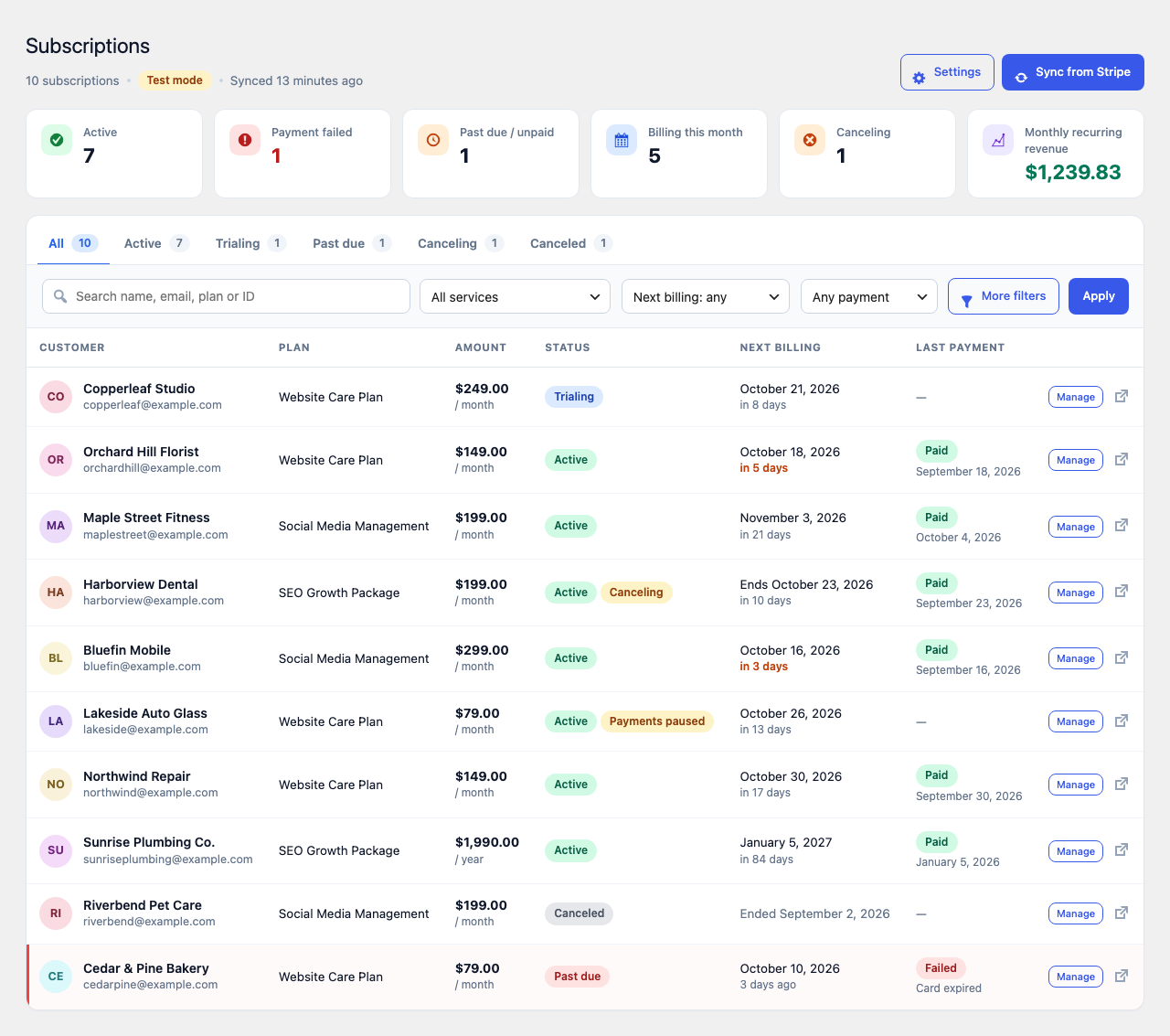
- Subscription list with search, status tabs, filters (service, next billing date, start date, failed payments) and key numbers: active subscriptions, failed payments, past due, billing this month, canceling, and monthly recurring revenue per currency.
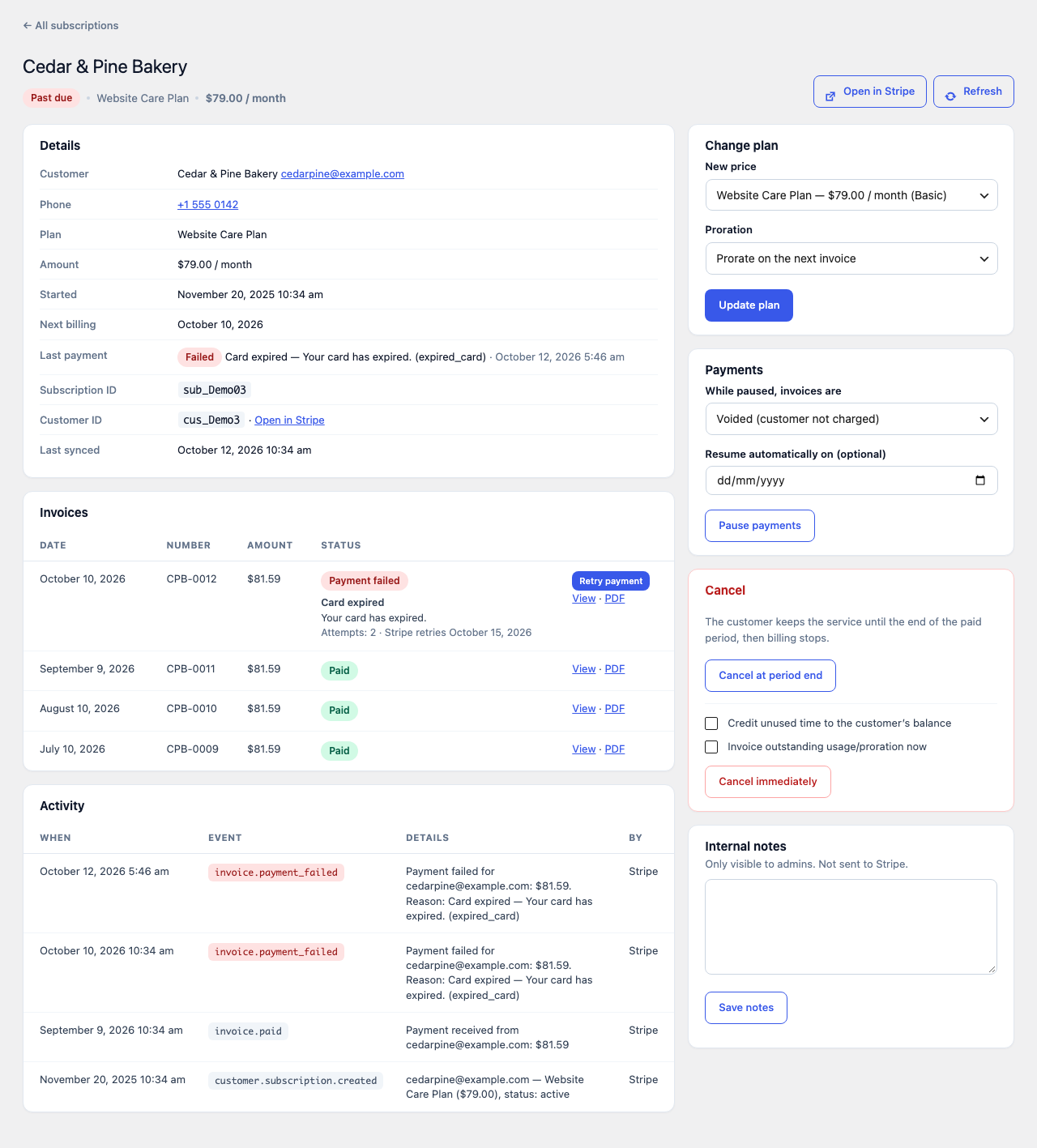
- Subscription page with customer details (name, email, business name, phone), invoices, the reason a payment failed (in plain language, straight from the bank’s decline code) and a full activity history.
- Actions: change plan (with proration choice), pause and resume payments, cancel at the end of the period (and undo), cancel immediately, retry a failed payment, and keep private internal notes. Each action can be turned off.
- Test and live mode with separate keys. Each mode keeps its own data.
- Webhook keeps everything up to date in real time. One click creates the endpoint in Stripe for you. A scheduled background sync catches anything a webhook missed.
Sell services with a shortcode
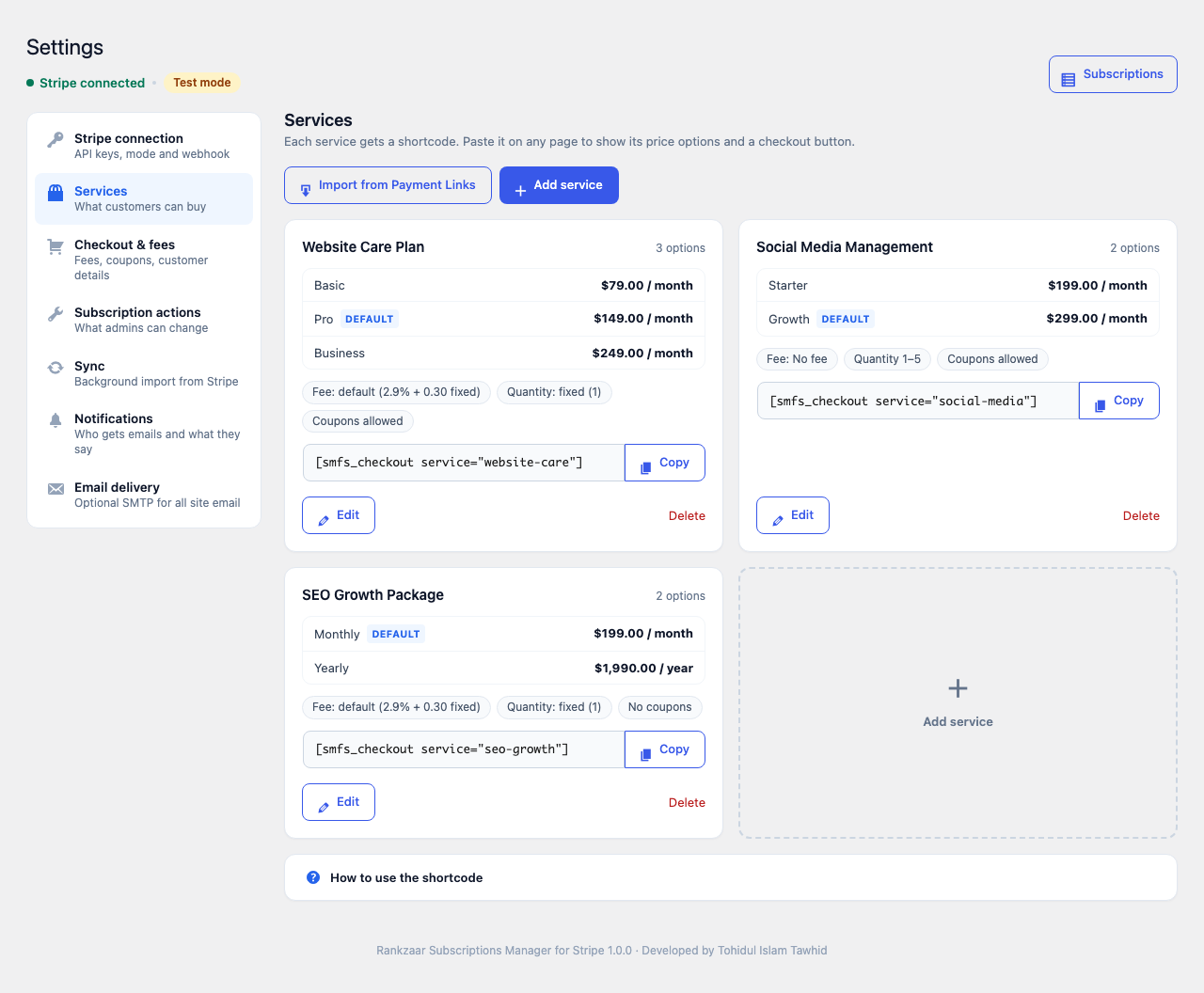
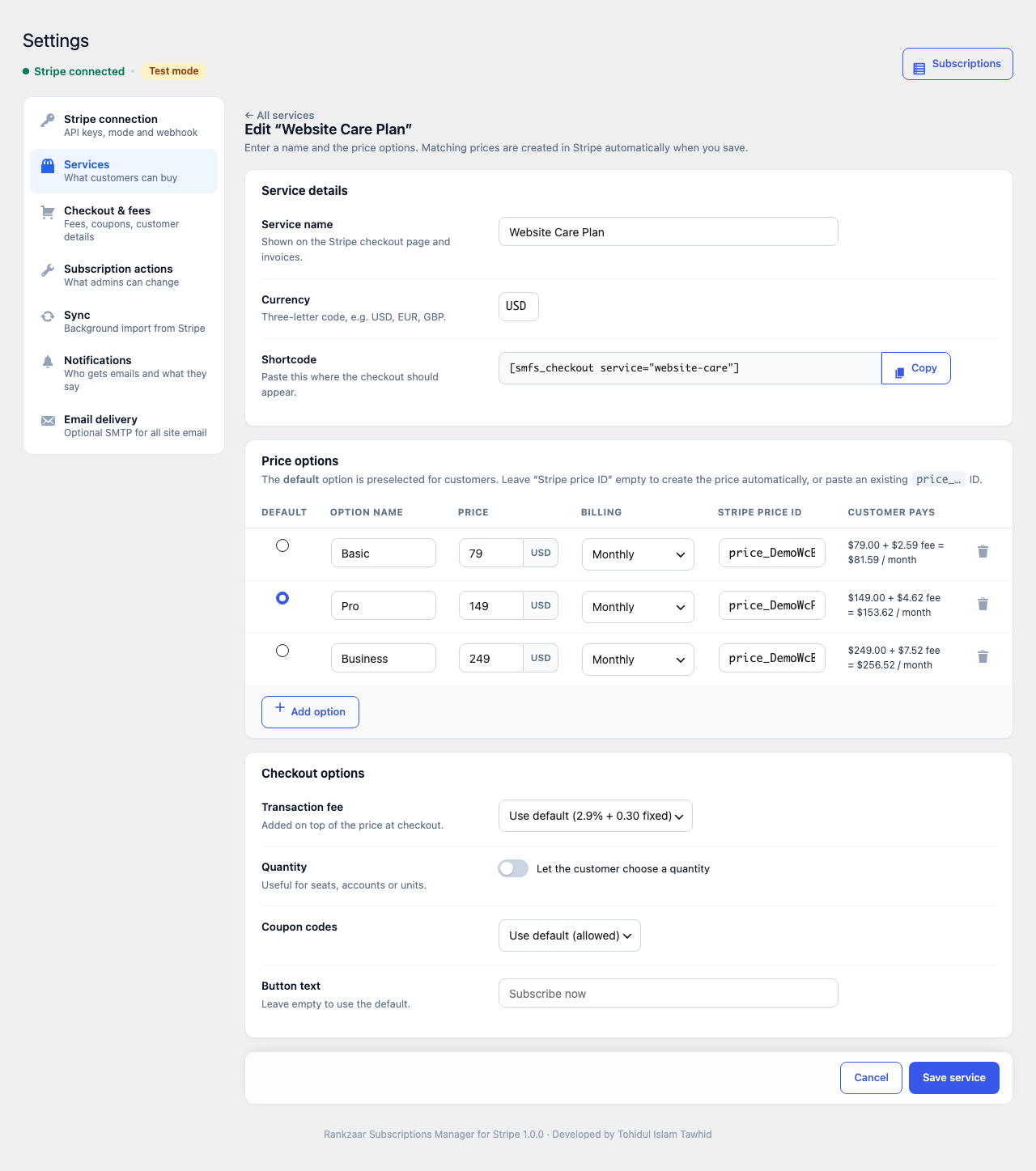
- Create a service with several price options (for example Basic / Pro / Premium, monthly or yearly). Prices are created in Stripe automatically when you save, or you can paste existing Stripe price IDs.
- Import existing Stripe Payment Links as services in one click.
- Put
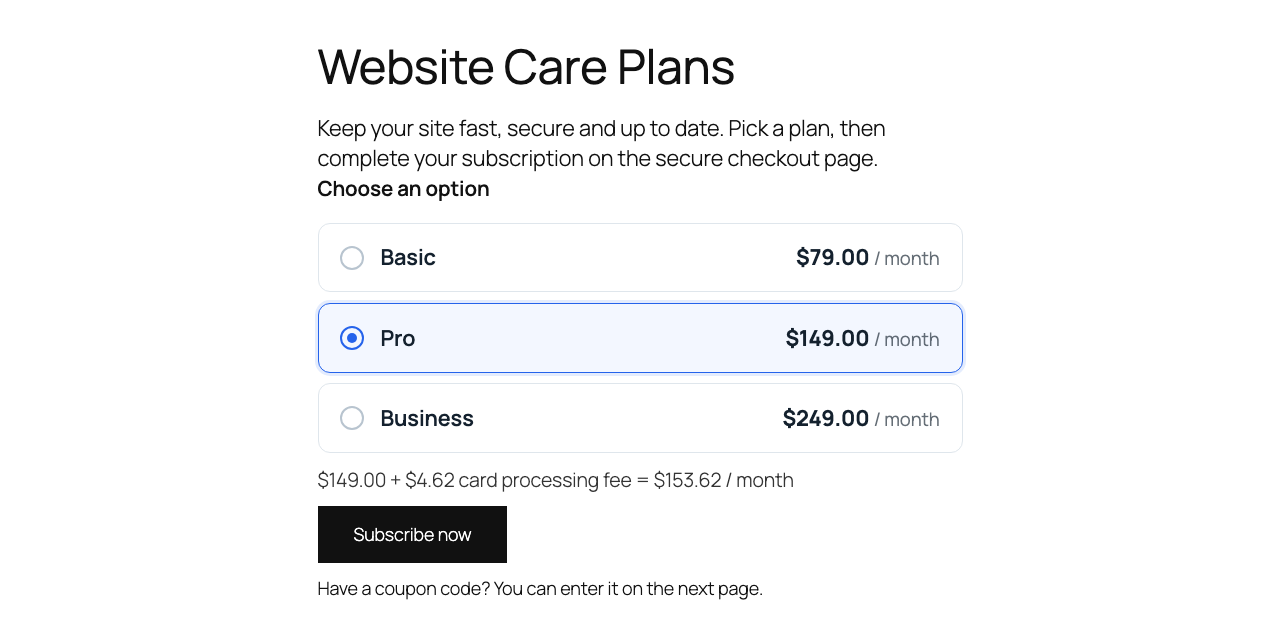
[smfs_checkout service="your-service"]on any page. Customers pick an option, optionally a quantity, see a live price breakdown, and are sent to Stripe Checkout. - Optional transaction fee (percentage and/or fixed amount), as a default for all services or per service, charged on every renewal or only on the first payment.
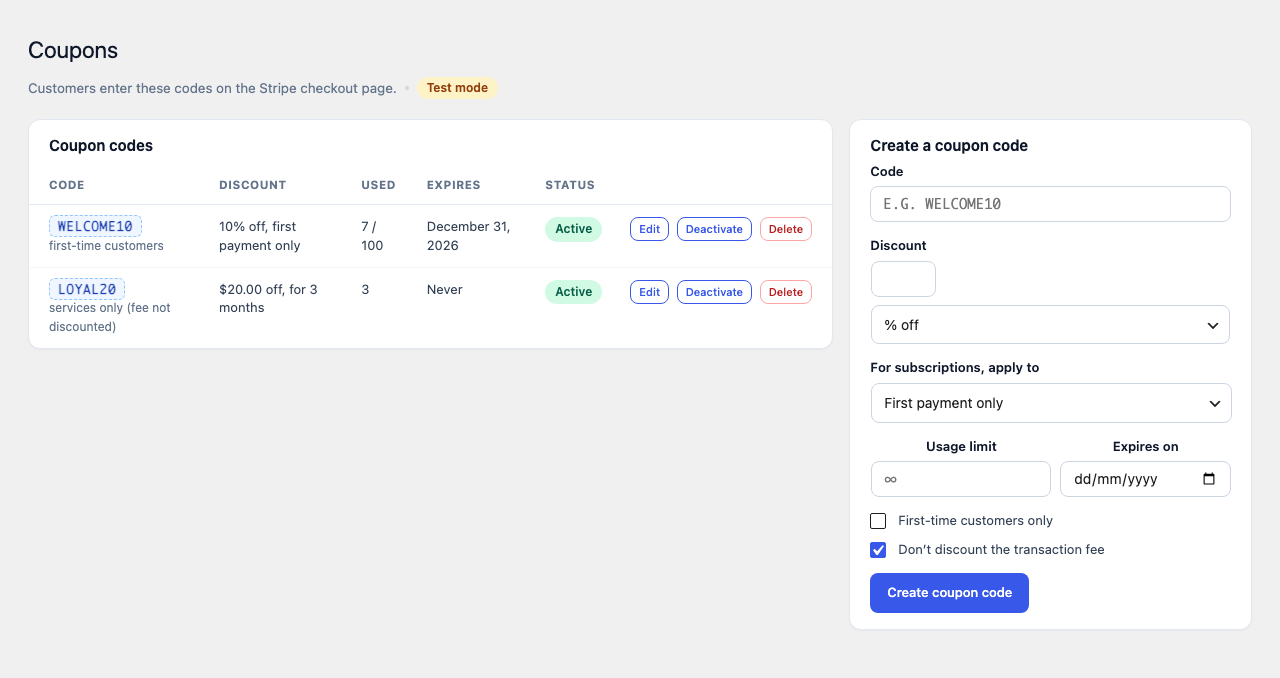
- Coupon codes: create, edit, activate, deactivate and delete Stripe promotion codes from WordPress. Limit them to first-time customers, set a usage limit and an expiry date, and choose whether the fee is discounted.
- Ask for full name, business name and phone number on the checkout page; the details are saved to the Stripe customer.
Email notifications
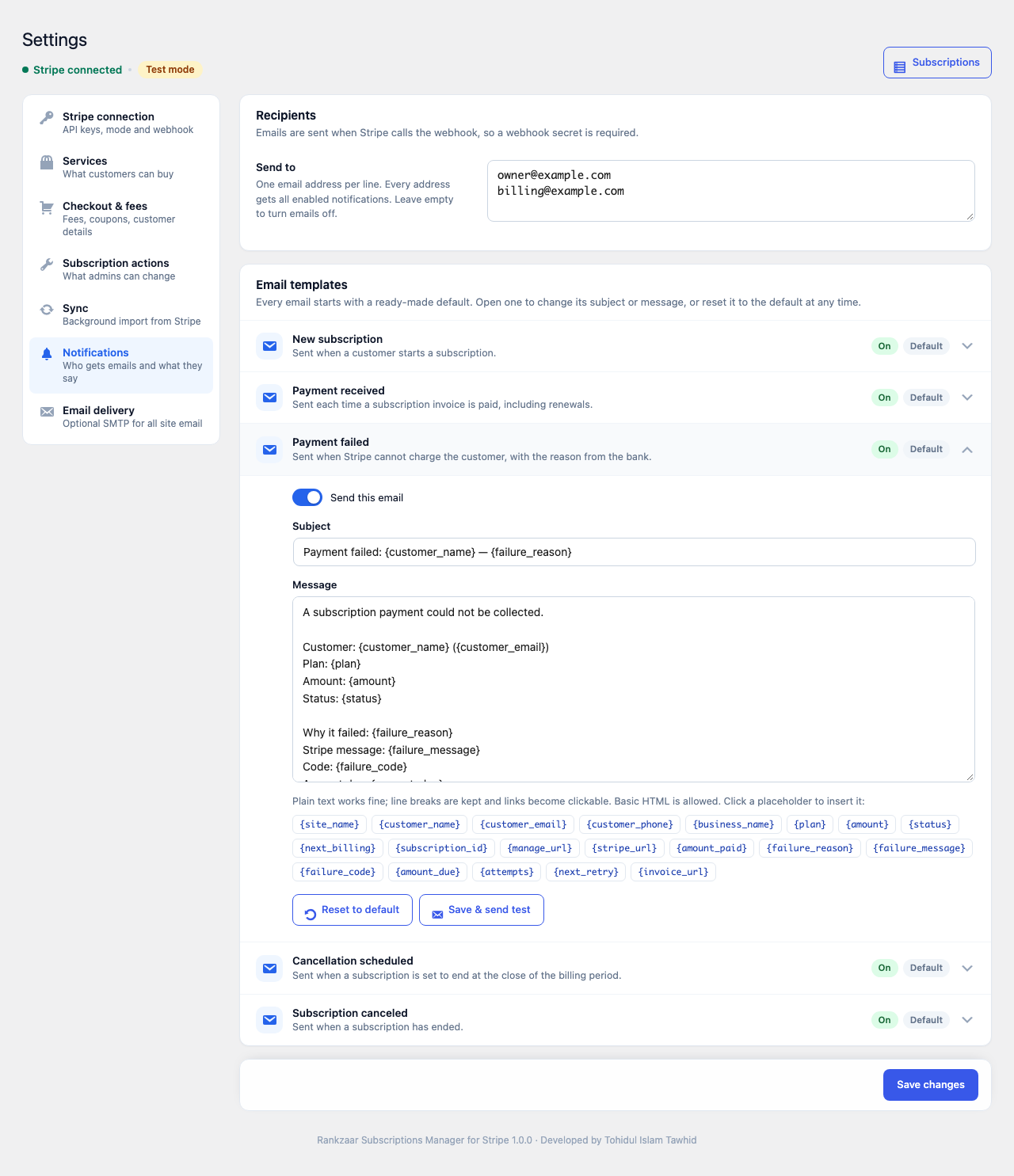
- Get an email for new subscriptions, payments received, failed payments (with the reason and a link the customer can pay), scheduled cancellations and canceled subscriptions.
- Every email has a ready-made default template. Change the subject and message in Settings Notifications using placeholders such as
{customer_name},{plan},{amount}or{failure_reason}, send yourself a test, and reset to the default at any time. - Optional SMTP settings (with presets for common providers) if your server’s built-in email is unreliable.
Shortcode options
variant="premium"– show only one option, orvariant="basic,premium"for several.layout="dropdown"– show the options in a dropdown instead of cards.label="Buy now"– button text for this placement.breakdown="no"– hide the price line.class="my-class"– add CSS classes to the button.
Any element with data-smfs-variant="option-id" (for example a button in a pricing table) selects that option when clicked.
For developers
- Keys can be defined in
wp-config.phpinstead of the database:SMFS_STRIPE_SECRET_KEY,SMFS_STRIPE_WEBHOOK_SECRETandSMFS_SMTP_PASSWORD. - Filter
smfs_checkout_button_classesto add your theme’s button classes to the checkout button.
External services
This plugin connects to the Stripe API (https://api.stripe.com), a payment service provided by Stripe, Inc. It cannot work without it. Requests are made from your server with the secret key you enter; nothing is loaded from Stripe in visitors’ browsers.
Data is sent to Stripe in these situations:
- When a visitor clicks the checkout button: the selected price, quantity, transaction fee, the return URLs of your site and the service/option identifiers are sent to create a Stripe Checkout Session. The visitor is then redirected to Stripe’s hosted checkout page (
checkout.stripe.com), where they enter their email address, payment details and, if you enabled them, their name, business name and phone number directly with Stripe. - After a checkout is completed (via the webhook): the customer’s name, business name and phone number collected on the checkout page are saved to the Stripe customer record.
- When an administrator uses the plugin: testing a key, syncing subscriptions, viewing a subscription, creating or editing services (product names, prices, billing intervals), creating coupon codes, creating the webhook endpoint, and subscription actions (change plan, pause, resume, cancel, retry a payment). These requests send the related IDs and values to Stripe and read back subscriptions, customers (email, name, phone, business name), invoices, prices, products, coupons and payment links.
- Background sync (WP-Cron, if enabled): subscription, customer and product data is read from Stripe on the schedule you choose.
Stripe also sends events to your site’s webhook URL (/wp-json/smfs/v1/webhook); every request is verified with the Stripe signing secret.
- Stripe Services Agreement and legal terms: https://stripe.com/legal
- Stripe Privacy Policy: https://stripe.com/privacy
If you turn on the optional SMTP feature, all email from your site is sent through the SMTP server you configure (for example your email provider). That provider receives the content and recipients of those emails; its own terms and privacy policy apply.
Screenshots
Installation
- Upload the
rankzaar-subscriptions-manager-for-stripefolder to/wp-content/plugins/, or install the plugin from the Plugins screen. - Activate the plugin.
- Go to Subscriptions Settings Stripe connection.
- Paste your Stripe test secret key (or a restricted key, see the FAQ) and click Save & test.
- Click Create webhook to add the webhook endpoint in Stripe and store its signing secret automatically.
- Go to Subscriptions All Subscriptions and click Sync from Stripe to import existing subscriptions.
- To sell on your site: add a service under Settings Services, then paste its shortcode on a page.
- When everything works in test mode, add your live keys, create the live webhook and switch to Live mode.
FAQ
-
Do I need a Stripe account?
-
Yes. The plugin works with your own Stripe account and uses Stripe’s API and hosted checkout page.
-
Which permissions does a restricted key need?
-
Write access to Subscriptions, Checkout Sessions, Customers, Products, Prices, Coupons, Promotion codes, Invoices and Webhook endpoints, and read access to PaymentIntents and Payment Links. A standard secret key also works.
-
Are card details stored on my site?
-
No. Customers pay on Stripe’s hosted checkout page. Your site never sees card numbers.
-
How do I test without charging anyone?
-
Use test mode with your test keys and Stripe’s test card
4242 4242 4242 4242, any future expiry date and any CVC. -
Why don’t changes made in Stripe show up?
-
Make sure a webhook signing secret is saved (Settings Stripe connection shows the status). Without it, changes only appear after a sync. You can always click Sync from Stripe.
-
Can I change the notification emails?
-
Yes. Go to Settings Notifications and open any email. Edit the subject and message, click a placeholder to insert it, and use Save & send test to see the result. Reset to default restores the original text.
-
What happens to my data when I delete the plugin?
-
Deleting the plugin removes its settings, services, email templates, cached subscriptions, activity log and scheduled events from WordPress. Nothing is deleted in Stripe: your customers, subscriptions, prices, coupons and webhook endpoints stay there. Deactivating the plugin only stops the scheduled sync.
-
The checkout form includes a security token (nonce) that WordPress accepts for 12–24 hours. If your caching plugin keeps pages longer than that, exclude the pages that contain the
[smfs_checkout]shortcode from the cache, or set the cache lifetime to 10 hours or less. Otherwise visitors may see “we could not start the checkout” until the page is refreshed in the cache. -
Does it work with page builders?
-
Yes. Add the shortcode with a Shortcode block or your page builder’s shortcode widget.
Reviews
There are no reviews for this plugin.
Contributors & Developers
“Rankzaar Subscriptions Manager for Stripe” is open source software. The following people have contributed to this plugin.
Contributors
Translate “Rankzaar Subscriptions Manager for Stripe” into your language.
Interested in development?
Browse the code, check out the SVN repository, or subscribe to the development log by RSS.
Changelog
1.0.0
- Initial release.