
Description
Conditional Elements lets you create content with the WordPress block editor, add it to WordPress hooks, and control when it is displayed.
Create Gutenberg content, choose where it should appear, and configure conditions to control its visibility. You can include or exclude content based on configured conditions, control visibility by user role or device, and use custom WordPress action hooks when you need more flexibility.
Key Features
- Gutenberg Content – Create and manage content using the WordPress block editor.
- Flexible Placement – Add Gutenberg content before or after supported locations.
- Theme-Aware Placement – Automatically provides available placement options based on the active theme.
- Block Theme Support – Provides placement options for WordPress block themes.
- Custom Hooks – Add content to your own WordPress action hooks.
- Include Conditions – Display content when selected conditions are met.
- Exclude Conditions – Prevent content from being displayed when selected conditions are met.
- User Role Conditions – Control content visibility based on the current user’s role.
- Device Visibility – Show or hide content for desktop, tablet, or mobile devices.
- Shortcodes – Render Conditional Elements content directly inside posts, pages, templates, widgets, or other shortcode-compatible areas.
Placement
Conditional Elements provides theme-aware placement options based on the active theme.
For supported classic themes, additional theme-specific placement options may be available.
For other classic themes, common WordPress hook locations are available, including:
- Before Site Wrapper
- After Site Wrapper
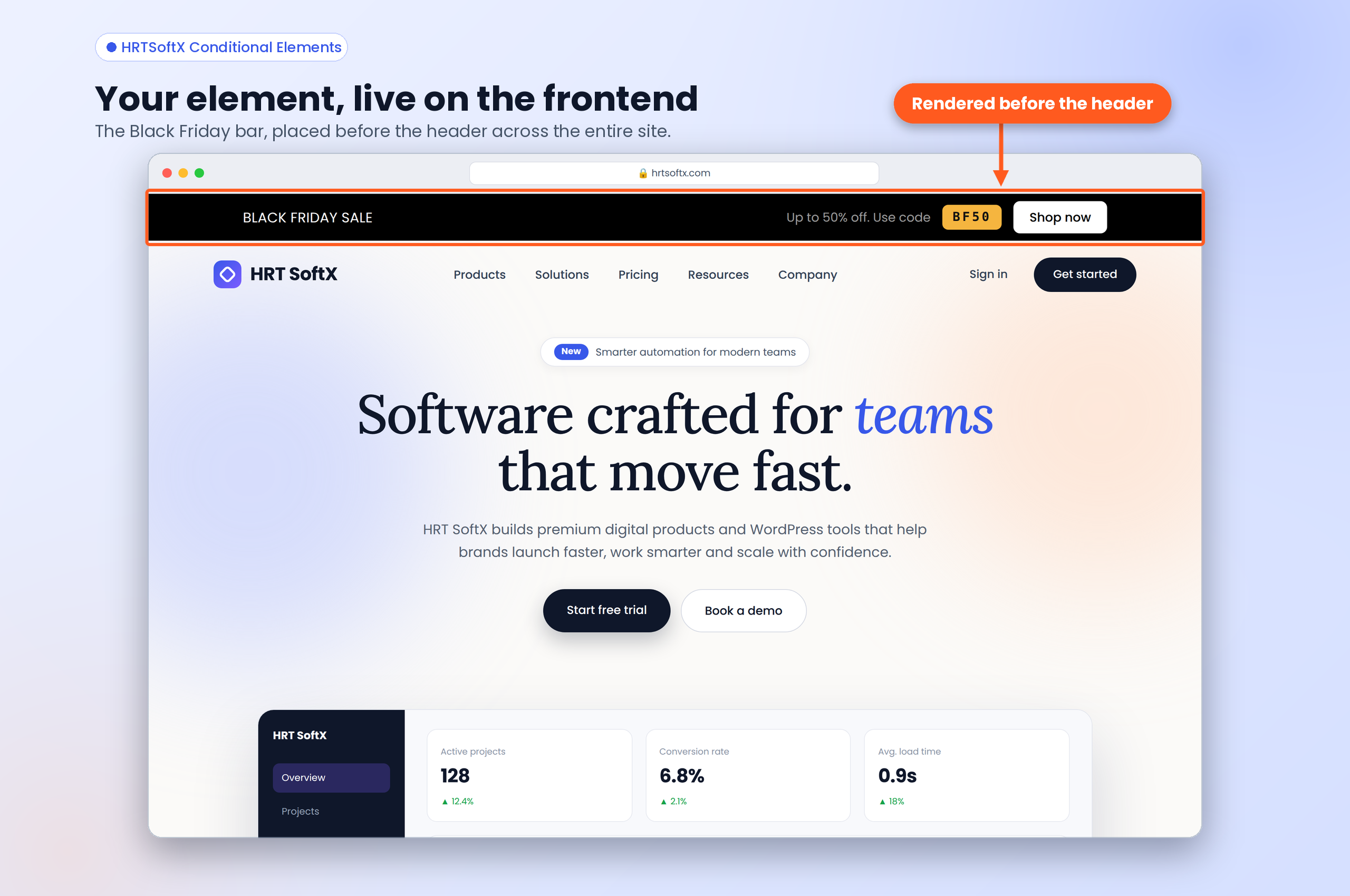
- Before Header
- Before Inner Content
- After Inner Content
- Before Footer
- After Footer
For WordPress block themes, supported placement locations include:
- Before Site Wrapper
- After Site Wrapper
- Before Header
- After Header
- Before Title
- After Title
- Before Content
- After Content
- Before Inner Content
- After Inner Content
- Before Footer
- After Footer
Available placement options depend on the active theme and its supported hooks.
You can also use Custom Hook to add content to any WordPress action hook.
Conditions
Conditional Elements provides several ways to control when content is displayed.
Include
Display content when the configured conditions match.
Exclude
Prevent content from being displayed when the configured conditions match.
User Role
Control content visibility based on the current user’s WordPress role.
Device Visibility
Control visibility based on the visitor’s device:
- Desktop
- Tablet
- Mobile
Shortcode
Each Conditional Element has a shortcode that can be copied directly from the Shortcode column in the Conditional Elements list table.
Example:
[hrtcel_element id=32]
Use the shortcode anywhere WordPress supports shortcodes.
The shortcode respects the Conditional Element’s configured conditions by default.
Bypass Conditions
You can optionally bypass the configured conditions by passing bypass_conditions=”true”.
Example:
[hrtcel_element id=32 bypass_conditions=”true”]
This renders the element’s content without applying its configured conditional rules.
Source Code
The JavaScript and CSS files in the build/ directory are compiled from human-readable source code. The full, uncompiled source is included in this plugin in the src/ directory.
Compiled files and their sources:
build/hrtcel-admin-list.jsandbuild/hrtcel-admin-list.cssare built fromsrc/admin-list/build/hrtcel-sidebar.jsandbuild/hrtcel-sidebar.cssare built fromsrc/sidebar/
The source is written in TypeScript/React and SCSS. The build is configured in package.json, tsconfig.json and webpack.config.js, and uses the @wordpress/scripts toolchain (webpack). Dependency versions are locked in package-lock.json.
Building from source
Requirements: Node.js 20.17 or later and npm.
- Open the plugin directory in a terminal.
- Run
npm installto install the build tools. - Run
npm run buildto regenerate the files inbuild/. - Run
npm run devduring development to rebuild automatically when files change.
Third-party libraries
The following libraries are bundled into the compiled JavaScript:
- react-select (MIT) – https://github.com/JedWatson/react-select
- Emotion packages used by react-select (MIT) – https://github.com/emotion-js/emotion
- @wordpress/icons (GPL-2.0-or-later) – https://github.com/WordPress/gutenberg/tree/trunk/packages/icons
All other @wordpress/* packages are loaded from WordPress core as script dependencies and are not bundled.
Screenshots


Installation
- Install Conditional Elements through the WordPress plugin directory or upload the plugin files to the /wp-content/plugins/hrtsoftx-conditional-elements/ directory.
- Activate the plugin through the Plugins screen in WordPress.
- Go to Conditional Elements in the WordPress admin area.
- Create your content using the WordPress block editor.
- Select a placement and configure your conditions.
- Publish your Conditional Element.
- Copy the shortcode from the Shortcode column when you want to render the element directly.
FAQ
-
Which themes are supported?
-
Conditional Elements supports WordPress block themes and includes integrations for popular classic themes such as Astra, Kadence, GeneratePress, Neve, and OceanWP.
For other classic themes, common WordPress hook locations are available where supported by the theme.
You can also use Custom Hook to add content to any WordPress action hook.
-
Can I use my own WordPress hook?
-
Yes. Use the Custom Hook placement and enter one or more WordPress action hooks separated by commas.
-
Does Conditional Elements work with Gutenberg?
-
Yes. Conditional Elements uses the WordPress block editor to create and manage content.
-
Can I control content visibility based on conditions?
-
Yes. You can configure include and exclude conditions to control when your content is displayed.
-
Can I control content visibility based on user roles?
-
Yes. You can configure user role conditions to control who can see your content.
-
Can I control content visibility by device?
-
Yes. Device visibility conditions let you show or hide content for desktop, tablet, or mobile devices.
-
Can I use Conditional Elements with a shortcode?
-
Yes. Every Conditional Element has a shortcode available from the Shortcode column in the Conditional Elements list table.
For example:
[hrtcel_element id=32]
-
Can I bypass conditions when using a shortcode?
-
Yes. Add bypass_conditions=”true” to the shortcode.
For example:
[hrtcel_element id=32 bypass_conditions=”true”]
This renders the element without applying its configured conditional rules.
Reviews
There are no reviews for this plugin.
Contributors & Developers
“HRTSoftX – Conditional Elements” is open source software. The following people have contributed to this plugin.
Contributors
Translate “HRTSoftX – Conditional Elements” into your language.
Interested in development?
Browse the code, check out the SVN repository, or subscribe to the development log by RSS.
Changelog
1.0.0
- Initial release.