

Description
GeoDirectory MLS Import connects your site to your MLS through the RESO Web API and imports listings into GeoDirectory.
Enter the credentials your MLS or IDX vendor issued you, pick a dataset, choose which listings you want, and GeoDirectory MLS Import keeps them in sync on a schedule you control.
What it does
- Imports from any RESO Web API (OData) compliant feed.
- Maps RESO fields onto GeoDirectory custom fields, overridable per import.
- Downloads listing photos to your media library, or hotlinks the MLS image URLs.
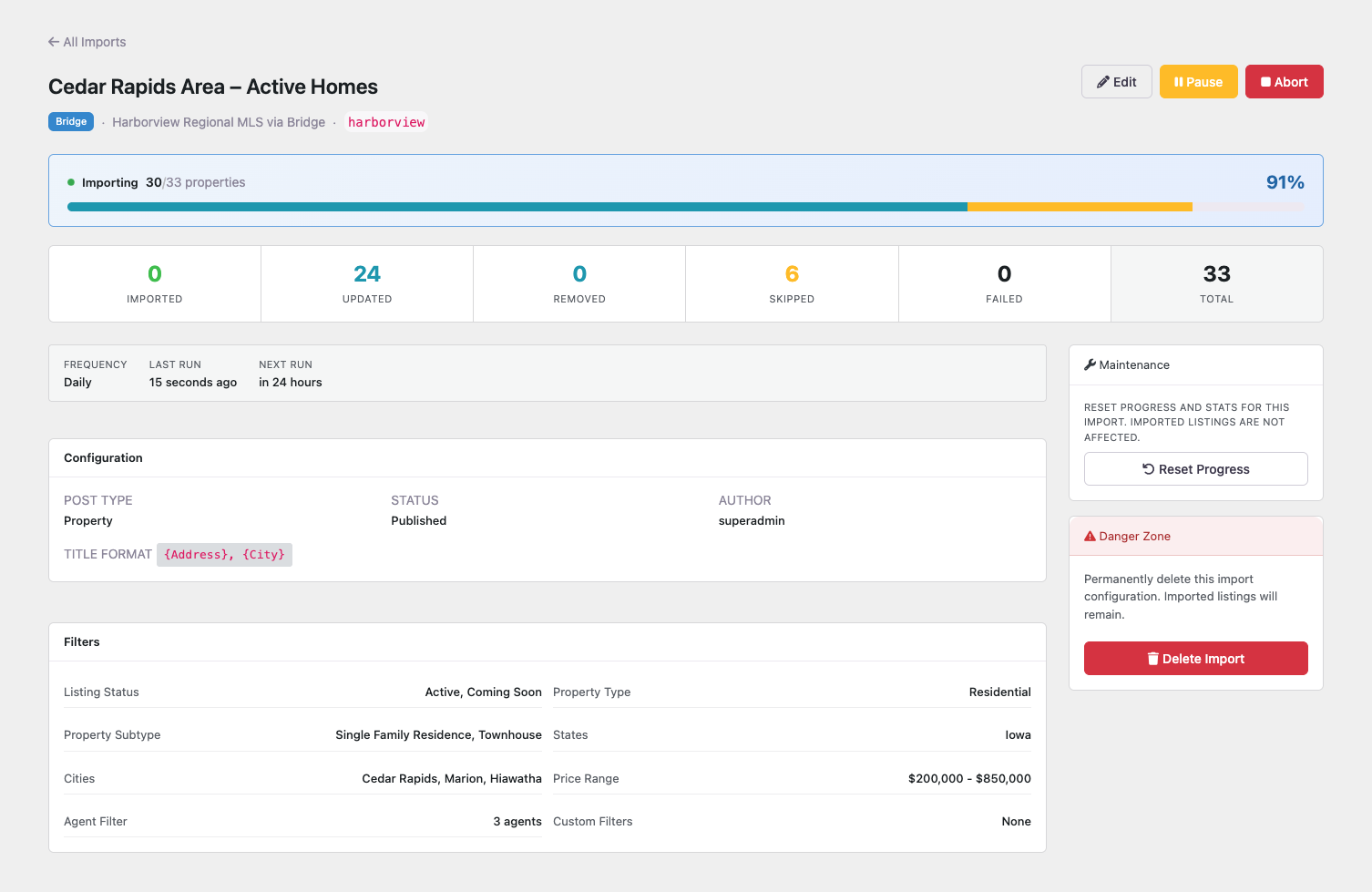
- Runs in the background, so large datasets import without timing out. Pause, resume or stop a run at any time, and resume an interrupted one where it left off.
- Previews a run before you start it, showing what would be imported, updated or skipped without changing anything.
- Re-runs hourly, daily, weekly or monthly, updating only listings that changed.
- Optionally trashes listings that have left the feed.
- Logs every listing processed, skipped or failed.
Filtering
Narrow an import by:
- Listing status, property type and subtype
- State, city, street address and postal code
- Listing agent and office, including exclusions
- Price range and price display rules
- A maximum number of listings, or one listing by
ListingId/ListingKey - Any custom OData filter expression your feed supports
Filters are sent to the provider as part of the query, so narrowing happens at the feed.
Your import
The plugin manages one import: a saved configuration of dataset, filters, field mapping and schedule, with scheduling, images and every filter above included. Change any of it whenever you like, or point it at a different dataset.
Supported MLS platforms
Presets ship for Trestle, Bridge Data Output, Spark Platform and Navica. Paragon, Rapattoni and other RESO Web API providers need their endpoints added with the geomls_service_config filter. If your MLS is not listed, contact AyeCode support.
Requirements
- GeoDirectory 2.3 or higher
- RESO Web API credentials from your MLS or IDX vendor
GeoDirectory MLS Import does not include, resell or provide access to any MLS data. You must have your own agreement with, and credentials from, your MLS or IDX vendor.
External services
This plugin contacts a third-party MLS or IDX provider to retrieve the listings you ask it to import. Nothing is sent anywhere until you enter API credentials and run an import.
Which service is contacted
The RESO Web API endpoint belonging to the MLS or IDX vendor you configure under GeoDirectory > Settings > MLS Import. The plugin contacts no endpoint of its own. Presets are provided for the following, and a developer can add other RESO Web API endpoints with the geomls_service_config filter:
- Trestle by Cotality –
api-trestle.corelogic.com(terms, privacy policy) - Bridge Data Output –
api.bridgedataoutput.com(terms, privacy policy) - Spark Platform –
sparkapi.com(terms, privacy policy) - Navica –
navapi.navicamls.net(privacy policy, published by its operator Systems Engineering, Inc.). Navica publishes no public terms-of-use page for the API; access is granted by your MLS and governed by the data agreement they issue you. - Paragon – endpoints supplied by your MLS and added with the filter above
- Rapattoni – endpoints supplied by your MLS and added with the filter above
When requests are made
- When you save API credentials, to verify they work.
- When you load or refresh the list of datasets available to your account.
- When you search for an agent, office or other filter value while building an import.
- When you preview an import.
- When an import runs, manually or on its schedule.
- When listing images are downloaded, if you enabled that. Images come from the image host named in the feed, which your MLS chooses.
What is sent
- Your API credentials (client ID, client secret, server token, or username and password, depending on the provider), to authenticate.
- The OData query built from your filters, containing only the field names and values you selected.
No WordPress user data, site content or information about your visitors is transmitted.
What is received
Property listing records and media URLs from the dataset you selected, stored as GeoDirectory listings on your site.
Your use of these services is governed by your own agreement with your MLS or IDX vendor, in addition to the terms and privacy policies above.
Screenshots




Installation
- Install and activate GeoDirectory 2.3 or higher.
- Install GeoDirectory MLS Import through Plugins > Add New, or upload the
geodirectory-mls-importfolder to/wp-content/plugins/. - Activate GeoDirectory MLS Import through the Plugins menu.
- Open MLS Import in the admin menu and click Add MLS credentials, or go to GeoDirectory > Settings > MLS Import. Choose your MLS, enter your API credentials and save.
- Back in MLS Import, choose a dataset, set your filters and schedule, and create the import.
FAQ
-
Do I need an MLS account?
-
Yes. GeoDirectory MLS Import is a client for the RESO Web API and comes with no listing data. You need credentials from your MLS, your IDX vendor, or a provider such as Bridge or Spark, and you must follow their rules on how the data is displayed.
-
My MLS is not in the provider list. Can I still use it?
-
Yes, as long as it exposes a RESO Web API (OData) endpoint. Its authentication, token and request URLs need to be added with the
geomls_service_configfilter, or contact AyeCode support to have it added. -
Where do imported listings go?
-
Into the GeoDirectory post type you choose when you create the import, so they behave like any other GeoDirectory listing: same templates, search and maps.
-
The import stops before it finishes. What should I do?
-
Open the import. If a run was interrupted, a banner offers Resume to pick up where it left off. Large datasets are processed in batches by WP-Cron, so sites with WP-Cron disabled should have a system cron calling
wp-cron.php. -
Can I import a different dataset?
-
Yes. Open your import, click Edit and use Change Dataset, or change its filters and schedule, whenever you like.
-
Can I see what an import will do before running it?
-
Yes. Preview fetches a sample from your MLS and shows what would be imported, updated or skipped, along with how your fields map. Nothing is saved.
-
Can I change an import while it is running?
-
Settings can’t change during a run. Wait for it to finish, or stop the run from the edit screen and then save your changes.
-
What happens to listings removed from the MLS?
-
If you enable Remove listings no longer in the MLS, they are moved to Trash after each run. Nothing is permanently deleted.
-
Does uninstalling delete my listings?
-
No. Deleting the plugin removes its settings, queues, logs and import configurations. Imported listings remain in GeoDirectory, but the MLS IDs that link them to your feed are removed, so a later reinstall imports them as new listings.
Reviews
There are no reviews for this plugin.
Contributors & Developers
“GeoDirectory MLS Import” is open source software. The following people have contributed to this plugin.
Contributors


Translate “GeoDirectory MLS Import” into your language.
Interested in development?
Browse the code, check out the SVN repository, or subscribe to the development log by RSS.
Changelog
2.0.5
- Initial release.
- Version numbers match the GeoDirectory core major this addon is built for, so GeoDirectory MLS Import starts at 2.0.0.