

Description
Writing the post is the work. Remembering to pin it, three days later, is the part that quietly stops happening.
This plugin schedules Pinterest Pins for you, automatically, from the posts you already publish. Burnpedia Pin Scheduler connects your WordPress site to your Burnpedia account; when a post goes live, it builds a Pin from that post’s image, title and link and hands it to Burnpedia to publish on a schedule — to the board you picked, at a sensible time, without you opening Pinterest.
What it does
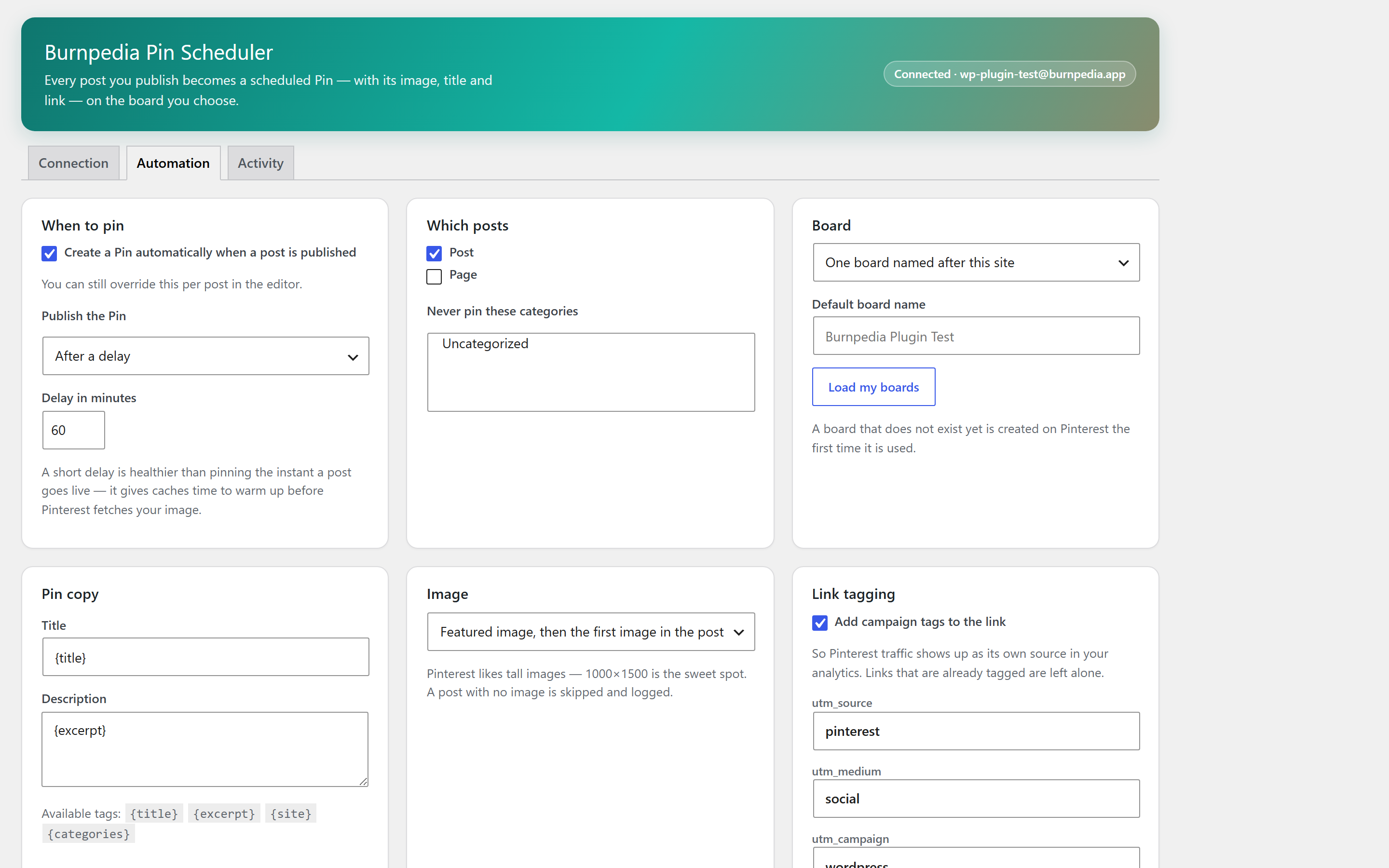
- Creates a Pin automatically when a post is published — or only for the posts you tick.
- Uses the featured image, or the first image in the post if there is no featured image.
- Sends the Pin to one fixed board, a board per category, or a board named after your site. A board that does not exist yet is created for you.
- Writes the Pin title and description from templates with
{title},{excerpt},{site}and{categories}tags — editable per post. - Adds campaign tags to the link (
utm_source=pinterest…) so Pinterest traffic is visible in your analytics. Links that are already tagged are left alone. - Schedules with a delay, so your caches and CDN are warm before Pinterest fetches the image.
- Retries by itself when something goes wrong, and waits for the reset when you have used up the day’s allowance.
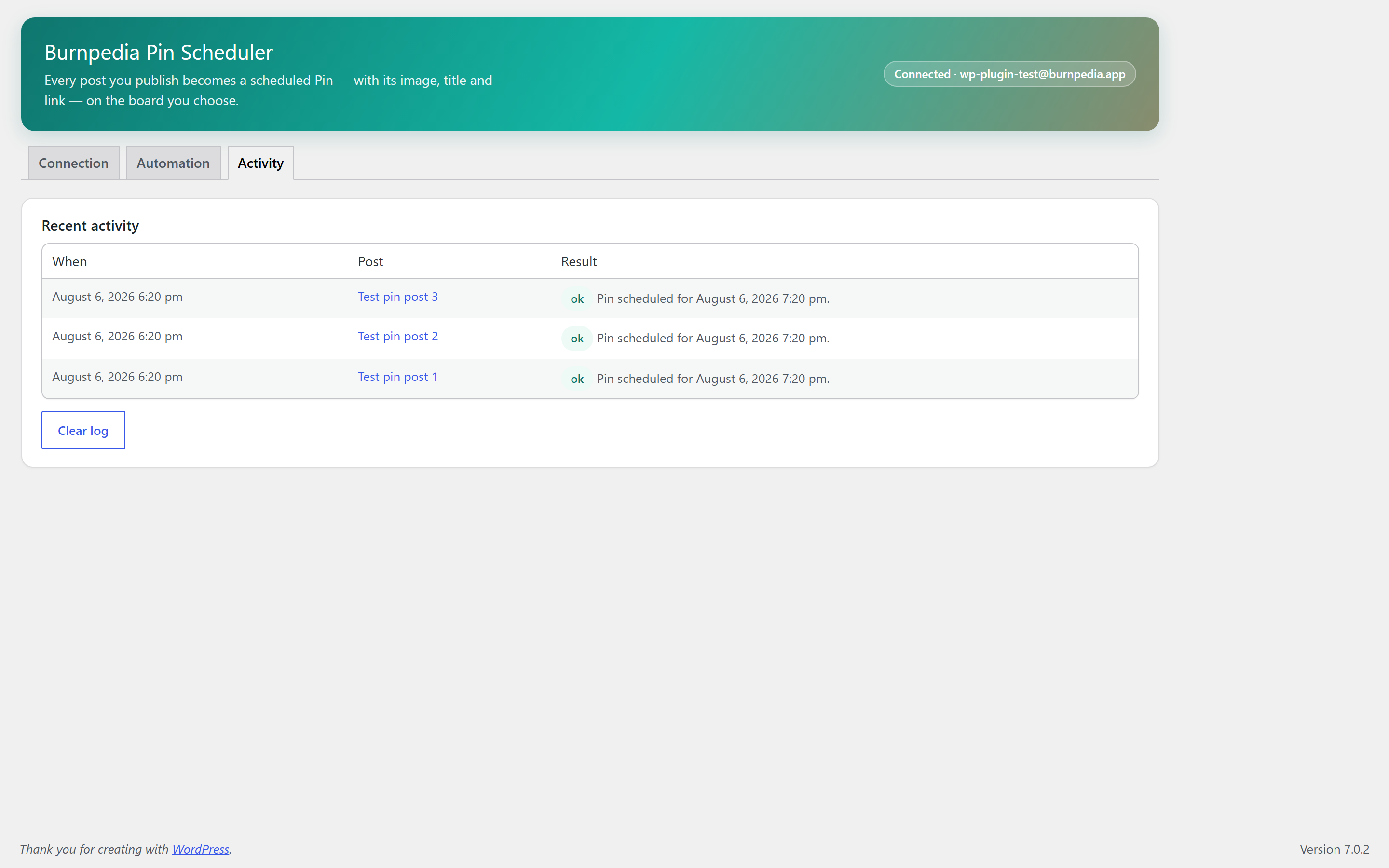
- Shows what happened, per post, in an Activity log — including the posts it skipped and why.
Works on the free plan
Nothing here is locked, time-limited, or waiting for an upgrade. A free Burnpedia account publishes up to 3 Pins a day, and the plugin’s every feature works on it. Paid plans raise the daily allowance and add AI-written Pin copy and AI images; the plugin behaves identically either way. See burnpedia.app/pricing.
You keep your Pinterest password
The plugin never sees your Pinterest credentials. You connect Pinterest once inside Burnpedia, on Pinterest’s own login screen, over the official Pinterest API.
Open source
The plugin is GPL. Its source, and the API it talks to, are documented at burnpedia.app/developers.
External services
This plugin is a client for Burnpedia, a Pinterest scheduling service run by Burnpedia at https://burnpedia.app. The plugin cannot work without it: WordPress has no way to publish to Pinterest on its own, and Burnpedia is what holds the Pinterest connection.
Nothing is sent anywhere until you save a Burnpedia API key. With no key saved, the plugin makes no outbound request of any kind.
Once a key is saved, the plugin contacts https://burnpedia.app/api/v1 in these situations:
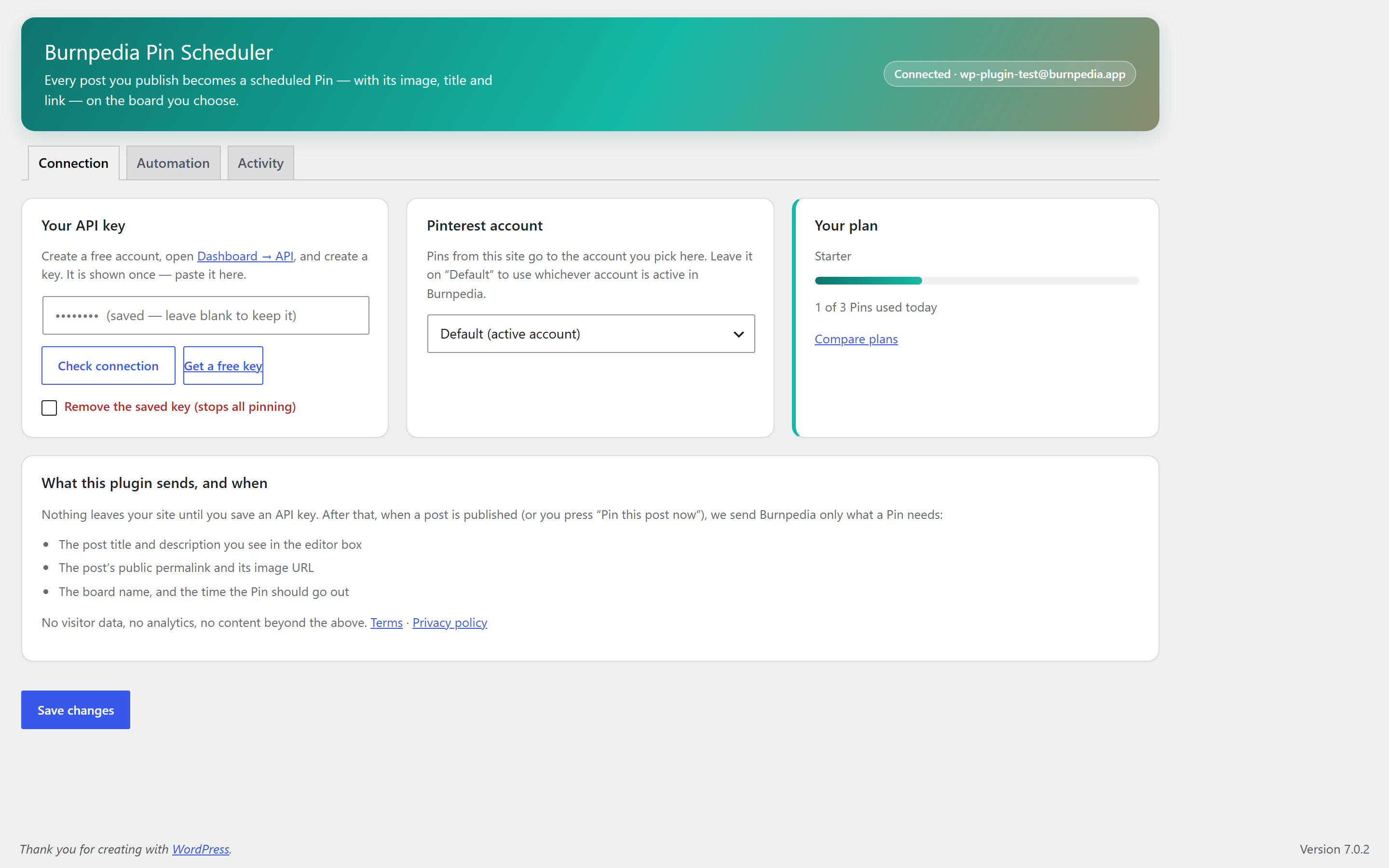
- When you open the plugin’s settings screen or press “Check connection” — a
GET /api/v1/merequest that returns your Burnpedia plan, the Pinterest accounts connected to it, and how much of today’s Pin allowance you have used. Sent: your API key. - When you press “Load my boards” — a
GET /api/v1/boardsrequest. Sent: your API key. - When a post is published (with automatic pinning on), or you press “Pin this post now” — a
POST /api/v1/pinsrequest. Sent: your API key, the Pin title, the Pin description, the post’s public permalink, the URL of the post’s image, the board name or id, and the time the Pin should be published.
Every request also carries a header naming the plugin and its version (for example wordpress/1.0.0), the same way a browser identifies itself, so that support and compatibility questions can be answered.
No visitor data, no analytics, no usage statistics and no content beyond the fields listed above are transmitted. The plugin has no telemetry of its own: it never reports your site’s address, your traffic, your other plugins, or anything about your visitors.
Your use of the service is covered by Burnpedia’s terms and privacy policy:
- Terms of service: https://burnpedia.app/terms
- Privacy policy: https://burnpedia.app/privacy
Pinterest itself is contacted by Burnpedia’s servers, not by your site. Note that Pinterest downloads your image from your own site, so the image URL has to be publicly reachable — the settings screen warns you when it looks like it is not.
Screenshots
Installation
- Install and activate the plugin.
- Create a free account at burnpedia.app and connect your Pinterest account there (this happens on Pinterest’s own login screen).
- In Burnpedia, open Dashboard API and create an API key. It is shown once — copy it.
- In WordPress, go to Burnpedia Connection, paste the key and save.
- Open the Automation tab, turn on “Create a Pin automatically when a post is published”, choose your board, and save.
Publish a post to try it. The Activity tab shows what happened.
FAQ
-
Does this automatically post to Pinterest when I publish?
-
Yes — that is the whole point. Turn on automatic pinning under Automation, and every post you publish becomes a scheduled Pin. You can also pin a single post by hand from the post editor, including old ones.
-
Can I schedule Pins instead of posting them immediately?
-
Yes. Pins are scheduled by default, with a delay you choose, so your caches and CDN are warm before Pinterest fetches the image. Straight-away publishing is one setting away.
-
Do I need a paid account?
-
No. A free Burnpedia account publishes up to 3 Pins a day, and every feature of this plugin works on it. Paid plans exist for people publishing more than that, but nothing in the plugin is locked behind them.
-
Does this need my Pinterest password?
-
No, and it never asks for one. Pinterest is connected inside Burnpedia through Pinterest’s official OAuth login, on Pinterest’s own domain.
-
Why did my post not get pinned?
-
The Activity tab gives the reason for every post it skipped. The usual ones are: no image on the post, the post is password protected, its category is excluded, or the day’s Pin allowance is used up (in which case it retries automatically after the reset).
-
My Pins fail with an image error.
-
Pinterest fetches the image from your server, so the image URL must be reachable from the public internet. Local development sites, sites behind HTTP authentication, and private networks cannot work — the settings screen shows a warning when it detects one.
-
Can I pin an old post?
-
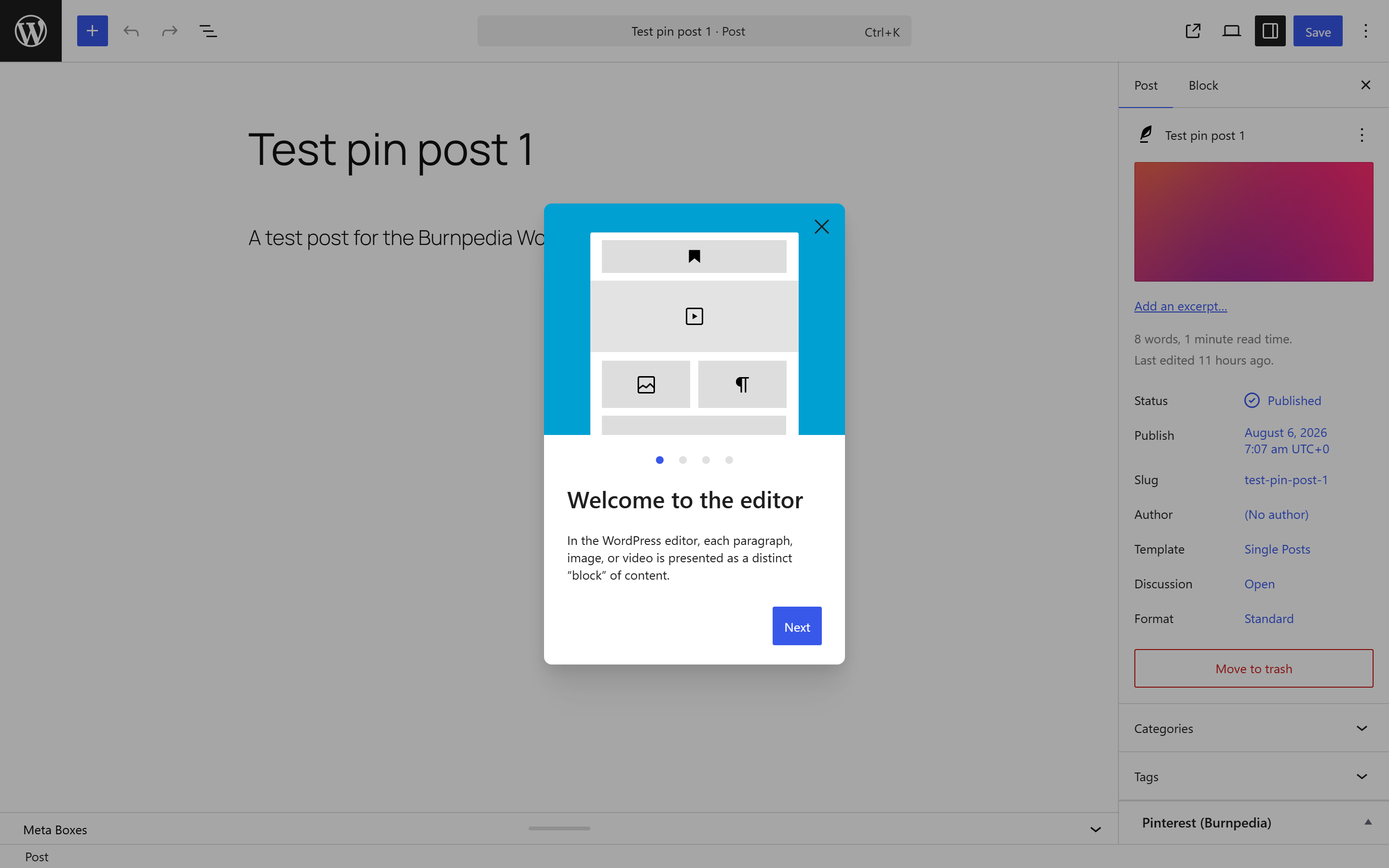
Yes. Open the post, and use Pin this post now in the Pinterest box.
-
Can I change the Pin’s title, description or board for one post?
-
Yes — all three are in the Pinterest box in the post editor and override the site-wide templates.
-
Does it pin a post twice if I update it?
-
No. A post is pinned once. Re-publishing an already-pinned post does nothing; use “Pin this post now” if you want another Pin.
-
Which post types can it pin?
-
Any public post type on your site — choose them under Automation. Attachments are excluded on purpose.
-
Does it work with custom fields, page builders, or a headless setup?
-
It reads the featured image and the post content, so anything that stores those normally works. The
burnpedia_pin_image_urlandburnpedia_pin_payloadfilters let you supply your own values. -
Is it GDPR-relevant?
-
The plugin sends no personal data about your visitors anywhere. It sends the Pin fields listed under “External services”, and only after you save an API key.
Reviews
There are no reviews for this plugin.
Contributors & Developers
“Burnpedia Pin Scheduler for Pinterest” is open source software. The following people have contributed to this plugin.
Contributors
Translate “Burnpedia Pin Scheduler for Pinterest” into your language.
Interested in development?
Browse the code, check out the SVN repository, or subscribe to the development log by RSS.
Changelog
1.0.1
- Stricter capability checks on the plugin’s own admin REST routes.
- “Pin this post now” now requires the publish capability for the post type, not only edit access to the post.
- A post that is not published and publicly viewable can no longer be pinned by hand.
- Reading the connection status and listing boards now require the manage_options capability.
1.0.0
- First release.