

Description
WunderPaint puts a complete, layer-based editor into your media library – and then removes the border between your designs and your content. Text and image layers don’t have to hold fixed values: point them at your posts, products, prices or custom fields, and the same design renders itself for any piece of content you preview it with. A blog header, a price badge, a product card – designed once, filled by your website. Around the editor, a full media manager keeps your growing library organized, and everything you make stays fully editable, with versions and rollback.
See it live: Try the demo | Docs & FAQs | Website
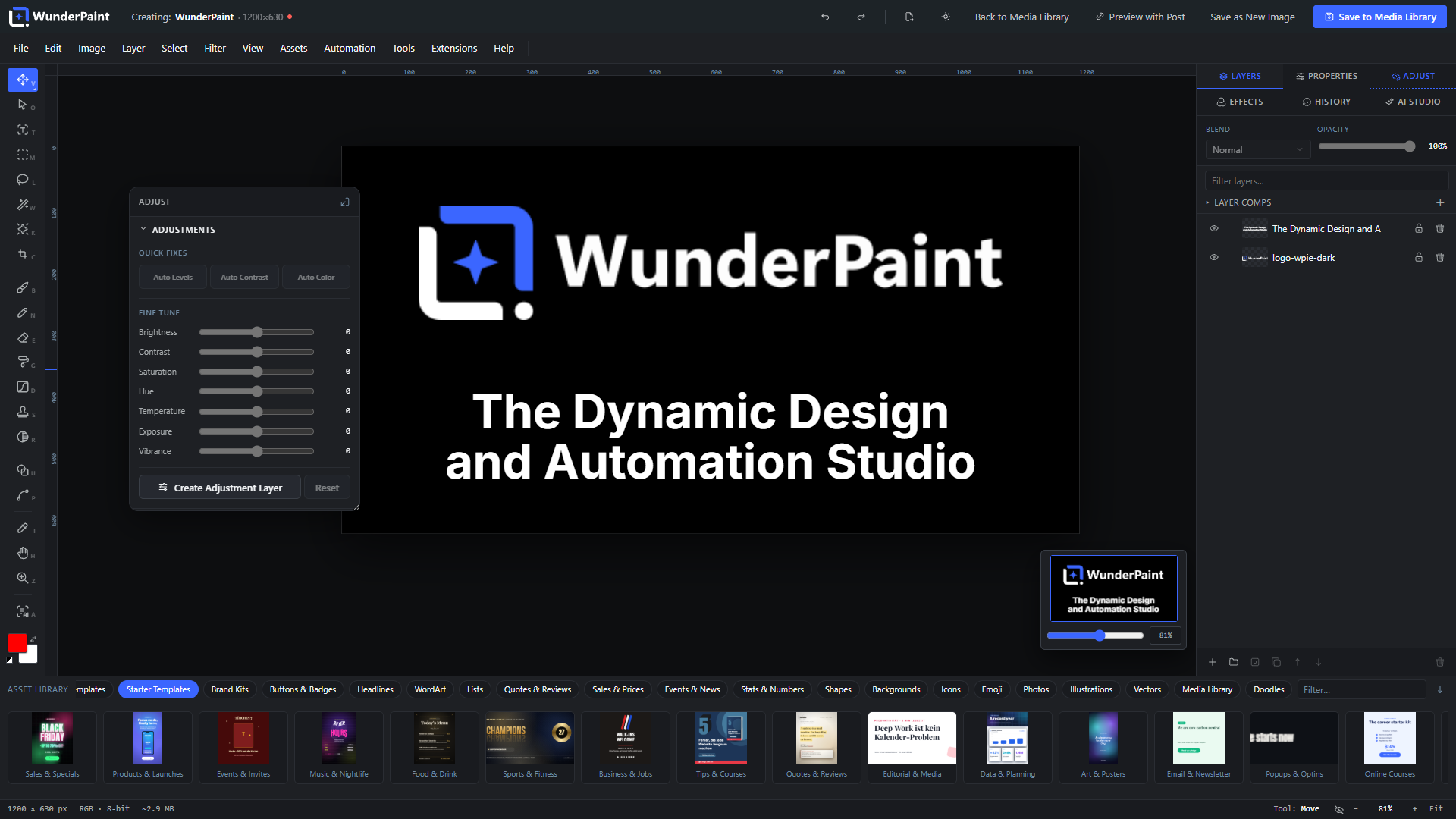
A complete editor
Open any image, or start on a blank canvas, and work the way you would in a professional desktop editor:
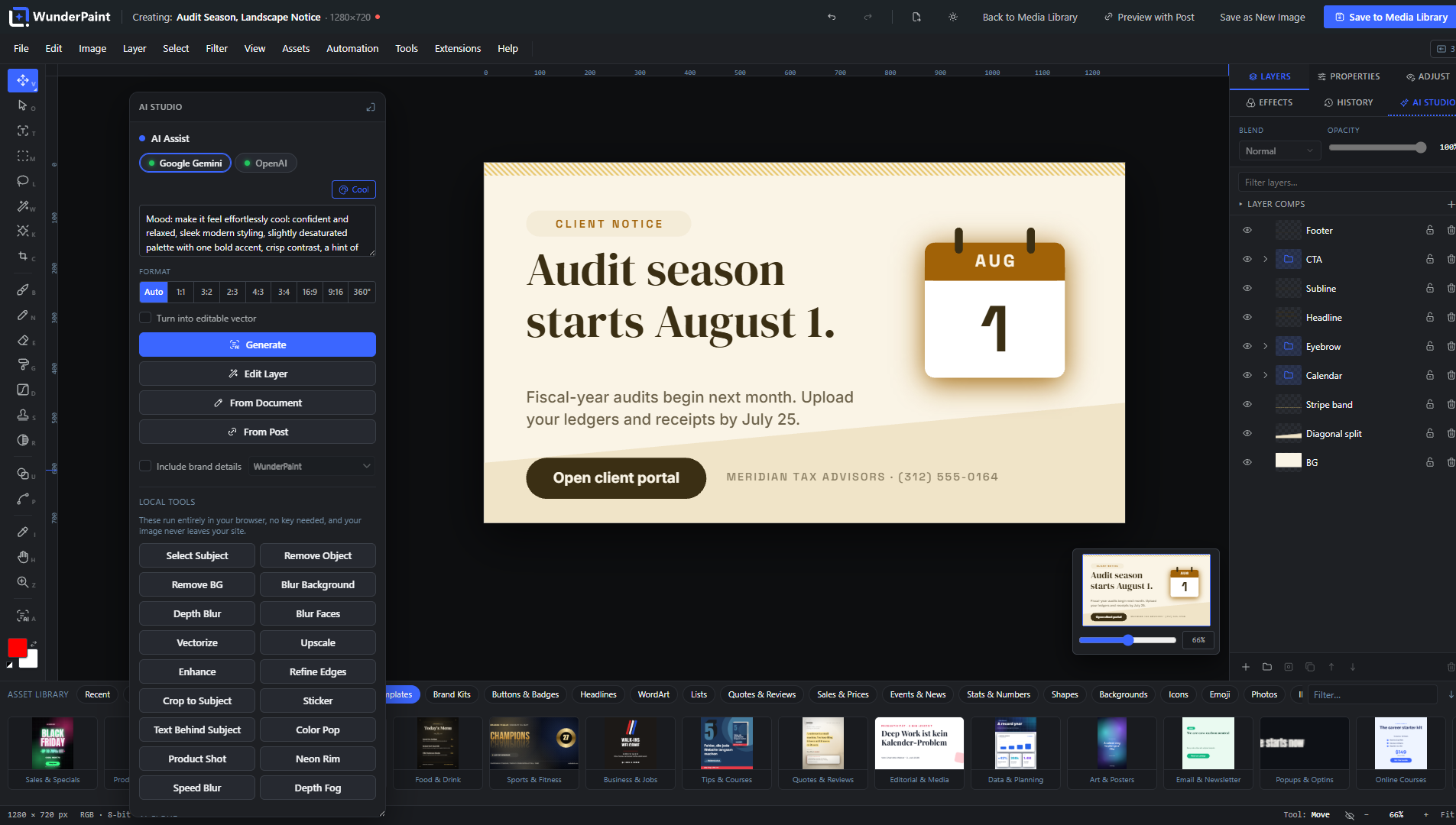
- Layers, groups and masks with blend modes, non-destructive layer styles (drop shadow, glows, bevel, overlays, stroke and more), adjustment layers, clipping masks and Smart Objects.
- Selections that understand your image: marquee, lasso and magic wand, plus subject selection and click-to-select powered by local models. Refine, feather, invert, save and reuse selections.
- Painting and retouching: brush, pencil and eraser with opacity, flow and hardness, custom brush tips, clone stamp, blur/sharpen brush, symmetry painting and content-aware object removal.
- Vectors: pen tool with full path editing, shape library, gradients with on-canvas handles, dashed strokes, rounded and soft corners.
- Filters and effects from Gaussian Blur, Curves and Levels to Duotone, Halftone, Glitch, Glow and Tilt-Shift, plus color LUTs (.cube), filter presets, smart filters and one-click enhance.
- Precision tools: free transform with distortion, align and distribute, magnetic guides, radial repeat, guide templates, Magic Resize, and a recorder that captures your steps as replayable actions.
- Multi-page documents, tabs and safety nets: work on several documents at once, autosave to the browser every 30 seconds with session restore, and per-image version history with one-click rollback.
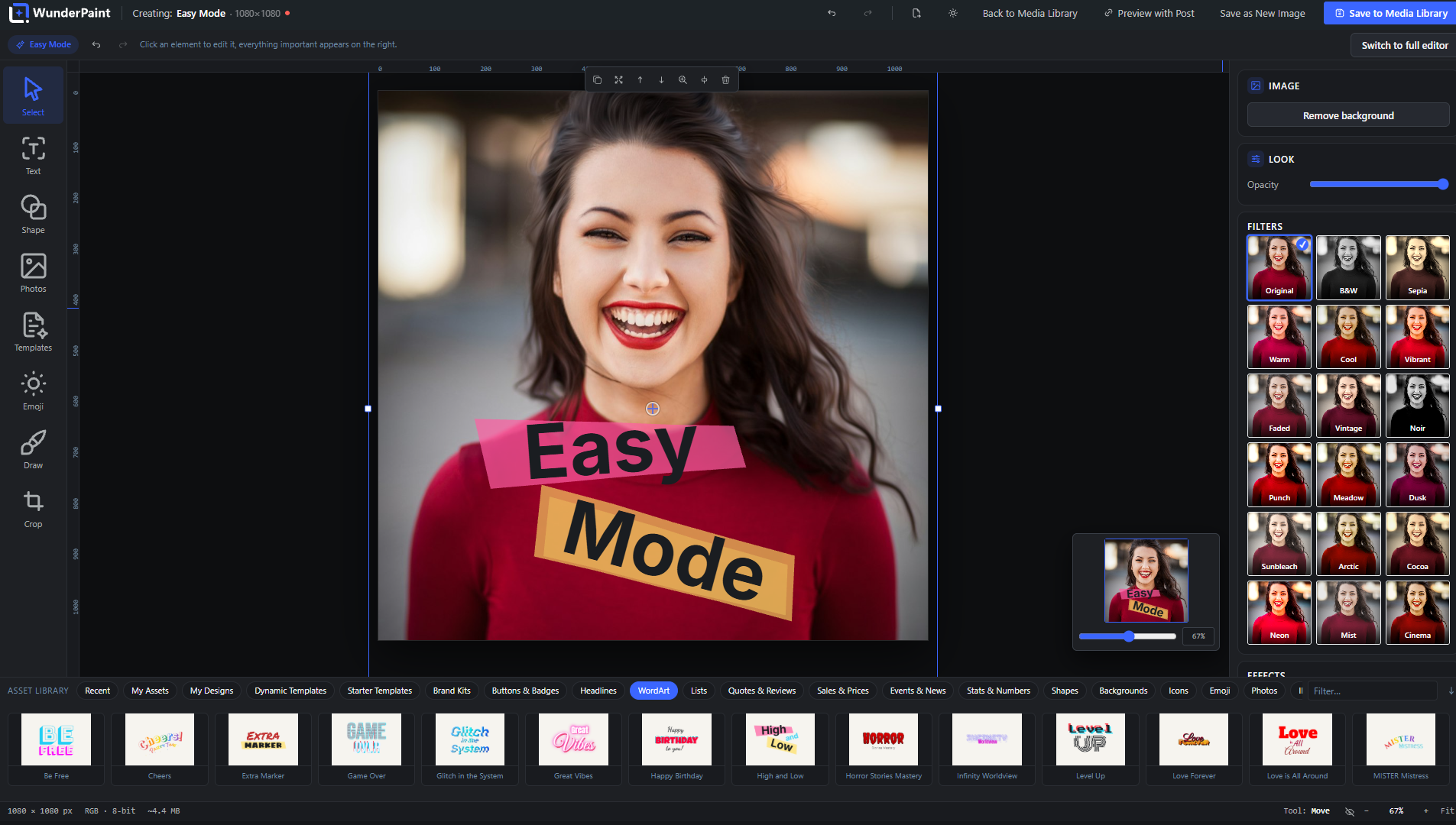
- Easy Mode keeps the surface calm and simple for occasional users; the full depth is one click away, on the very same document.
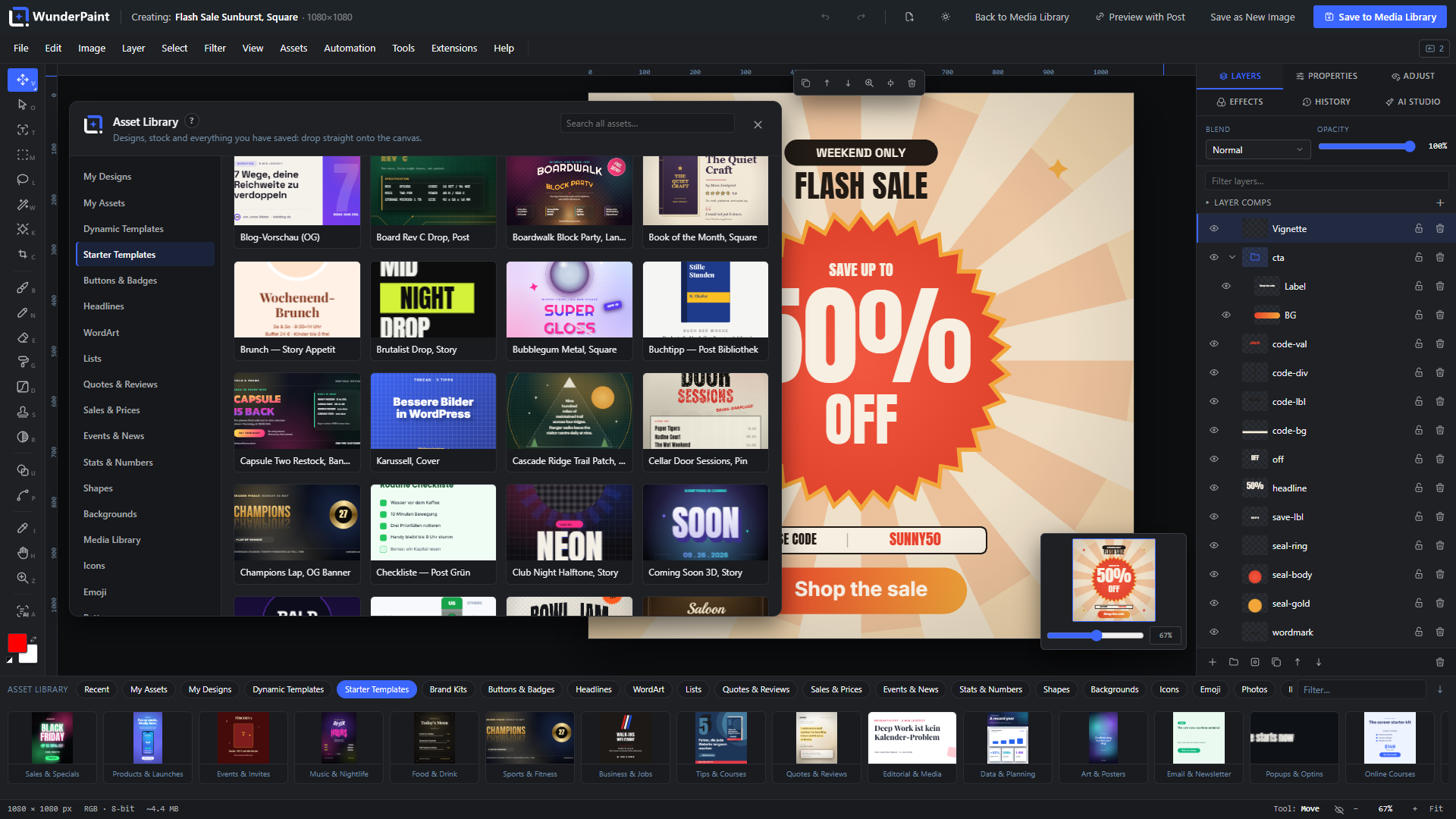
Design once – your content fills it in
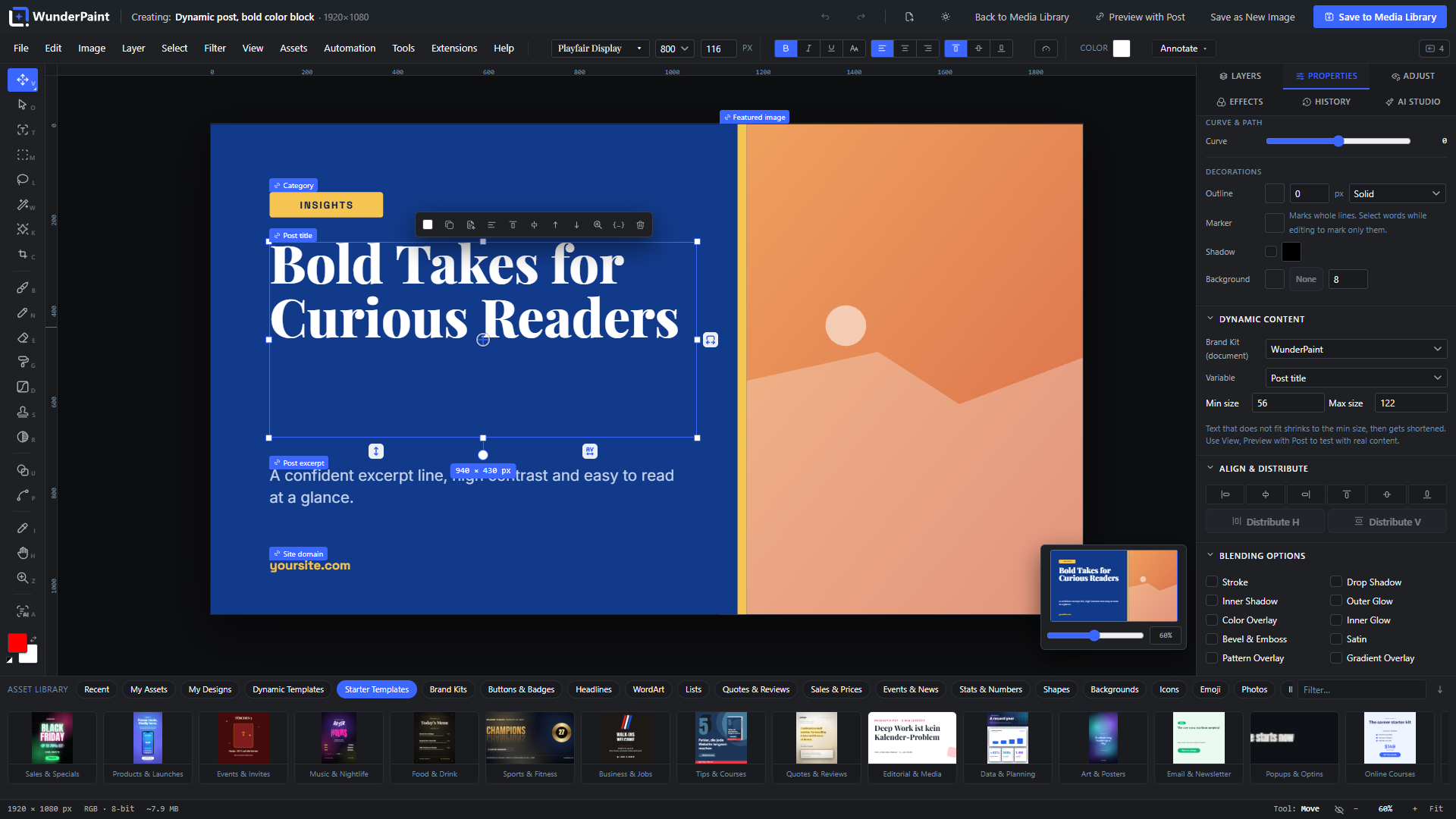
This is the heart of WunderPaint. Text and image layers can be bound to live WordPress data instead of fixed values:
- Bind layers to your content: post title, excerpt, body, permalink, category, tags, dates, reading time and featured image; author name, bio and avatar; site name, tagline and logo; your own custom fields; ACF image and text fields.
- WooCommerce built in: product name, price, sale price, discount percentage, SKU, stock status and quantity, low-stock hint, rating, review count, sale end date and product image – fields that are empty outside a sale simply hide their layer, so “SALE” badges appear and disappear on their own.
- Mix text and variables: write
{{post.title}}or{{product.price}}right inside a sentence. Bound text auto-fits its font size to the frame, bound images get cover/fit/fill rules with an anchor point. - More than text and images: QR codes rebuild themselves from variables, charts and tables pull rows straight from a WordPress query, and Smart Objects containing bound layers re-render per post.
- Preview with real content while you design: pick any post or product, watch every binding resolve live on the canvas, then export or save the resolved result – and set it as the featured image in the same flow.
- Reviews, comments and people: pull approved reviews with stars, avatars and excerpts, or your site’s users as team cards, into designed layouts.
- Save as Dynamic Template and reopen it any time; the stored template keeps its placeholders, so one design serves your entire archive.
Real typography
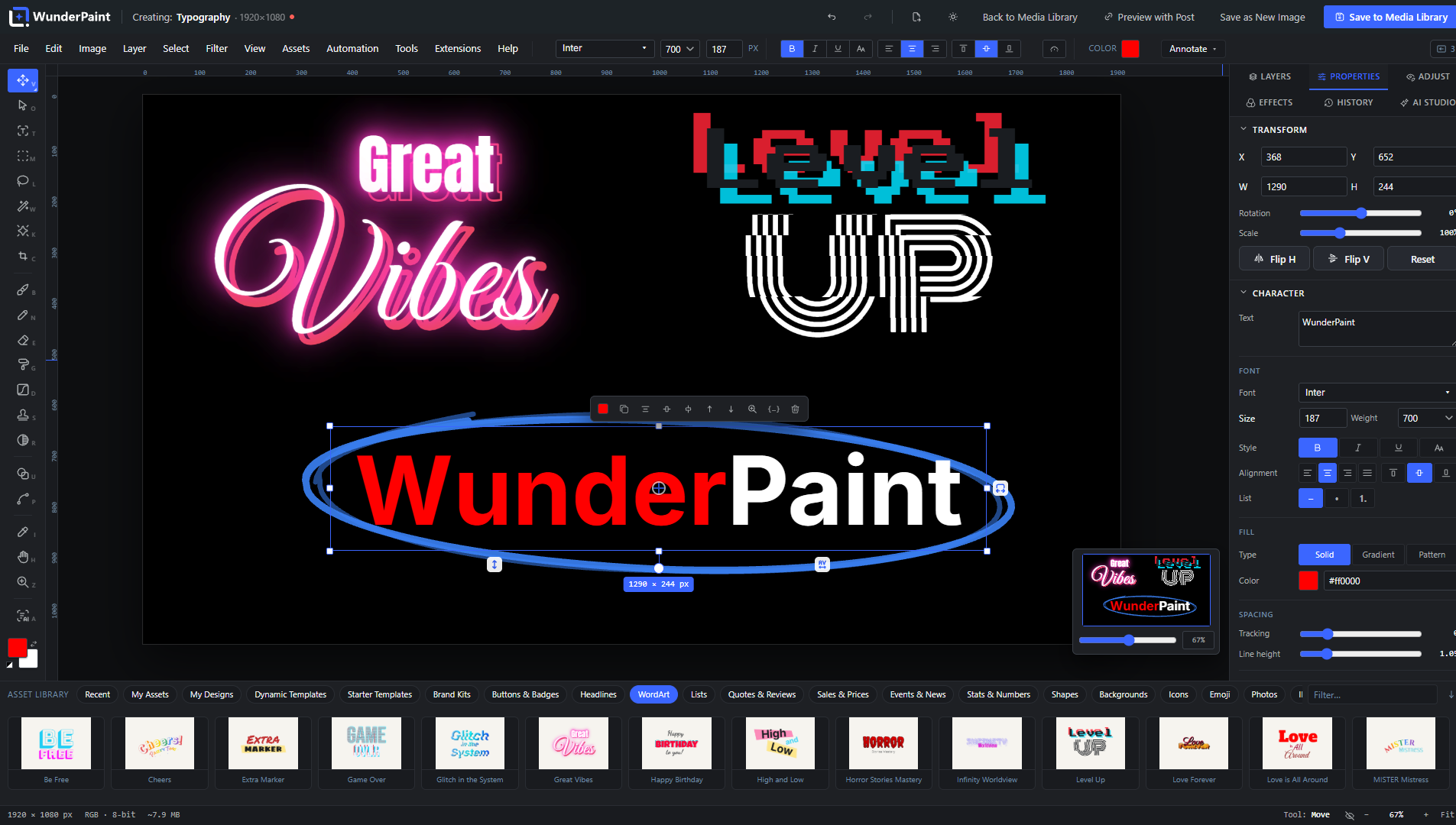
Style single letters inside one layer, choose from one-click text styles and combinable text effects, bend text with warp presets or a free arc, run it along any path, flow it into a shape, or place an editable headline behind the subject of a photo. Area text wraps automatically, marker-style hand-drawn highlights decorate single passages, drag handles adjust tracking and leading directly on the canvas, and a WCAG contrast check warns you before your caption becomes unreadable. Fonts come from bundled families, from a catalog your server downloads and self-hosts, from your own uploaded font files, from fonts your site already provides – and from Google’s CDN only if you explicitly opt in.
Charts, tables and data
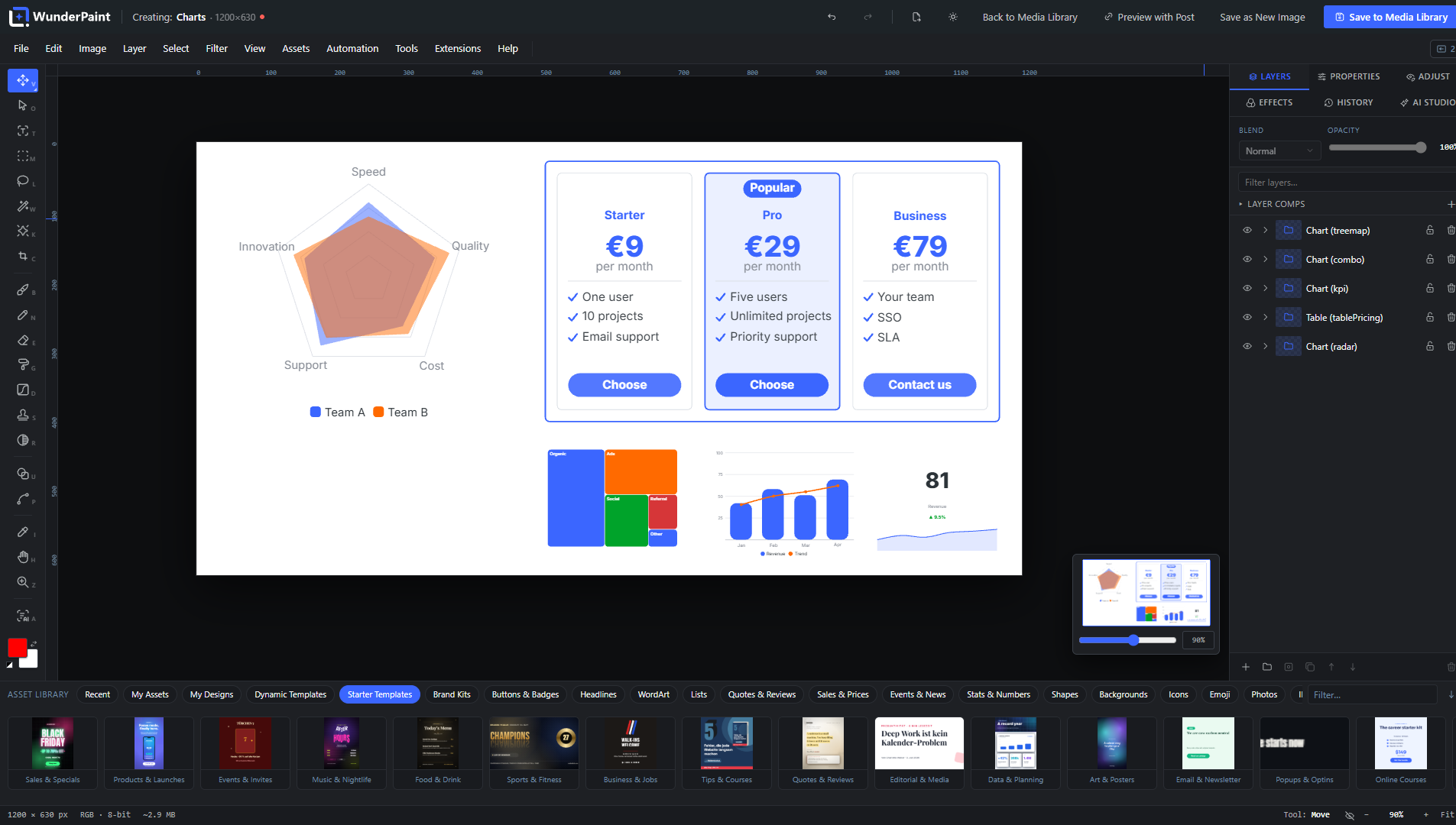
A dedicated studio builds chart types (bars, lines, areas, pie, ring, radar, waterfall, funnel, heatmap, treemap and more) and table types (comparison, pricing, ranking, schedule, checklist, menu, scorecard, calendar month, league table and more) – all as groups of real, editable shape and text layers, never flat images. Feed them by hand, paste CSV, or attach a WordPress query; cells and titles accept variables too.
Studios and generators built in
- Design Generator: describe what you need, get rendered layout variants with your brand colors, headline and logo, and insert the winner as editable layers – optionally already bound to post fields as a dynamic template. The image slot can use a stock photo, an AI image, or a placeholder.
- Background Studio: mesh gradients, organic blobs and waves, geometric lattices, low-poly, topographic contours, halftone rasters, concentric rings and confetti – all with grain and a random seed; tileable styles export as seamless patterns into your library.
- Screenshot Beautifier: frame any screenshot in a browser, phone or tablet mockup with shadow, radius and a generated background.
- Collage & Photo Grid: grids, mosaics, polaroids, filmstrips and contact sheets from your own photos – inserted as editable layers.
- Mockup Generator, QR codes with your logo (including a readability check), Vignette & Film looks, and stock photo search across Pexels, Unsplash and Pixabay with your own free API keys.
- 360° panoramas: view a photo as a walkable sphere, smooth the seam, cover the floor with your logo, add linked hotspots, and copy a self-contained HTML embed for your visitors. With an AI provider configured, describe a place to generate the full sphere or extend an existing photo into one.
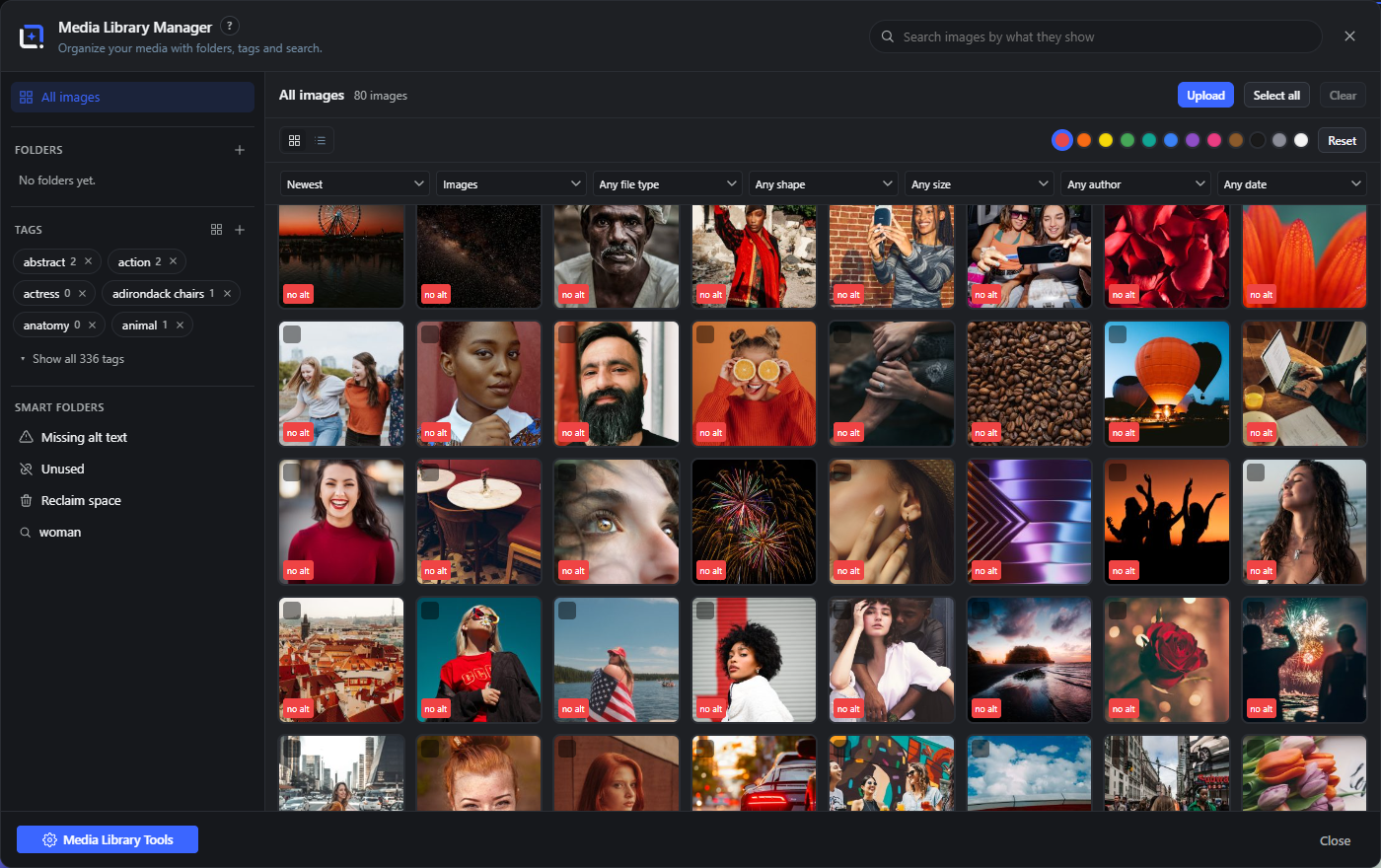
A media library that stays tidy
The built-in Media Library Manager can replace the standard media view and picker (opt-in):
- Real folders and tags as WordPress taxonomies, drag-and-drop organizing, bulk actions, saved searches and smart folders.
- Semantic search: find images by what they show, plus similar-image search, duplicate finder, color filters and folder suggestions – computed entirely in your browser against a locally hosted model.
- Know what you use: a usage analysis scans content, page-builder data, widgets, options and meta and answers “where is this image used?” with named sources and edit links. Find orphaned files, unused images and images missing alt text.
- Delete without fear: cleanup moves files into a holding area with a retention period and a daily release run instead of deleting instantly; restore anything with one click.
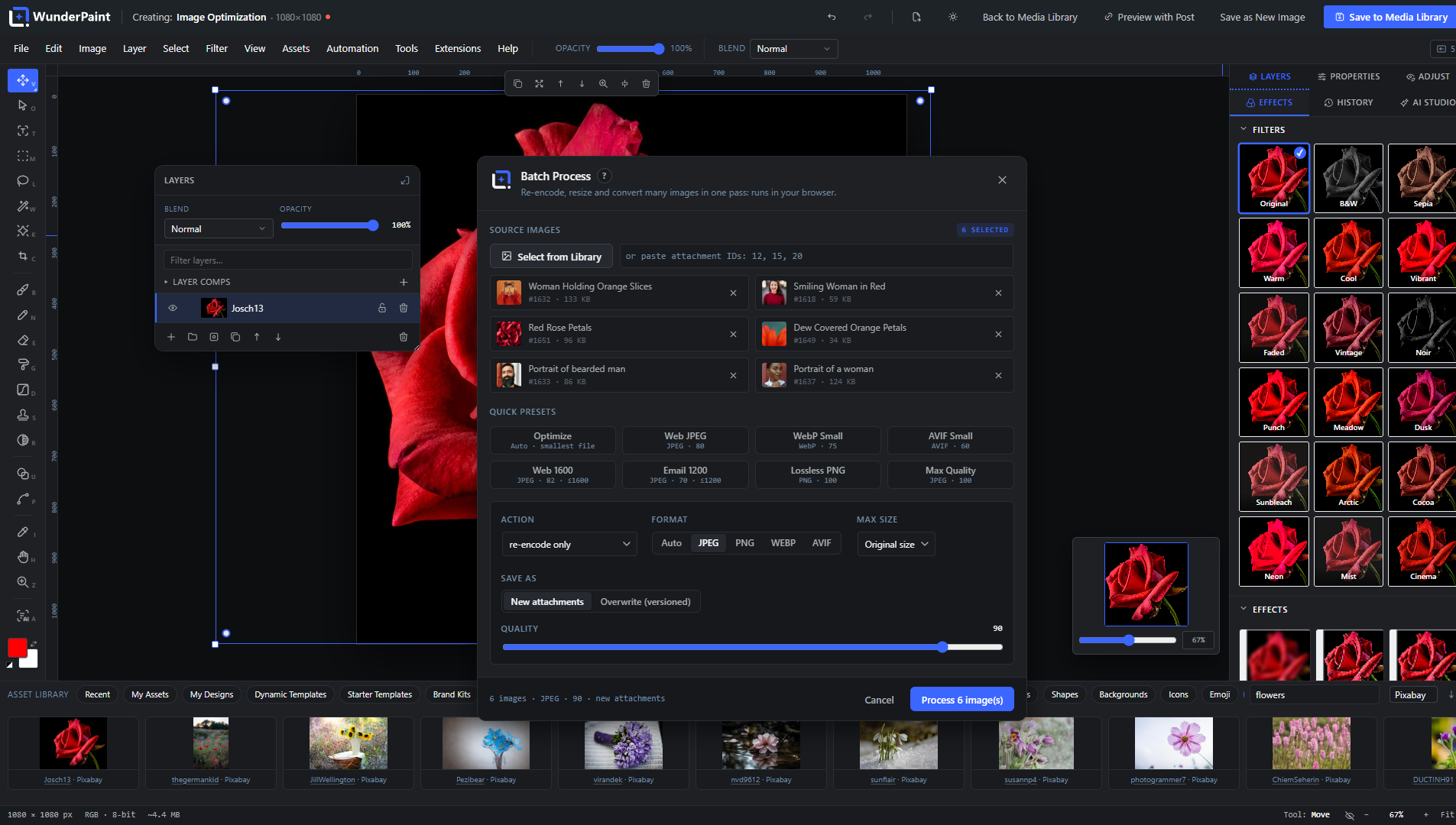
- Maintain at scale: replace an image and rewrite its references, recrop every thumbnail size with subject-aware auto-framing, spot oversized originals, keep IPTC credits and license info per image, rename titles by pattern, batch-watermark, and let the Metadata Assistant draft titles, alt texts and captions for the whole library (reviewed by you before anything is saved).
- See inside the file: a File data tab reads the camera, lens, software and location a photo carries, resolves coordinates to a place name on your own server, and removes either just the location or every embedded block, without re-encoding the picture.
- Optimized imports: bring files in through the manager and Smart Upload can scale them and convert them to WebP in your browser before they ever reach the server – no external service, no quota.
AI on your terms – or no AI at all
WunderPaint draws a hard line between two kinds of AI, and both are optional:
Local, no account, no key. These run in your browser against models hosted on your own server. Background removal works out of the box. Smart select, depth blur and depth fog, face blurring, image captions and alt text (with on-device translation), semantic image search and smarter text layouts each need a one-time model download (from a few dozen to a few hundred megabytes, depending on the model), fetched from Hugging Face only when an administrator requests it and served locally from then on. Alongside the models, purely algorithmic local tools need no download at all: upscaling, object removal, edge refinement, sticker and text-behind-subject cutouts, and the one-click looks Color Pop, Product Shot, Neon Rim, Speed Blur and Depth Fog.
Bring your own key. Connect Google Gemini, OpenAI or Anthropic with your own API key. Gemini and OpenAI handle images: generate from text, edit a layer by instruction, inpaint inside a selection, outpaint beyond the canvas, create variants, turn sketches into finished images, generate vector illustrations and 360° panoramas, or replace a background. All three providers handle text tasks: design and layout suggestions, metadata generation, text improvement, and an in-editor help assistant. Keys stay on the server (or in wp-config.php), every service has a connection test, a monthly budget cap can stop spending, and a usage log shows estimated cost per day, provider and action. Without a key, no request ever leaves your site.
Private by design
Everything runs on your own server: no telemetry, no tracking, self-hosted fonts by default. Cloud AI only runs when you trigger it, with a key you own, and every service a feature can reach is listed under External Services below.
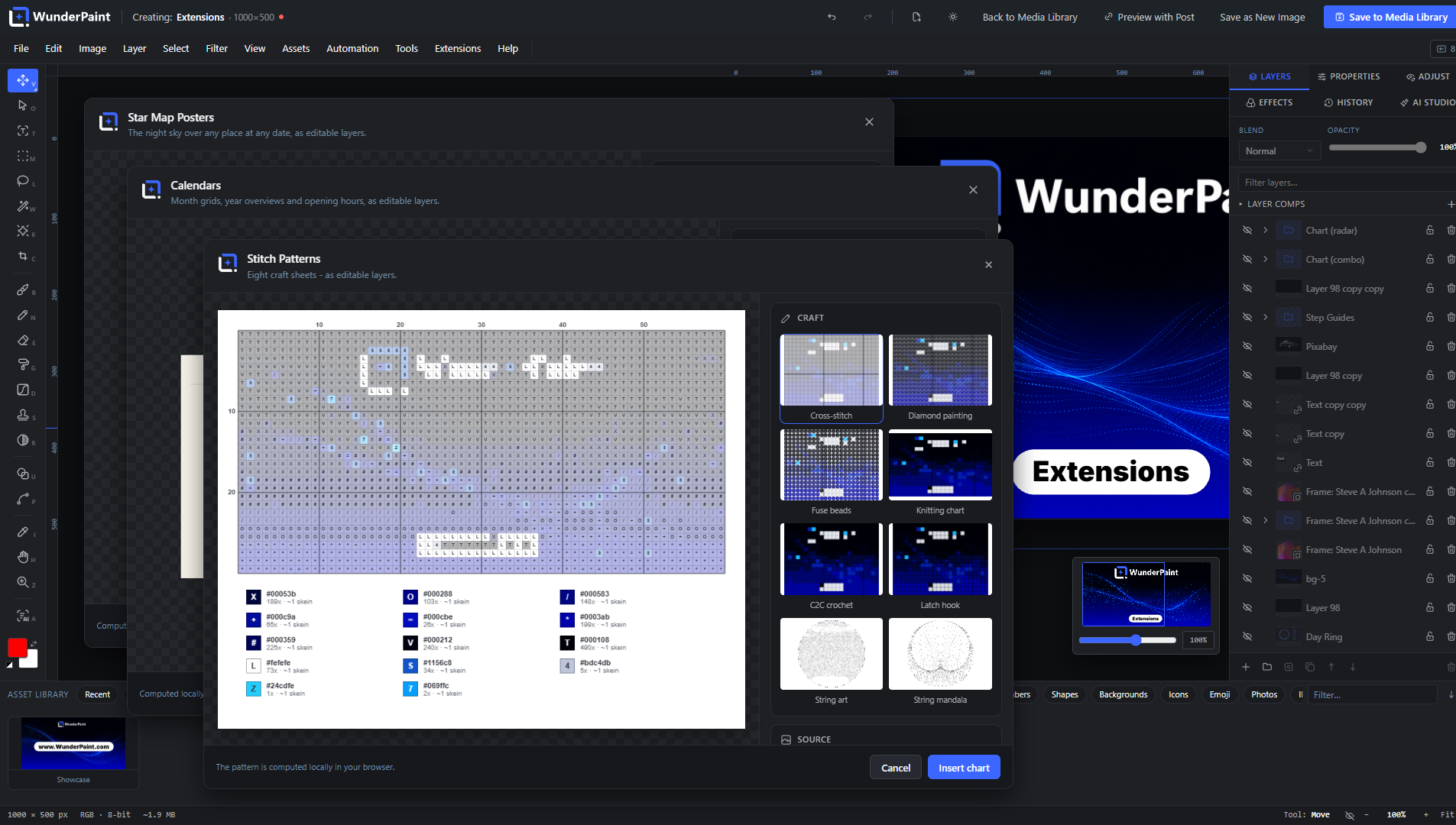
Grows with extensions
Studios that go beyond everyday editing come with the plugin and are simply there after installing: Chaos Art (a society of autonomous painters makes one-of-a-kind abstract art that can never be painted twice), Map Posters, Star Map Posters, Route Visualizer (a GPX track becomes a poster), Soundwave Art, Photo Mosaic, Text Art, Puzzle Sheets, Party Printables, Stitch Patterns, Drawing Templates, Origami, Day Ring, Papercut Art, Marble Bath, Mystic Studio, Seamless Patterns, Handwriting Fonts, Code Shot and Reformat (social formats with safe zones, in one pass). Each is a self-contained studio inside the editor, and new ones arrive with the next update.
WunderPaint Pro adds the extension manager – browse, install and update in one click – and the premium studios: 3D Mockup Studio with its library of product models, 3D Text, Motion Graphics, 3D Particle Studio, Cinematic Effects, Smart Diagrams, Calendars, Step Guides, Dynamic Showcases, Living Photos, Generative Art, AI Ad Banners and more. Extension packages are client-side only and can never ship server code.
Import, export and output
Import and export PSD including Smart Objects, edit SVGs as real vector layers, and export PNG, JPEG, WebP, SVG, multi-page PDF, animated GIF, APNG and WebM, favicon sets, carousel slices, and batches of multiple sizes as a ZIP. Exports can carry alt text, metadata, a watermark and an attached project file, so any saved image reopens later as a fully editable document. When you want to disclose AI involvement, the European Commission’s official labelling emblems are built in: pick one at save time and it goes into the picture where you place it, optionally alongside a matching entry in the file’s IPTC metadata. Nothing is ever labelled unless you ask for it.
WunderPaint Pro
The free editor is complete, and yours to use on as many sites as you like: every design tool, every binding, every local model above is free. WunderPaint Pro takes those same designs and runs them at scale, in the background and on your website: featured images generated across whole archives from one template (with per-category templates and generate-on-publish), WooCommerce catalog and product gallery graphics, image series from a CSV file, batch processing of your existing library (optimize, resize, watermark, apply recorded actions), dynamic images on the front end through blocks, shortcodes and native Elementor widgets that re-bake on a schedule, on shop events or via webhook, live badges, personalized per-visitor images, an AI content generator that drafts complete posts with matching graphics and SEO fields, multiple brand kits, one-click extension installs including all premium studios, and scheduled backups to S3-compatible storage.
Requirements
A current desktop browser (Chrome, Edge, Firefox or Safari); the editor runs inside the WordPress admin and shows a notice on phones. Works with Gutenberg, Elementor, Bricks, Divi and any plugin that uses the media picker. The interface, the built-in handbook, the guided tours and the help assistant are available in English, German, Spanish, French, Portuguese, Italian and Dutch.
External Services
This plugin can talk to a number of external services, each only when you use the feature it belongs to, and a service that needs an API key stays silent until you enter that key. There is no analytics, no tracking and no telemetry of its own, and it never sends your content anywhere by itself.
The complete list, with the exact data each service receives and when, is in the FAQ below: “Which external services does this plugin use?” The same list, in more detail, is at https://help.wp-image-editor.com/#services
Bundled Libraries
WunderPaint is licensed GPL-2.0-or-later (see license.txt). Every bundled component is under a GPL-compatible license; full attributions are in third-party-licenses.txt.
The complete list, with the license of each component, is in the FAQ below: “Which third-party libraries are bundled?”
Development
The free plugin is open source (GPL-2.0-or-later). The human-readable source
of everything it ships – the editor bundle, the bundled studios and the
translations – is published at https://github.com/tbitdesign/WunderPaint.
BUILD.md there lists every generated file next to its source and the command
that produces it; the FAQ entry “Where is the source code of the compiled
files?” is the short version.
Screenshots
FAQ
Do I need to be a designer?
No. You start from templates and drag things into place, and it already looks designed. The depth is there when you want it, not before.
Where do my images go?
They stay in your media library. The editor runs on your own server and the local tools work inside your browser, so nothing is uploaded for them. Cloud AI only runs when you trigger it, with your own key; the full list of services any feature can reach is under External Services below.
Do I need AI API keys?
No. The whole editor works without one, including background removal, subject selection, depth blur, face blurring, upscaling and semantic search. A key (Settings, WunderPaint) additionally enables text-to-image generation, prompt-based editing, inpainting and outpainting, panorama generation and AI-written alt text.
If you run WordPress 7.0 or newer and have set up a provider in WordPress itself, the plugin uses that one for text and for plain image generation when you have entered no key of your own. Your own key always wins where you set one, because it also carries the model choice per feature and the spend counter.
What runs locally and what needs a key?
Background removal works out of the box: its model ships with the plugin. Smart select, depth estimation, image captioning, text importance and semantic search download their model once, through your own server, and run in your browser from then on; the in-browser runtime is configured never to fetch models remotely. Enlarging an image is plain high-quality resampling in a worker, so it needs neither a model nor a key. Everything that invents new pixels or writes text for you goes to the provider whose key you entered, and only when you ask for it.
Which layers can carry data?
Text, image and raster layers, plus QR codes, charts and tables, and Smart Objects whose embedded layers are bound. Shapes, gradients, groups and adjustment layers do not take a binding, and patterns do not either.
Where are my API keys stored?
Obfuscated in the WordPress database, or preferably as constants in wp-config.php (WPIE_GEMINI_KEY, WPIE_OPENAI_KEY, WPIE_ANTHROPIC_KEY, WPIE_PEXELS_KEY, WPIE_PIXABAY_KEY, WPIE_UNSPLASH_KEY). They are only ever read server-side and never sent to the browser.
Does it work with my page builder?
Gutenberg, Elementor, Bricks, Divi and any media picker: every image gets an Edit Image button that opens the full editor over your layout and drops the result straight back.
Can I open Photoshop files?
Yes. PSD files open as layered, editable documents (including Smart Objects), and you can export your work back to PSD. Round-tripping keeps the layer structure as far as the two formats allow.
Will it slow my site down?
No. The editor only loads in wp-admin when you open it. Your visitors just receive normal, optimized images.
What if I deactivate the plugin one day?
Nothing dramatic. Exported images are ordinary files in your Media Library and stay exactly where they are. Folders and tags are stored as regular WordPress taxonomies. Your layered projects wait in the uploads folder for the day you come back.
Is it available in my language?
English is built in. Other languages come from translate.wordpress.org as WordPress language packs and install themselves once your locale has been translated.
What are the system requirements?
A current desktop browser: Chrome or Edge 110+, Firefox 115+, Safari 16.4+. Some 3D extension studios additionally need WebGL2 with hardware graphics, which every current desktop browser on a normal machine provides; Help, System Status shows exactly what your device offers.
Where do I get help?
The handbook lives right inside the editor (press ?), the built-in help assistant answers questions and builds little guided tours, and https://help.wp-image-editor.com covers every feature down to the single control.
Where is the source code of the compiled files?
All of it is public, at https://github.com/tbitdesign/WunderPaint – the readable original of every generated file this plugin ships. Node.js 20 and npm are the only things needed to rebuild them.
- build/.js and build/.css are webpack output, built from src/ with “npm ci && npm run build”. The files named after a library (build/agpsd..js, build/jszip..js and so on) are those npm dependencies, bundled by the same run; each one is listed with its own source link under “Which third-party libraries are bundled?” below.
- bundled-extensions//extension.js is esbuild output, built from extensions//src/ with “bash tools/bundle-free-extensions.sh”.
- languages/.mo and languages/.json are compiled from the .po files that travel next to them.
- build/vtracer..wasm is not compiled during that build and is not ours: webpack copies it out of the npm package vtracer-wasm (MIT), a WebAssembly build of VTracer (https://github.com/visioncortex/vtracer, MIT). It is the vectorizer behind the editor’s Vectorize command, which turns a bitmap into paths in the browser.
- build/ort.wasm.min..mjs is copied from npm in the same way: the CPU build of onnxruntime-web (MIT, https://github.com/microsoft/onnxruntime), which carries the local AI features.
BUILD.md in that repository lists every generated file next to its source and the exact command that produces it.
Which third-party libraries are bundled?
Each library below is bundled into its own file under build/, named after the library, so a file there can be traced back to its source at a glance. Full attributions and copyright notices are in third-party-licenses.txt.
- ag-psd — MIT License (PSD read/write). Source: https://github.com/Agamnentzar/ag-psd — build/agpsd..js
- Tabler Icons — MIT License (icon library). Source: https://github.com/tabler/tabler-icons — build/icons-lib..js and assets/ui-icons/
- qrcode — MIT License (QR-code generation). Source: https://github.com/soldair/node-qrcode — build/qrcode..js
- jsQR — Apache License 2.0 (the in-dialog scan check that decodes the rendered code). Source: https://github.com/cozmo/jsQR — build/jsqr..js
- jszip — MIT License (ZIP reading and writing for project files and exports; dual-licensed MIT or GPL-3.0-or-later, used here under MIT). Source: https://github.com/Stuk/jszip — build/jszip..js
- vtracer-wasm — MIT License (colour image vectorization; a WebAssembly build of VTracer by Vision Cortex, also MIT). Source: https://github.com/jsscheller/vtracer-wasm and https://github.com/visioncortex/vtracer — build/vtracer..wasm
- imagetracerjs — The Unlicense (vectorization fallback where WebAssembly is unavailable). Source: https://github.com/jankovicsandras/imagetracerjs — build/imagetracer..js
- gifenc — MIT License (animated GIF encoding). Source: https://github.com/mattdesl/gifenc — build/gifenc..js
- upng-js — MIT License (APNG encoding). Source: https://github.com/photopea/UPNG.js — build/upng..js
- unicode-emoji-json — MIT License (emoji metadata). Source: https://github.com/muan/unicode-emoji-json — build/emoji-lib..js
- onnxruntime-web — MIT License (local inference runtime; its WebAssembly build includes Apache-2.0 and BSD-3-Clause components; the CPU build is bundled with the plugin, never loaded from a CDN). Source: https://github.com/microsoft/onnxruntime — build/ort..js, build/ort.wasm.min..mjs and assets/ort/
- Spectral.js — MIT License (Kubelka-Munk pigment mixing, the physics behind the paint media: blue over yellow gives green, the way paint does. Reimplemented in plain JavaScript after the original by Ronald van Wijnen; the spectral tables are derived from its GLSL). Source: https://github.com/rvanwijnen/spectral.js — part of the editor bundle, src/lib/spectral.js in the public repository
- @huggingface/transformers (transformers.js) — Apache License 2.0 (in-browser runtime for the local AI features, bundled from npm; formerly published as @xenova/transformers). Source: https://github.com/huggingface/transformers.js — build/transformers..js
- EU AI labelling emblems — published by the European Commission for labelling AI-generated content, bundled byte-identical and free to use without attribution. Source: https://digital-strategy.ec.europa.eu/en/policies/eu-icons-labelling-ai-generated-content — assets/eu-ai-labels/
- U²-Netp model — Apache License 2.0 (Xuebin Qin et al.), the background-removal model; licence text and notice travel with it in assets/models/. Source: https://github.com/xuebinqin/U-2-Net — assets/models/u2netp.onnx (ONNX is an open, documented format; the weights are read by the runtime, never executed)
- Fonts — 10 self-hosted families ship with the plugin (Roboto, Open Sans, Inter, Montserrat, Poppins, Oswald, Bebas Neue, Anton, Playfair Display, Lora); a larger catalog can be downloaded to your own server under Settings Fonts. All ten are under the SIL Open Font License 1.1. See assets/fonts/OFL.txt. Sourced from the @fontsource project / Google Fonts.
Apache-2.0 components are compatible with this plugin via the “or later” clause of GPL-2.0-or-later (Apache-2.0 is compatible with GPLv3).
All AI cloud calls are proxied server-side; API keys never reach the browser. Background removal and upscaling run fully locally in your browser and no data leaves your site for those; the runtime that carries them is bundled rather than fetched from anywhere.
Which external services does this plugin use?
This plugin can talk to the external services listed below. Each is contacted only when you use the feature it belongs to, and a service that needs an API key stays silent until you enter that key in Settings, WunderPaint, AI Providers. Unless an entry says otherwise, the request is made server-side by your WordPress site, so the service sees your server’s IP address and not your visitors’. The plugin has no analytics, tracking or telemetry of its own and never sends your content anywhere by itself.
The three stock photo services below also work the same way: nothing is sent until you enter that service’s own key, and then only when you search under Assets, Stock Images. Your server sends the search text you typed, the page number and the number of results per page, together with your key. The result thumbnails are then shown straight from the service’s image servers, so the browser of the person searching contacts them directly and its IP address is visible there. When you place one of the pictures in your design, your server downloads that file into your own Media Library.
- Pexels (api.pexels.com, images.pexels.com). The key travels in the request header. Privacy policy: https://www.pexels.com/privacy-policy/ Terms: https://www.pexels.com/terms-of-service/
- Pixabay (pixabay.com, including its image servers). Also sent: the image type you picked (photo, illustration or vector) and a safe-search flag. Note that the Pixabay API accepts its key only as a query parameter, so unlike the other two the key travels in the request URL. Privacy policy: https://pixabay.com/service/privacy/ Terms: https://pixabay.com/service/terms/
Unsplash (api.unsplash.com, images.unsplash.com). Also sent: a content filter set to high. The access key travels in the request header. Privacy policy: https://unsplash.com/privacy Terms: https://unsplash.com/terms The three AI providers below all work the same way: nothing is sent until you enter that provider’s API key yourself, and then only when you trigger the action. Your key travels with every such request. What leaves your site depends on the action, and never on anything else: image generation sends your prompt; image editing sends your prompt and the current image, inpainting and outpainting additionally the mask you painted, variations the source image alone; alt text and image descriptions send the image and the language you want; the Design Assistant, design review, improve text, gradient, lockup and vector suggestions send the brief or wording you wrote, the canvas size, and, if you filled one in, your brand kit of colors, font names, company name, industry, tone of voice and company description; SEO suggestions send the post title and excerpt; text lockups send the wording of the text layer, its style note and its box size; an extension using the generic text endpoint sends the prompt it built. The connection test in Settings sends your key alone to the provider’s model list.
Google Gemini (generativelanguage.googleapis.com). Runs: image generation and editing, inpainting and outpainting, 360° panorama generation, alt text and image descriptions, and all the text actions above. Privacy policy: https://policies.google.com/privacy Terms: https://ai.google.dev/gemini-api/terms
- OpenAI (api.openai.com). Runs: image generation and editing, inpainting and outpainting with a true mask, variations, alt text and image descriptions, and all the text actions above. Privacy policy: https://openai.com/policies/privacy-policy Terms: https://openai.com/policies/terms-of-use
- Anthropic Claude (api.anthropic.com). Runs: alt text and image descriptions, and all the text actions above. Claude is never used to generate or edit images here, so no image is sent to it except the one you ask it to describe. Privacy policy: https://www.anthropic.com/legal/privacy Terms: https://www.anthropic.com/legal/commercial-terms
- OpenStreetMap Nominatim (nominatim.openstreetmap.org). When: only when an editor user searches for a place inside a map extension, the place is not in the index of 34,079 cities that ships with the plugin, and the answer is not already cached on your site. A search for a town is answered on your own site and never reaches this service; what is asked here is what the index cannot know, such as house numbers, lakes and mountain passes. Sent server-side: the place name you typed, the number of results wanted, the language for the answer, and a user agent line that identifies the plugin with its version and contains your site address, because the Nominatim usage policy requires requests to identify themselves. No API key, no account, no personal data. Results are cached on your own server. Privacy policy: https://osmfoundation.org/wiki/Privacy_Policy Usage policy: https://operations.osmfoundation.org/policies/nominatim/
- OpenFreeMap (tiles.openfreemap.org). When: only when a map extension actually draws a map and the geometry is not already cached on your site. This is the first source asked; the Overpass servers below are the fallback when it does not answer. Sent server-side: a request for the map tiles covering the section you are drawing. No API key, no account, no cookie, no personal data – OpenFreeMap has no registration and no user database. Received: vector tiles with the street, water, building and park geometry, cached on your own server. Map data from OpenStreetMap, ODbL. Privacy policy: https://openfreemap.org/privacy/ Terms: https://openfreemap.org/tos/
- OpenStreetMap Overpass API (overpass-api.de, and the mirrors overpass.kumi.systems, overpass.private.coffee and overpass.osm.jp, which are tried one after another if the first does not answer). When: only when a map extension draws a map, the geometry is not already cached on your site, and the tile server above did not answer. Sent server-side: a query containing the coordinates of the map section you are drawing, the requested level of detail, and the same identifying user agent with your site address. No API key, no account, no personal data. The street, water and park geometry that comes back is cached on your own server. Map data © OpenStreetMap contributors, ODbL. Privacy policy: https://osmfoundation.org/wiki/Privacy_Policy Terms: https://osmfoundation.org/wiki/Terms_of_Use
- Meshy (api.meshy.ai, and the download addresses it returns). When: only if you have entered a Meshy API key and you generate a 3D model in the 3D Objects studio. Sent server-side: for text to 3D, the text prompt you typed together with the generation settings; for image to 3D, the image file you selected; in both cases your Meshy API key. Your site then asks Meshy repeatedly whether the job is finished, and when it is, downloads the finished model file and its preview picture from the addresses Meshy returns, into your own site. The connection test in Settings asks for your account balance and sends nothing but your key. Privacy policy: https://www.meshy.ai/privacy-policy Terms: https://www.meshy.ai/terms-of-use
- Hugging Face (huggingface.co). When: only when an administrator presses the download button for a local AI model under Settings, WunderPaint, Local AI Models. Sent: a request for the file list of that model repository and then a request per model file. No API key, no account, no site data, no personal data. This is a one-time server-to-server download; afterwards the model files are served from your own site, and the in-browser AI runtime is configured never to fetch models remotely, so the browsers of the people using the editor do not contact Hugging Face at all. Privacy policy: https://huggingface.co/privacy Terms: https://huggingface.co/terms-of-service
- Google Fonts (fonts.googleapis.com, fonts.gstatic.com). The plugin ships ten font families with it and contacts no font CDN by default. Google is contacted only in the two cases you choose yourself. (a) An administrator downloads additional families under Settings, WunderPaint, Fonts: your server asks fonts.googleapis.com for the stylesheet of the family and requested weights, then downloads the matching woff2 files from fonts.gstatic.com and stores them in your uploads folder. Sent: the family name and weights, nothing else. This happens once, server to server, and afterwards those fonts are served from your own site. (b) An administrator switches on the Google Fonts CDN option: the editor then loads font stylesheets from fonts.googleapis.com in the browser while people work, which makes their IP address visible to Google. Exported images are unaffected either way, because text is rendered into pixels on your side. Privacy policy: https://policies.google.com/privacy What Google Fonts logs: https://developers.google.com/fonts/faq/privacy
- Feeds and data sources you enter yourself (any address you type). When: only when you point a dynamic layer or a repeater at an RSS or Atom feed or at a JSON endpoint, for example a podcast feed, a YouTube channel feed or the now-playing endpoint of a web radio. Sent server-side: a plain request for exactly the address you entered, so that host sees your server’s IP address and nothing else from your site. The answer is analysed on your server and cached there briefly. No data of yours is transmitted, and no such request happens unless you enter an address.
One more connection that is not a third-party service: if your Media Library is offloaded to external storage, opening such an image in the editor makes your site fetch that file from your own storage address server-side. This only ever concerns attachments of your own site that the current user is allowed to edit.
The local AI runtime (ONNX WebAssembly and transformers.js) belongs to the plugin instead of being pulled from a CDN, so a local AI feature (Background Removal, Smart Select, Depth Blur, local alt text) runs entirely in your browser and your images never leave it. The only external touch is the optional one-time model download above. Where it is absent, the features that need it say so and stay disabled.
Reviews
There are no reviews for this plugin.
Contributors & Developers
“WunderPaint – The Dynamic Design and Automation Studio” is open source software. The following people have contributed to this plugin.
Contributors
Translate “WunderPaint – The Dynamic Design and Automation Studio” into your language.
Interested in development?
Browse the code, check out the SVN repository, or subscribe to the development log by RSS.
Changelog
1.424.1
- Security: media maintenance and image metadata now enforce the same per-object permission the rest of the editor uses. Cleaning up unreferenced upload files is restricted to administrators and will never move a file that still belongs to an attachment, and reading an image’s embedded EXIF/XMP details requires edit rights on that specific image. Thanks to a security review for both.
1.424.0
- New bundled studio: Chaos Art. A society of autonomous painters makes one-of-a-kind abstract art in deep 3D space – gestures with attack and release, art movements from Impressionism to Minimalism, painterly media from watercolor to ink sketch, a self-directed mode where the society picks everything itself, a snapshot ring so no moment is lost, a process film, and live embeds that paint a new original for every visitor. There is no seed: no piece can ever be painted twice.
1.423.0
- White chalk. The dry media gained a scattering body: light pigment now covers the ground the way real chalk does – white pastel highlights on black paper, grainy on the tooth, building up layer by layer. Dark charcoal absorbs exactly as before. The transparent media stay true to themselves: watercolor and ink have no white because the real ones do not either – their white is the paper, and covering white is what gouache and acrylic are for.
1.422.0
- Pen tilt. Leaning the stylus answers per medium, with no dial to set: charcoal and pastel on their side lay a broad, light, soft-edged mark that lets the paper’s tooth show – the classic shading grip. A flatter brush paints wider and wetter with its belly, a flat knife spreads its load thinner. A mouse has no tilt to report and keeps painting upright, exactly as before.
- Quick export commits wet paint first, the way the export dialog always did. A wash still drying on the canvas used to be missing from the quickly exported file.
1.421.1
- Under stroke smoothing, a plain-style stroke could end in a hard, flat cut: the finishing segment ran past the window the stroke was committed through and was clipped at its edge. Stroke ends are round brush caps again, and mask painting now finishes to the release point the way paint strokes always did.
1.421.0
- Stroke smoothing. The brush point trails the pointer on a pulled string: hand wobble shorter than the string never reaches the paint, and hard corners round into clean curves before any color is laid down. The Smoothing dial in the brush panel sets the string’s length, measured on screen so it feels the same at every zoom, and lifting the pointer finishes the stroke to the exact point you released. It works for the brush, the pencil, the eraser, mask painting and every wet style alike, because it happens at the input, before the paint.
1.420.0
- Right-click became the painter’s palette. While a paint tool is active, the right mouse button opens a compact palette under the cursor: a color wheel, the eighteen colors you used last, an eyedropper that picks up the color under the pointer, and Size and Opacity, both adjustable by dragging their labels or their numbers. While wet paint sits on the canvas it also offers Dry now.
1.419.0
- Pastel, the tenth painting style. Dry, soft pigment that catches on the paper’s tooth and builds up in grainy layers – charcoal’s gentler sibling.
- The Draw a brush tip button sits once at the foot of the tip list, within reach from every group.
1.418.0
- Star symmetry: strokes repeat around the center of the canvas with three, five, six, eight or twelve arms, next to the vertical, horizontal and fourfold mirrors. Mandalas, rosettes and snowflakes paint themselves.
- The tool options bar carries what a stroke needs: Paper moved in next to Symmetry, and Flow lives in the brush panel with its siblings.
- The smudge tool settles down sooner after the stroke ends.
1.417.0
- Paper is a property of the document. Hot press, cold press, rough, canvas or laid: washes granulate into the chosen surface, the paste media show its weave in their relief, the dry media catch on its tooth. An open wash finishes drying before the sheet changes under it.
1.416.0
- Oil smears in the direction you pull. Paint already on the canvas is dragged along the stroke into streaks, the way a loaded bristle brush pulls through wet paint. The smear conserves the paint – color moves, it is never created or lost by it – and a dial sets how strong the pull is.
1.415.0
- The smudge style runs inside the wet simulation. It brings almost no paint of its own: it lifts the colors it crosses, blends them like a wet fingertip and sets them back down, with real pigment mixing on the way – dragging blue through yellow leaves green.
1.414.0
- A Pickup dial for every wet style sets how strongly fresh paint lifts and carries the color already dried on the layer, from a faint tint with acrylic to heavy dragging with oil. Each style comes tuned; each can be set your way.
1.413.0
- The water brush: water without pigment. Run it over dried color and the color loosens, bleeds and can be pushed around again; run it over a fresh wash and it thins and spreads it. The oldest watercolor technique there is, and the whole reason the paint here stays rewettable.
1.412.0
- Pen pressure drives the wet media. With a stylus, pressure sets the width of the stroke and how much water and pigment it carries, on a curve tuned per medium: a light touch scumbles dry, a full press lays a loaded brush. Mouse strokes keep painting at full strength, because a mouse has no pressure to give.
1.411.0
- Media brushes: three matched brushes for every painting style – bristle rounds and flats, torn chalk and crayons, knife edges, scratchy nibs – built as real, irregular tips that rotate to follow the stroke. They stand at the head of the tip list and change with the style.
- The brush panel fits small screens now: the style’s brushes live in the tip list, nothing scrolls sideways, and every dial can be scrubbed on its label or its number for an exact value.
- Fast zigzag strokes render clean; under load, the stamping could fan a sharp turn into straight spokes.
1.410.0
- Wet strokes wake the paint beneath them. Water loosens dried color back into the wash and floats it along; the paste media pick up what they cross and carry it into the stroke. Blue over dried yellow makes green – between strokes, not only within one.
1.409.0
- A wash lies over the artwork like a glaze. The layer underneath shines through and mixes with the wash like pigment: yellow under blue reads green, and thin color over white stays luminous instead of graying out.
1.408.0
- The wet styles split into three engines, each simulating its own physics on the graphics card: liquid for watercolor and ink, paste for gouache, acrylic and oil, dry for charcoal. A wash flows, pools and blooms; paste holds relief, sheen and knife marks; charcoal breaks on the paper’s tooth.
- Fast strokes stopped leaving rectangular ghosts of earlier stamps behind, and the painted surface renders its grain at full resolution instead of as a coarse diagonal pattern.
- A fresh editor starts with a red brush and continuous spacing, so the first stroke is a line, not a row of dots.
1.407.0
- Colors mix like paint, not like light: yellow and blue make green, red and green make brown, across every painting style. Each medium carries its own character and its own dials – water and pigment for the washes, load and body for the paste media, pressure and grain for the dry ones.
1.406.0
- The wet simulation runs on the graphics card, so large washes stay fluid on large canvases, and what you see while the paint is wet is exactly what dries into the layer.
1.405.0
- Wet watercolor moves in. A stroke stays liquid on the canvas: pigment drifts with the water, gathers toward the edges, dries darker at the rim and settles into the paper’s grain – live, while you paint. When it has dried, the whole wash lands in the layer as one undo step.
1.404.0
- Creating a shared media folder or tag now asks for the same right as renaming or deleting one. Both of those already did; creating did not, so anyone who could open the editor could add rows to a taxonomy the whole site shares. Filing pictures into folders that already exist is untouched, and the buttons for creating are simply not shown to people who may not use them.
- Every bundled component now names its source next to its license, down to the European Commission’s AI labelling emblems and the background-removal model.
1.403.2
- The background-removal model now names its source alongside its license, the last bundled component that did not.
1.403.1
- Every bundled library now names its own source next to its license, and says which file in the plugin it is, so anyone can go from a file in the download to the code it was built from.
1.403.0
- Where an image is used is now answered only to people who are allowed to edit that very image, and the answer leaves out any post the person asking may not read. Before, anyone who could use the editor could ask about any image in the library and see the titles of the posts it appears in, including drafts and private posts that were none of their business.
- The readme and BUILD.md now name the source of every generated file the plugin ships, and the vectorizer’s WebAssembly file carries its own name (build/vtracer..wasm) instead of a bare hash, so it is obvious what it is and where it comes from.
1.402.1
- The built-in handbook and the in-editor help assistant now know about the newest additions: the EU AI labels in the save dialog, the File data tab with its inspector and cleaner, and the large preview with its download button.
1.402.0
- The arrows in the large preview stay put. They used to hang off the edge of the picture, so they moved with every image and clicking through a folder meant re-aiming for every single step; on a very wide image they even ended up off screen. They now sit at the left and right edge of the window and stay exactly where your cursor already is.
- A Download button in the large preview saves the original file straight to your computer, next to Copy file URL and Edit metadata.
1.401.0
- A new File data tab in the image details shows what is actually inside a file: the camera and lens that took it, when, the software that touched it since, and the spot on earth it was taken at. A photo from a phone carries all of that, WordPress shows none of it, and the original file sits in your library under a public address. Coordinates are turned into a place name and a distance, worked out on your own server against the built-in place index, so nothing about your photos is sent anywhere to look it up.
- Two buttons take it back out again. One removes just the location and leaves the camera details alone, the other clears every embedded block. Both work on the original and on every size generated from it, and both are byte surgery rather than a re-save, so the picture keeps its exact quality. Coordinates are overwritten rather than merely unlinked, and the previous files are kept as a version you can restore.
1.400.0
- The European Commission’s AI labelling emblems ship with the editor. When you save or export, one tick places the emblem you choose, in the color and the corner you choose, into the picture itself, the same way a watermark is placed. The files are the Commission’s own originals, and they also sit in the Brand Kits shelf of the library, so you can drop one in as an ordinary layer and put it exactly where you want it.
- You decide when an emblem appears. The editor does not inspect your work, does not guess and never suggests one: it stays out of the way until you ask for it. A second tick, empty unless you set it, additionally records the disclosure inside the file’s own metadata, in the IPTC vocabulary that image search and picture agencies read.
1.399.0
- New layers land where you are working. Pick a layer, insert a picture, a shape, a chart or anything a studio makes, and it arrives directly above the one you picked instead of on top of the whole stack. Nothing has to be dragged back down afterwards. When the layer you picked sits inside a group, the new one lands above that whole group rather than slipping between its members, and with several layers selected the topmost one decides. A background still goes to the bottom, where it belongs.
- Grouping keeps the order of your layers. Selecting several layers and grouping them used to arrange them in the order you happened to click them, so picking from the top down quietly swapped them behind each other. They now keep the order they had in the stack, whichever way you select them – and the new group stays where those layers were instead of jumping in front of everything else.
1.398.0
- AI 3D generation runs on Meshy 7. Generated geometry follows the reference image far more closely, which is where most of the work between a generation and a usable model used to go. The AI model setting under Integrations can pin Meshy 7, 6 or 5, and it knows that Meshy 7 is an image-to-3D model: a written prompt keeps using the newest model that path offers instead of failing on a version it has never heard of.
- A fourth quality level, Ultra, runs Meshy’s extra refinement pass over the mesh for the finest surface detail it can produce. It applies when you generate from an image, it takes longer, and it costs more credits than the level below it, so it is there to be picked rather than to arrive by surprise.
- From Meshy 6 on, a generated mesh is kept the way it comes out of the model instead of being reduced to a polygon target afterwards. That reduction was smoothing away the very detail the newer models are better at. Low still reduces, because a small, quick file is the whole point of that level.
1.397.0
- The brush is rebuilt. A finished stroke goes into the layer you have selected, the way it does in every other editor; a portrait used to end up with one layer per stroke. Where a new layer is still wanted, an option at the foot of the brush panel does exactly that, and a new layer now arrives directly above the active one instead of on top of everything. A stroke also ends where you lift the pointer rather than trailing past it, and it no longer redraws itself while you drag.
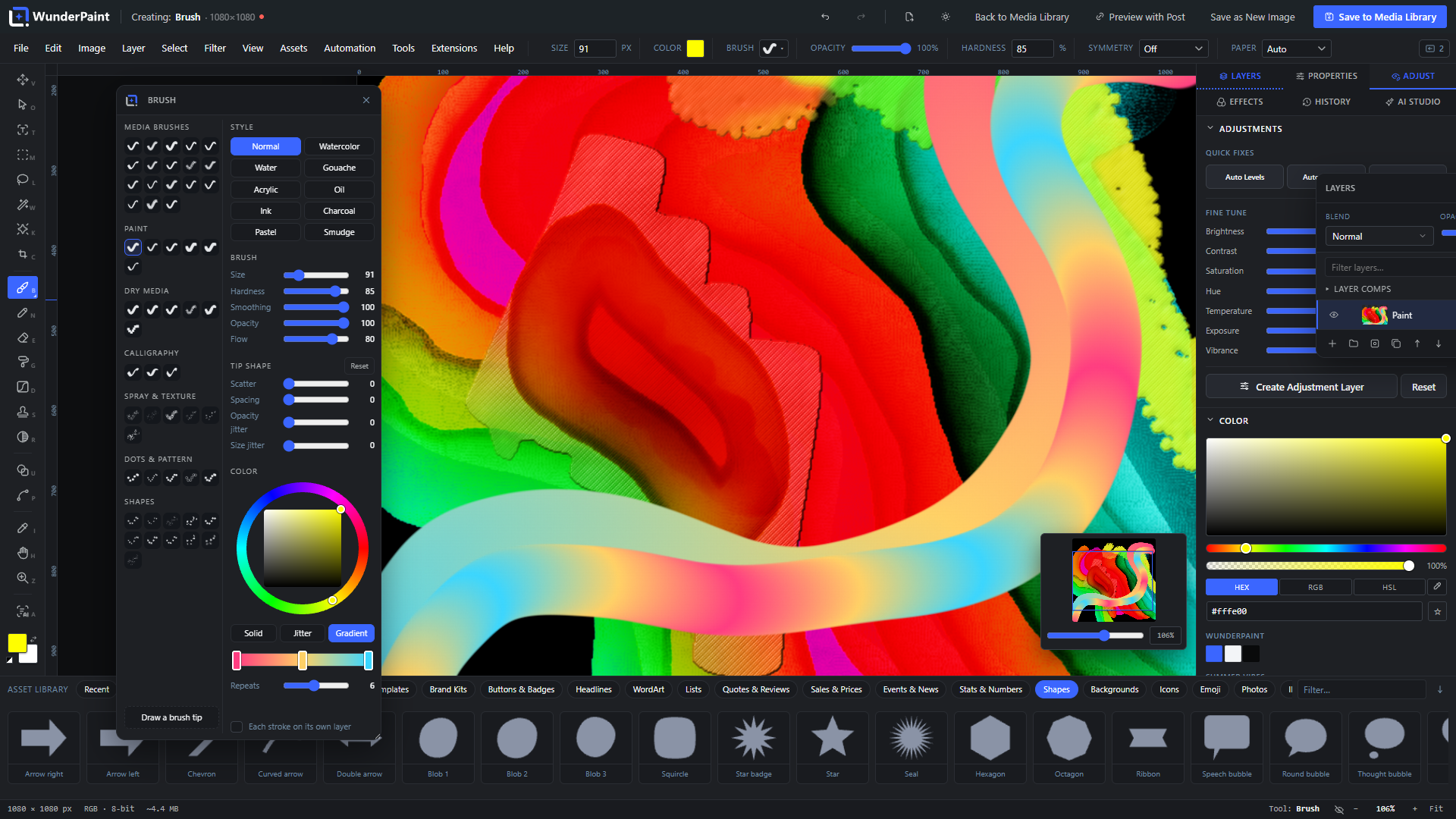
- Five painting styles that mix pigment instead of blending alpha, next to the plain one that was always there. Blue over yellow becomes green, which alpha blending never does. Watercolor runs out along the stroke, creeps past the bristles, dries darker at the rim and settles into the paper; Gouache is its opaque cousin; Acrylic stands proud of the sheet with a lit side, a shadowed side and a satin sheen; Oil holds a lot, gives out slowly and drags what it crosses; Smudge brings no paint of its own and pushes around what is already there.
- A brush panel that floats over the canvas, opens with any paint tool and remembers where you put it. It is not a seventh tab in the right rail. The 37 tips are shown as rendered strokes rather than as names, in groups, drawn by the engine that will paint them, so a preview cannot promise something the tip does not deliver. Beside them sit the styles, the four numbers you reach for constantly, the tip’s own scatter and spacing, and a color wheel.
- You can draw your own brush tip. It is built from discs, rings, stars, polygons, bars, leaves and arcs, holes included, and it is kept as a recipe rather than as pixels: it stays editable, renders crisp at any size, and travels inside the document, so a design you hand on paints the same on the other machine. Tips can also be saved across documents.
- Color no longer has to be one flat value. Jitter gives every mark a shade of its own, which is what stops a stroke reading as printed by a machine; Gradient runs a multi-stop ramp along the stroke and can repeat it, turning around at each end so a repeat leaves no seam. Both work with every tip and are ready the moment you pick them.
- The shape tool shows shapes instead of naming them. The dropdown of nine names is a grid of previews drawn from the same path data the canvas fills, and eleven shapes join it: triangle, diamond, pill, arch, shield, tag, ribbon, cross, bolt, music note and a blob. The heart moved into the same list, so every shape is now defined once rather than twice.
- The Eraser takes the brush’s tips. Erasing through a texture is a technique, not a curiosity, and the eraser was the only paint tool that could not do it. Its panel also no longer offers a color wheel, which changed nothing about erasing.
- Extensions API 2.20. Four additions, all of them things the editor already had and only extensions could not reach: the stamp recipe engine, the editor’s own shape library, its multi-stop gradient bar as a mountable control, and a one-field prompt dialog. Nothing was renamed or removed.
1.396.0
- Extensions can now ask the editor for a picture’s DEPTH. The depth model has been running here since v1.27 to blur backgrounds, but an extension that wanted to sort a picture by distance rather than by brightness had no way to reach it. Papercut Art builds its paper stack from it. Nothing is downloaded and nothing is sent anywhere; where the model is not installed, extensions carry on without it.
1.395.0
- The extension category “3D & Mockups” is now “3D & Scenes”. It was named after one of its three members when there were three; there are ten, and all of them build a scene you can turn and light. The menu and the extension list also said different things, and now say the same.
The complete history back to the first release is at https://wp-image-editor.com/changelog/