

Description
Primo List is a self-contained, dependency-free plugin for displaying curated
lists of items. Each item has a logo/image, heading, subtitle, body, optional
link and one or more categories. Render any list anywhere with the
[primo_list] shortcode.
Sponsor walls, partner logos, staff directories, product features: one
portable tool. No Custom Post Type UI, no ACF, no Bootstrap, no external
libraries, no tracking, no external HTTP calls.
Features
- Custom post type Item with logo (featured image), heading (title),
subtitle, body and link. - Flat Category taxonomy, multi-assignable, with a per-category weight
(prominence/sort) and optional accent colour. [primo_list]shortcode withcategory,id,layout,columns,
columns_mobile,headings,orderby,limit,lightbox,fitand
ratio attributes.- Manual ordering by drag and drop: an Order column on the Items list lets you
drag items into place, saved as you go. Useorderby="menu_order"to have that
hand-set order override category weights entirely; otherwise it breaks ties
under the default weight ranking. - Uniform tiles for mixed-proportion images. Tiles default to square
(ratio="1:1"); setratioto anyW:H, orratio="auto"to size tiles to
each image. Choosefit="cover"(crop to fill, for art and photos) orfit="contain"
(letterbox the whole image with padding around it, for logos, never cropped).
The lightbox always shows the full, uncropped image. - Per-item crop focus (top / center / bottom / corners) so a
covercrop
keeps the important part of each image (e.g. a subject’s head). - Front-end edit pencil on each item for logged-in editors; jump straight to
an item’s editor while curating a gallery (never shown to visitors). - Filter items by category on the admin Items list (a dropdown above the table).
Filtering also shows the ready-to-copy shortcode for that exact category, so you
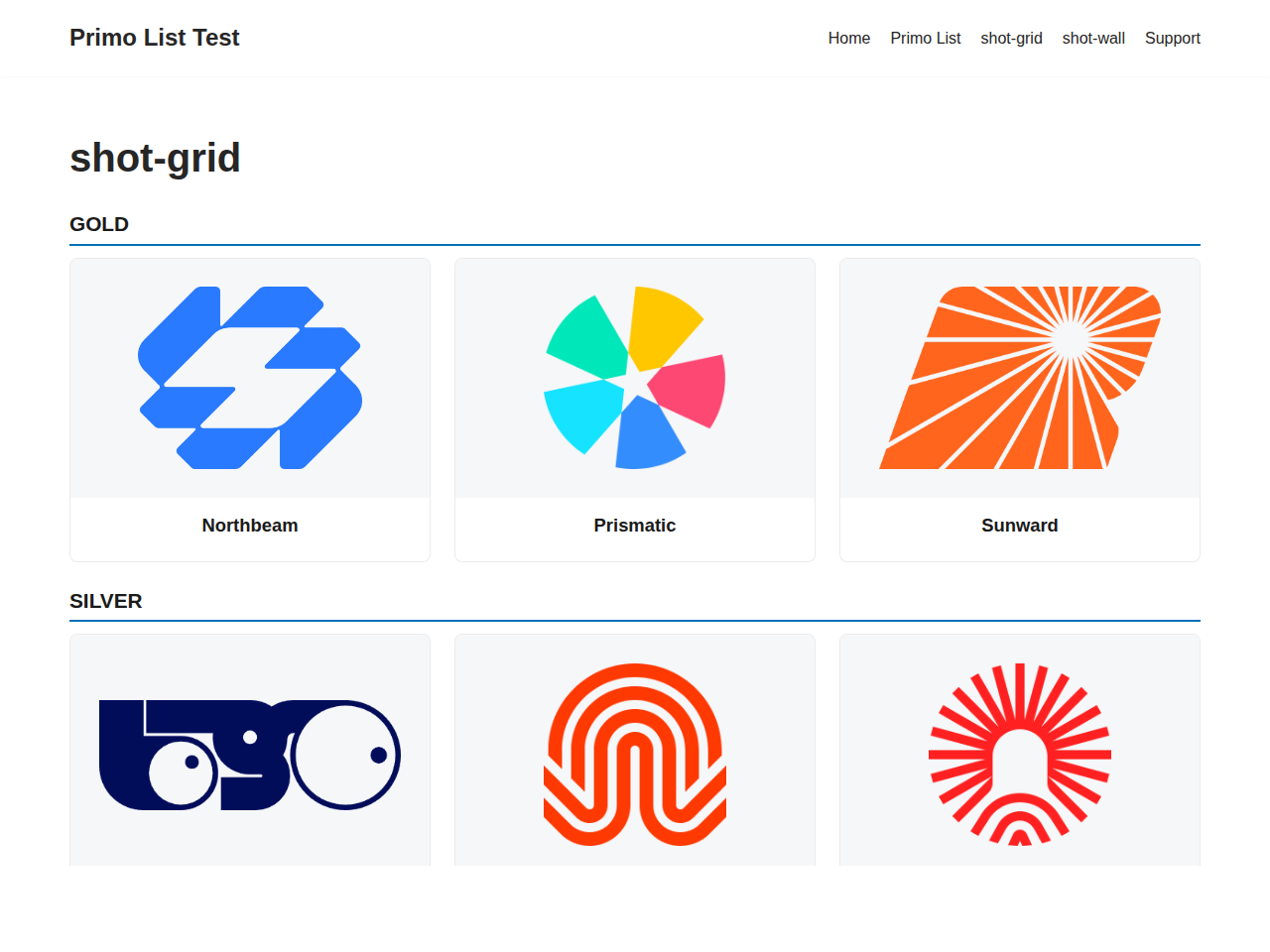
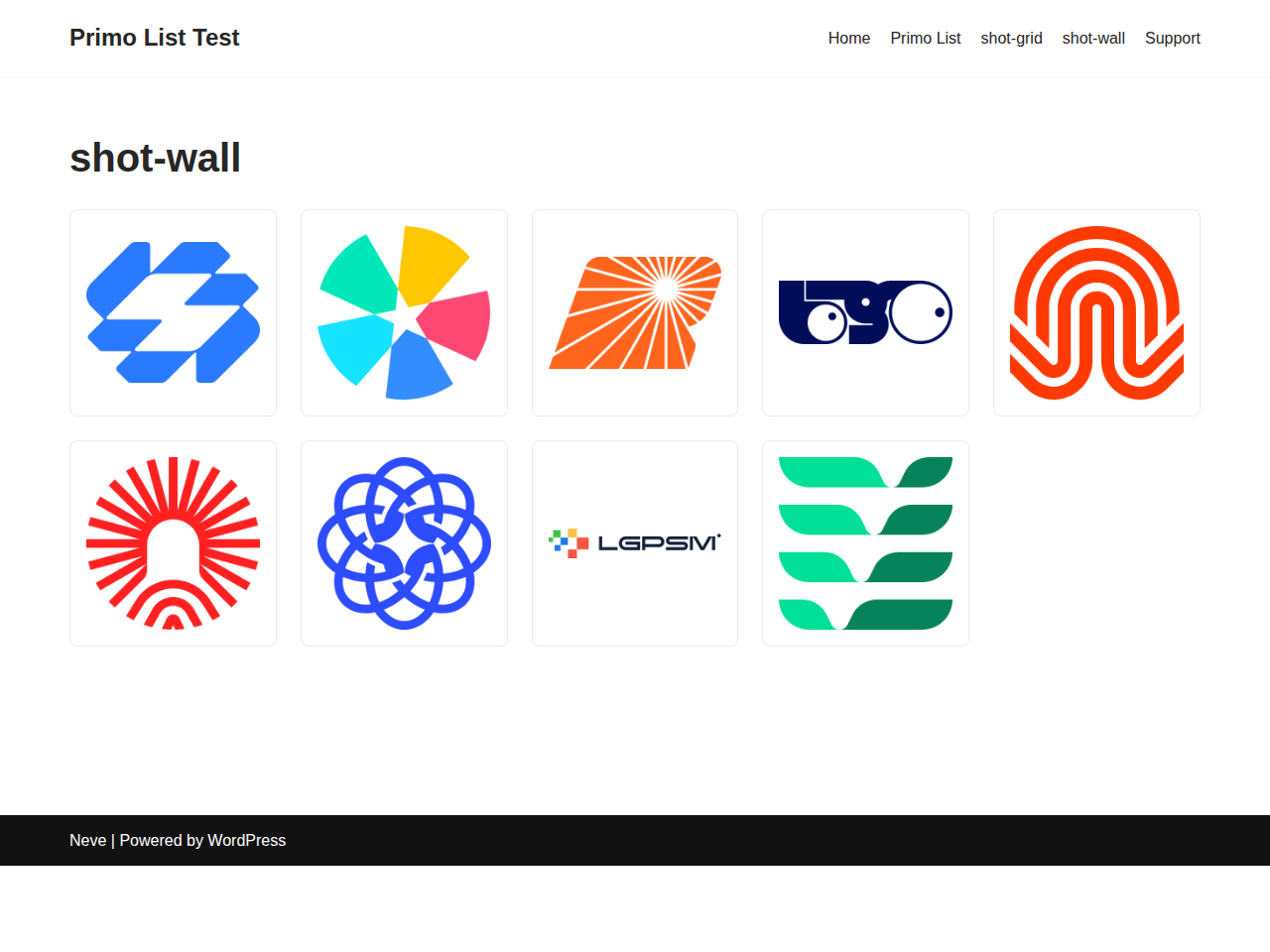
can paste it straight into a page. - Three layouts: a responsive card grid, a compact logo wall, and a
list (image beside text, one row per item, e.g. a books/catalogue page). - Responsive columns you control.
columnssets the desktop count; grids
step down to two per row on a tablet and one on a phone. Set
columns_mobile=”2″ (or more) to keep several across on a phone; useful for
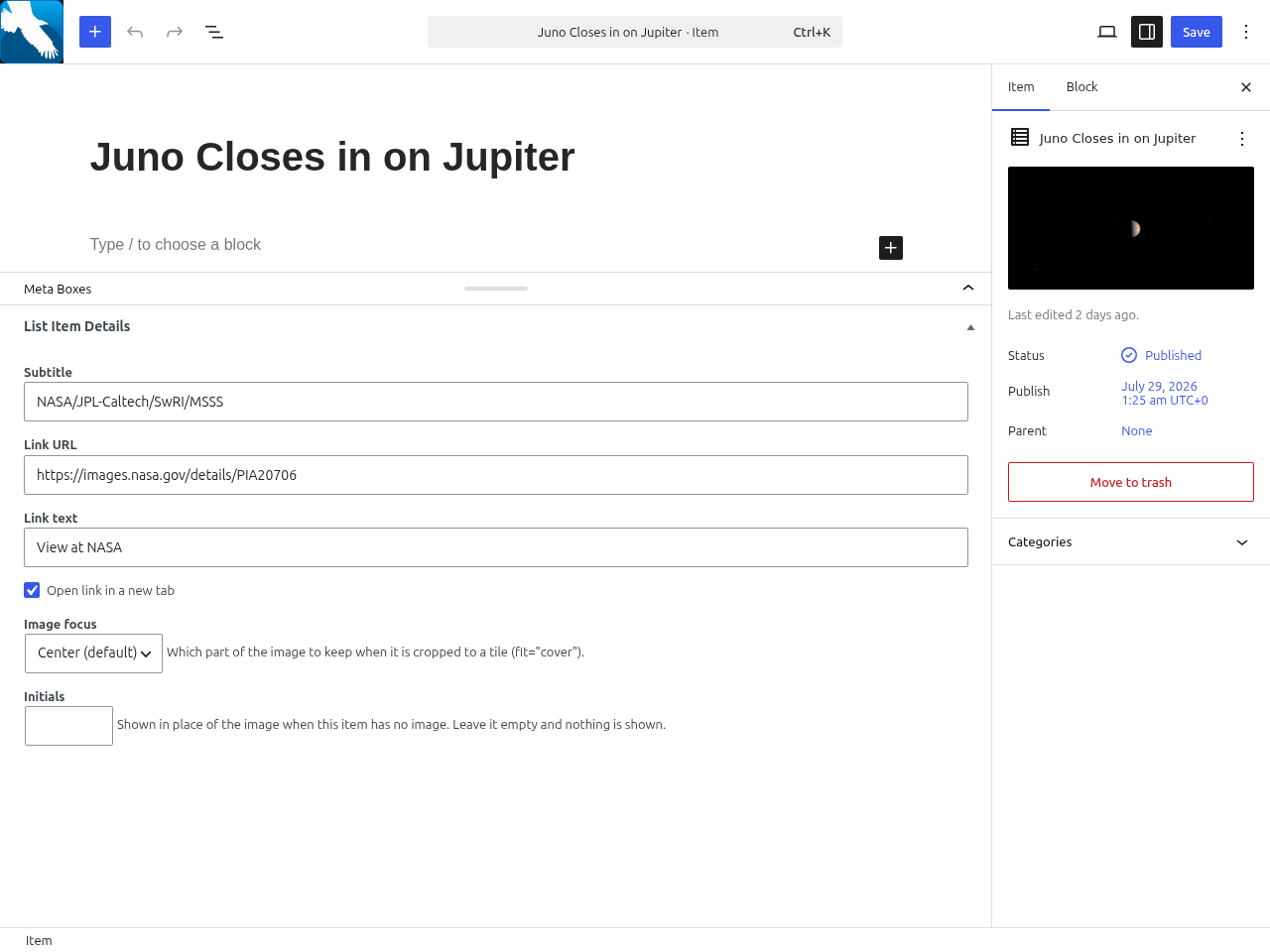
a logo wall, where one giant logo per row wastes the screen. - Per-item initials shown in place of a missing image. An item with no image
and no initials shows nothing at all and the tile closes up around it. - Per-item link text so the button reads “Purchase”, “Read more”, etc.
(defaults to “Visit”). - Built-in lightbox (on by default): click an image to view the full-size
version in an overlay, with prev/next and keyboard navigation. Pure vanilla
JavaScript, no jQuery or third-party library; degrades to opening the image
when JavaScript is off. Disable per list withlightbox="no". - Weight-based ranking that ignores the category you filtered on, so tiers
sort correctly (gold before bronze). - Optional, off-by-default single item pages.
- Logos render contained: wide or tall logos are never cropped.
Documentation, worked examples and other plugins:
primowp.com.
Screenshots
Installation
- Upload the
primo-listfolder to/wp-content/plugins/, or install via the Plugins screen. - Activate the plugin.
- Add items under Primo List Items, assign categories, and set category weights under Primo List Categories.
- Place
[primo_list category="your-category"]on any page.
FAQ
-
How do I show just one category?
-
Use the category filter:
[primo_list category="sponsors"]. Items sort by their
remaining categories’ weight (e.g. tier), gold first. -
Can one list show more than one category?
-
Yes. Separate the slugs with commas:
[primo_list category=”sponsors,partners”]. An item appears if it belongs to
any of them, and anything belonging to two of the categories you listed still
appears only once.Ranking then works on the categories you did not name. Each item is placed by
whichever of its remaining categories carries the lowest weight, so a gold tier
still sorts above a bronze one across the combined list. Addheadings="yes"to
group the result under those tier headings. -
How do I show a compact logo wall?
-
Add
layout="wall", e.g.[primo_list category="sponsors" layout="wall"]. -
How do I put one particular item at the top?
-
Go to Primo List Items and drag it up by the handle in the Order column
(or type a number into the Order box under Page Attributes on the item editor,
lower numbers come first). That order breaks ties under the default weight
ranking. If the list has categories with different weights and you want your
manual order to win regardless, addorderby="menu_order"to the shortcode.Dragging is available when the list is sorted by the Order column (the default)
and you are not searching. It works with the category filter, and reordering a
filtered view leaves items outside that filter where they are. -
Do images open in a lightbox?
-
Yes, by default. Clicking an item’s image opens the full-size version in an
overlay with prev/next navigation; no extra plugin needed. Turn it off for a
list withlightbox="no"(useful for logo walls that link out instead). -
Can items have their own pages?
-
Yes, optionally. Enable Primo List Settings Enable item pages. Off by
default; with it off, items appear only through the shortcode.
Reviews
There are no reviews for this plugin.
Contributors & Developers
“Primo List” is open source software. The following people have contributed to this plugin.
Contributors
Translate “Primo List” into your language.
Interested in development?
Browse the code, check out the SVN repository, or subscribe to the development log by RSS.
Changelog
1.1.0
- New
columns_mobileattribute sets how many tiles a grid shows per row on a
phone (up to 480px). Defaults to 1, so existing shortcodes are unchanged.
It is capped atcolumns, and a value of 2 or more also stops a tablet
dropping below it. - Fixed:
columns="1"widened to two columns on a tablet. - An item with no image now shows nothing, and the tile closes up around it.
To show a placeholder, type the letters you want in the new per-item
Initials field. Previously every image-less item showed the first letter
of its title whether or not you wanted it. - An item with neither an image nor initials is left out of a
layout="wall"
list entirely, rather than leaving an empty tile in the wall.
1.0.0
- Initial release.
- Built-in dependency-free image lightbox (
lightboxattribute, on by default)
with prev/next and keyboard navigation. - Admin Shortcodes reference screen listing a ready-to-use shortcode per
category plus all shortcode options. - Drag-and-drop manual ordering on the Items list (Order column), with a
matchingorderby="menu_order"shortcode value. - Filtering the Items list by category now surfaces a copy-ready shortcode for
that category.