

Description
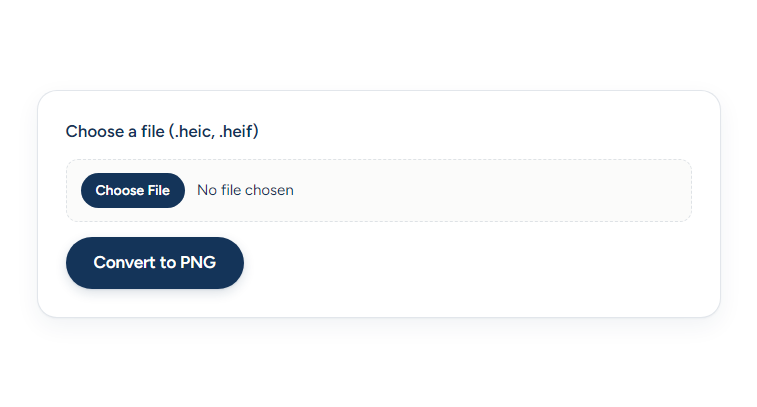
Let visitors upload a HEIC file and download the converted PNG, right from any WordPress page. The plugin renders a native form on your site and sends the file directly to the EnConvert API for conversion. No iframe, no extra tracking — just a clean form on your page.
How it works:
- Create a free EnConvert account.
- Generate a public API key (
pk_*) on your EnConvert API keys page. - Add your WordPress site’s domain to the key’s allowed-domains list.
- Paste the key into the plugin settings.
- Drop
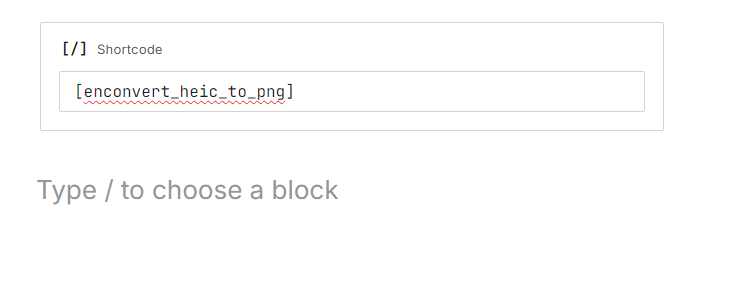
[enconvert_heic_to_png]into any page, post, or shortcode block.
New to EnConvert? Visit the EnConvert homepage, or try this conversion online at enconvert.com/convert/heic-to-png.
Free tier available — 100 monthly conversions, no credit card. Paid tiers raise the limit and increase the max file size.
Third-Party Service
This plugin sends visitor-uploaded files directly from the visitor’s browser to the EnConvert API:
https://api.enconvert.com— receives the uploaded file and returns a presigned URL for the PNG download.
The visitor’s browser sends an X-API-Key header containing the public API key configured in plugin settings. The API validates the key and the requesting domain (the page’s origin) before accepting the conversion. Your WordPress server is not involved in the conversion request.
- Service: EnConvert — https://enconvert.com
- Terms of Service: https://enconvert.com/terms
- Privacy Policy: https://enconvert.com/privacy
By using this plugin, you and your visitors agree to EnConvert’s Terms of Service and Privacy Policy.
Screenshots

Installation
- Upload the
enconvert-heic-to-pngfolder to/wp-content/plugins/, or install via the Plugins menu. - Activate the plugin.
- In your EnConvert dashboard, create a public API key (
pk_*) and add this site’s domain to its allowed-domains list (wildcards like*.example.comwork). - In WordPress, go to Settings EnConvert HEIC to PNG and paste the public key.
- Insert
[enconvert_heic_to_png]in any page, post, or Shortcode block.
FAQ
-
Where do I get a public API key?
-
Sign in at enconvert.com and go to Dashboard API Keys. Create a key of type “Public” (
pk_*). Public keys are designed for browser use and are restricted to the domains you list. -
Why a public key instead of a secret key?
-
Secret keys (
sk_*) cannot be used from a browser — the API rejects them with a 403 error. Public keys (pk_*) are safe to use in front-end code because they are restricted to a list of domains you control. If someone copies your key, it will not work on their site. -
Does this plugin send files through my WordPress server?
-
No. The uploaded file goes directly from the visitor’s browser to
api.enconvert.com. Your WordPress server never touches the file or the converted output. -
The domain serving the WordPress page is not in the API key’s allowed-domains list. Open your EnConvert dashboard, edit the key, and add your site’s domain. Wildcards like
*.example.comcover all subdomains. -
Does it work in the block editor?
-
Yes. WordPress includes a built-in Shortcode block. Add it and paste
[enconvert_heic_to_png]. The form renders both inside the editor preview and on the published page. -
What are the conversion limits?
-
The free tier includes 100 conversions per month and a 5 MB max file size. Paid tiers raise both limits; see enconvert.com/pricing.
-
Does it work with multisite?
-
Yes, but each site needs to activate the plugin and configure its own API key. The plugin has not been tested as a network-activated plugin.
Reviews
There are no reviews for this plugin.
Contributors & Developers
“EnConvert HEIC to PNG” is open source software. The following people have contributed to this plugin.
Contributors
Translate “EnConvert HEIC to PNG” into your language.
Interested in development?
Browse the code, check out the SVN repository, or subscribe to the development log by RSS.
Changelog
1.0.1
- Brand name updated to EnConvert.
1.0.0
- Initial release. Native form, public-key authentication, direct API calls.