

Description
Parlato turns your WordPress posts into audio. Read a post aloud with a single click, or let AI script a narrated podcast monologue and convert it to a natural-sounding MP3. Every file is stored in your Media Library and played back with a lightweight HTML5 player. No third-party embeds, no tracking scripts.
Parlato is bring-your-own-key (BYOK): you connect your own OpenAI and/or ElevenLabs account, so there is no Parlato subscription and you pay your providers directly for what you use.
Two TTS providers:
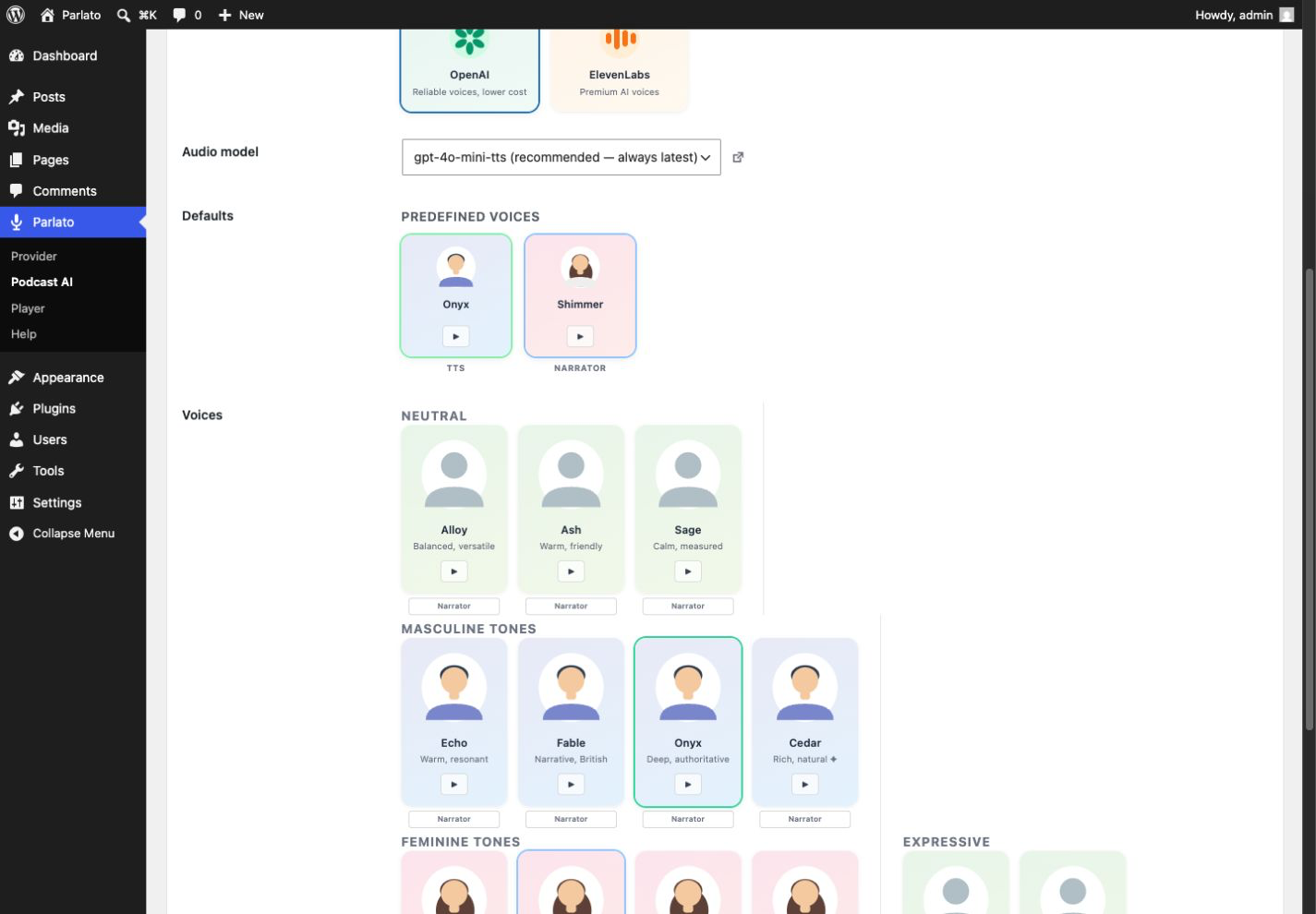
- OpenAI — 13 voices (Alloy, Ash, Sage, Echo, Fable, Onyx, Cedar, Nova, Shimmer, Coral, Marin, Ballad, Verse) and models gpt-4o-mini-tts, tts-1-hd and tts-1
- ElevenLabs — premium AI voices loaded live from your account (default voices plus your own cloned/generated voices), with the eleven_multilingual_v2 and eleven_flash_v2_5 models
Two ways to generate audio:
- Read aloud (TTS) — convert the post text straight to speech with a single voice
- Narrator — AI writes an audiobook-style script, then reads it in one voice
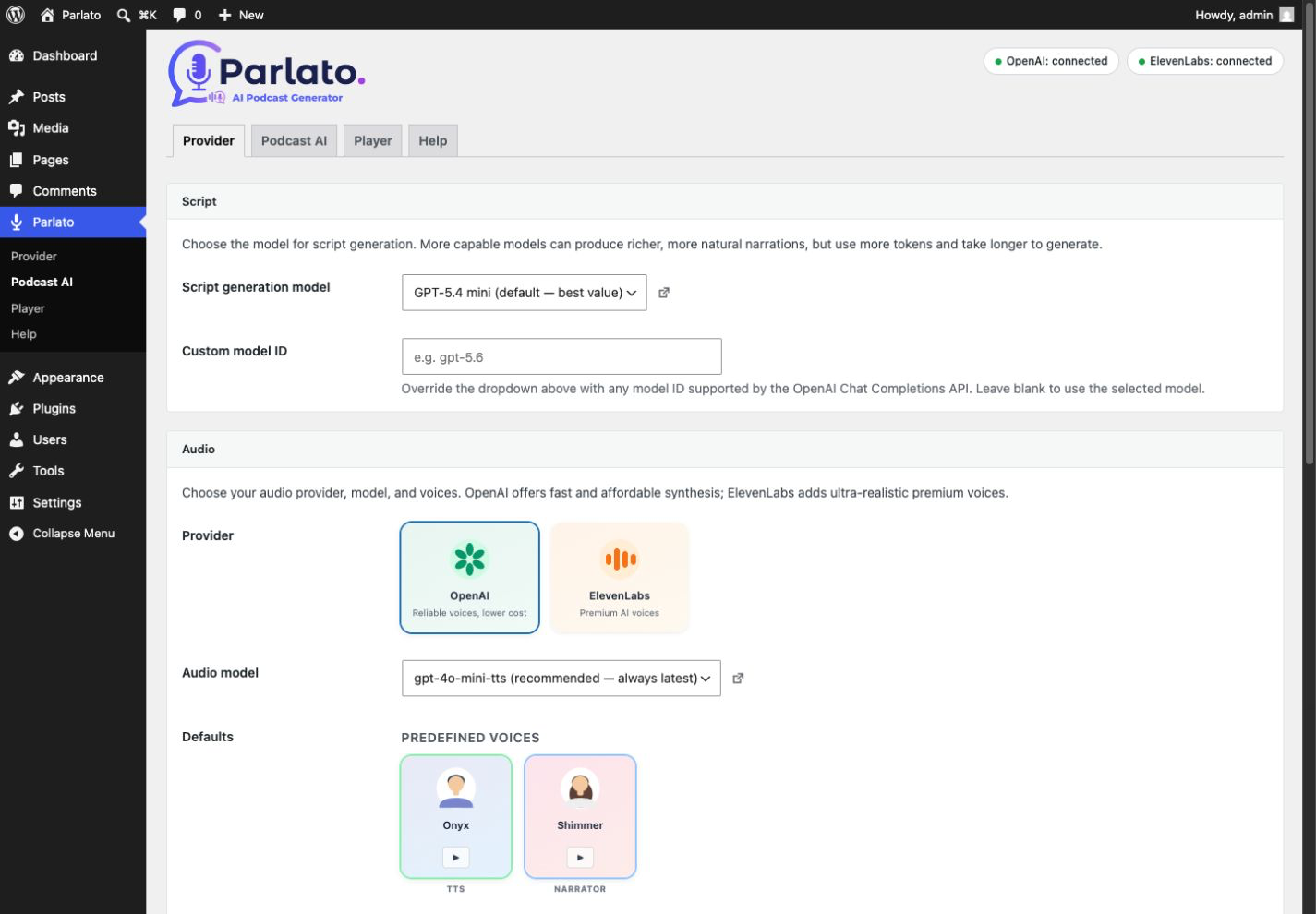
For the Narrator format, Parlato first generates a structured script with an OpenAI GPT model (selectable, with adjustable reasoning effort), then converts that script to audio with the TTS provider and voice you chose.
Key features:
- 13 OpenAI voices plus your full ElevenLabs voice library
- AI script generation with a selectable GPT model and reasoning effort
- Voice preview directly from the settings page
- Audio saved in your Media Library — you own your files
- Lightweight HTML5 player — no JavaScript frameworks
- Player placed before or after content, or via the
[parlato]shortcode - Works with posts, pages and public custom post types (configurable)
- Optional microphone badge next to post titles in listings, flagging posts that have an audio version
Both formats — plain read-aloud TTS and the AI-scripted Narrator podcast — are fully free: Parlato imposes no generation limit of its own. Usage is subject to your chosen provider’s API quotas, rate limits, billing and availability.
How it works:
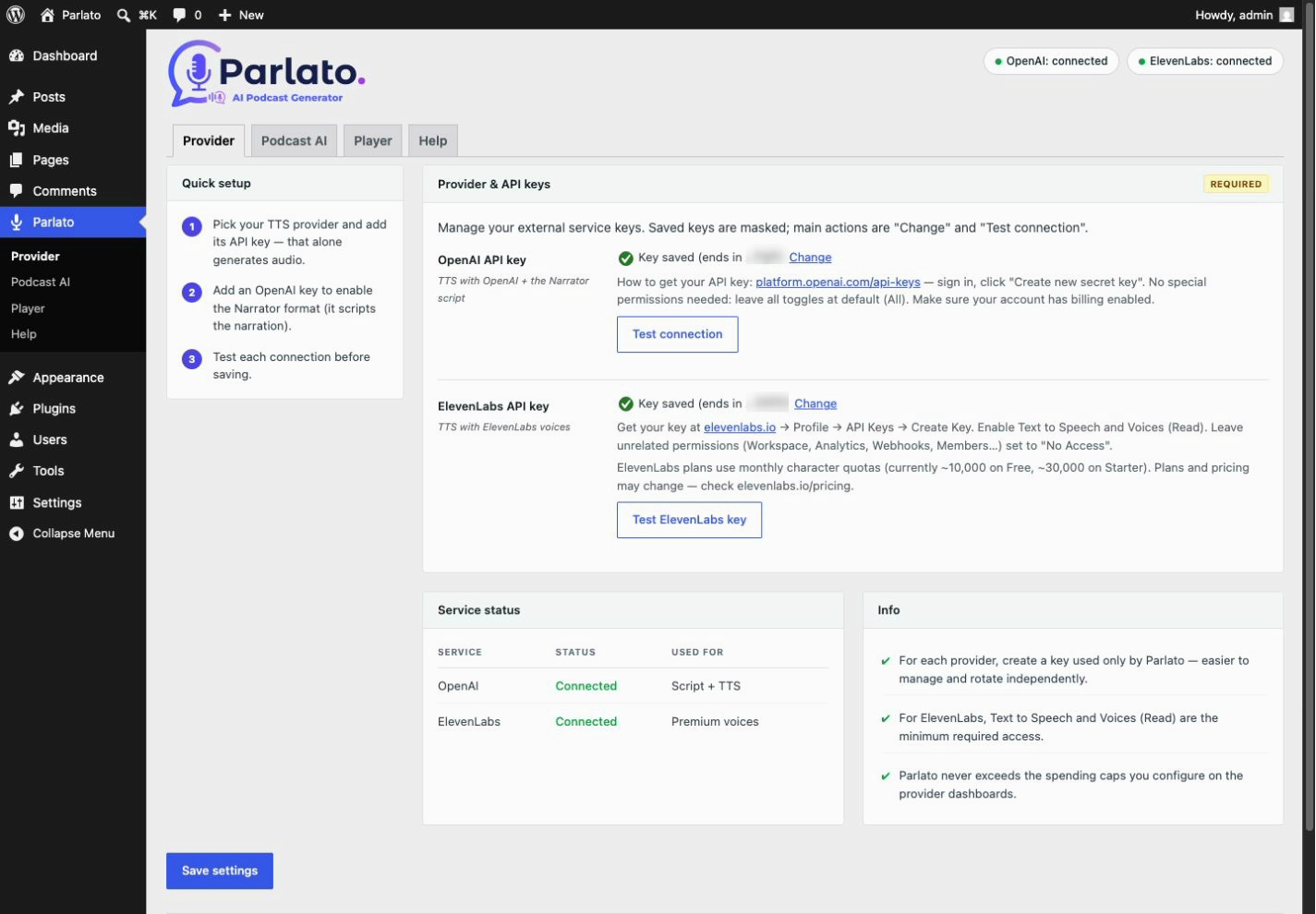
- In Parlato Provider, choose OpenAI or ElevenLabs and enter your API key
- Pick a voice and model (and, for podcasts, a script model under Podcast AI)
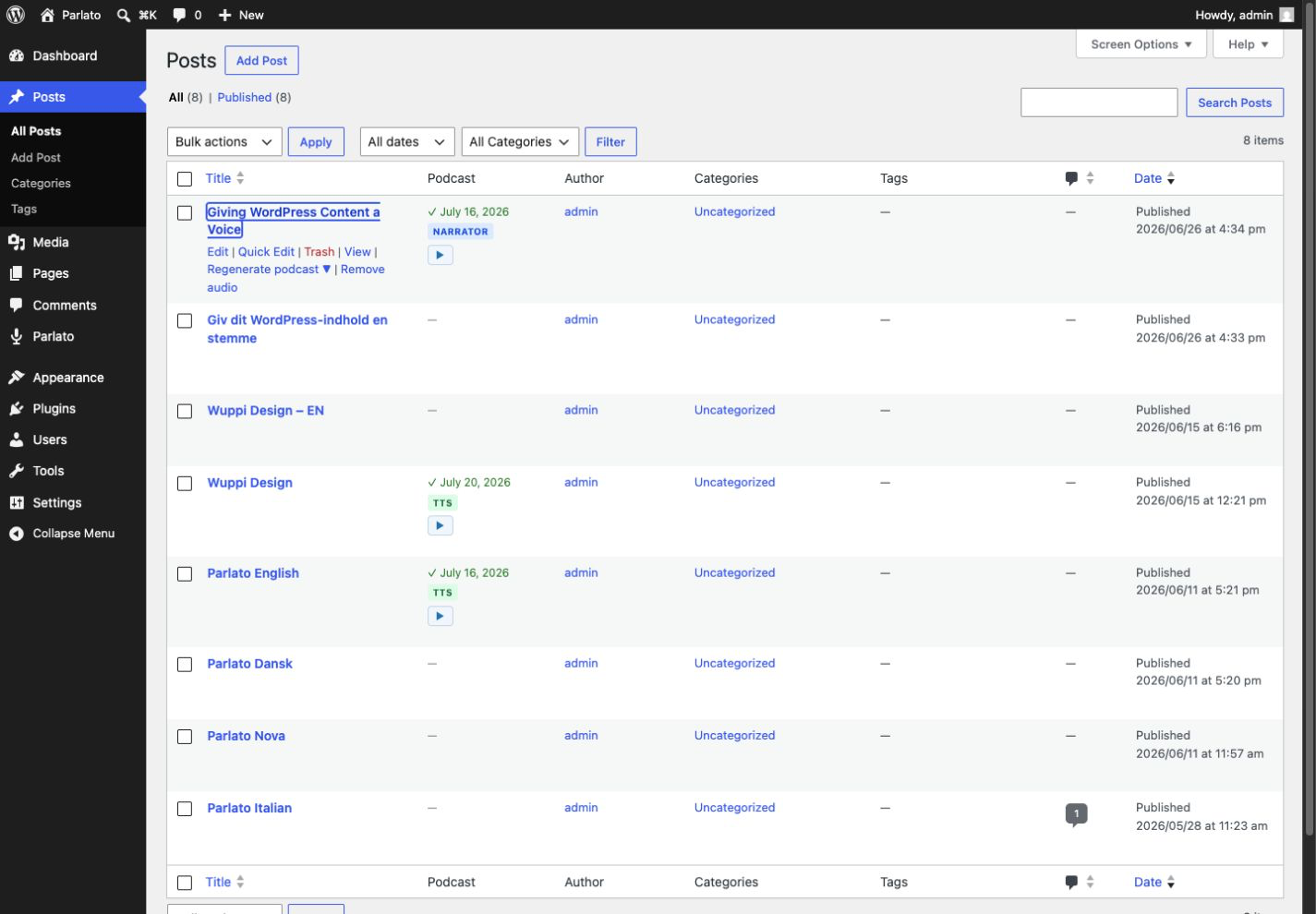
- Hover a post in the list of an enabled post type and click Generate in the row actions
- The audio player appears automatically on your post
External Services
Parlato is a “bring your own key” plugin: it does not contact any service on its own and ships with no bundled accounts. It connects to the third-party services below only when you configure an API key and explicitly trigger an action (generating audio, generating a podcast script, loading voices, or playing a preview). API requests include the key entered in settings; the browser preview request described below does not. Parlato sends no data in the background and stores no personal data of its own. You should disclose the use of these services in your site’s privacy policy.
OpenAI — Text-to-Speech
Used when OpenAI is the selected TTS provider, to convert your post text into an MP3 audio file. On each generation Parlato sends the (truncated) text of the post and your OpenAI API key to https://api.openai.com/v1/audio/speech. Data is sent only when you trigger generation for a post.
- Terms of use: https://openai.com/policies/
- Privacy policy: https://openai.com/policies/privacy-policy/
OpenAI — Chat Completions (podcast script)
Used for the Narrator podcast format to turn your post into a spoken-style script before audio generation. Parlato sends the post text and your OpenAI API key to https://api.openai.com/v1/chat/completions. Data is sent only when you trigger generation of a Narrator podcast.
- Terms of use: https://openai.com/policies/
- Privacy policy: https://openai.com/policies/privacy-policy/
ElevenLabs — Text-to-Speech
Used when ElevenLabs is selected for TTS. On generation Parlato sends the truncated post text and your API key to https://api.elevenlabs.io/v1/text-to-speech/. It calls https://api.elevenlabs.io/v1/voices with the key when loading voices. When you click a voice preview, your browser loads audio from the URL returned by ElevenLabs; that host receives standard connection data (IP address and user agent), but no API key or post text. Calls occur only after the corresponding user action.
- Terms of use: https://elevenlabs.io/terms-of-use
- Privacy policy: https://elevenlabs.io/privacy
Screenshots
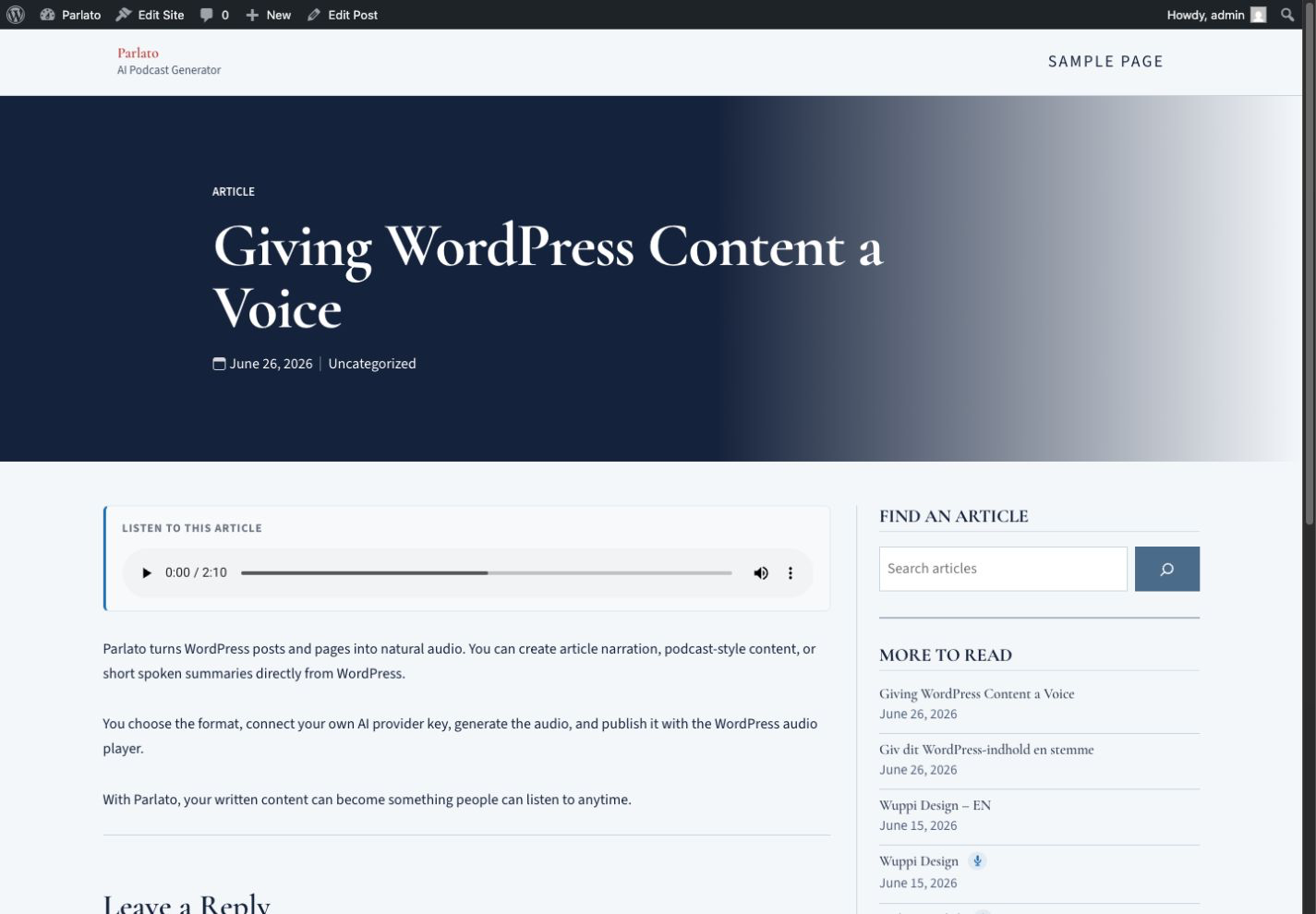
Installation
- In your WordPress dashboard go to Plugins Add New Plugin
- Search for Parlato
- Click Install Now, then Activate
- Go to Parlato Provider in the admin menu
- Choose your provider and enter your API key — OpenAI (starts with
sk-) and/or ElevenLabs - Pick a voice and click Save settings
To generate audio for a post: Open Posts, hover over any post, and click Generate in the row actions.
To display the player manually:
Set Player position to “Manual” and add [parlato] anywhere in your post content.
FAQ
-
Do I need to pay for a Parlato subscription?
-
No. Parlato is free and open-source. You only pay your TTS provider (OpenAI and/or ElevenLabs) for the API usage you trigger. See OpenAI pricing and ElevenLabs pricing for current rates.
-
How do I show the microphone icon next to post titles?
-
The title badge is off by default. Enable it under Parlato Player Title badge. Once on, a small microphone icon appears next to the title of any post that has generated audio, in post listings (home, archives, categories). It is intentionally hidden on the single post’s own page, where the audio player is already shown.
-
How many AI podcasts can I create?
-
As many as you like — Parlato imposes no generation limit of its own. Both formats — read-aloud TTS and Narrator — are free. You only pay your own provider (OpenAI or ElevenLabs) for the API usage, subject to their quotas, rate limits and billing.
-
How do I get the API keys?
-
For OpenAI, sign in at platform.openai.com and click Create new secret key; make sure billing is enabled. For ElevenLabs, create a key at elevenlabs.io with Text to Speech and Voices (Read) permissions; leave unrelated scopes disabled.
-
Can I set the API keys in code instead of the settings page?
-
Yes. Define them in your
wp-config.php:define( 'PARLATO_OPENAI_API_KEY', 'sk-...' ); define( 'PARLATO_ELEVENLABS_API_KEY', '...' );The matching settings field shows as locked when a constant is detected.
-
How long can the audio be?
-
For read-aloud TTS, Parlato sends as much post text as the selected provider’s API accepts per request — about 4,000 characters with OpenAI, and 10,000 or more with ElevenLabs depending on the model. Only posts exceeding that technical limit are truncated at the nearest sentence boundary, with a short note appended. For the AI Narrator podcast, up to the first ~1,500 words of the post are sent to the AI to write the narration script (developers can change this budget via the
parlato_narrator_input_wordsfilter). -
Where are the MP3 files stored?
-
In your WordPress Media Library. Each audio file is a standard attachment linked to the post. You can manage, delete, or download them like any other media file.
-
Will regenerating overwrite the old file?
-
Yes. Regenerating removes the previous MP3 from the Media Library and generates a new one.
-
How do I delete the audio for a post?
-
Hover over the post in the Posts list and click Remove audio. This deletes both the MP3 attachment and the player.
-
Does Parlato work with custom post types?
-
Yes. Posts are enabled by default; you can enable pages and any public custom post type with the Post types setting on the Parlato Player tab. Audio generation and the automatic player then work on every enabled post type.
-
What data is sent to external services?
-
Your post text is sent to your chosen TTS provider (OpenAI or ElevenLabs) to generate audio, and — for the Narrator podcast — to OpenAI to generate the script, together with your API key. Data is sent only when you explicitly trigger generation. Parlato itself does not collect or store personal data; you should disclose the use of these services in your site’s privacy policy. The settings page includes a disclosure notice. See the “External Services” section below for the full list of services and their privacy policies.
Reviews
There are no reviews for this plugin.
Contributors & Developers
“Parlato – AI Podcast Generator” is open source software. The following people have contributed to this plugin.
Contributors
Translate “Parlato – AI Podcast Generator” into your language.
Interested in development?
Browse the code, check out the SVN repository, or subscribe to the development log by RSS.
Changelog
1.0.0
- Initial public release