

Description
SmartQR Payment Gateway for BanglaQR is a payment gateway for WooCommerce websites operating in Bangladesh. Built to support the unified BanglaQR national standard launched by Bangladesh Bank, this plugin enables merchants to accept payments from any bank app or mobile financial services (MFS) including bKash, Nagad, Rocket, Upay, CellFin, and bank transfers.
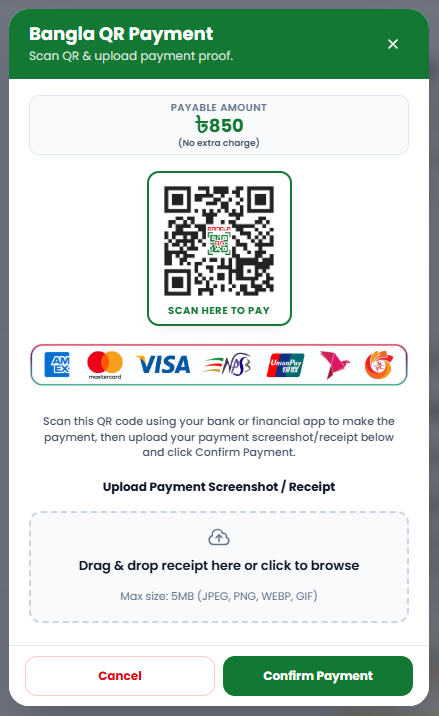
During checkout, customers receive a scan-to-pay QR popup modal. They can scan the QR code from their mobile apps, complete the payment, and upload their payment screenshot or receipt before checking out.
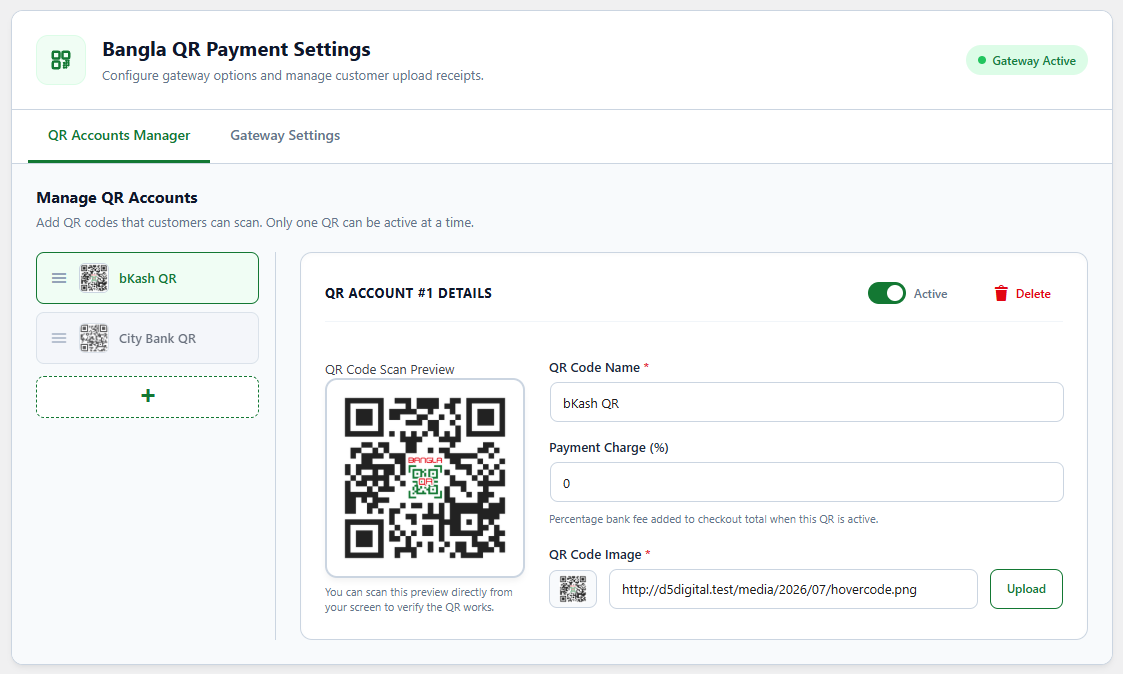
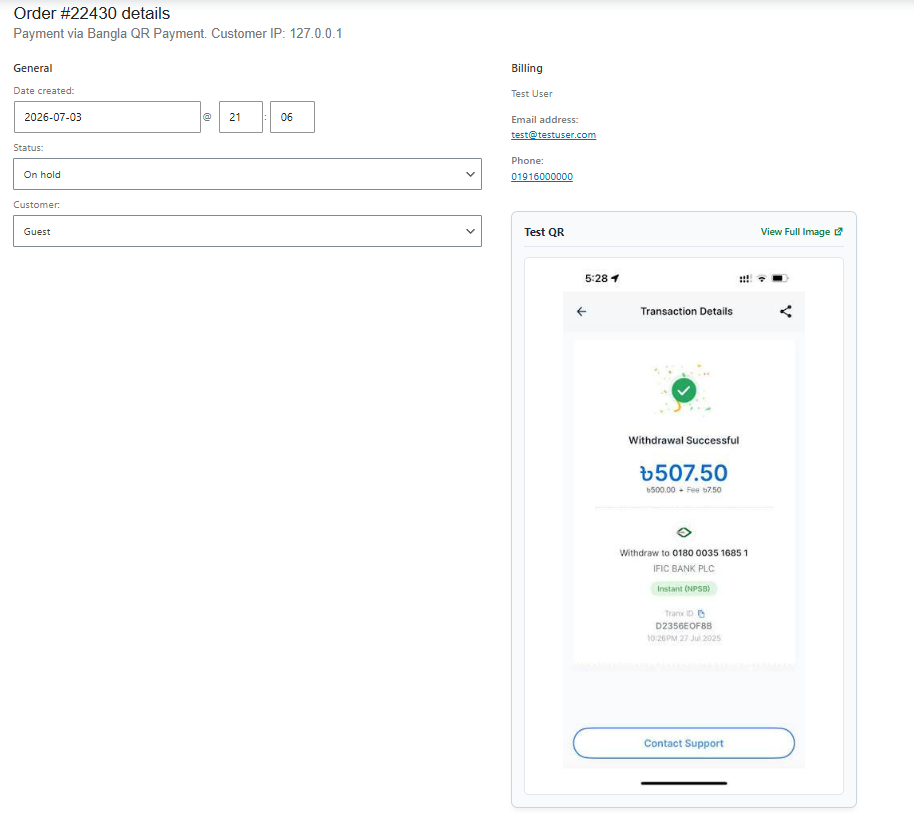
Backend administrators can configure multiple QR codes, assign customized processing bank fees/percentage charges per QR, and check customer-uploaded payment receipts inside the WooCommerce order review screen.
Features
- BanglaQR Integration: Aligned with Bangladesh’s national QR payment standard.
- MFS & Bank Apps Compatibility: Works with bKash, Nagad, Rocket, Upay, CellFin, City Touch, and bank apps.
- Popup Modal: A responsive checkout popup that displays the payable amount, active QR, and instructions.
- Per-QR Percentage Charges: Define separate bank fees or processing charges (e.g., 1.5% for credit cards, 0.7% for bKash) dynamically calculated and added to the checkout total.
- Proof of Payment Upload: Customers can upload screenshots or receipts directly inside the checkout popup.
- Automated Image Optimization: Uploaded receipts are auto-rotated, scaled to 1200px, and compressed to 70% quality on-the-fly.
- Drag-and-Drop QR Manager: Sort and prioritize multiple QR accounts using a sortable settings panel.
- Settings Access Shortcut: Quick “Settings” shortcut link on the WordPress plugin lists page.
- Attachment Preview: Preview and verify uploaded receipt slips inside the order details page.
Screenshots
Installation
- Upload the plugin folder to the
/wp-content/plugins/directory, or install the plugin through the WordPress plugins screen directly. - Activate the plugin through the ‘Plugins’ menu in WordPress.
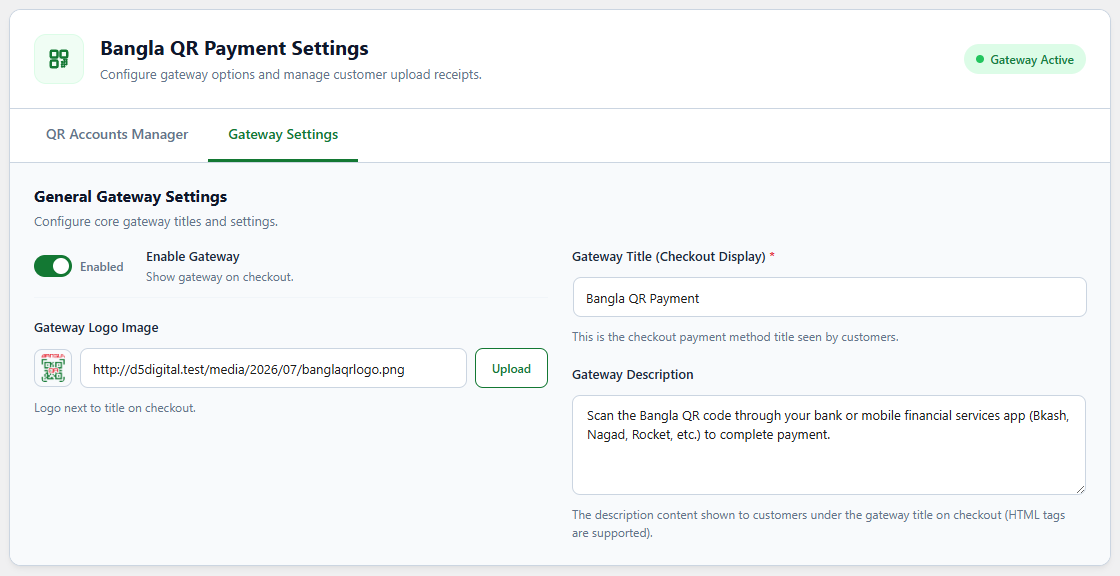
- Configure the settings under WooCommerce -> Settings -> Payments -> Bangla QR Payment.
FAQ
-
How does the payment gateway work?
-
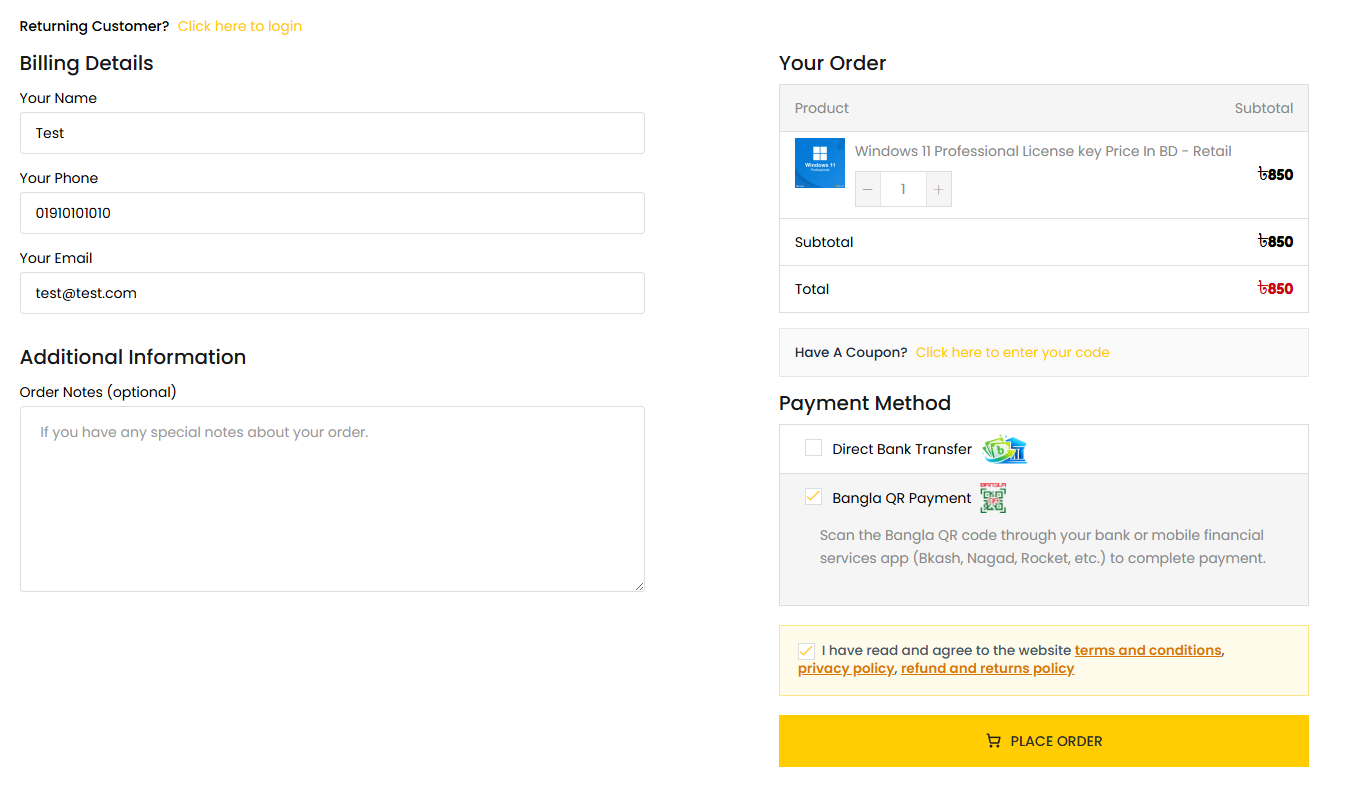
When customers select Bangla QR Payment at checkout and click “Place Order”, a scan-to-pay popup modal opens. The popup displays a scan-to-pay QR code and the exact total amount (including dynamic payment charges). The customer scans the QR, sends money, uploads the payment receipt/screenshot, and clicks “Confirm Payment” to finish the checkout.
-
Can I add separate processing charges/fees for each payment operator?
-
Yes! You can define a customized percentage charge (e.g., 1.85% for bKash, 0% for Bank transfers) inside each QR account settings. The plugin dynamically calculates the charge based on the cart total and updates the payment details in real time.
-
Are uploaded receipts optimized to save disk space?
-
Absolutely. The plugin automatically validates, resizes (max 1200px width/height), and compresses all uploaded payment receipt images to 70% JPEG quality to optimize server storage space.
-
Where do I verify the customer-uploaded screenshots?
-
Shop administrators can view and download the uploaded receipt proofs directly under the “Order Details” panel in the WooCommerce -> Orders page in the WordPress admin panel.
-
Does it support guest checkout?
-
Yes, guest customers can checkout and upload their payment screenshots securely.
Reviews
There are no reviews for this plugin.
Contributors & Developers
“SmartQR Payment Gateway for BanglaQR” is open source software. The following people have contributed to this plugin.
Contributors
Translate “SmartQR Payment Gateway for BanglaQR” into your language.
Interested in development?
Browse the code, check out the SVN repository, or subscribe to the development log by RSS.
Changelog
1.2.1
- Initial public release of SmartQR Payment Gateway for BanglaQR.
- Added support for Bangladesh Bank’s unified BanglaQR standard.
- Added QR payment popup with payment proof upload.
- Added multiple QR account management with sortable interface.
- Added per-QR processing fee configuration.
- Added automatic receipt image optimization and compression.
- Added receipt preview in WooCommerce order details.
- Added settings shortcut link from the Plugins page.