

Description
SMTPPai is a free WordPress mail SMTP plugin that fixes broken wp_mail() delivery. Connect Amazon SES, Mailgun, Postmark, Resend, Brevo, Mailjet, Gmail, Microsoft 365, or any SMTP server from wp-admin—with test email, an email log, and inline setup help on each connection screen.
Many hosts block or spam-filter PHP mail(). SMTPPai routes WooCommerce orders, password resets, contact forms, and admin notices through your provider instead.
Why SMTPPai instead of another SMTP plugin?
Most SMTP plugins in the directory offer one connection and SMTP relay only. SMTPPai is built for sites that need more control without a paid license:
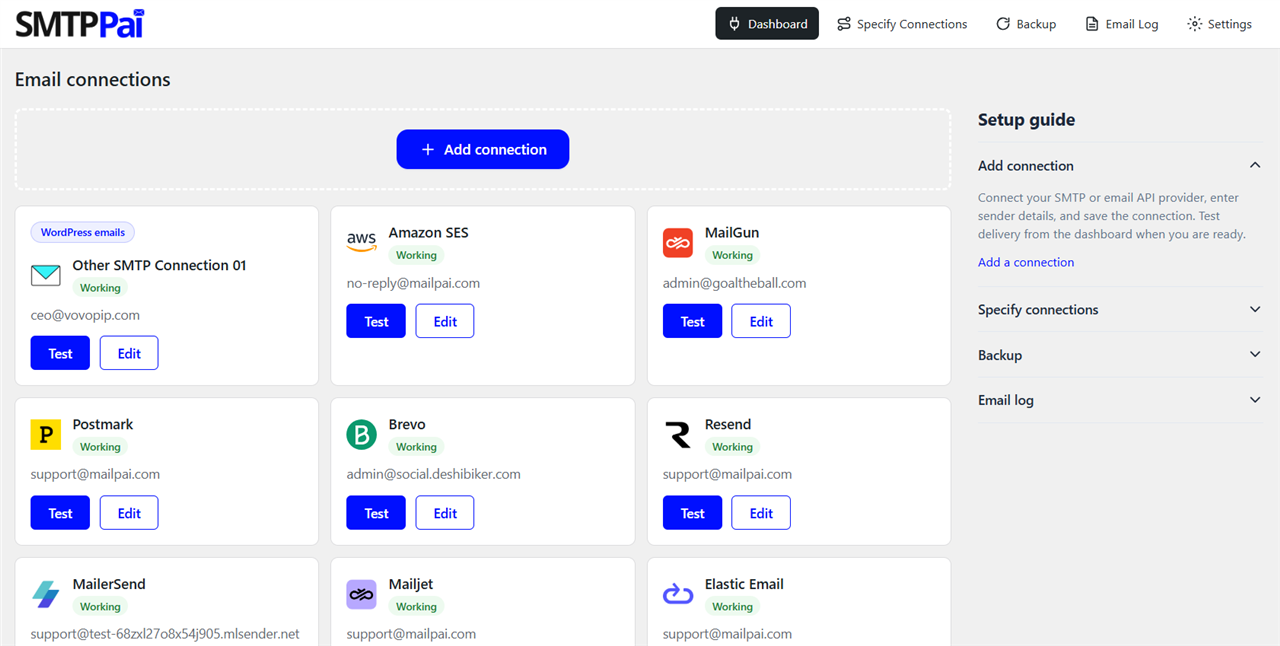
- Unlimited connections (free) — run SES for transactional mail, Mailgun for WooCommerce, and Gmail for admin alerts at the same time
- Native API mailers — Amazon SES, Mailgun, Postmark, Resend, Brevo, and others use each provider’s HTTP API, not a generic SMTP shim
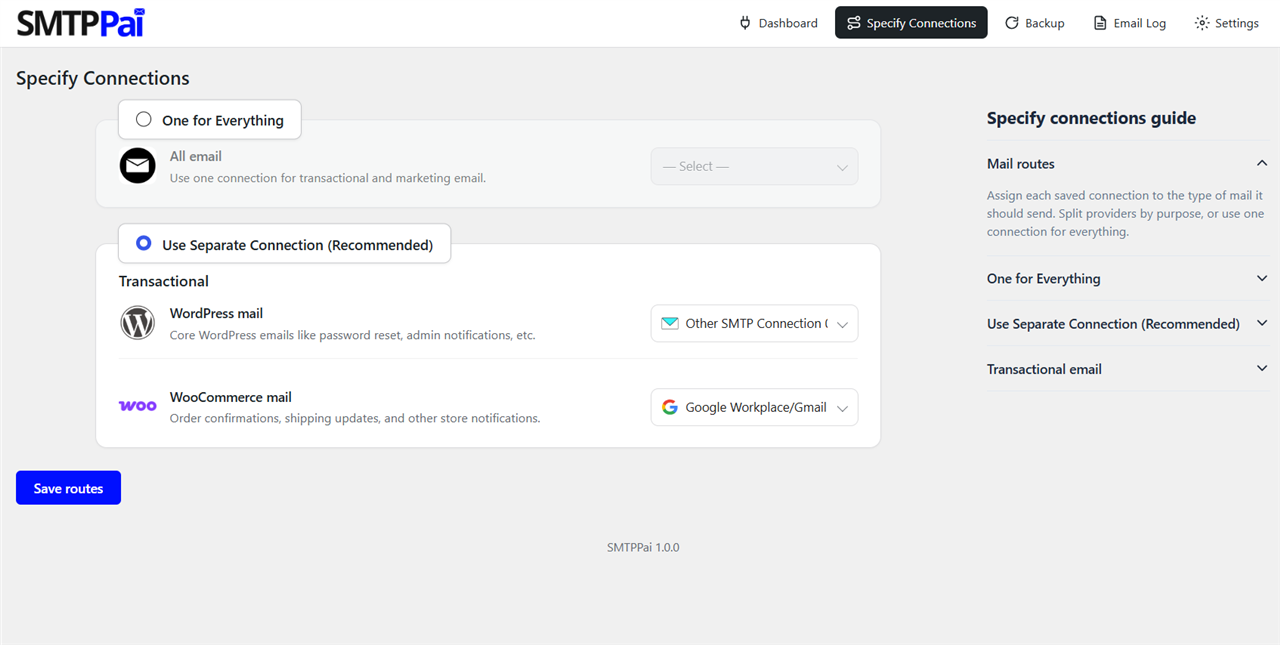
- Specify Connections — assign WordPress, WooCommerce, newsletter, and outreach mail to different providers from one screen
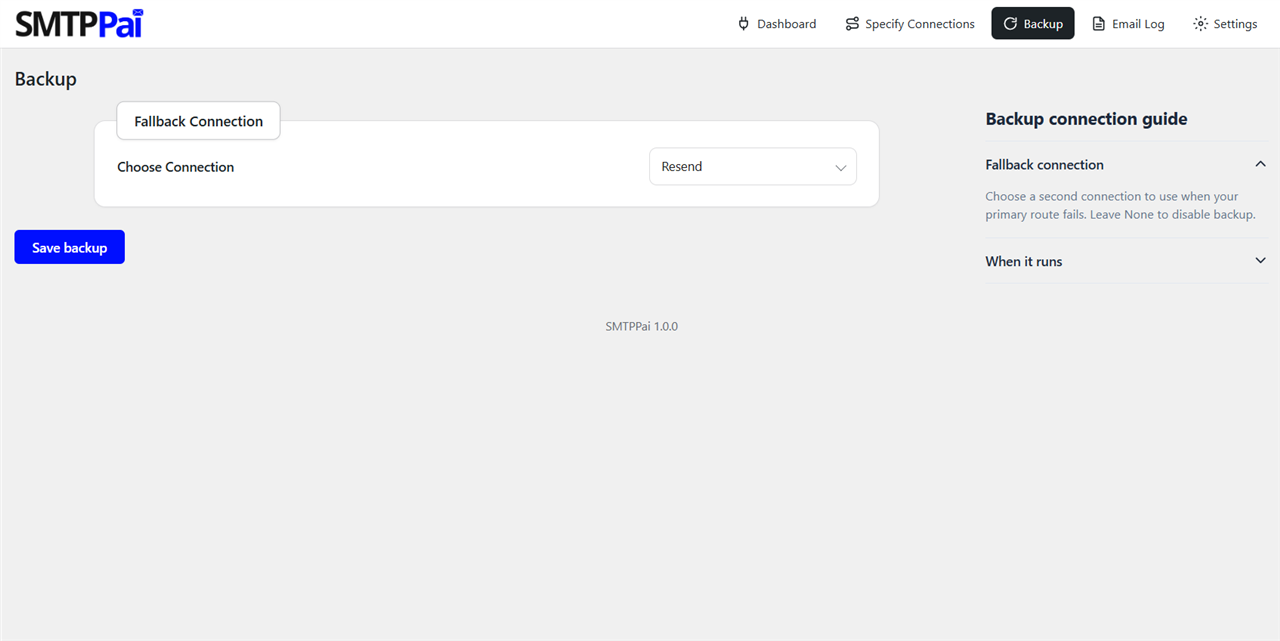
- Backup failover — if the primary connection fails, SMTPPai retries through a second provider automatically
- OAuth that works on local and staging sites — Gmail and Microsoft sign-in use a fixed HTTPS redirect relay so you do not need a public production URL in Google Cloud or Entra
- Secrets in wp-config.php — optional constants keep API keys out of the database
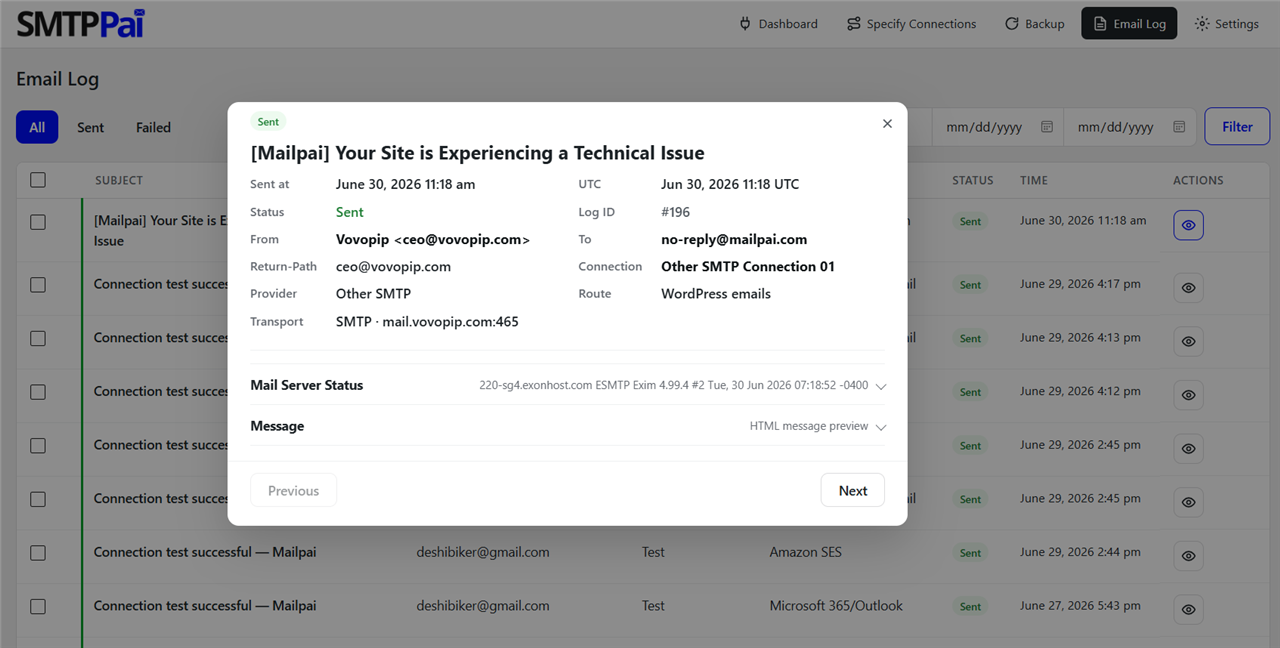
- Email log with retry — see delivery status, server responses, and resend failed messages from wp-admin
- Developer route API — send or check readiness per route (
wordpress,woocommerce,newsletter,outreach) - No usage telemetry — SMTPPai does not phone home or require a MailPai account for core delivery
What you get (free):
- Unlimited connections—native API mailers plus OAuth for Google and Microsoft
- Specify Connections to split WordPress, WooCommerce, newsletter, and outreach mail
- Backup when your primary provider fails
- Email log with sent/failed status, server response, and retry
- Encrypted secrets in the database or storage in
wp-config.phponly
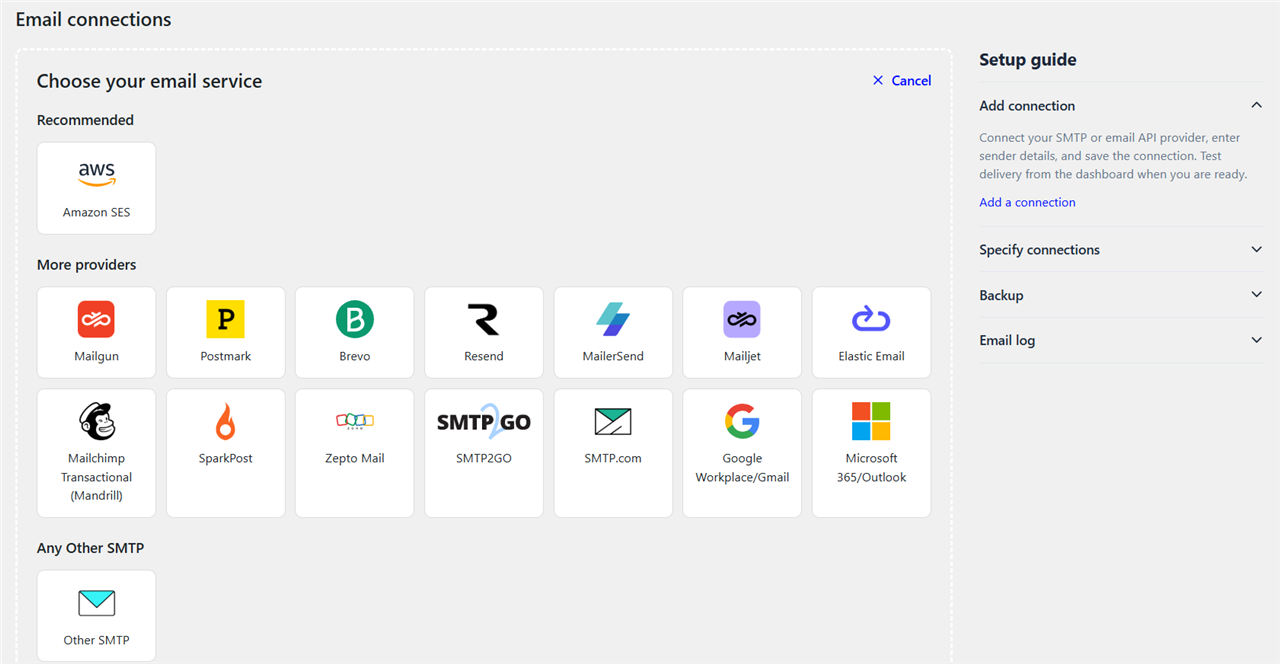
Supported mailers: Amazon SES, Mailgun, Postmark, Brevo, Resend, MailerSend, Mailjet, Elastic Email, Mailchimp Transactional (Mandrill), SparkPost, Zepto Mail, SMTP2GO, SMTP.com, Google Workspace/Gmail, Microsoft 365/Outlook, and Other SMTP (Zoho, cPanel, custom relays).
Quick start: Install SMTPPai Dashboard Add connection save and Test Specify Connections assign WordPress mail (and WooCommerce mail if needed). Optional Backup under SMTPPai Backup.
Gmail and Microsoft OAuth use your own Google Cloud or Microsoft Entra app. Sign-in may briefly visit auth.mailpai.com (HTTPS redirect relay); OAuth tokens stay on your WordPress site. You may get a Google or Microsoft security alert on your phone—normal account protection; approve only if you started sign-in in wp-admin. See FAQ for details.
MailPai (optional, upcoming) will handle newsletter and outreach campaigns; SMTPPai delivers the mail. Routes for newsletter and outreach are already available in Specify Connections.
Developer hooks: mailpai_smtp_send_for_route(), mailpai_smtp_is_route_ready(), and related functions—see FAQ.
Note: Messages with file attachments may still use default WordPress mail until a future update adds full attachment routing.
Per-provider setup steps (Amazon SES, Mailgun, OAuth, and others) are in FAQ below and in the setup guide inside each connection form in wp-admin.
External services
SMTPPai contacts external servers only when you configure a feature that needs them. SMTPPai does not send site data to MailPai for marketing, analytics, or licensing during normal operation.
What data email providers receive
When you save a connection, SMTPPai stores your API keys, OAuth tokens, or SMTP credentials on your WordPress server only. When WordPress sends mail through that connection (including test emails you trigger in wp-admin), SMTPPai transmits sender address, recipient address(es), subject, message body, and optional headers (for example Reply-To or CC) to the provider’s API or SMTP server over HTTPS/TLS. Nothing is sent to a provider until you configure that connection and mail is sent through it.
OAuth redirect relay (auth.mailpai.com)
Used when you connect Google Workspace/Gmail or Microsoft 365/Outlook with OAuth.
- You click authorize in WordPress admin (SMTPPai).
- Google or Microsoft shows a consent screen for send-mail access.
- After you approve, the provider redirects the browser to a fixed HTTPS relay:
- https://auth.mailpai.com/google
- https://auth.mailpai.com/microsoft
- The relay immediately sends you back to your site’s wp-admin with a one-time authorization code.
- Your WordPress site exchanges the code for OAuth tokens using the Client ID and Secret you entered in the connection form. Tokens are saved on your server (encrypted in the database or in wp-config.php constants).
The relay forwards the authorization code only. It does not store OAuth refresh tokens or read your mailbox.
Service: https://auth.mailpai.com/
Terms: https://mailpai.com/terms-conditions/
Privacy: https://mailpai.com/privacy-policy/
Google (OAuth and Gmail API)
Used when you connect Google Workspace/Gmail with OAuth. Your WordPress site contacts accounts.google.com, oauth2.googleapis.com, and www.googleapis.com to complete sign-in and refresh tokens. After authorization, mail is sent using the Gmail API scope you approve.
Data sent: OAuth authorization codes and token requests during setup; your Google account email during sign-in; sender, recipients, subject, and message body when WordPress sends mail through the Gmail connection.
Terms: https://policies.google.com/terms
Privacy: https://policies.google.com/privacy
Microsoft (OAuth and Microsoft 365 / Outlook)
Used when you connect Microsoft 365/Outlook with OAuth. Your WordPress site contacts login.microsoftonline.com to complete sign-in and refresh tokens, then sends mail through Microsoft mail services.
Data sent: OAuth authorization codes and token requests during setup; your Microsoft account email during sign-in; sender, recipients, subject, and message body when WordPress sends mail through the Microsoft connection.
Terms: https://www.microsoft.com/en-us/servicesagreement/
Privacy: https://privacy.microsoft.com/privacystatement
Amazon SES
Used when you add an Amazon SES connection. SMTPPai signs requests to the regional SES API endpoint (for example email.us-east-1.amazonaws.com) using the IAM keys you provide.
Data sent: IAM access key ID and request signature with each API call; sender, recipients, subject, and message body when mail is sent.
Terms: https://aws.amazon.com/service-terms/
Privacy: https://aws.amazon.com/privacy/
Mailgun
Used when you add a Mailgun connection. SMTPPai calls api.mailgun.net or api.eu.mailgun.net.
Data sent: Mailgun API key with each request; sender, recipients, subject, and message body when mail is sent.
Terms: https://www.mailgun.com/legal/terms-of-service/
Privacy: https://www.mailgun.com/legal/privacy-policy/
Postmark
Used when you add a Postmark connection. SMTPPai calls api.postmarkapp.com.
Data sent: Postmark Server API token with each request; sender, recipients, subject, message body, and message stream ID when mail is sent.
Terms: https://postmarkapp.com/terms-of-service
Privacy: https://postmarkapp.com/privacy-policy
Brevo
Used when you add a Brevo connection. SMTPPai calls api.brevo.com.
Data sent: Brevo API key with each request; sender, recipients, subject, and message body when mail is sent.
Terms: https://www.brevo.com/legal/termsofuse/
Privacy: https://www.brevo.com/legal/privacypolicy
Resend
Used when you add a Resend connection. SMTPPai calls api.resend.com.
Data sent: Resend API key with each request; sender, recipients, subject, and message body when mail is sent.
Terms: https://resend.com/legal/terms-of-service
Privacy: https://resend.com/legal/privacy-policy
MailerSend
Used when you add a MailerSend connection. SMTPPai calls api.mailersend.com.
Data sent: MailerSend API token with each request; sender, recipients, subject, and message body when mail is sent.
Terms: https://www.mailersend.com/legal/terms-of-use
Privacy: https://www.mailersend.com/legal/privacy-policy
Mailjet
Used when you add a Mailjet connection. SMTPPai calls api.mailjet.com.
Data sent: Mailjet API key and secret with each request; sender, recipients, subject, and message body when mail is sent.
Terms: https://www.mailjet.com/legal/terms/
Privacy: https://www.mailjet.com/legal/privacy-policy/
Elastic Email
Used when you add an Elastic Email connection. SMTPPai calls api.elasticemail.com.
Data sent: Elastic Email API key with each request; sender, recipients, subject, and message body when mail is sent.
Terms: https://elasticemail.com/legal/terms-of-use/
Privacy: https://elasticemail.com/legal/privacy-policy/
Mailchimp Transactional (Mandrill)
Used when you add a Mailchimp Transactional (Mandrill) connection. SMTPPai calls mandrillapp.com.
Data sent: Mandrill API key with each request; sender, recipients, subject, and message body when mail is sent.
Terms: https://mailchimp.com/legal/terms/
Privacy: https://mailchimp.com/legal/privacy/
SparkPost
Used when you add a SparkPost connection. SMTPPai calls api.sparkpost.com or api.eu.sparkpost.com.
Data sent: SparkPost API key with each request; sender, recipients, subject, and message body when mail is sent.
Terms: https://www.sparkpost.com/policies/tos/
Privacy: https://www.sparkpost.com/policies/privacy/
Zepto Mail (Zoho)
Used when you add a Zepto Mail connection. SMTPPai calls api.zeptomail.com, api.zeptomail.eu, or api.zeptomail.in depending on the region you select.
Data sent: Zepto Mail Send Mail token with each request; sender, recipients, subject, and message body when mail is sent.
Terms: https://www.zoho.com/terms.html
Privacy: https://www.zoho.com/privacy.html
SMTP2GO
Used when you add an SMTP2GO connection. SMTPPai calls api.smtp2go.com.
Data sent: SMTP2GO API key with each request; sender, recipients, subject, and message body when mail is sent.
Terms: https://www.smtp2go.com/terms/
Privacy: https://www.smtp2go.com/privacy/
SMTP.com
Used when you add an SMTP.com connection. SMTPPai calls api.smtp.com.
Data sent: SMTP.com API key and channel name with each request; sender, recipients, subject, and message body when mail is sent.
Terms: https://smtp.com/terms-of-use/
Privacy: https://smtp.com/privacy-policy/
Other SMTP (user-configured)
Used when you add Other SMTP and enter a hostname yourself (for example Zoho Mail, cPanel, or a custom relay). SMTPPai connects only to the host, port, and encryption settings you provide.
Data sent: SMTP username and password during authentication; sender, recipients, subject, and message body when mail is sent. Terms and privacy are governed by your SMTP provider—not by SMTPPai or MailPai.
Privacy
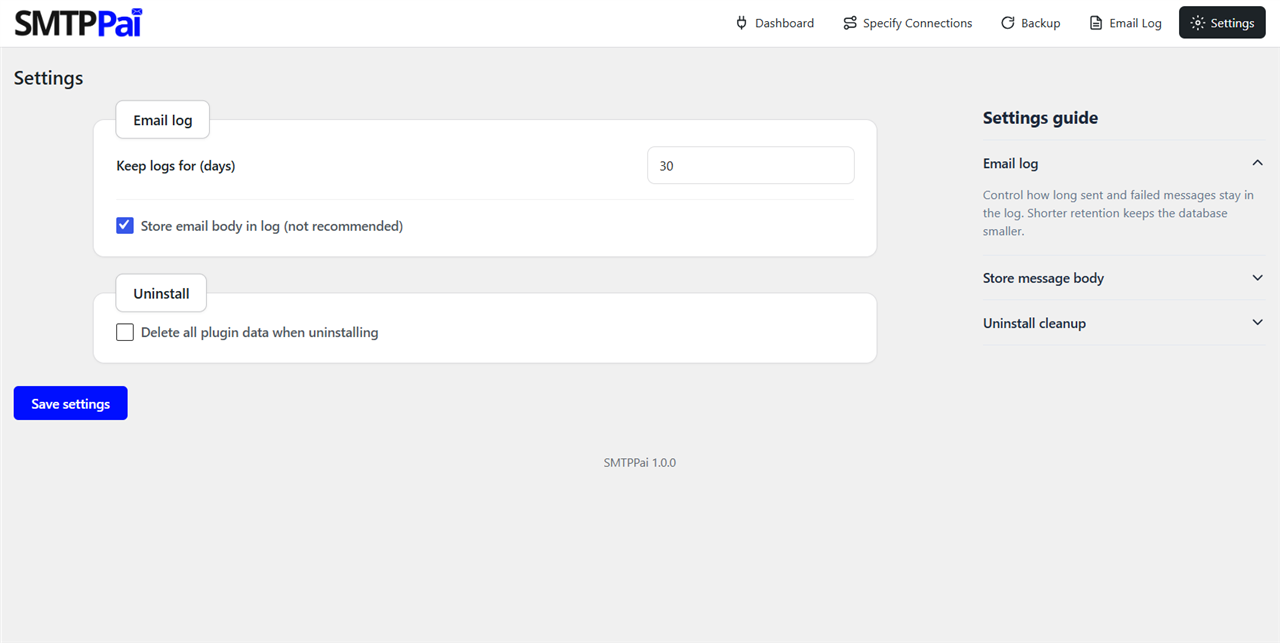
- Email log may store addresses, subjects, and optionally message bodies on your server (body logging is off by default).
- Credentials are encrypted in the database or stored in wp-config.php.
- No usage telemetry is sent to MailPai.
Screenshots
Installation
Install from WordPress.org (wp smtp download)
- In wp-admin go to Plugins Add New.
- Search for SMTPPai.
- Click Install Now, then Activate.
Install by upload
- Download the plugin zip from WordPress.org.
- Go to Plugins Add New Upload Plugin.
- Upload the zip and activate.
- The folder should be
/wp-content/plugins/smtp-pai/.
Quick start with Amazon SES
- SMTPPai Dashboard Add connection Amazon SES.
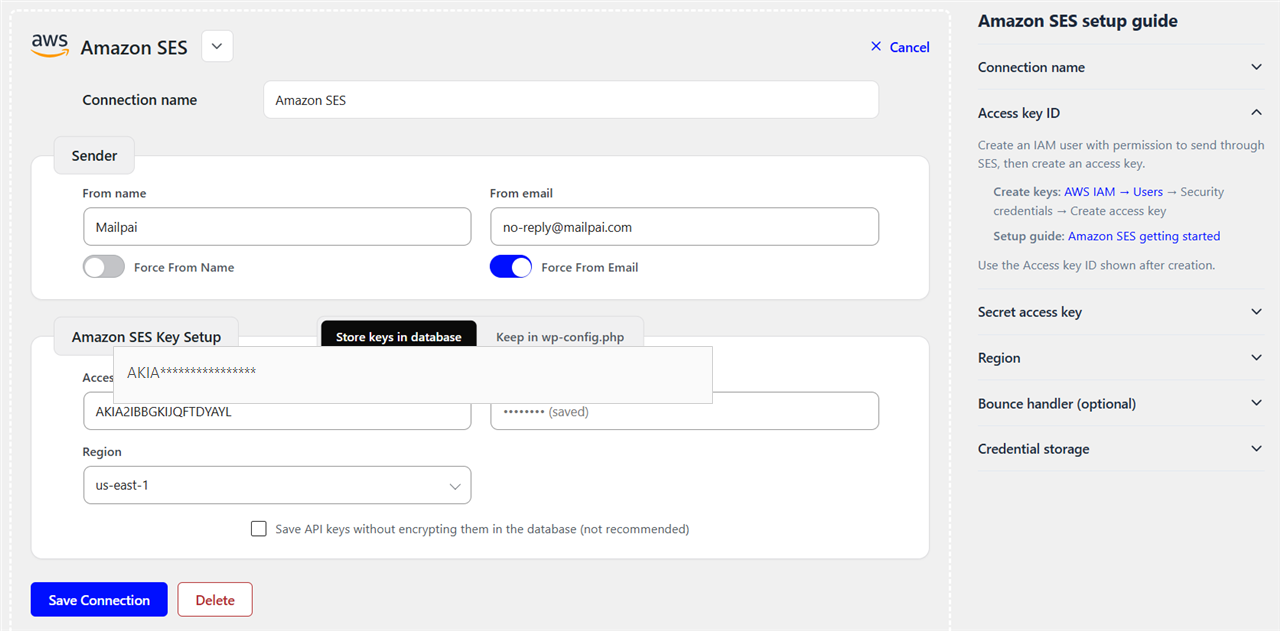
- Complete IAM keys, region, and sender fields (see FAQ Amazon SES).
- Save, Test, then Specify Connections WordPress mail.
Quick start with another mailer
- Dashboard Add connection and pick Mailgun, Resend, Gmail, or Other SMTP.
- Save, test, assign routes.
FAQ
-
How do I set up SMTP in WordPress?
-
Install SMTPPai, add a connection for your mailer, send a test email, and assign WordPress mail under Specify Connections. WordPress
wp_mail()then uses your provider instead of PHPmail(). -
How do I send WordPress email through Amazon SES?
-
Add an Amazon SES connection with IAM keys and the correct region, verify your domain in SES, test, and assign WordPress mail. SMTPPai uses the native SES API.
-
Is SMTPPai a free WordPress SMTP plugin?
-
Yes. Connections, Specify Connections, backup, email log, and Amazon SES API support are included without a paid license.
-
Is Amazon SES free in SMTPPai?
-
Yes. Native Amazon SES API setup is included. AWS still bills you for SES usage on your AWS account.
-
Does SMTPPai use the Amazon SES API or SMTP?
-
Amazon SES uses the native API with IAM keys. Gmail, Microsoft, and Other SMTP use SMTP or OAuth as shown in the wizard.
-
Which AWS region should I use for SES?
-
Use the region where your domain or sender is verified in Amazon SES.
-
WordPress is not sending email. Will this help?
-
Usually yes, once a connection works and routes are assigned. Check the test email button and Email Log.
-
Does SMTPPai work with WooCommerce?
-
Yes. Assign WooCommerce mail in Specify Connections.
-
Can I use Mailgun, Resend, or Mailjet instead of SES?
-
Yes. Add any supported mailer and assign it to the routes you need.
-
Can I use Zoho Mail with SMTPPai?
-
Yes. Choose Other SMTP and enter Zoho’s SMTP hostname, port, and credentials from your Zoho account.
-
What is Specify Connections?
-
It maps WordPress, WooCommerce, Newsletter, and Outreach mail to different connections.
-
They route email marketing and outreach mail for the upcoming MailPai plugin. SMTPPai handles delivery only.
-
Do I need MailPai?
-
No for WordPress and WooCommerce mail. MailPai is optional for campaigns later.
-
Does SMTPPai include an email log?
-
Yes, with sent and failed status and server responses.
-
Are API keys stored securely?
-
Encrypted in the database, or in
wp-config.phpif you prefer. -
Why does OAuth use auth.mailpai.com?
-
Google and Microsoft require a fixed HTTPS redirect URL when you register an OAuth app. Many WordPress sites use local URLs, HTTP, or changing domains, so each site cannot easily register its own redirect in Google Cloud or Microsoft Entra.
SMTPPai uses auth.mailpai.com as a short redirect relay:
- Google: https://auth.mailpai.com/google
- Microsoft: https://auth.mailpai.com/microsoft
During sign-in your browser visits the relay for a moment. The relay forwards the authorization code to your wp-admin URL. Your WordPress site then exchanges that code for tokens using your Client ID and Secret. Refresh tokens stay on your server; the relay does not store them.
You may see mailpai.com or auth.mailpai.com on Google’s or Microsoft’s consent or security screens. That is the redirect helper, not a request to move your mail to MailPai. Site visitors do not go through this flow—only a WordPress admin connecting Gmail or Microsoft in SMTPPai.
-
Will I get a security notification on my phone when connecting Gmail or Outlook?
-
Often yes. Google and Microsoft commonly send an email or push alert when a new app or sign-in requests access to an account (for example, “Is this you?” or “An app wants to access your account”). That is normal account security. Approve only if you started OAuth from SMTPPai Dashboard in WordPress admin.
-
Only WordPress users who can manage SMTPPai settings (typically administrators). End users of your website do not see the OAuth flow unless an admin connects a mailbox.
-
Does SMTPPai replace wp_mail?
-
For configured routes, yes. Attachments today may still use default WordPress mail.
-
Will SMTPPai work with Contact Form 7 or WPForms?
-
Yes when they use
wp_mail()and WordPress mail has a connection. -
Can I use multiple providers at once?
-
Yes. Unlimited connections and per-route assignment.
-
What does backup do?
-
Retries delivery through a second connection when the first fails.
-
Will you add migration from other SMTP plugins?
-
One-click import is planned.
-
Will you add failure alerts?
-
Planned. The email log shows failures today.
-
How do I get support?
-
Use the WordPress.org support forum for this plugin.
-
Is there a developer API?
-
Yes. Functions include
mailpai_smtp_is_active(),mailpai_smtp_send_for_route( $route, $args ),mailpai_smtp_is_route_ready( $route ), andmailpai_smtp_get_route_connection( $route ). Routes:wordpress,woocommerce,newsletter,outreach. -
How do I set up Gmail or Google Workspace with OAuth?
-
Add Google Workplace/Gmail, enter your Google Cloud Application Client ID and Secret, save, then authorize. Register redirect URI https://auth.mailpai.com/google in Google Cloud Console. OAuth tokens stay on your site; you may get a Google security alert on your phone—approve only if you started sign-in in wp-admin. Use Remove authorization to change mailbox or disconnect.
-
How do I set up Microsoft 365 or Outlook with OAuth?
-
Add Microsoft 365/Outlook, enter your Microsoft Entra Application Client ID and Secret, save, then authorize. Register redirect URI https://auth.mailpai.com/microsoft in Entra. Tokens stay on your site. Use Remove authorization to change mailbox or disconnect.
-
How do I set up Amazon SES in detail?
-
Verify your domain in SES and create IAM keys with send permission. In SMTPPai add Amazon SES, paste Access key ID and Secret access key, choose the matching Region, set From email, test, and assign WordPress mail. If SES is in sandbox, verify recipient addresses or request production access. Optional wp-config constants:
MAILPAI_SMTP_SES_ACCESS_KEY,MAILPAI_SMTP_SES_SECRET_KEY,MAILPAI_SMTP_SES_REGION. -
How do I set up Mailgun, Postmark, or Resend?
-
Mailgun: paste private API key and sending domain; pick US/EU region to match your account. Postmark: paste Server API token. Resend: paste API key and use a verified From email. Test each connection, then assign routes in Specify Connections. Inline setup guides appear beside each connection form in wp-admin.
-
What wp-config.php constants does SMTPPai support?
-
MAILPAI_SMTP_SES_*,
MAILPAI_SMTP_HOST,MAILPAI_SMTP_USER,MAILPAI_SMTP_PASSWORD,MAILPAI_SMTP_API_KEY,MAILPAI_SMTP_API_SECRET, andMAILPAI_SMTP_OAUTH_REFRESH(see connection form snippets).
Reviews
There are no reviews for this plugin.
Contributors & Developers
“SMTPPai” is open source software. The following people have contributed to this plugin.
Contributors
Translate “SMTPPai” into your language.
Interested in development?
Browse the code, check out the SVN repository, or subscribe to the development log by RSS.
Changelog
1.0.0
- Initial release.