

Description
Turn your WordPress menu into smart navigation. Show the right menu items to members, customers, visitors, and admins automatically. Titanium also helps catch missing or unassigned menus before your visitors do.
Your menu is one of the first things people use on your website. If every visitor sees the same links, navigation can quickly become crowded, confusing, or irrelevant.
Titanium Advanced Menu Rules helps you create cleaner WordPress menus by showing or hiding menu items based on login status, user roles, selected pages, selected posts, and membership rules. The Free version adds practical visibility controls inside the standard WordPress menu editor. The Pro version adds advanced condition groups, membership integrations, and optional linked page protection for sites that need deeper control.
Manage everything from the WordPress Menus screen. No theme editing. No custom snippets. No separate menu builder.
What you can do
- Show account links only to logged-in users.
- Hide login or register links after a visitor signs in.
- Show admin, editor, member, donor, or customer links only to the right roles.
- Show or hide menu items on selected pages or posts.
- Build membership-aware menus for supported membership plugins.
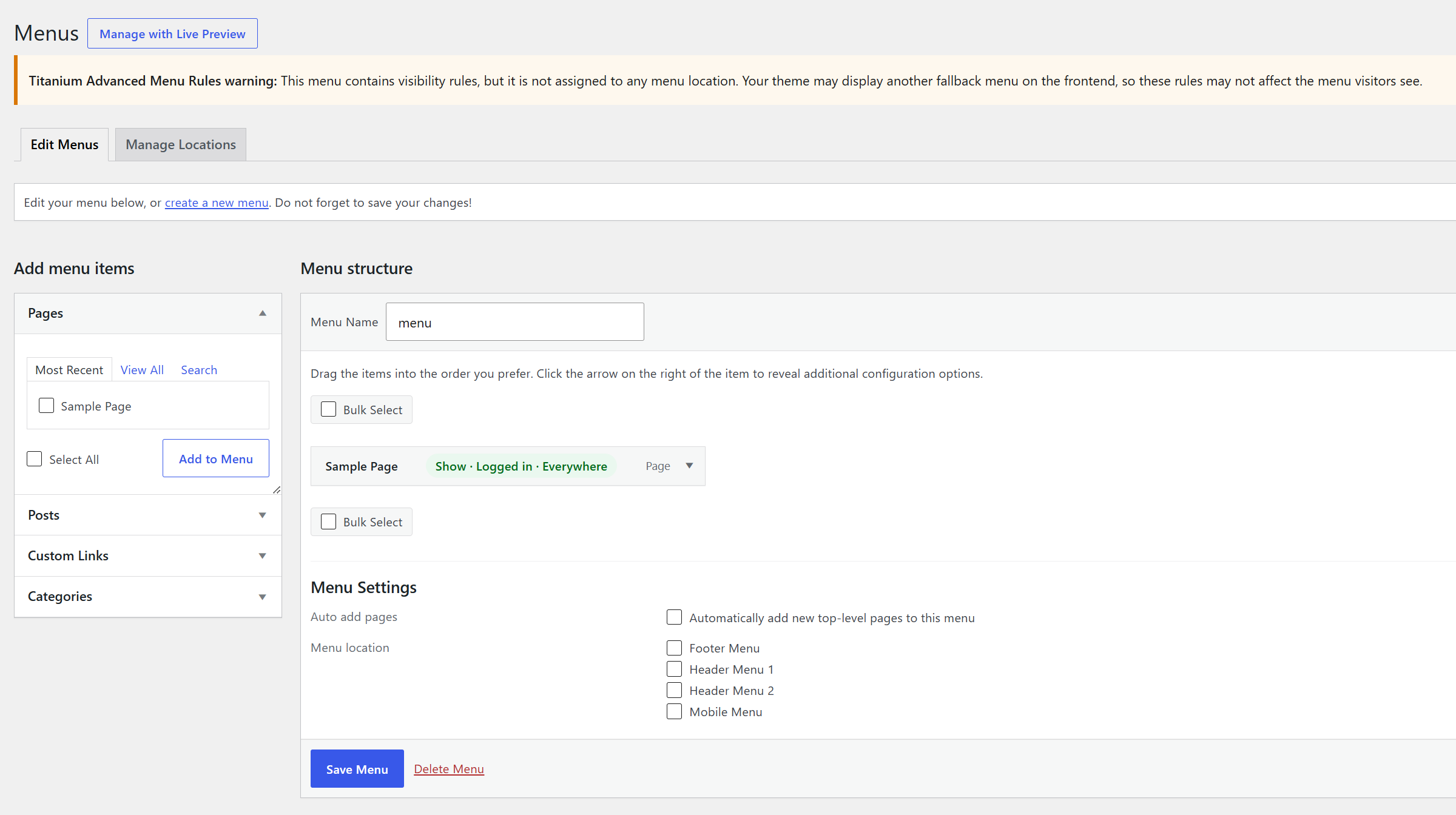
- Warn when a menu with rules is not assigned to the expected location.
- Keep using the normal WordPress menu editor.
Free features
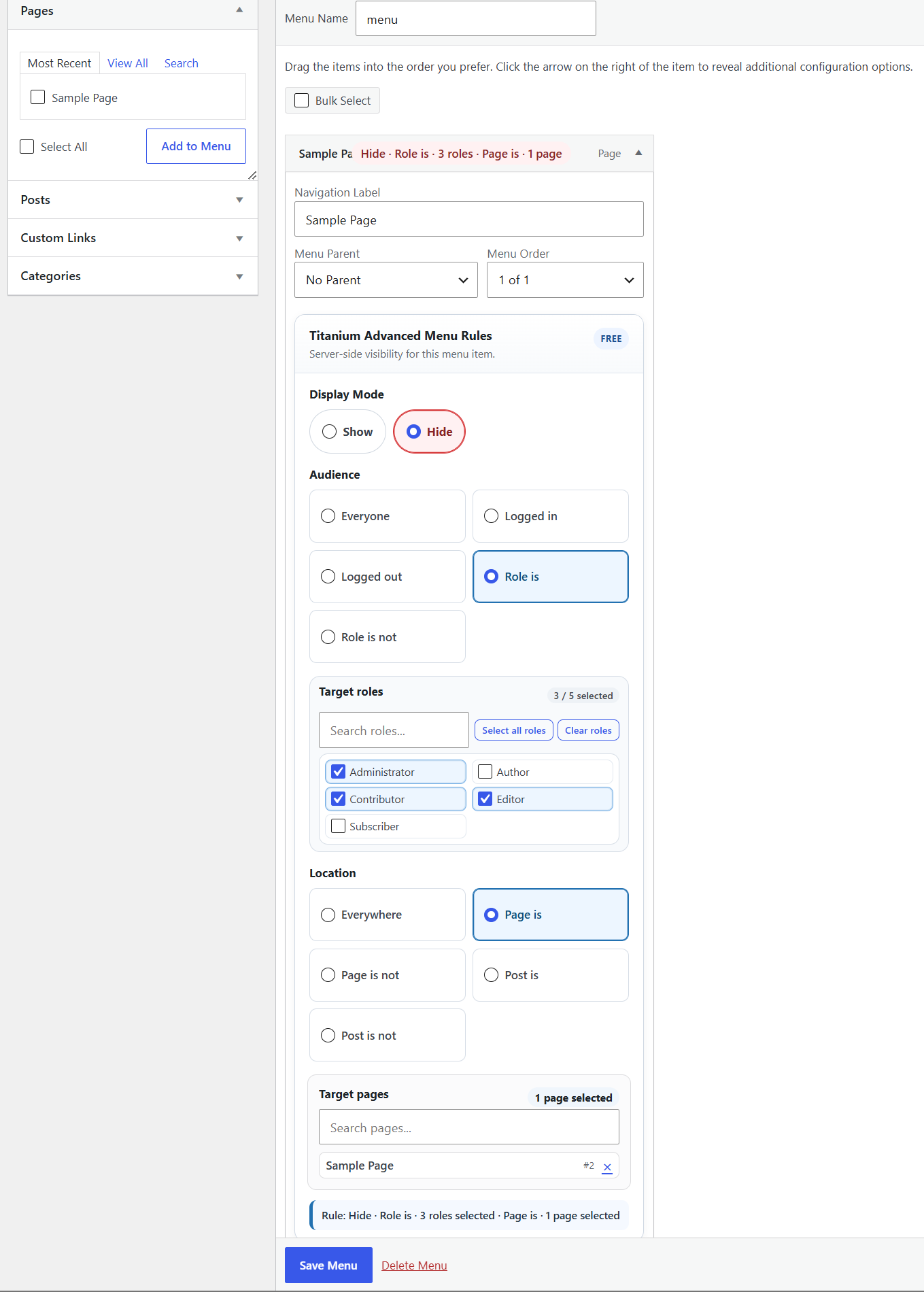
Show or hide individual menu items
Choose whether each menu item should be shown or hidden when its rule matches.
Logged-in and logged-out visitor rules
Display different links for public visitors and signed-in users. This is useful for login links, account links, dashboards, profile pages, member areas, downloads, support areas, and public calls to action.
WordPress role rules
Target menu items by WordPress role, including standard roles, custom roles, membership roles, donor roles, customer roles, or roles created by other plugins.
Role is / role is not logic
Show a link only to selected roles, or hide a link from selected roles while keeping it visible to everyone else.
Page and post rules
Show or hide menu items when the visitor is viewing selected pages or posts. This is useful for account areas, checkout pages, landing pages, member pages, guides, announcements, and content-specific navigation.
Page is / page is not and post is / post is not logic
Use positive or negative content matching so links can appear only where they are relevant.
Server-side menu filtering
Hidden menu items are removed before the menu HTML is printed. They are not simply hidden with CSS.
Standard WordPress menu workflow
Rules are managed inside the normal WordPress menu item settings. You do not need to replace your theme menu system.
Searchable selectors and role helpers
Search for pages or posts directly from the menu item settings, and use role selection helpers when a site has many roles.
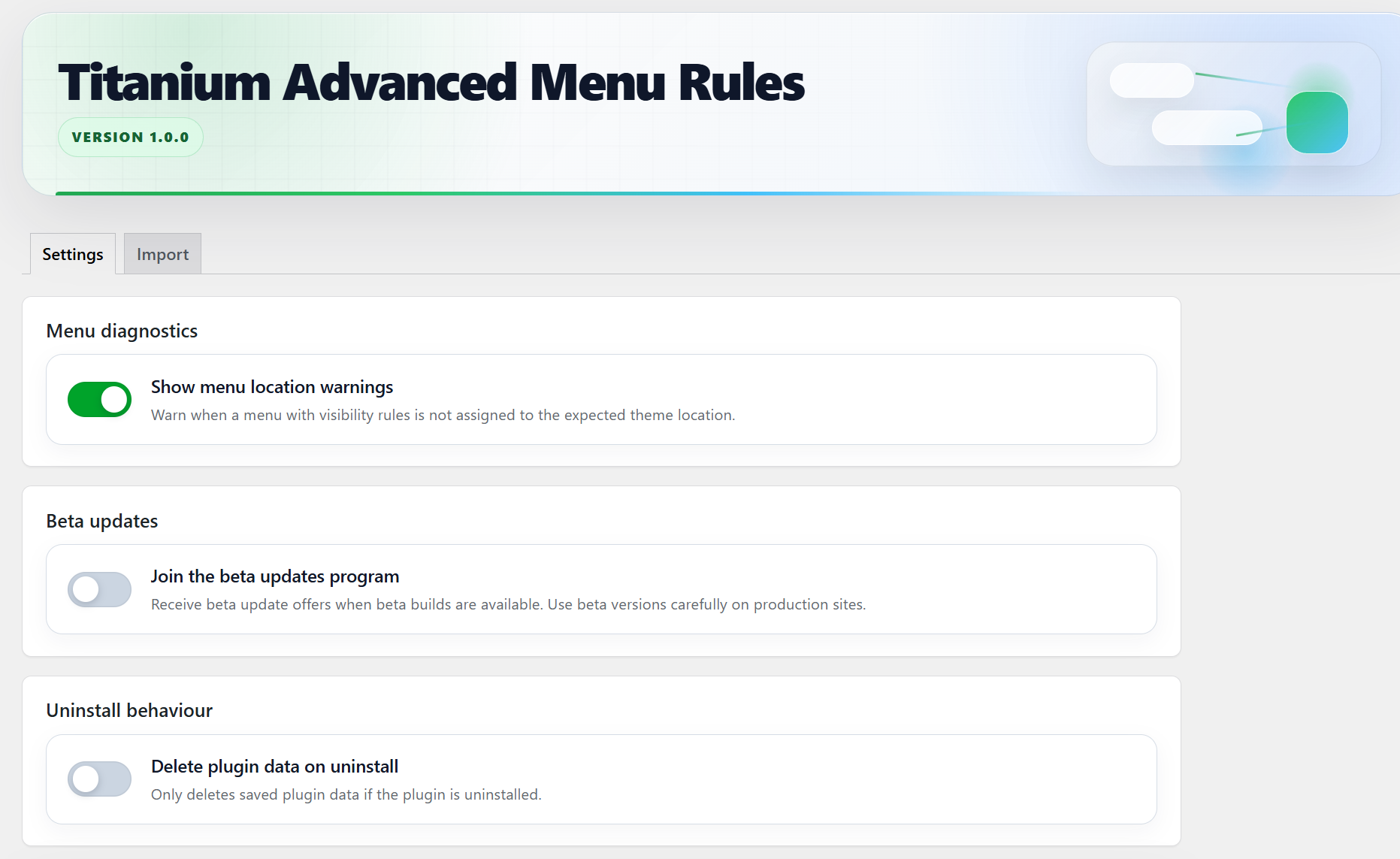
Menu diagnostics and location warnings
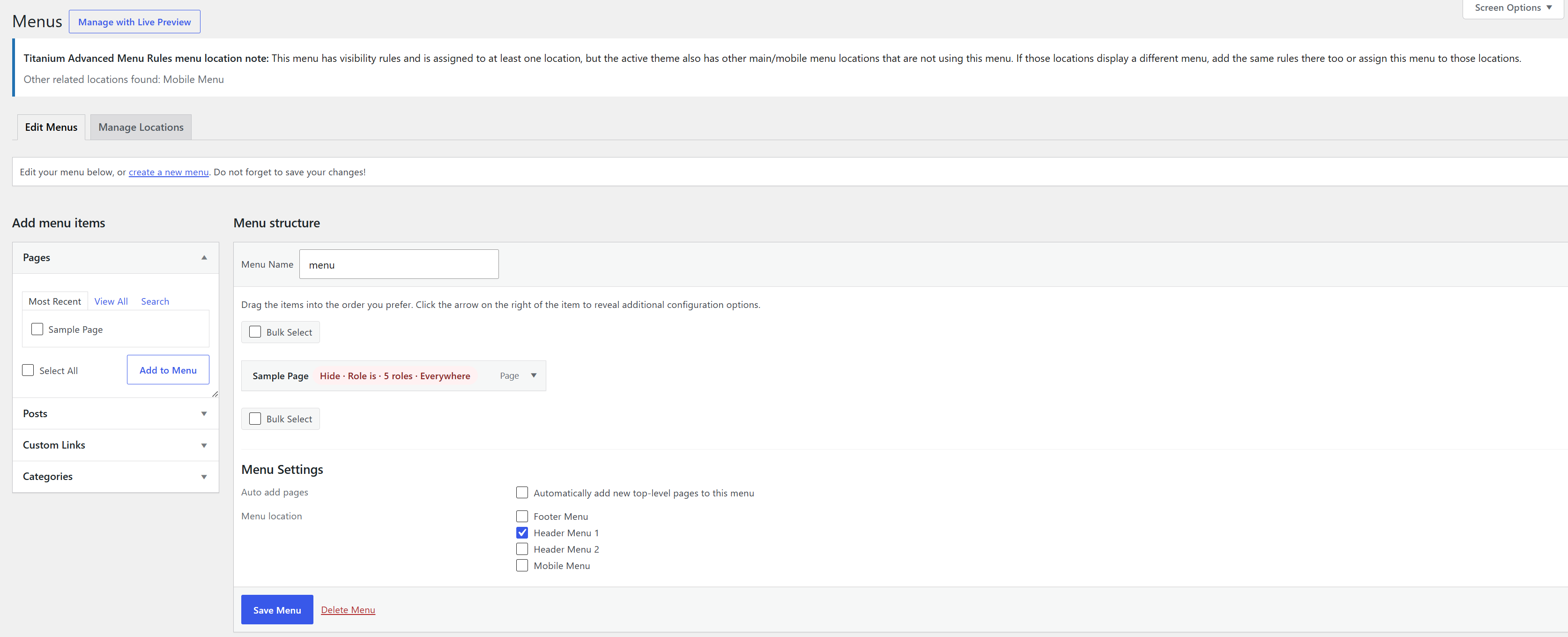
Titanium can warn you when a rules-enabled menu is not assigned to a menu location, or when related theme menu locations may need the same rules.
Header, mobile, and footer menu awareness
The plugin is designed for standard WordPress menu locations used by common header, mobile, and footer menu setups.
Import from Nav Menu Roles and User Menus
If compatible data is detected, Titanium can help import rules from supported menu visibility plugins using a safe review flow.
Locked Pro feature previews
The Free version can show locked previews of advanced Pro controls so you can understand what is available without running Pro-only logic in the Free version.
Pro features
Titanium Advanced Menu Rules Pro is available separately for sites that need advanced logic, membership-aware navigation, and optional protection for the linked WordPress content behind menu items.
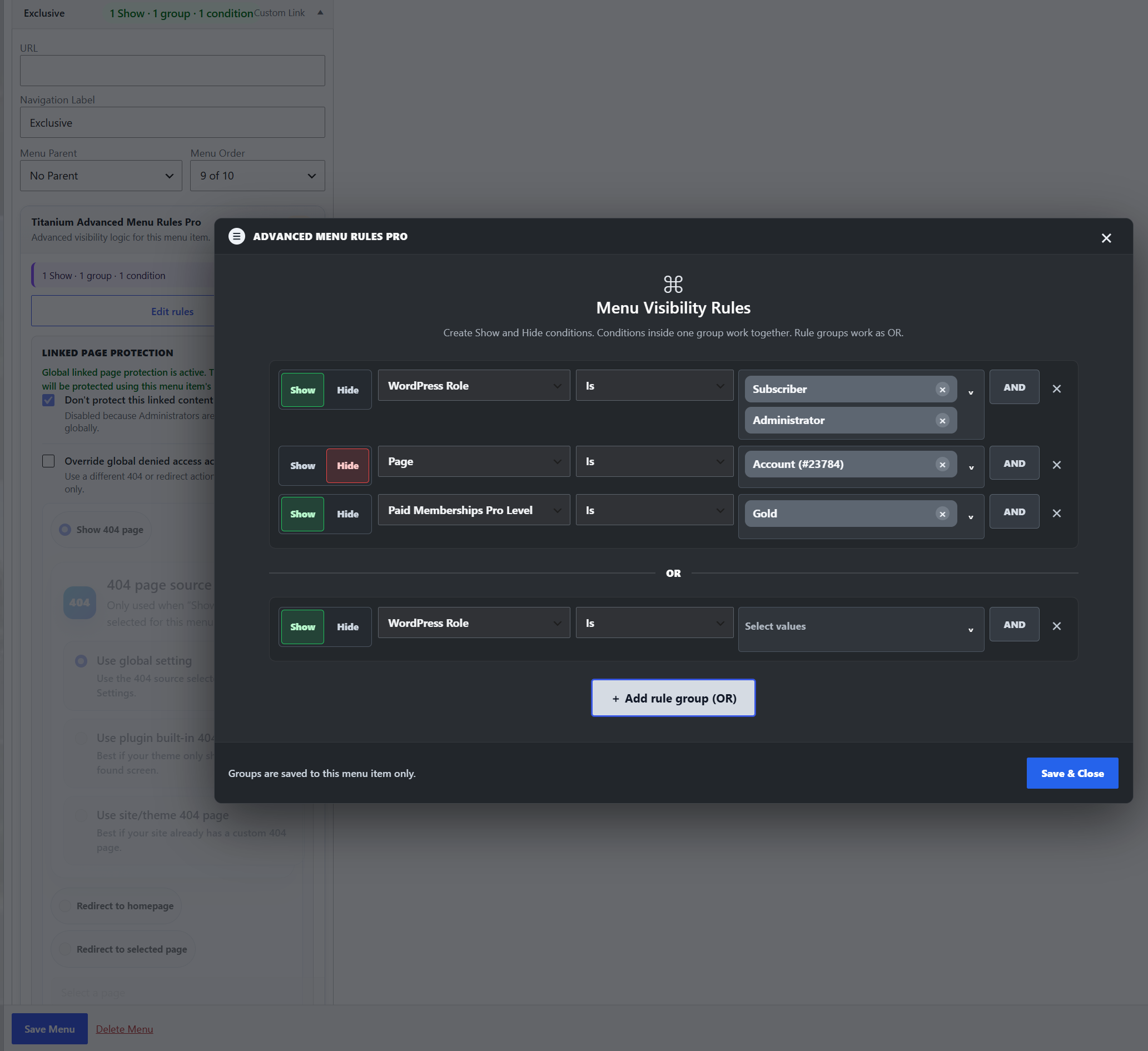
Advanced condition groups
Create multiple rule groups for one menu item. Conditions inside a group work together, and separate groups allow alternative rule paths.
AND logic and OR logic
Combine conditions such as logged-in status, role, page, post, and membership level. For example, show a link to Gold members OR administrators, or only when a user has a role AND is viewing a selected page.
Advanced Show / Hide control
Build more precise visibility rules for complex navigation setups.
Role, login, page, and post conditions
Use WordPress roles, login status, selected pages, and selected posts together in advanced Pro rules.
Membership plugin conditions
Show or hide menu items by active membership plan, level, or subscription instead of relying only on WordPress roles.
Supported membership integrations include:
- Paid Memberships Pro
- MemberPress
- WooCommerce Memberships
- Restrict Content / Restrict Content Pro
- Paid Member Subscriptions
Membership-specific rules
Create menu visibility rules for Paid Memberships Pro levels, MemberPress memberships, WooCommerce Memberships plans, Restrict Content levels, and Paid Member Subscriptions plans.
Role + membership and membership + content logic
Combine membership conditions with roles, pages, or posts to create navigation that adapts to both the visitor and the content being viewed.
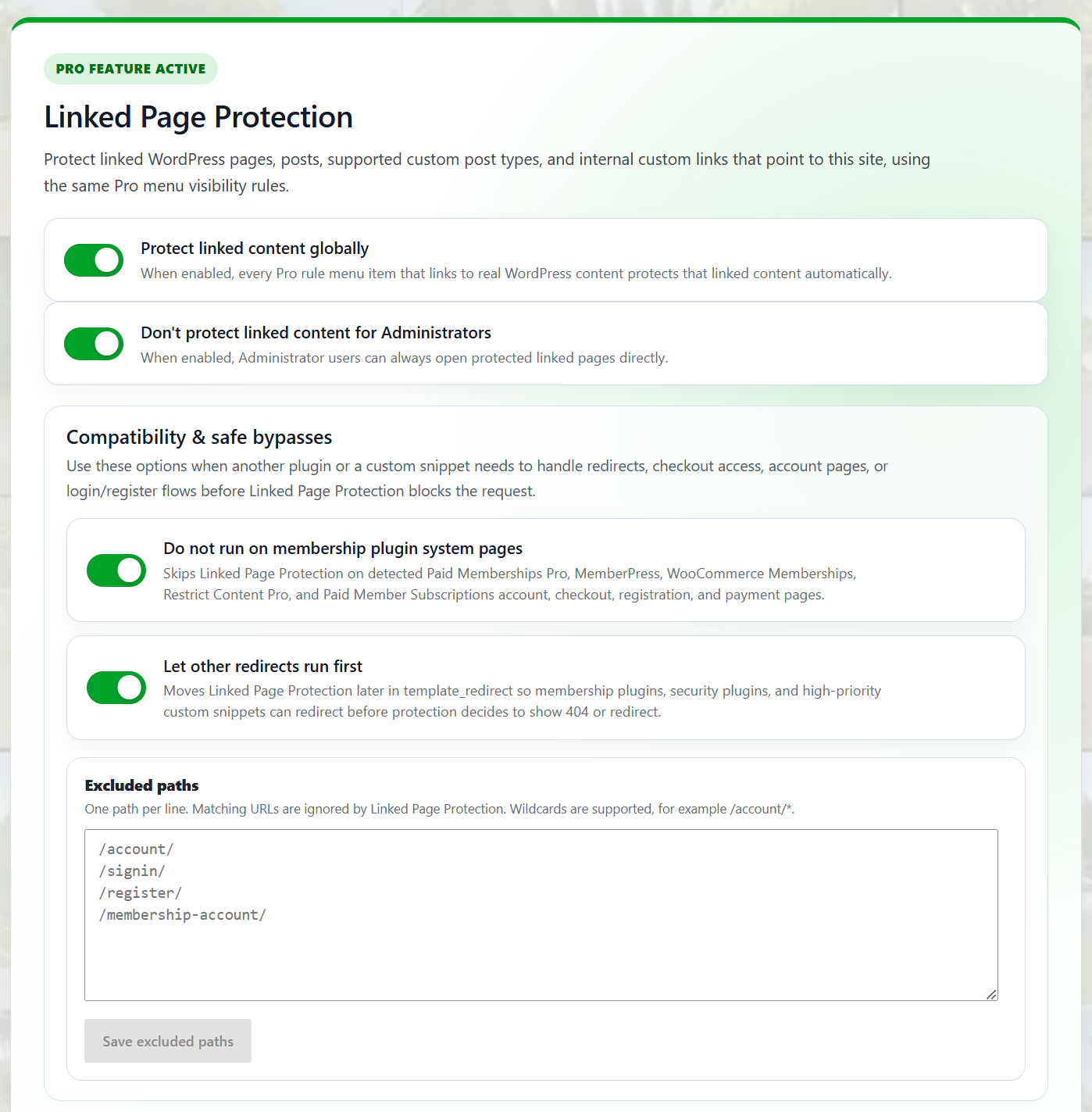
Linked Page Protection
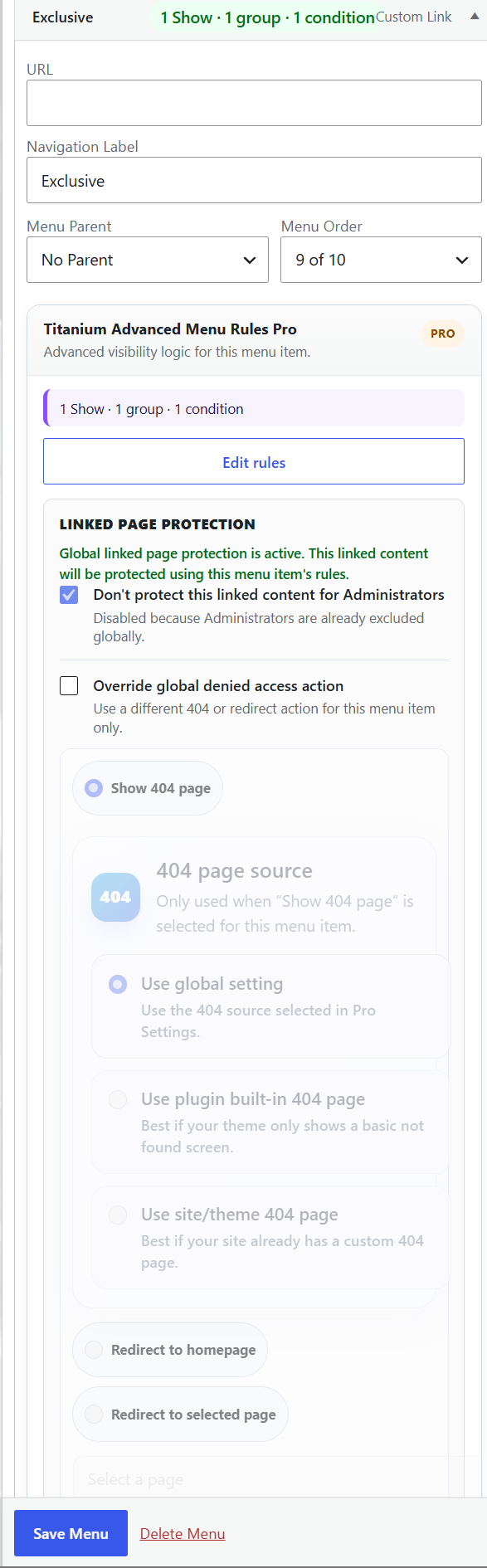
Free controls whether a menu item is visible. Pro can optionally protect the WordPress page or post linked from a menu item, helping prevent direct URL access when the same menu rules say the visitor should not have access.
Per-menu-item and global protection
Enable linked page protection globally, then control protection and overrides per menu item where needed.
Administrator bypass option
Avoid locking administrators out while testing or managing protected content.
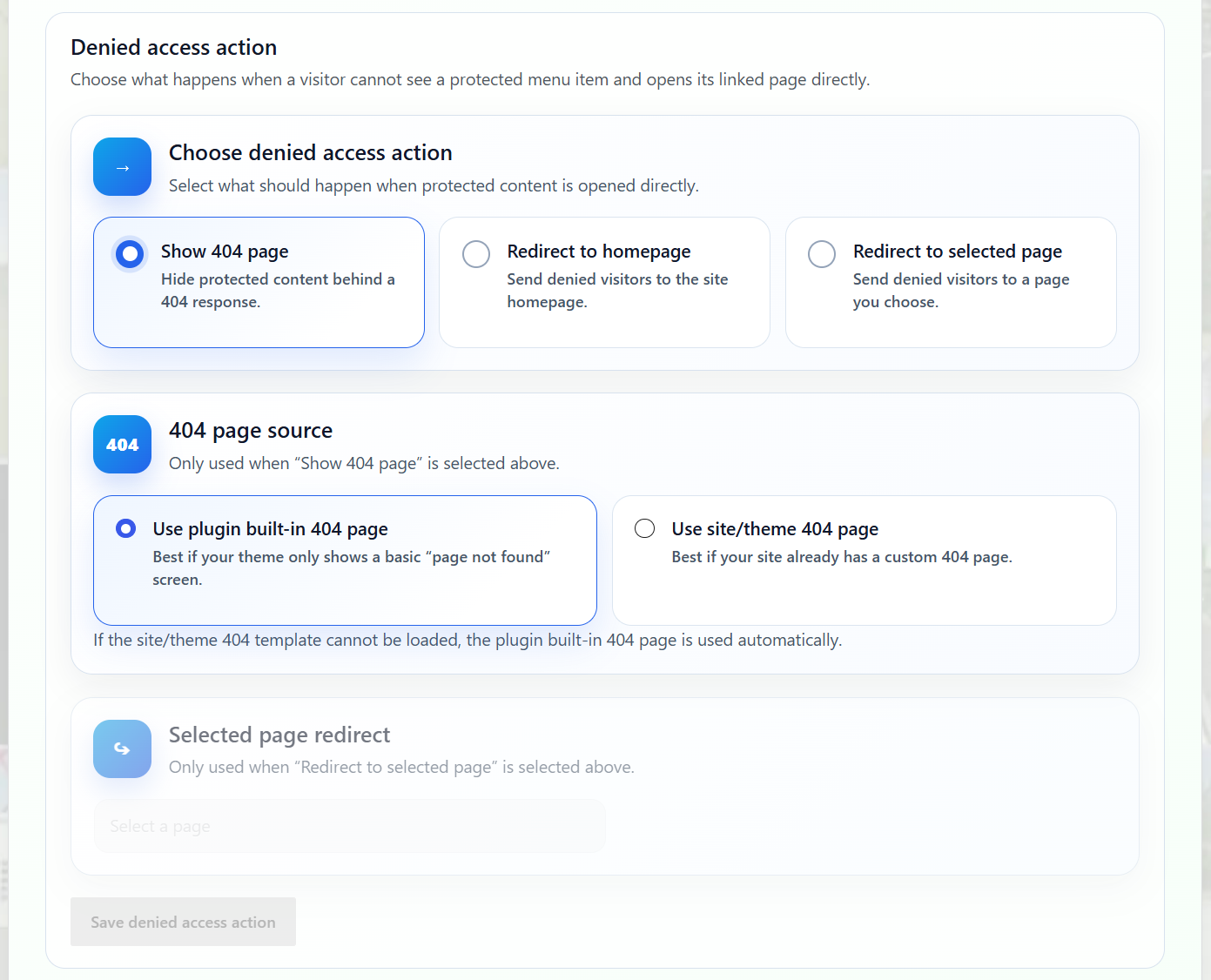
Denied access actions
Choose what happens when a visitor is denied access to protected linked content: show a 404 response, redirect to the homepage, or redirect to a selected page.
404 handling options
Use the plugin built-in 404 page or the site/theme 404 page, with fallback behavior when the theme response is limited.
Membership system page bypass
Skip detected membership account, checkout, registration, and payment pages so important plugin-managed flows are not accidentally blocked.
Delayed redirect priority
Allow membership plugins, security plugins, or custom redirect snippets to run before linked page protection decides what to do.
Custom excluded paths
Add paths that should be ignored by linked page protection, such as account areas, login pages, checkout flows, endpoints, or custom site paths.
Internal custom link resolving
Linked Page Protection can work with internal custom links that point to WordPress content on the same site.
Advanced compatibility controls
Pro includes settings designed to reduce conflicts with membership plugins, redirect logic, security plugins, and custom site behavior.
Beta update opt-in and priority support
Pro users can opt into beta update offers when available and receive priority Pro email support.
Free vs Pro
Free is ideal when you want cleaner menu visibility based on login status, WordPress roles, selected pages, and selected posts.
Pro is ideal when your site needs advanced condition groups, membership plugin rules, linked page protection, custom denied access handling, and deeper compatibility controls.
Important note about content protection
The Free version controls menu visibility. It removes hidden menu items from the rendered menu output, but it does not protect the linked page or post from direct URL access.
If you need the linked WordPress page or post to be protected from direct access using the same menu rules, use Titanium Advanced Menu Rules Pro with Linked Page Protection enabled.
Useful for
- Membership sites
- Donation sites
- Online communities
- WooCommerce customer areas
- Course sites
- Download sites
- Client portals
- Private content areas
- Sites with multiple user roles
- Sites with different public and logged-in navigation
External services
This plugin connects to external services only on the plugin’s admin screens when an administrator opens the Upgrade / pricing page or starts the checkout flow.
AdminPlugins pricing API
This plugin connects to the AdminPlugins pricing API at https://adminplugins.com/wp-json/amr-freemius/v1/pricing to load the current public plan prices, license limits, discount state, and checkout URLs shown on the Upgrade page. The request is made from the WordPress admin area when an administrator opens or refreshes the plugin pricing page. The plugin sends a standard server-side HTTP GET request. No menu rules, site content, users, passwords, or license keys are sent by this request. If the administrator adds no_cache=1 to the current admin URL, the plugin also sends no_cache=1 to refresh the local pricing cache.
This service is provided by AdminPlugins: Terms of Service: https://adminplugins.com/terms-and-conditions/ Privacy Policy: https://adminplugins.com/privacy-policy/
Freemius SDK and Checkout
This plugin uses the Freemius SDK for optional Pro licensing, account management, software updates, and checkout. The plugin loads the Freemius Checkout JavaScript from https://checkout.freemius.com/js/v1/ on the plugin Upgrade / pricing page so administrators can open the secure checkout overlay when choosing a Pro plan. The checkout script is loaded only in the WordPress admin area on the plugin pricing screen. When an administrator opts in through the Freemius SDK, activates a license, opens the Freemius account/license screens, checks for updates, or clicks an upgrade button, Freemius may receive licensing and site/account data required to provide those services. Checkout-related data can include the product ID, plan ID, pricing ID, selected license quantity, billing cycle, currency, coupon code when active, and license key when upgrading an existing license. If the checkout overlay script is unavailable, the administrator is sent to the normal Freemius checkout URL instead.
This service is provided by Freemius, Inc.: Terms of Service: https://freemius.com/terms/ Privacy Policy: https://freemius.com/privacy/
Screenshots
Installation
- Upload the plugin files to the
/wp-content/plugins/titanium-advanced-menu-rulesdirectory, or install the plugin through the WordPress Plugins screen. - Activate the plugin through the Plugins screen in WordPress.
- Go to the WordPress Menus screen.
- Open a menu item.
- Configure the Titanium Advanced Menu Rules settings for that menu item.
- Save the menu.
FAQ
-
Go to the WordPress Menus screen and open a menu item. Titanium Advanced Menu Rules adds visibility controls directly inside each menu item.
-
Does the Free version support WordPress roles?
-
Yes. The Free version can show or hide menu items for selected WordPress roles.
-
Yes. You can show or hide menu items based on whether the visitor is logged in or logged out.
-
Yes. The Free version supports page-based rules and post-based rules.
-
No. Hidden menu items are removed server-side before the menu HTML is printed.
-
Yes. Titanium includes admin-side diagnostics and warnings to help catch missing or unassigned menus before visitors notice them.
-
Does the Free version protect the linked page from direct access?
-
No. The Free version controls menu visibility only. It does not protect the linked page or post if someone opens the URL directly.
-
How can I protect the linked page from direct URL access?
-
Titanium Advanced Menu Rules Pro includes optional Linked Page Protection, which can protect linked WordPress pages and posts using the same menu rule logic.
-
Does Pro support membership plugins?
-
Yes. Pro includes membership conditions for Paid Memberships Pro, MemberPress, WooCommerce Memberships, Restrict Content / Restrict Content Pro, and Paid Member Subscriptions.
-
Can Pro combine multiple conditions?
-
Yes. Pro supports advanced condition groups with AND logic inside groups and OR logic between groups.
-
Can I redirect denied visitors?
-
Yes. Pro includes denied access actions such as homepage redirect, selected page redirect, and 404 handling.
-
The plugin includes import tools for supported menu visibility plugins such as Nav Menu Roles and User Menus when compatible data is detected.
-
Titanium Advanced Menu Rules is designed for standard WordPress menus managed in the classic Menus screen and rendered through WordPress menu output. Sites using block theme Navigation blocks may behave differently depending on how the theme outputs navigation.
-
No. The plugin stores visibility settings for menu items. It does not delete your WordPress menus.
-
Yes. Rules affect front-end menu output. Menu items remain manageable in the WordPress admin.
Reviews
There are no reviews for this plugin.
Contributors & Developers
“Titanium Advanced Menu Rules” is open source software. The following people have contributed to this plugin.
Contributors
Translate “Titanium Advanced Menu Rules” into your language.
Interested in development?
Browse the code, check out the SVN repository, or subscribe to the development log by RSS.
Changelog
1.0.0
Initial release.