

Description
FlareLoad integrates Cloudflare Images as a direct upload destination alongside the default WordPress media uploader. Instead of storing images on your server, you can send them directly to Cloudflare’s global CDN — with automatic delivery optimization and variant support built in.
Features:
- Upload images directly to Cloudflare Images from the media library and block editor
- Keep or delete local copies after upload — your choice
- Automatic local thumbnail generation (avoids counting against Cloudflare delivery quotas)
- Cloudflare image variant support with per-image variant selection in the block editor
- Visual indicator in the media library list view for Cloudflare-hosted images
- Sync variants from your Cloudflare account with a single click
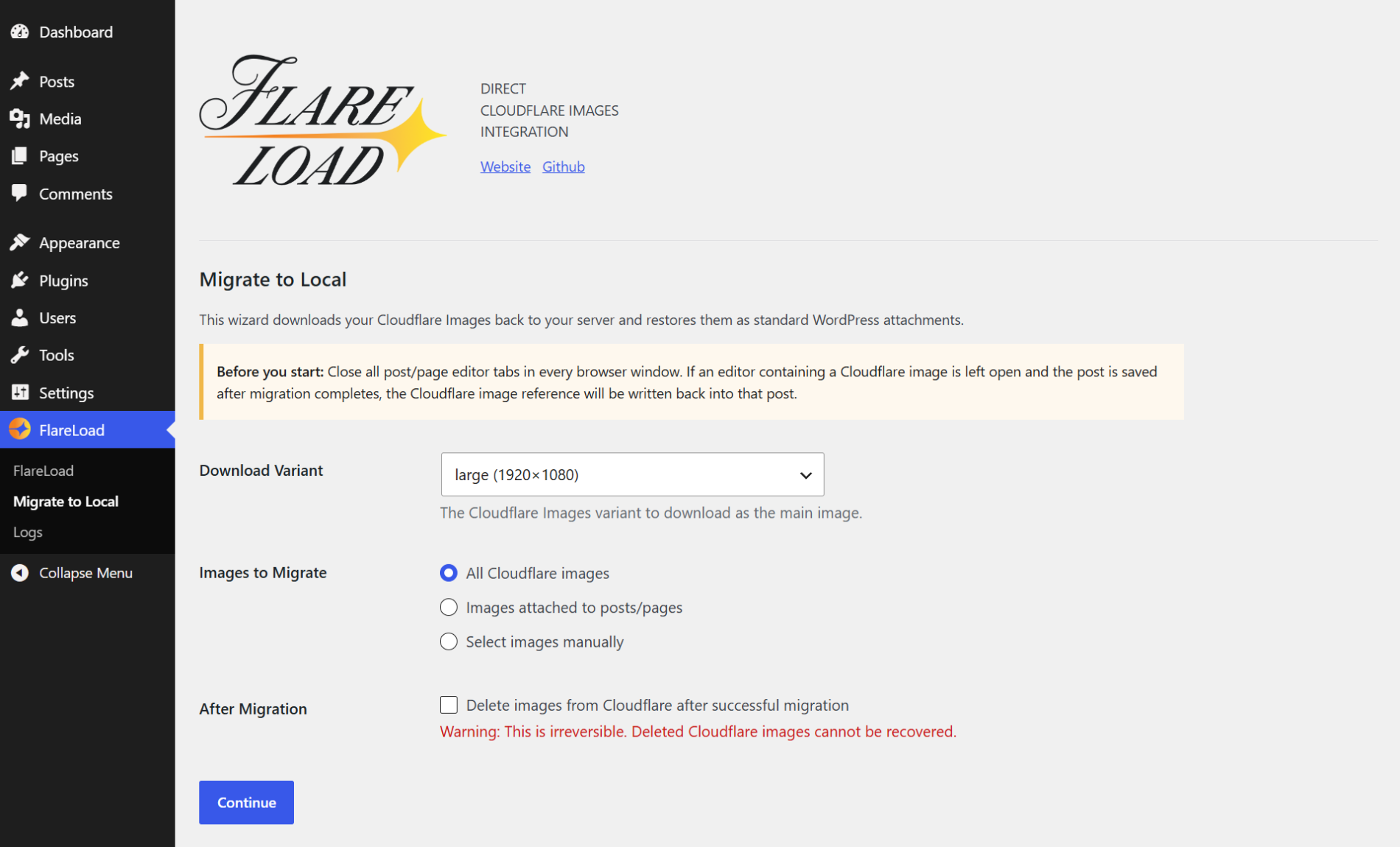
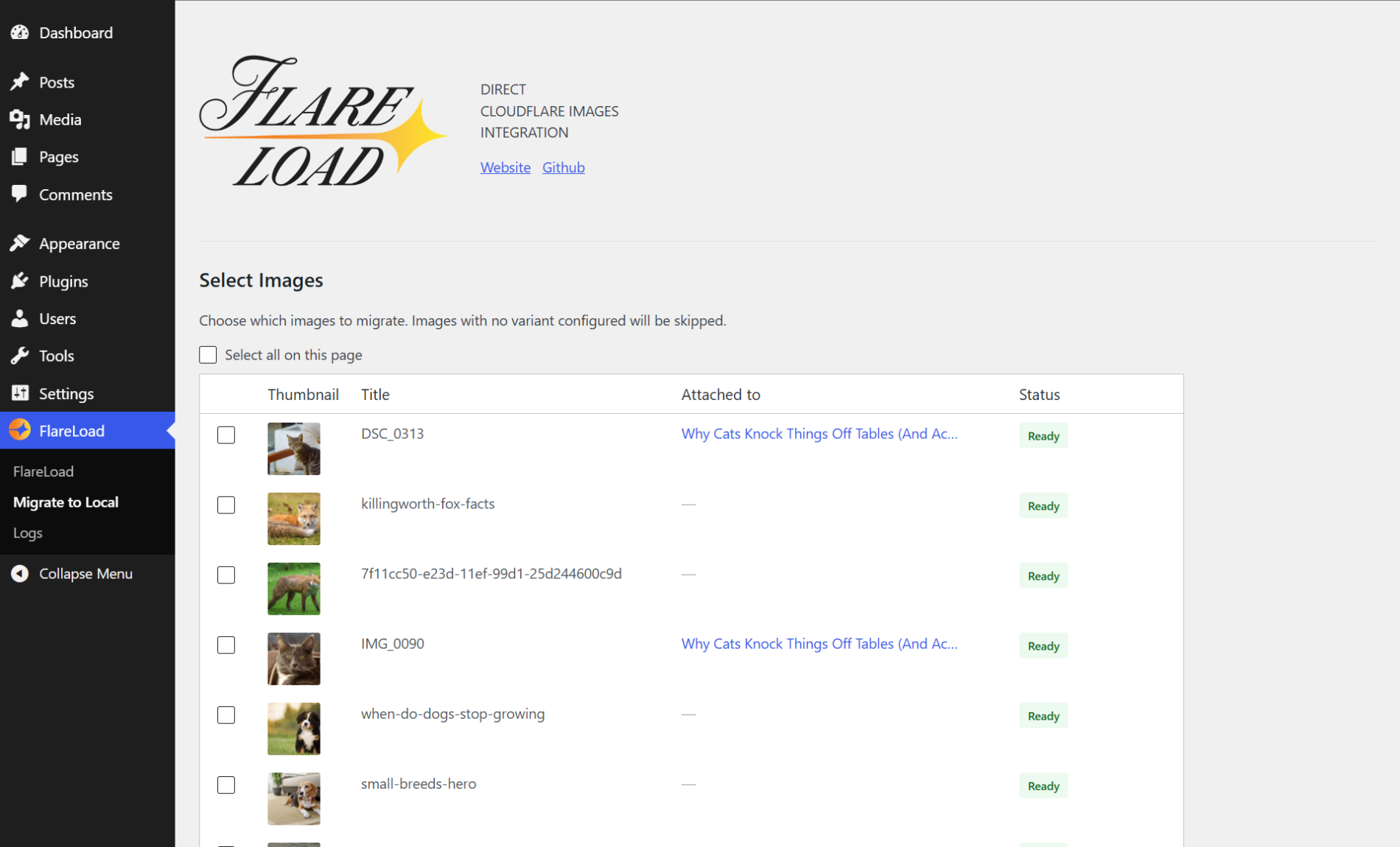
- Migrate Cloudflare-hosted images back to local storage with an interactive wizard
- Activity log viewer for debugging
Source Code
The source code for this plugin, including all TypeScript/JavaScript source files and build tools, is publicly available on GitHub:
https://github.com/tanyunus/flare-load
To rebuild compiled assets from source:
- Install dependencies: npm install
- Build assets: node build.js
Source files are located in the src/ directory of the repository. The build tool is esbuild for TypeScript/JavaScript and Sass for CSS.
Third-party Services
This plugin communicates with the Cloudflare Images API to upload, retrieve, and delete images. Requests are made when you upload an image to Cloudflare from the media library, delete a Cloudflare-hosted image, or sync your image variants from the plugin settings page.
Your Cloudflare Account ID, API Token, and uploaded image files are transmitted to Cloudflare’s servers.
Screenshots
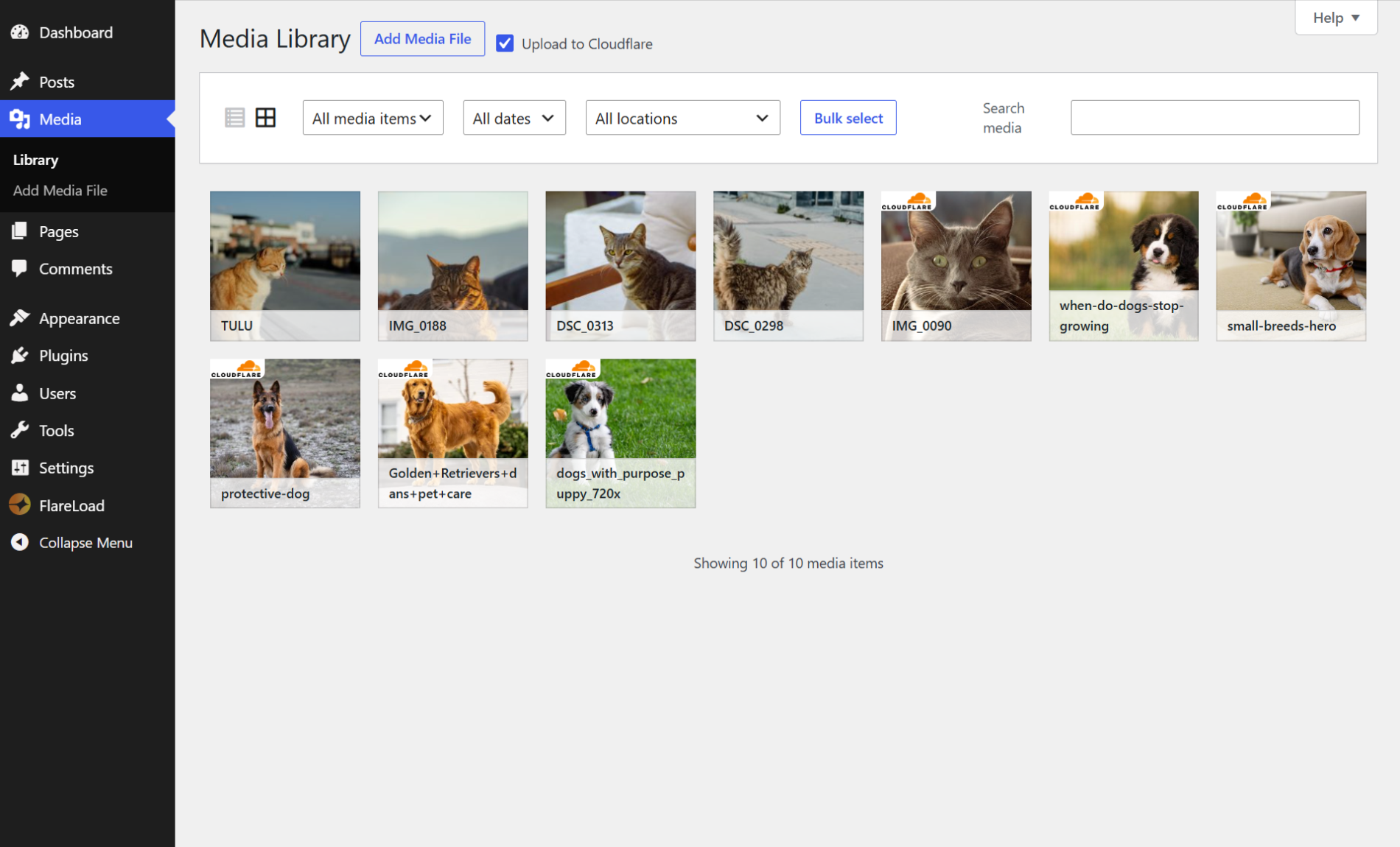
Plugin settings page with API credentials and variant management. 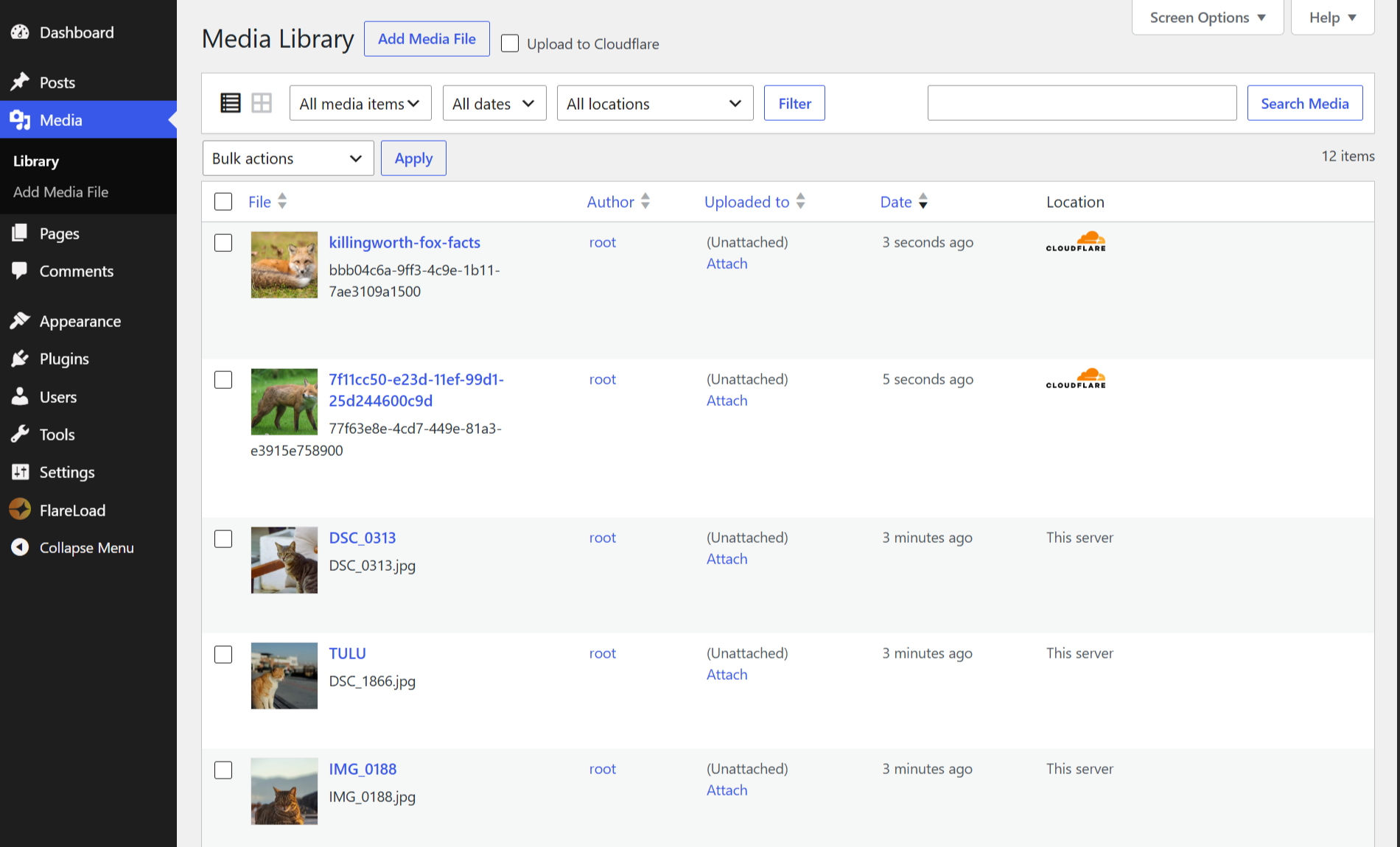
Media library list view showing the Cloudflare location badge. 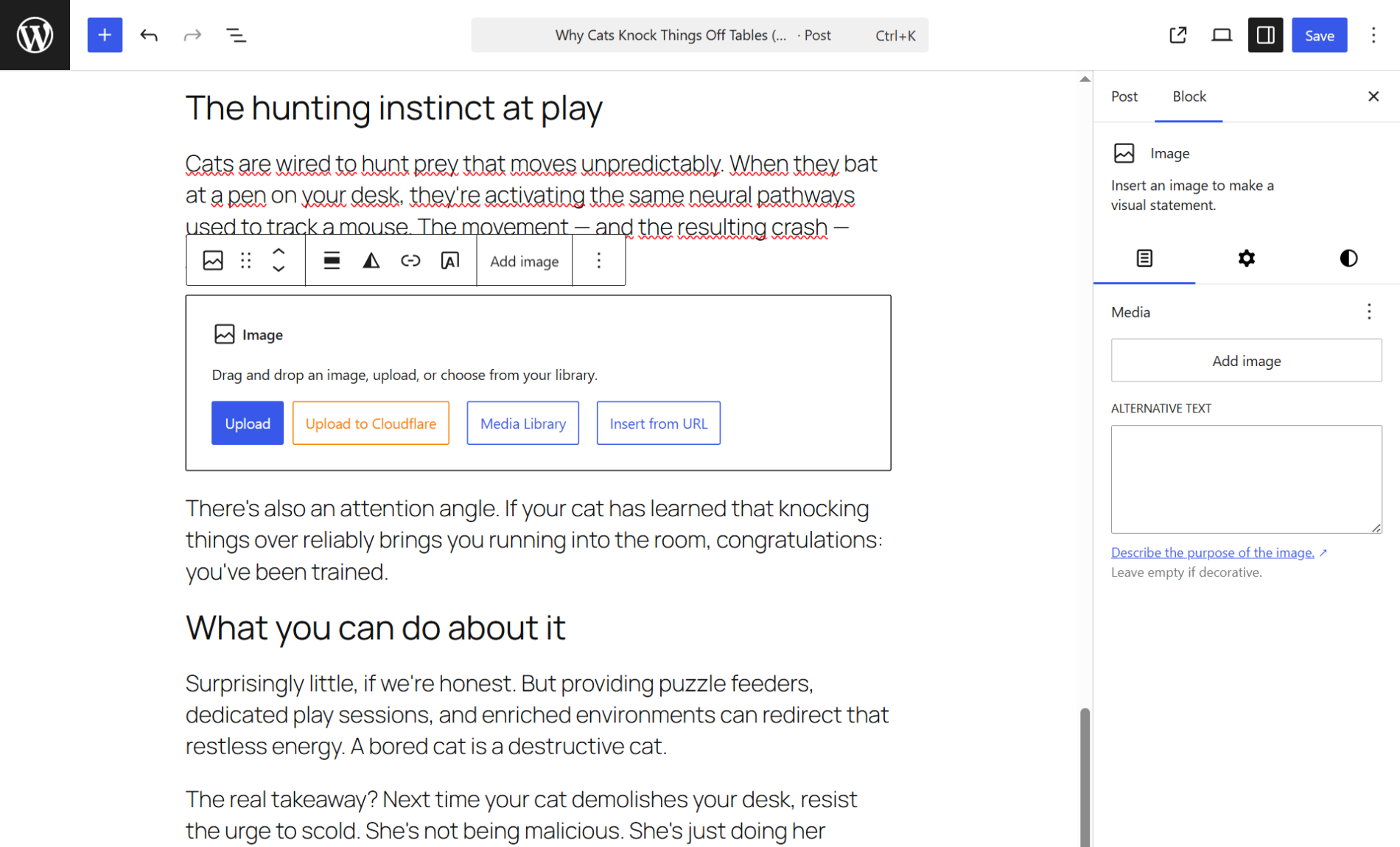
Block editor with the “Upload to Cloudflare” button on image blocks. 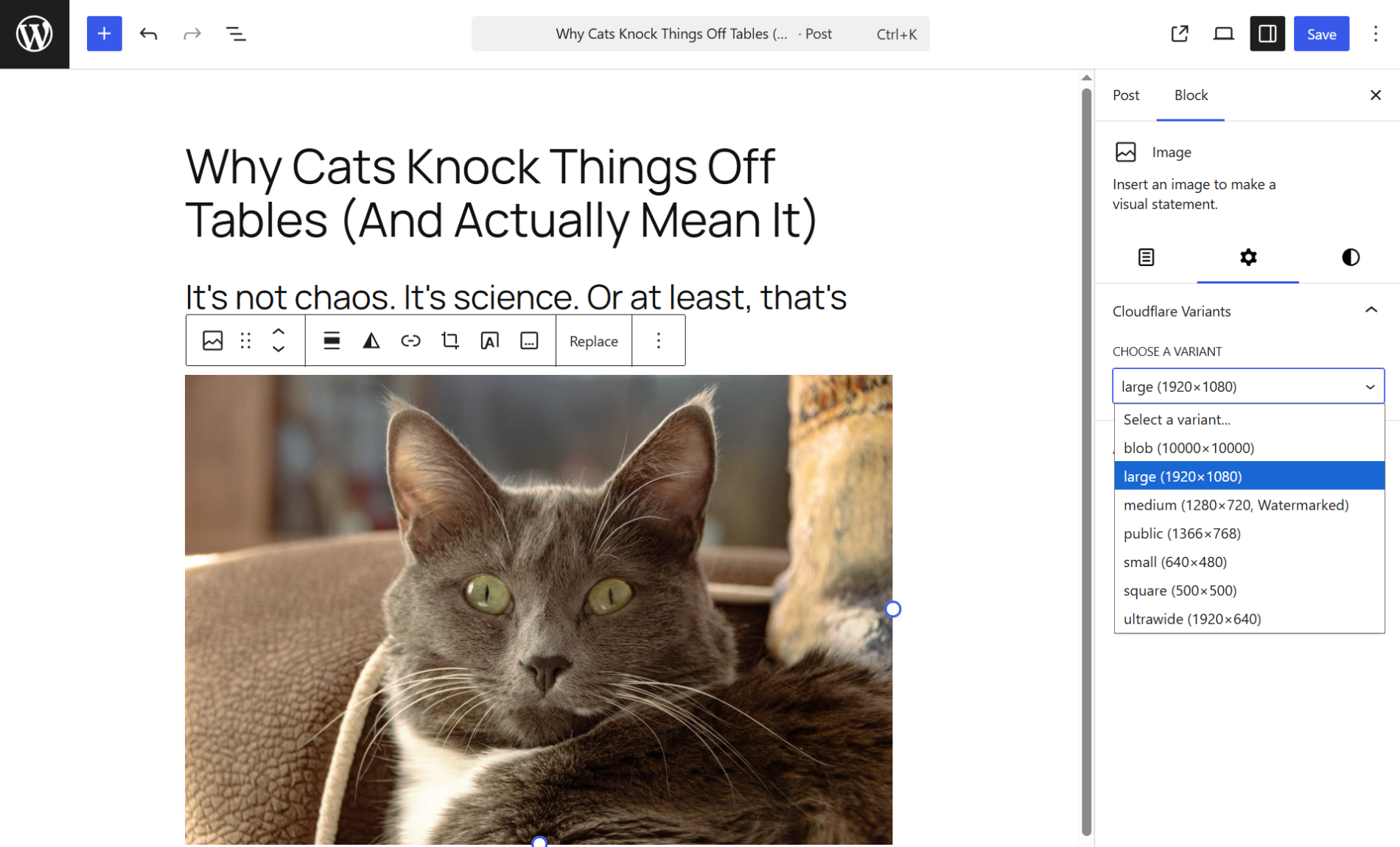
Installation
- Upload the
flare-loadfolder to the/wp-content/plugins/directory, or install it via the WordPress plugin screen. - Activate the plugin through the Plugins screen in WordPress.
- Go to FlareLoad in the admin menu and enter your Cloudflare credentials.
- Click Sync Variants to import your Cloudflare image variants.
- Set a default variant and save.
FAQ
-
Where do I find my Cloudflare Account ID?
-
Log in to the Cloudflare dashboard. Your Account ID is displayed on the right-hand side of the main dashboard page, under API.
-
Where do I find my Account Hash?
-
In the Cloudflare dashboard, go to Images. The delivery URL shown in the sidebar contains your Account Hash in the format
https://imagedelivery.net/{account_hash}/. -
How do I create an API Token?
-
Go to My Profile API Tokens in the Cloudflare dashboard. Create a token with the Cloudflare Images: Edit permission scoped to your account.
-
Will my existing media be affected?
-
No. FlareLoad only intercepts uploads where you explicitly choose to upload to Cloudflare. Existing media and standard uploads are unaffected.
-
What happens to local files after upload?
-
By default, local files are deleted after a successful Cloudflare upload to save disk space. You can change this behaviour in the plugin settings under File Management.
-
What happens to Cloudflare images when I delete from the media library?
-
By default, deleting an attachment from the WordPress media library also removes it from Cloudflare Images. You can disable this in the plugin settings.
-
Is FlareLoad compatible with image optimisation plugins such as Smush, ShortPixel, or Imagify?
-
It depends on your File Management setting. If Delete local file after upload is enabled (the default), the local copy is removed once an image is uploaded to Cloudflare, so optimisation plugins will not be able to process it. If you rely on a local optimisation plugin, enable Keep local file after upload in the FlareLoad settings.
Reviews
There are no reviews for this plugin.
Contributors & Developers
“FlareLoad” is open source software. The following people have contributed to this plugin.
Contributors
Translate “FlareLoad” into your language.
Interested in development?
Browse the code, check out the SVN repository, or subscribe to the development log by RSS.
Changelog
1.0.4
- Rename: plugin renamed from FlarePress to FlareLoad.
1.0.3
- Fix: address all WP.org Plugin Check warnings (nonce verification, direct DB queries, error_log usage).
- Fix: move wp_enqueue_script calls from admin_print_footer_scripts to admin_enqueue_scripts with defer strategy.
- Fix: standardize all function/option/class prefixes to flarep_ for WP.org compliance.
- Feat: detect open post editor sessions before migration and warn user with post list.
- Feat: add Re-check button to editor lock warning for seamless flow.
1.0.2
- Fix: rename function prefix from fp_ to flarep_ for WP.org naming compliance.
- Fix: make incomplete setup notice dismissible with user meta persistence.
- Fix: move log file from plugin directory to uploads/flare-load/ per WP.org guidelines.
- Fix: lower admin menu position to 80.
- Fix: exclude assets/ folder from release zip.
- Docs: add source code link and build instructions to readme.
1.0.1
- Fix: thumbnail URLs in media library list view now display correctly instead of filesystem paths.
- Fix: “Attached To” column in migrate page now correctly detects posts using Cloudflare images uploaded via the media grid.
- Fix: “Images attached to posts/pages” scope now finds images referenced in post content, not only those with a direct post parent.
- Fix: replaced fopen/fread/fclose with WP_Filesystem in Logger for WPCS compliance.
- Fix: wrapped exception message variables with esc_html() in CloudflareImagesApi and MigrationController.
- Fix: removed deprecated load_plugin_textdomain() call (auto-loaded by WordPress since 4.6).
1.0.0
- Initial release.
- Direct upload to Cloudflare Images from the media library and block editor.
- Cloudflare image variant support with per-image variant selection.
- Visual location badge in media library list view.
- Activity log viewer for debugging.
- Migrate to Local tool to move Cloudflare-hosted images back to WordPress.