
Description
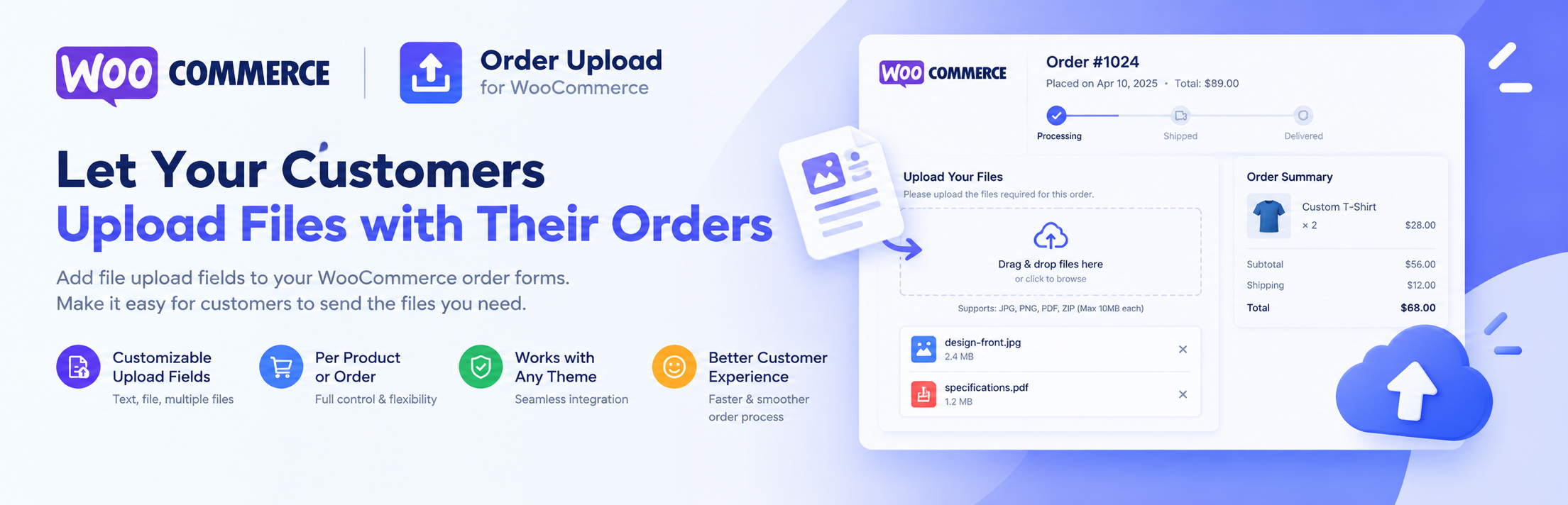
Order Upload for WooCommerce adds a drag and drop upload box to your store so customers can send you the files you need to fulfil an order: artwork for printing, photos for custom products, documents, design briefs and more.
Files are linked to the order item they belong to, so you always know which file goes with which product.
📌 Free Features
1. Upload on the product page, cart and checkout
Turn the upload box on or off for each place in the settings. You can also turn it off for single products from the product edit screen.
2. Classic and block Cart/Checkout
Works with the shortcode cart and checkout pages and with the new Cart and Checkout blocks.
3. Files in the mini cart
The mini cart (classic widget and Mini-Cart block) shows how many files each product has and their names.
4. Modern drag and drop upload box
Drag and drop or click to browse, upload progress, image thumbnails, file type icons and a remove button for each file.
5. Allowed file types and maximum size
Choose the allowed file types from a list grouped by Images, Documents, Design, Audio & video, Archives and Other, and set the maximum file size. Files are checked in the browser before they are sent and again on the server.
6. Multiple files and required upload
Allow one or several files per product, and optionally require a file before the product can be added to the cart.
7. Customise the upload box
Show or hide the heading, change its title, description and icon, change the icon of the drop zone (built-in icons or any image from the Media Library) and show or hide the “Supported formats / Max size” line.
8. Files in the order admin
See, preview and download the uploaded files in an “Upload Files” box on the order edit screen, and the number of files in the orders list. Compatible with High-Performance Order Storage (HPOS).
9. Files on the order received page
Customers see the files they sent on the “Order received” and “My account > View order” pages.
10. Shortcode
Place the upload box anywhere with [azwc_order_upload]. Use [azwc_order_upload header="0"] to hide the heading.
11. Secure by design
Files are stored in a protected folder with random names and are only served through permission-checked downloads. Uploads are checked by extension, real file content and image data, and text files are scanned for PHP code and binary content. All requests use nonces and ownership checks.
📌 PRO Features
Order Upload for WooCommerce Pro includes everything in the free version, plus:
- File approval and revisions: approve files or ask for a new version, with revision history and a revision limit per customer.
- Send files to customers: attach files (proofs, finished work) to an order from the admin.
- Order-level upload at checkout: one upload box for the whole order, in several positions on the checkout page.
- Upload after ordering: customers can add files on the “Order received” page and in My account.
- My account “Files” page with all the customer’s files.
- Email notifications for new files, approvals and revisions.
- Note field: customers can add a note with their files.
- Download all files as a ZIP and bulk actions in the order admin.
- Cart quantity = number of files, plus options to let customers download or delete their files.
- Premium support and updates.
Installation
- Make sure WooCommerce is installed and active.
- Upload the
order-upload-for-woocommercefolder to/wp-content/plugins/, or install the plugin from Plugins > Add New. - Activate the plugin.
- Go to BH Plugins > Order Upload to choose where the upload box is shown, the allowed file types and the maximum file size.
FAQ
-
Does it work with the Cart and Checkout blocks?
-
Yes. The upload box works with both the classic (shortcode) and the block Cart/Checkout pages.
-
Is it compatible with the latest WordPress and WooCommerce?
-
Yes. Version 1.0.0 is tested with WordPress 7.1 and WooCommerce 11.2, and is compatible with High-Performance Order Storage (HPOS).
-
Where are the files stored?
-
In
wp-content/uploads/azwc-order-uploads/. The folder is protected with an.htaccessfile and files get random names. Files can only be downloaded by shop managers and by the customer who uploaded them.On Nginx servers
.htaccessis ignored, so add this rule to your server configuration:location ~* /wp-content/uploads/azwc-order-uploads/ { deny all; } -
Which file types can customers upload?
-
You choose them in the settings. Dangerous types such as PHP, JavaScript, HTML and executables can never be uploaded, even if they are renamed.
-
The maximum size I set does not work
-
The limit can not be higher than the
upload_max_filesizeandpost_max_sizevalues of your server. The settings page shows both values. Ask your host to raise them if needed. -
Can I add extra checks, for example a virus scan?
-
Yes. Developers can use the
azwc_ou_validate_uploadfilter. Return aWP_Errorto reject the file. -
Will I lose my files if I upgrade to Pro?
-
No. Pro uses the same settings and files. When you activate Pro, the free version is turned off automatically.
Reviews
There are no reviews for this plugin.
Contributors & Developers
“Order Upload for WooCommerce” is open source software. The following people have contributed to this plugin.
Contributors
Translate “Order Upload for WooCommerce” into your language.
Interested in development?
Browse the code, check out the SVN repository, or subscribe to the development log by RSS.
Changelog
1.0.0 – 2026-10-24
- First release on WordPress.org.