Title: TagDuck
Author: usarskyi
Published: October 29, 2026
Last modified: October 29, 2026
---
Search plugins
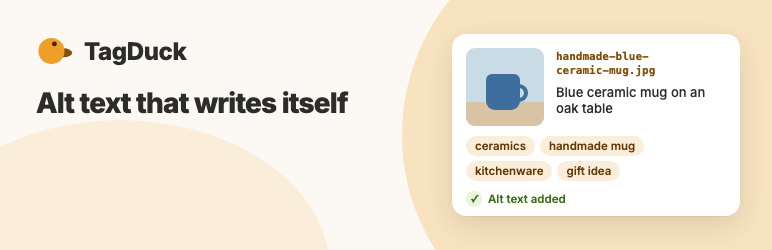

# TagDuck
By [usarskyi](https://profiles.wordpress.org/usarskyi/)
[Download](https://downloads.wordpress.org/plugin/tagduck.1.0.0.zip)
* [Details](https://wordpress.org/plugins/tagduck/#description)
* [Reviews](https://wordpress.org/plugins/tagduck/#reviews)
* [Installation](https://wordpress.org/plugins/tagduck/#installation)
* [Development](https://wordpress.org/plugins/tagduck/#developers)
[Support](https://wordpress.org/support/plugin/tagduck/)
## Description
TagDuck connects your WordPress site to your TagDuck account (a separate service
with its own plans and quota: https://tagduck.io/wordpress?utm_source=wordpress.
org&utm_medium=readme&utm_campaign=readme ) with an API key. It writes alt text,
descriptions and keywords for the images you choose, and you review every suggestion
before anything is saved.
**What makes TagDuck different**
* Personalised, not generic: descriptions use what you tell TagDuck about your
business and your photos (context, must-have keywords, language).
* You stay in control: nothing is written until you accept a suggestion; Undo and
Restore previous bring back your old text.
* New photos done right: SEO-friendly file names, alt text, keywords and location
are embedded in the file before it enters your Media Library.
* WooCommerce-aware: product name, category and variant (e.g. colour, size) are
used as context for product images (Pro and Agency plans).
**Images you already have**
* Library tab: browse your Media Library inside TagDuck, filter by alt text, TagDuck
status, upload month and what an image is attached to, select images across pages(
or all that match) and describe them.
* Or select images in the Media Library list view and choose the bulk action “Describe
with TagDuck”.
* You choose the context, must-have keywords and the output language for each batch.
The images are processed in the background, and the suggestions wait on the Review
screen and in the TagDuck column of the Media Library.
* Review: edit a suggestion, accept it (alt text, description, and the caption
if you enable that), undo it, or restore the text from before TagDuck.
**New photos**
* Add images with TagDuck (TagDuck Add images with TagDuck, or Media Add with
TagDuck): choose new photos, set context, keywords, language, file names, location
and licensing. Photos are uploaded from your browser straight to TagDuck, so
your site’s upload limit does not apply.
* Review the processed photos, edit descriptions, keywords and file names, then
add them to the Media Library.
**WooCommerce**
* With WooCommerce active, a product image can be described with its product details(
name, category, variant) as extra context. This needs a plan with per-image context(
Pro or Agency) and can be switched off in Settings.
**More**
* Image keywords: TagDuck’s keywords are saved as the image’s “Image keywords” (
Media Image keywords) when you accept a suggestion or add an imported photo;
you can turn this off in Settings.
* Follow the queue on the TagDuck screen, and pause, resume or cancel it.
* Your API key is stored encrypted in your database and never sent to the browser.
* Get notified when a plugin update is recommended or required.
TagDuck never changes your images on its own. Review each suggestion on the TagDuck
screen, edit it if you like, and Accept it to write the alt text and description(
and the caption, if you enable that in Settings). Undo right after accepting, or
use Restore previous in the Media Library later.
Each processed image uses 1 image from your TagDuck quota, even if you later reject
the suggestion.
### External services
This plugin connects to the TagDuck service (https://tagduck.io) and needs a TagDuck
account.
**When it connects.** Only after you saved an API key:
* When you press “Test connection” on the settings screen.
* Once a day, in the WordPress admin, to check whether a newer plugin version is
recommended or required.
* After you start “Process photos” on the Add images with TagDuck screen, and only
then: the plugin creates a job at TagDuck, your browser uploads the photos you
chose directly to TagDuck with a short-lived upload token (your API key never
reaches the browser), and the plugin asks TagDuck for the results at regular
intervals until they are ready.
* After you start “Describe with TagDuck” on one or more images, and only then:
the plugin creates a job at TagDuck, uploads the selected images, and then asks
TagDuck for the results at regular intervals (polling) until they are ready.
It also reads your quota from time to time while images are waiting. Nothing
is sent for images you did not select.
**What is sent.**
* The daily version check sends the plugin version and your site address (home
URL, as the X-TagDuck-Site header) and no API key.
* “Test connection” and all other requests additionally send your API key (as an
Authorization header).
* “Describe with TagDuck” sends, for each selected image, the image file (the WordPress“
large” size, or the original file if there is no such size; at most 5 MB), uploaded
under the neutral file name image.jpg (or the matching extension), never under
the original file name. The file may contain EXIF metadata (for example camera
data or GPS location) if that metadata is present in the file that is sent. It
also sends the Context text, the must-have keywords and the output language you
confirm in the Start dialog (pre-filled from the TagDuck settings), and the attachment
ID of the image as a client reference. Do not enter confidential data in the
Context field.
* If WooCommerce is active, the Settings option “Use product details as context(
WooCommerce)” is on (the default) and your TagDuck plan includes per-image context(
Pro and Agency), “Describe with TagDuck” also sends, for each selected image
that is a product image (a product’s featured or gallery image, a variation image,
or an image attached to a product), a short text built from your product data:
the product name, its category and, for variation images, the variant (for example“
Color Red”). Never the product description, price or SKU. Switch the option off
in Settings TagDuck to send nothing of this. Product details are added to the
context you write in the Describe dialog, they do not replace it. The text that
was sent is kept on the image (shown in Review as “Sent as context”) and removed
when you uninstall the plugin. Product details are not sent on other plans, without
WooCommerce, or for the Add images with TagDuck screen.
* “Process photos” (Add images with TagDuck) sends, from your browser, each chosen
photo (up to 25 MB; JPG, PNG, WEBP, HEIC or AVIF) under the neutral file name`
image.`, never its original file name, together with a reference number.
The original photo may contain EXIF metadata, which TagDuck reads and updates;
a location you choose (or the photo’s own GPS, if you keep it) is written into
the metadata of the processed file. The plugin sends the context, keywords, language,
file-name template, location (a pin you chose, or none) and licensing choice,
and optional notes for single photos. When you edit a description, keywords or
file name of a processed photo on the Review tab, the plugin sends the edited
text to TagDuck as well. The request also tells TagDuck which website page it
comes from (the browser’s Origin header). Do not enter confidential data in the
context or notes.
* On the Add images with TagDuck screen, your site’s server also downloads the
processed photos and their small thumbnails from TagDuck’s API (with your API
key; nothing but the request itself is sent). While a photo is added to the Media
Library or previewed, the file is kept temporarily in the server’s system temp
directory and deleted right afterwards; only the processed files you add are
stored in the Media Library. The processed files may contain location metadata(
the pin you chose, or the photo’s own GPS if you kept it).
* “Cancel” (in the queue or for an import) sends TagDuck a request to cancel the
job.
* TagDuck forwards the images and texts to the AI providers it uses to create the
descriptions.
* Your server’s IP address is visible to TagDuck as part of any HTTP request.
* **OpenFreeMap** (https://openfreemap.org): the location map loads map data (a
style file, map tiles, fonts and sprites, which are the map icons) from OpenFreeMap’s
servers (tiles.openfreemap.org), based on OpenStreetMap data. This happens only
on the Add images with TagDuck screen and, when an API key is connected, on Settings
Default location (the map loads as soon as you view that page). It never loads
elsewhere in WordPress. Your browser sends its IP address and the map area it
shows; no API key, account or photo data is sent. See https://openfreemap.org/
privacy/ and https://www.openstreetmap.org/copyright .
* All links from the plugin to tagduck.io (API key, upgrade / get more images,
support) open in your browser only when you click them. They carry only a campaign
tag (utm_source, utm_medium, utm_campaign), no data from your site.
**Terms and privacy.** TagDuck Terms of Service: https://tagduck.io/terms . Privacy
Policy for this plugin: https://tagduck.io/privacy/wordpress .
### Developer notes
To see where processing time goes, define `TAGDUCK_DEBUG_TIMING` as `true` in wp-
config.php (together with `WP_DEBUG` and `WP_DEBUG_LOG`): the plugin then writes
timing lines starting with `[tagduck-timing]` to the PHP error log. They contain
only ids, counts and timestamps, never keys, file names or text, and nothing is
sent anywhere. Remove the constant when you are done.
### Source code & build
The human-readable sources of the admin screens are included in the plugin zip under`
src/`, together with `package.json` and `webpack.config.js`. The compiled files
in `build/` are created from them. To rebuild, run `npm ci && npm run build` in
the plugin folder.
The location map (Add images with TagDuck and Settings Default location) uses [MapLibre GL JS](https://github.com/maplibre/maplibre-gl-js)(
BSD-3-Clause) and map data from OpenFreeMap, as described under External services.
## Screenshots
[⌊Library: pick the images to describe, with filters and selection across pages.⌉⌊
Library: pick the images to describe, with filters and selection across pages.⌉[
Library: pick the images to describe, with filters and selection across pages.
[⌊Review: edit each suggestion, its keyword chips and the product details that were
sent, then accept.⌉⌊Review: edit each suggestion, its keyword chips and the product
details that were sent, then accept.⌉[
Review: edit each suggestion, its keyword chips and the product details that were
sent, then accept.
[⌊Start dialog: context, keywords, language and the product details added for product
images.⌉⌊Start dialog: context, keywords, language and the product details added
for product images.⌉[
Start dialog: context, keywords, language and the product details added for product
images.
[⌊Add images with TagDuck: choose new photos, set context, keywords and a location
on the map.⌉⌊Add images with TagDuck: choose new photos, set context, keywords and
a location on the map.⌉[
Add images with TagDuck: choose new photos, set context, keywords and a location
on the map.
[⌊Review the processed photos of an import: file name, description and keywords
before they are added.⌉⌊Review the processed photos of an import: file name, description
and keywords before they are added.⌉[
Review the processed photos of an import: file name, description and keywords before
they are added.
[⌊Added: the photos added to the Media Library with their descriptions and keywords.⌉⌊
Added: the photos added to the Media Library with their descriptions and keywords
.⌉[
Added: the photos added to the Media Library with their descriptions and keywords.
[⌊Media Library: the TagDuck column shows the status of each image.⌉⌊Media Library:
the TagDuck column shows the status of each image.⌉[
Media Library: the TagDuck column shows the status of each image.
[⌊Single image: accept, restore the previous text or review a suggestion next to
the image.⌉⌊Single image: accept, restore the previous text or review a suggestion
next to the image.⌉[
Single image: accept, restore the previous text or review a suggestion next to the
image.
[⌊Settings: generation defaults, WooCommerce product details, what is written on
accept and the default location.⌉⌊Settings: generation defaults, WooCommerce product
details, what is written on accept and the default location.⌉[
Settings: generation defaults, WooCommerce product details, what is written on accept
and the default location.
## Installation
1. Upload the plugin to `/wp-content/plugins/tagduck`, or install it from the Plugins
screen.
2. Activate it.
3. In TagDuck go to Account API keys and create a key for exactly your site address(
shown on the TagDuck settings screen).
4. Open TagDuck Settings in WordPress, paste the key and press “Test connection”.
On multisite every site connects with its own key.
## FAQ
### Who can use the plugin?
Administrators always can. Editors can by default. Administrators choose which roles,
and which specific people, may use TagDuck in TagDuck Settings Access. Each processed
image uses 1 image from the TagDuck account’s quota, whoever starts it.
### What happens if I replace or remove the API key?
A job can only be read with the key that created it. Images still waiting in the
queue go back to the queue and are sent again with the new key (using your quota
again). Photos of an Add images with TagDuck import that were processed but not
yet added to the Media Library can no longer be fetched with a different key; TagDuck
shows a notice with the numbers when this happens.
### Where do I get an API key?
In your TagDuck account (https://tagduck.io/account?section=api-keys&utm_source=
wordpress.org&utm_medium=readme&utm_campaign=readme) under API keys. Each key is
bound to one site address.
### What does “site mismatch” mean?
The key was created for a different site address. Create a new key for the address
shown on the settings screen.
### Does every image use my quota?
Yes. Each processed image uses 1 image from your TagDuck quota, even if you later
reject the suggestion. Selecting an image that already has a suggestion processes
it again and uses 1 more image; the new suggestion replaces the old one. “Select
all matching” in the Library describes every matching image: the images that fit
your remaining quota are processed now and the rest wait in the queue until you
get more images (you can cancel the queue at any time). If you remove or replace
the API key while images are still being processed, those images go back to the
queue and may use your quota again when they are sent.
### Why is the queue paused, or slow?
The queue pauses by itself when your TagDuck quota is used up or when TagDuck reports
a problem, and you can pause it yourself; use “Resume” on the TagDuck screen when
the cause is fixed. Background work is run by WordPress’s scheduled tasks (WP-Cron
through Action Scheduler). On sites with little traffic, or where WP-Cron is disabled,
tasks only run when a visitor opens a page or when a real cron job triggers WordPress,
so the queue can be slow or seem stuck until the next task runs. The TagDuck screen
tells you when work is waiting for scheduled tasks.
While the Library or the Add images screen is open and photos are being processed,
the screen itself asks TagDuck for the results every few seconds, so you see them
without waiting for WP-Cron. When nobody has the screen open, the results are collected
by the scheduled tasks. For low-traffic sites we recommend a real system cron: add`
define( 'DISABLE_WP_CRON', true );` to wp-config.php and let the server call `wp-
cron.php` every minute, for example `* * * * * curl -s https://example.com/wp-cron.
php?doing_wp_cron >/dev/null 2>&1` (or `wp cron event run --due-now` with WP-CLI).
### An image shows Error, Skipped or Stalled. What now?
Select the image in the Media Library and run “Describe with TagDuck” again.
### What happens if I change the security keys (salts) in wp-config.php?
The stored API key can no longer be decrypted. TagDuck asks you to enter it again.
### Why doesn’t TagDuck rename my existing images?
Renaming existing files breaks links and embeds that are already published. For
images already in your Media Library, TagDuck improves the descriptions and metadata
in place. It renames only new photos, which you add with Add images with TagDuck.
### What does Add images with TagDuck do?
It lets you upload new photos (from TagDuck Add images with TagDuck or Media Add
with TagDuck) straight from your browser to TagDuck. TagDuck gives each photo an
SEO file name, a description, keywords and a location, and you then add the processed
files to the Media Library. The original photos are not added.
### Why is a product’s gallery image not described with product details?
TagDuck finds the gallery images of your products from a list of at most 20,000
images. In a very large store, gallery images beyond that limit are not recognised
as product images: they get no product details and do not appear under Attached
to Products. Featured images and variation images are not affected.
### Why are some metadata missing in the smaller image sizes?
TagDuck describes the “large” size of your images and, for new photos, can write
location and other metadata into the processed file. When WordPress creates the
smaller sizes of an image it uses either the Imagick or the GD PHP library. GD drops
metadata such as EXIF and GPS from the sizes it generates, Imagick usually keeps
it. On a host with GD only, the original file keeps its metadata but the generated
smaller sizes do not. Ask your host to enable Imagick if you need metadata in every
size. Alt text and descriptions are stored in WordPress, not in the files, and are
not affected.
### Where do the keywords go?
TagDuck saves them in a taxonomy called Image keywords (Media Image keywords).
They appear as a column in the Media Library and can be edited on the attachment
screen. Your image files are never modified. In Settings you can turn off “Write
image keywords”.
### Who can create keywords (terms)?
Anyone allowed to use TagDuck can assign keywords (the upload_files capability),
and Accept and Add create new keywords for them. Creating, renaming and deleting
keywords on the Image keywords screen needs the manage_categories capability. Keywords
you add yourself on the attachment screen are kept when you accept another suggestion.
### What do Undo and Restore previous bring back?
Undo, right after you accept, brings back exactly what the image held right before
that last accept, including any change you made by hand since TagDuck’s previous
round. Restore previous, available for accepted images, brings back the text that
was on the image before TagDuck first wrote to it, even if you described the image
again, or used Undo, and accepted a suggestion in between.
### What happens when I deactivate or uninstall TagDuck?
Deactivating cancels TagDuck’s scheduled background tasks and deletes nothing: your
settings, API key and queue stay, and the work continues when you activate the plugin
again. Uninstalling (deleting the plugin) removes TagDuck’s own data: settings,
the API key, the queue and import tables, scheduled tasks and the notes TagDuck
stored on images (suggestions, previous texts, product context). Alt texts, descriptions,
captions, the images themselves and the Image keywords you accepted stay, like any
other content. On multisite this is done for every site. Jobs already sent to TagDuck
are not cancelled by deactivating, and their results may expire at TagDuck if the
plugin stays off for a long time; it is best to let the queue finish first. What
was already sent to TagDuck is not removed by uninstalling; how TagDuck handles
it is described in the TagDuck privacy policy.
### What happens to the keywords if I deactivate or uninstall TagDuck?
Deactivating only unregisters the taxonomy: the keywords stay in your database and
come back when you reactivate. Uninstalling also keeps them, like accepted alt text.
To remove them, delete them first under Media Image keywords (or with `wp term
delete tagduck_image_keyword `) and then uninstall.
### Is anything extra sent outside TagDuck for keywords?
No. Keywords are stored as terms in your site’s database; nothing extra is sent
anywhere.
## Reviews
There are no reviews for this plugin.
## Contributors & Developers
“TagDuck” is open source software. The following people have contributed to this
plugin.
Contributors
* [ usarskyi ](https://profiles.wordpress.org/usarskyi/)
[Translate “TagDuck” into your language.](https://translate.wordpress.org/projects/wp-plugins/tagduck)
### Interested in development?
[Browse the code](https://plugins.trac.wordpress.org/browser/tagduck/), check out
the [SVN repository](https://plugins.svn.wordpress.org/tagduck/), or subscribe to
the [development log](https://plugins.trac.wordpress.org/log/tagduck/) by [RSS](https://plugins.trac.wordpress.org/log/tagduck/?limit=100&mode=stop_on_copy&format=rss).
## Changelog
#### 1.0.0
* Image keywords: keywords are saved as an Image keywords taxonomy (Media Library
column, attachment screen) when you accept a suggestion or add an imported photo,
shown and editable as chips on the Review screen, and restored by Undo and Restore
previous. New Settings option “Write image keywords” (on by default).
* The camera-name notice in the Media Library is a normal dismissible notice with
an “Add images with TagDuck ” link.
* Add images with TagDuck: choose new photos, set context, keywords, language,
file names, location and licensing, upload them straight from your browser to
TagDuck, follow the processing, review and edit the results, and add the processed
files to the Media Library. Nudges point you to Add images with TagDuck from
the Media Library screens.
* Library view: choose the images to describe with filters (alt text, TagDuck status,
upload month, attached to), selection across pages, “select all matching” and
a preview.
* Review screen: edit, accept (writes alt text and description, and the caption
if enabled), undo, restore previous, remove, retry and describe again.
* Access control: only Administrators and Editors can use TagDuck by default; Authors
no longer have access unless an administrator allows them in TagDuck Settings
Access (by role or by person).
* Initial release: settings screen, encrypted API key storage, connection test,
plugin version check.
* Describe images with TagDuck from the Media Library (bulk action), with a background
queue (pause, resume, cancel), a queue screen and a Media Library column.
## Meta
* Version **1.0.0**
* Last updated **2 days ago**
* Active installations **Fewer than 10**
* WordPress version ** 6.6 or higher **
* Tested up to **7.1.4**
* PHP version ** 8.1 or higher **
* Tags
* [accessibility](https://wordpress.org/plugins/tags/accessibility/)[AI](https://wordpress.org/plugins/tags/ai/)
[Alt Text](https://wordpress.org/plugins/tags/alt-text/)[image seo](https://wordpress.org/plugins/tags/image-seo/)
[media library](https://wordpress.org/plugins/tags/media-library/)
* [Advanced View](https://wordpress.org/plugins/tagduck/advanced/)
## Ratings
No reviews have been submitted yet.
[Your review](https://wordpress.org/support/plugin/tagduck/reviews/#new-post)
[See all reviews](https://wordpress.org/support/plugin/tagduck/reviews/)
## Contributors
* [ usarskyi ](https://profiles.wordpress.org/usarskyi/)
## Support
Got something to say? Need help?
[View support forum](https://wordpress.org/support/plugin/tagduck/)