Title: HubToolify Icons
Author: hubtoolify
Published: October 27, 2026
Last modified: October 30, 2026
---
Search plugins

# HubToolify Icons
By [hubtoolify](https://profiles.wordpress.org/hubtoolify/)
[Download](https://downloads.wordpress.org/plugin/hubtoolify-icons.2.3.0.zip)
* [Details](https://wordpress.org/plugins/hubtoolify-icons/#description)
* [Reviews](https://wordpress.org/plugins/hubtoolify-icons/#reviews)
* [Installation](https://wordpress.org/plugins/hubtoolify-icons/#installation)
* [Development](https://wordpress.org/plugins/hubtoolify-icons/#developers)
[Support](https://wordpress.org/support/plugin/hubtoolify-icons/)
## Description
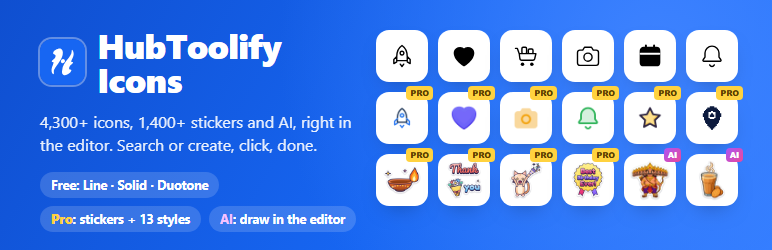
HubToolify Icons adds an **Icon block** to the editor. Search the HubToolify library
by name or meaning (try “rocket”, “cart” or “secure”), pick a style, and click an
icon to insert it. Set its size, colour, alignment and alternative text in the block
settings.
It also adds a **Sticker block**. Browse 1,400+ HubToolify stickers (festivals such
as Diwali, Christmas and Navratri, birthdays, thank-you notes, small-business labels,
cute animals and more, still and animated), filter by pack, and click one. The sticker
is saved in your Media Library and becomes an ordinary Image block. Stickers are
part of HubToolify Pro: everyone can browse them, and inserting needs a connected
Pro account.
**Create with AI, right in the editor.** Both blocks have a “Create with AI” button
that opens the HubToolify AI generators in a panel inside the editor: describe what
you need in your own words (Hindi and Hinglish work too), pick an engine (HD, Animated
or Library styles for icons; still or animated stickers, with or without the white
border), see the price, and press **Create**. Click a result to insert it, or **
Change** it with a message. An AI icon goes into the Icon block as clean SVG; an
AI sticker, an animated sticker or an animated icon goes into your Media Library
and becomes an Image block. The panel shows your AI credit balance and what each
drawing used. AI is paid with the AI credits of your HubToolify account: HubToolify
Pro includes credits every month, and Pro members can buy top-ups on hubtoolify.
com. Nothing is sold inside WordPress. The full generator on hubtoolify.com can
still be opened from the same button.
* **3,700+ original icons** drawn on one 24 px grid, across 44 categories.
* **Free styles:** Line, Solid and Duotone, for everyone, no account needed.
* **Pro styles:** Sharp Line, Sharp Solid, Sharp Duotone, Imprint, Pixel, Slab,
Mellow, Draw, Duo, Flat, Jass, 3D and Lineal. Connect a HubToolify account with
an active Pro plan to insert them.
* **Fast pages:** each icon is saved in your post as a small inline SVG. Your pages
load no icon font, no script and nothing from HubToolify.
* **Yours to keep:** inserted icons stay in your posts, and stickers in your Media
Library, if you disconnect, your plan ends or you remove the plugin.
* **1,400+ stickers (Pro):** still stickers as 512 px WebP; animated stickers as
animated WebP or GIF. Each is saved once in your Media Library and reused after
that.
* **AI icons and stickers:** HD, animated and library-style icons, stickers and
animated stickers, drawn for you and inserted in one click. Credits are spent
on hubtoolify.com, at the prices shown there.
* **Accessible:** add alternative text for icons that carry meaning; decorative
icons are hidden from screen readers.
Each WordPress user connects their own HubToolify account, from the block or from
Settings HubToolify Icons. Connecting shows a short code that you enter on hubtoolify.
com; no password is ever typed into WordPress.
The `[hti]` shortcode from the earlier version keeps working for the free styles,
e.g. `[hti name="rocket" style="solid" size="32" color="#1766f2"]`.
### External services
This plugin uses the HubToolify service at https://hubtoolify.com to search the
icon and sticker libraries and to fetch the icons and stickers you insert. Without
it the plugin cannot find or insert them.
What is sent, and when:
* **When you search in the block:** your search words, the chosen style, category
and page number. Sent from your site’s server.
* **When you insert an icon (or the `[hti]` shortcode shows an icon for the first
time):** the icon’s name and style. For a Pro style, the access token of the
HubToolify account you connected is sent too, so HubToolify can check your Pro
plan.
* **When you search stickers:** your search words, the chosen pack, the still/animated
filter and the page number.
* **When you insert a sticker:** the sticker’s name, the format (WebP or GIF) and
the access token of the HubToolify account you connected, so HubToolify can check
your Pro plan. HubToolify counts the download for its “Trending” list and for
your own “My library” page.
* **When you open “Create with AI”:** your site’s server asks hubtoolify.com, with
the access token of the HubToolify account you connected, for your AI credit
balance and the current prices. The editor also loads hubtoolify.com/plugin/painter
in a hidden frame: HubToolify’s drawing tools, which turn the AI answers into
SVG icons, stickers and GIFs in your browser. That frame receives only the AI
results to draw; it has no access to your site or your posts.
* **When you press Create or Change:** your site’s server sends your description,
the engine, style, number of versions and price you chose (and, for a change,
the picture being changed) to hubtoolify.com with your access token. HubToolify
uses OpenAI to draw it and charges your HubToolify AI credits as described on
hubtoolify.com/pricing. The pictures it draws come back to your site’s server
and the editor. When you click a result, the plugin uploads it to your Media
Library (an image) or cleans it on your server (an SVG icon). HubToolify keeps
each AI icon, sticker and animation it draws (not your description) in your account,
under AI creations in My library on hubtoolify.com. Unless you keep new AI creations
private there, each is sent to HubToolify’s team for review and, if approved,
listed in the AI Icon Library (hubtoolify.com/icons/ai-library) or the AI Sticker
Library (hubtoolify.com/stickers/ai-library) for HubToolify Pro members, without
your name. You can withdraw or delete any of your AI creations there at any time.
* **When you open the full generator on hubtoolify.com instead:** your browser
opens hubtoolify.com/icons/generate or hubtoolify.com/stickers/generate in a
new window, with your site’s address in the link so the page can check that your
account connected this site. Everything you type there is sent to hubtoolify.
com. When you press Insert, that window sends the finished file to this editor
window.
* **The account panel** also shows your AI credit balance, read with your access
token.
* **When you connect or disconnect your account:** your site’s address (to name
the connection on your HubToolify account page), and the temporary code and token
used to connect.
* Every request also carries your site’s address in its User-Agent.
No visitor data is sent: requests are made only from the WordPress admin by logged-
in users, or once per icon by the `[hti]` shortcode, never from your visitors’ browsers.
Icon and sticker previews in the editor are loaded from hubtoolify.com.
The service is provided by HubToolify: [Terms of Service](https://hubtoolify.com/terms),
[Privacy Policy](https://hubtoolify.com/privacy).
## Screenshots
[⌊Search the library from the HubToolify Icon block.⌉⌊Search the library from the
HubToolify Icon block.⌉[
Search the library from the HubToolify Icon block.
[⌊Pick from 16 styles; Pro styles unlock with a connected Pro account.⌉⌊Pick from
16 styles; Pro styles unlock with a connected Pro account.⌉[
Pick from 16 styles; Pro styles unlock with a connected Pro account.
[⌊Size, colour, alignment and alternative text in the block settings.⌉⌊Size, colour,
alignment and alternative text in the block settings.⌉[
Size, colour, alignment and alternative text in the block settings.
[⌊Connect your HubToolify account with a short code.⌉⌊Connect your HubToolify account
with a short code.⌉[
Connect your HubToolify account with a short code.
[⌊Browse stickers by pack in the HubToolify Sticker block.⌉⌊Browse stickers by pack
in the HubToolify Sticker block.⌉[
Browse stickers by pack in the HubToolify Sticker block.
[⌊"Create with AI" opens in the editor: HD icons traced to SVG, with your credit
balance and the price on the Create button.⌉⌊"Create with AI" opens in the editor:
HD icons traced to SVG, with your credit balance and the price on the Create button
.⌉[
“Create with AI” opens in the editor: HD icons traced to SVG, with your credit balance
and the price on the Create button.
[⌊Library-style icons: switch between styles for free, or Change one in your own
words.⌉⌊Library-style icons: switch between styles for free, or Change one in your
own words.⌉[
Library-style icons: switch between styles for free, or Change one in your own words.
[⌊AI stickers with the white die-cut border, in the Sticker block's AI panel.⌉⌊AI
stickers with the white die-cut border, in the Sticker block's AI panel.⌉[
AI stickers with the white die-cut border, in the Sticker block’s AI panel.
[⌊The AI icon and the AI sticker in the post: an Icon block and an Image block.⌉⌊
The AI icon and the AI sticker in the post: an Icon block and an Image block.⌉[
The AI icon and the AI sticker in the post: an Icon block and an Image block.
## Blocks
This plugin provides 2 blocks.
* HubToolify Icon Search the HubToolify icon library and insert an icon as SVG.
* HubToolify Sticker Search the HubToolify sticker library and add a sticker
to your Media Library as an image. Needs a HubToolify Pro account.
## Installation
1. Install and activate the plugin from Plugins Add New.
2. In the editor, add the **HubToolify Icon** block, search, and click an icon.
3. For stickers, add the **HubToolify Sticker** block, search, and click a sticker(
needs a connected Pro account and a role that can upload files).
4. For Pro styles and stickers: in the block’s “HubToolify account” panel (or Settings
HubToolify Icons) click **Connect HubToolify account**, then enter the code shown
on hubtoolify.com/connect.
## FAQ
### Do I need an account?
No. Line, Solid and Duotone icons work without an account. An account with an active
HubToolify Pro plan unlocks the 13 Pro styles and the stickers.
### What happens to my icons if my Pro plan ends?
Icons and stickers you already inserted stay in your posts and Media Library and
keep working. Only inserting new Pro icons and stickers stops until the plan is
active again.
### Does it slow down my site?
No. Icons are stored in the post as small SVGs. The plugin adds one tiny stylesheet
and no JavaScript to your pages, and your pages never contact HubToolify.
### Where do stickers go?
Into your Media Library, as an image file named after the sticker, with its name
as the alternative text. The block then becomes a normal Image block, so you can
resize, align, link or caption it like any image. Inserting the same sticker again
in the same format reuses that file.
### How do AI credits work?
“Create with AI” draws on hubtoolify.com with the AI credits of your own HubToolify
account; the price of each drawing is shown on the Create button before you send
it, a drawing that fails is not charged, and “Try again” after a dropped connection
never charges twice. HubToolify Pro includes AI credits every month, and Pro members
can buy top-up packs. Credits are bought on hubtoolify.com/pricing, never inside
WordPress. Your balance is shown in the AI panel and in the block’s account panel.
### Do I need to connect my site for AI?
Yes. Drawing in the editor uses the HubToolify account you connected, so its credits
are spent only by you. A site connected before version 2.3.0 is asked to connect
again once: the new connection is allowed to spend AI credits, and hubtoolify.com
says so before you approve it.
### Why can my Contributors not insert stickers?
A sticker is saved as a file, and WordPress only lets roles with the “upload files”
permission (Authors and above) add files. Contributors can still use the Icon block.
### Can every editor on my site use my Pro account?
No. Each WordPress user connects their own HubToolify account; a Pro plan covers
one person.
### How do I disconnect?
In Settings HubToolify Icons (or the block’s account panel) click Disconnect. You
can also remove the connection on hubtoolify.com under Account Connected apps.
### How is the icon licensed?
The plugin’s code is GPLv2 or later. The icons are HubToolify’s original artwork
under the HubToolify Icons licence (free styles) and the Pro licence (Pro styles);
the stickers are under the HubToolify Stickers licence. You may use them in your
sites and projects, but not redistribute them as an icon or sticker set. See https://
hubtoolify.com/licenses.
## Reviews
There are no reviews for this plugin.
## Contributors & Developers
“HubToolify Icons” is open source software. The following people have contributed
to this plugin.
Contributors
* [ hubtoolify ](https://profiles.wordpress.org/hubtoolify/)
[Translate “HubToolify Icons” into your language.](https://translate.wordpress.org/projects/wp-plugins/hubtoolify-icons)
### Interested in development?
[Browse the code](https://plugins.trac.wordpress.org/browser/hubtoolify-icons/),
check out the [SVN repository](https://plugins.svn.wordpress.org/hubtoolify-icons/),
or subscribe to the [development log](https://plugins.trac.wordpress.org/log/hubtoolify-icons/)
by [RSS](https://plugins.trac.wordpress.org/log/hubtoolify-icons/?limit=100&mode=stop_on_copy&format=rss).
## Changelog
#### 2.3.0
* New: “Create with AI” now works inside the editor. A panel with the HubToolify
AI generators: HD, animated and library-style icons, stickers and animated stickers,
the price on every button, Change on every result, your credit balance and what
each drawing used.
* New: the full generator on hubtoolify.com is still one link away.
* Sites connected before 2.3.0 are asked to connect again once to draw in the editor.
#### 2.2.0
* New: “Create with AI” in the Icon and Sticker blocks. Draw an icon, a sticker
or an animation with the HubToolify AI generators and insert it in one click:
AI icons as SVG in the Icon block, stickers and animations in your Media Library.
Paid with your HubToolify AI credits (HubToolify Pro includes credits every month).
* New: the account panel shows your AI credit balance.
#### 2.1.0
* New: the HubToolify Sticker block. Browse 1,400+ HubToolify stickers, still and
animated, and add one to your Media Library as an image (HubToolify Pro).
#### 2.0.0
* New: the HubToolify Icon block. Search 3,700+ icons and insert them as inline
SVG.
* New: connect a HubToolify Pro account to insert the 13 Pro styles.
* Changed: the plugin no longer bundles the icon files or the `hti` CSS classes;
icons are fetched when you insert them and saved in your posts. Replace any `
` markup with the block or the `[hti]` shortcode.
* Kept: the `[hti]` shortcode for the free styles.
#### 1.1.0
* The self-hosted icon kit with the `[hti]` shortcode (no longer developed).
## Meta
* Version **2.3.0**
* Last updated **12 hours ago**
* Active installations **Fewer than 10**
* WordPress version ** 6.3 or higher **
* Tested up to **7.1.4**
* PHP version ** 7.4 or higher **
* Tags
* [AI](https://wordpress.org/plugins/tags/ai/)[block-editor](https://wordpress.org/plugins/tags/block-editor/)
[icons](https://wordpress.org/plugins/tags/icons/)[stickers](https://wordpress.org/plugins/tags/stickers/)
[SVG](https://wordpress.org/plugins/tags/svg/)
* [Advanced View](https://wordpress.org/plugins/hubtoolify-icons/advanced/)
## Ratings
No reviews have been submitted yet.
[Your review](https://wordpress.org/support/plugin/hubtoolify-icons/reviews/#new-post)
[See all reviews](https://wordpress.org/support/plugin/hubtoolify-icons/reviews/)
## Contributors
* [ hubtoolify ](https://profiles.wordpress.org/hubtoolify/)
## Support
Got something to say? Need help?
[View support forum](https://wordpress.org/support/plugin/hubtoolify-icons/)