
Description
This plugin is more than just a photo album plugin, it is a complete, highly customizable multimedia content management and display system.
Features:
- Any number of albums that contain any type of multimedia file as well as sub albums
- Full control over the display sizes, responsive as well as static
- Full control over links from any type of image
- Full control over metadata: exif, iptc can be used by keywords in item descriptions
- Up to 10 custom defined meta data fields, for albums and for media items
- Front-end uploads
- Bulk imports
- Built-in lightbox overlay system
- Built-in Google Maps to display maps based on the photo gpx exif data
- Built-in search functions on a.o. keywords and tags
- A customizable rating system
- Commenting system
- Moderate user uploads and comments
- Configurable email notification system
- 20 widgets a.o. upload, slideshow, photo of the day, top rated and commented items and many more
- Supports Cloudinary cloud storage service
- Supports Fotomoto print service
- Required maintenace is fully executed by background processes (cron jobs)
- Extended error/event logging system
- Extended documentation site: https://wppa.nl/
Plugin Admin Features:
You can find the plugin admin section under Menu Photo Albums on the admin screen.
- Albums: Create and manage Albums.
- Upload: To upload photos to an album you created.
- Import: To bulk import items to an album that are previously been ftp’d.
- Moderate: Change status of pending
- Export: To export albums
- Settings: To control the various settings to customize your needs.
- photo of the day widget settings
- Help & Info: Credits and link to the documentation site
Translations:
- Dutch translation by OpaJaap himself (Opa Jaap’s Weblog)
- Slovak translation by Branco Radenovich (WebHostingGeeks.com)
- Polish translation by Maciej Matysiak
- Ukranian translation by Michael Yunat (http://getvoip.com)
- Italian translation by Giacomo Mazzullo (http://gidibao.net & http://charmingpress.com)
- German translation by Stefan Eggers
- Portuguese translation by Eric Sornoso (https://Mealfan.com)
Privacy Policy
- When you leave a comment on a photo or other media item on this site, we send your name, email address, IP address and comment text to the server.
- When you enter a rating on a photo or other media item on this site, we send your (login)name or IP address and your rating to the server.
- When you upload a photo or other media item on this site, we send your name to the server.
- If the photo contains EXIF or IPTC data, this data may – dependant of the configuration – be saved on the server.
- If the photo contains GPX location data, this data will be saved on the server.
- If visit the site, the pages you visit, the photos you watch and your IP address will be saved on the server for statistical purposes in your session information. This information will be anonimized after one hour and removed after 24 hours.
About and Credits
- WP Photo Album Plus is extended with many new features and is maintained by J.N. Breetvelt, ( http://www.opajaap.nl/ ) a.k.a. OpaJaap
- Thanx to R.J. Kaplan for WP Photo Album 1.5.1, the basis of this plugin.
Licence
WP Photo Album is released under the GNU GPL licence. ( http://www.gnu.org/copyleft/gpl.html )
Screenshots
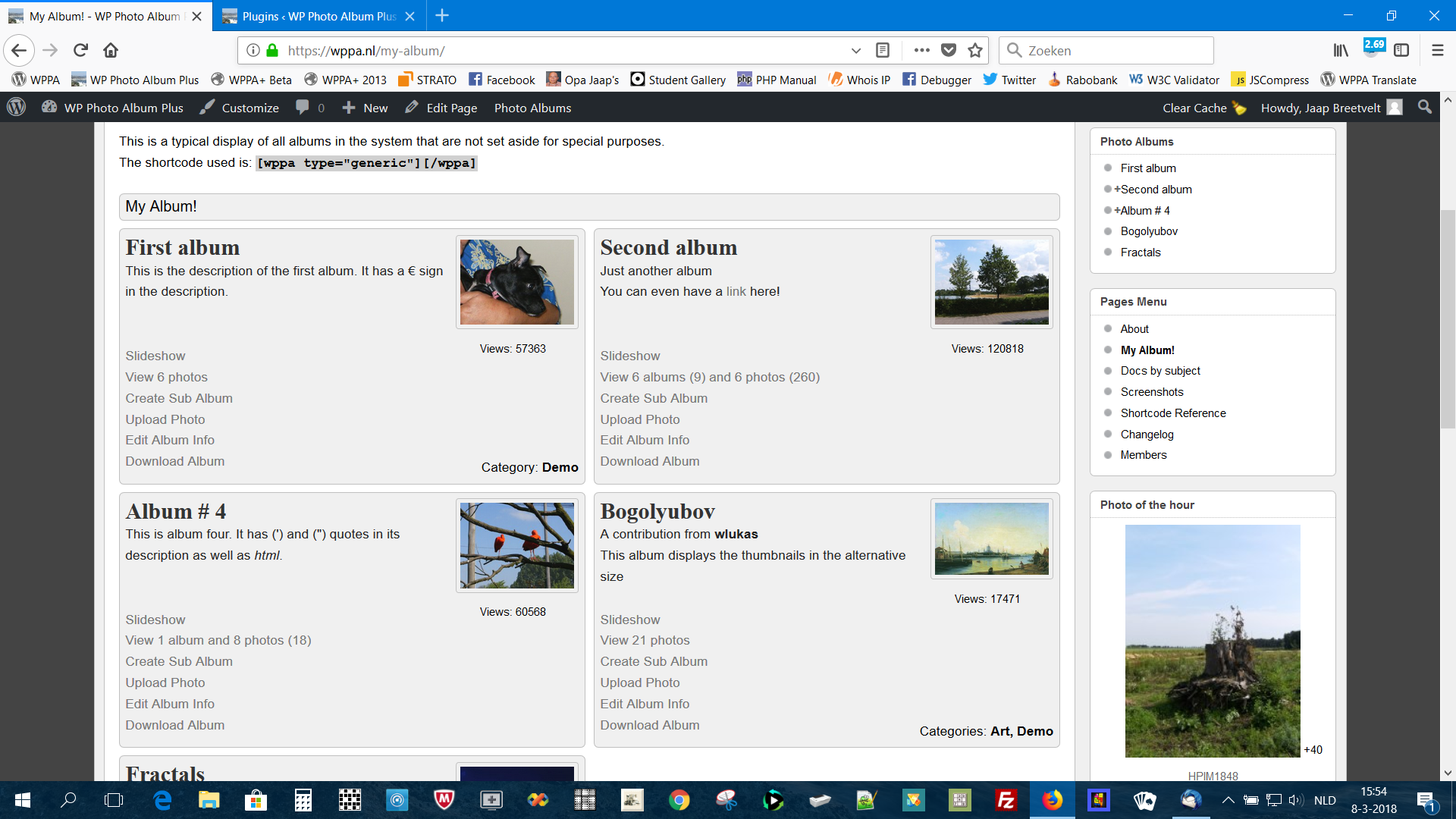
Typical display of album covers 
Typical display of thumbnails as seen by the owner of the photos and the administrator 
Upper part of a slideshow 
Lower part of a slideshow, including filmstrip, rating and comment sections and exif data. all included optional features 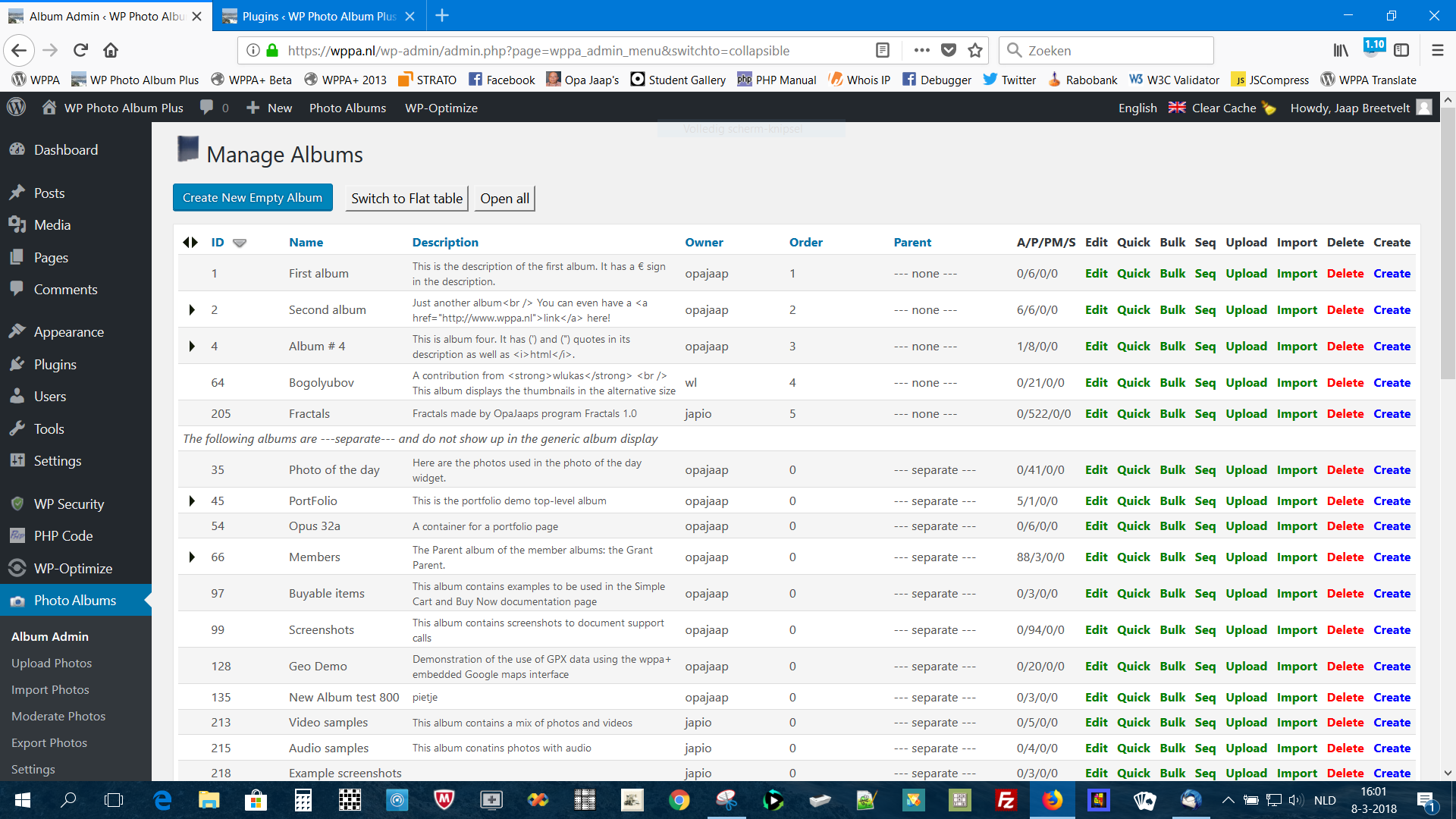
Album admin: the table of albums 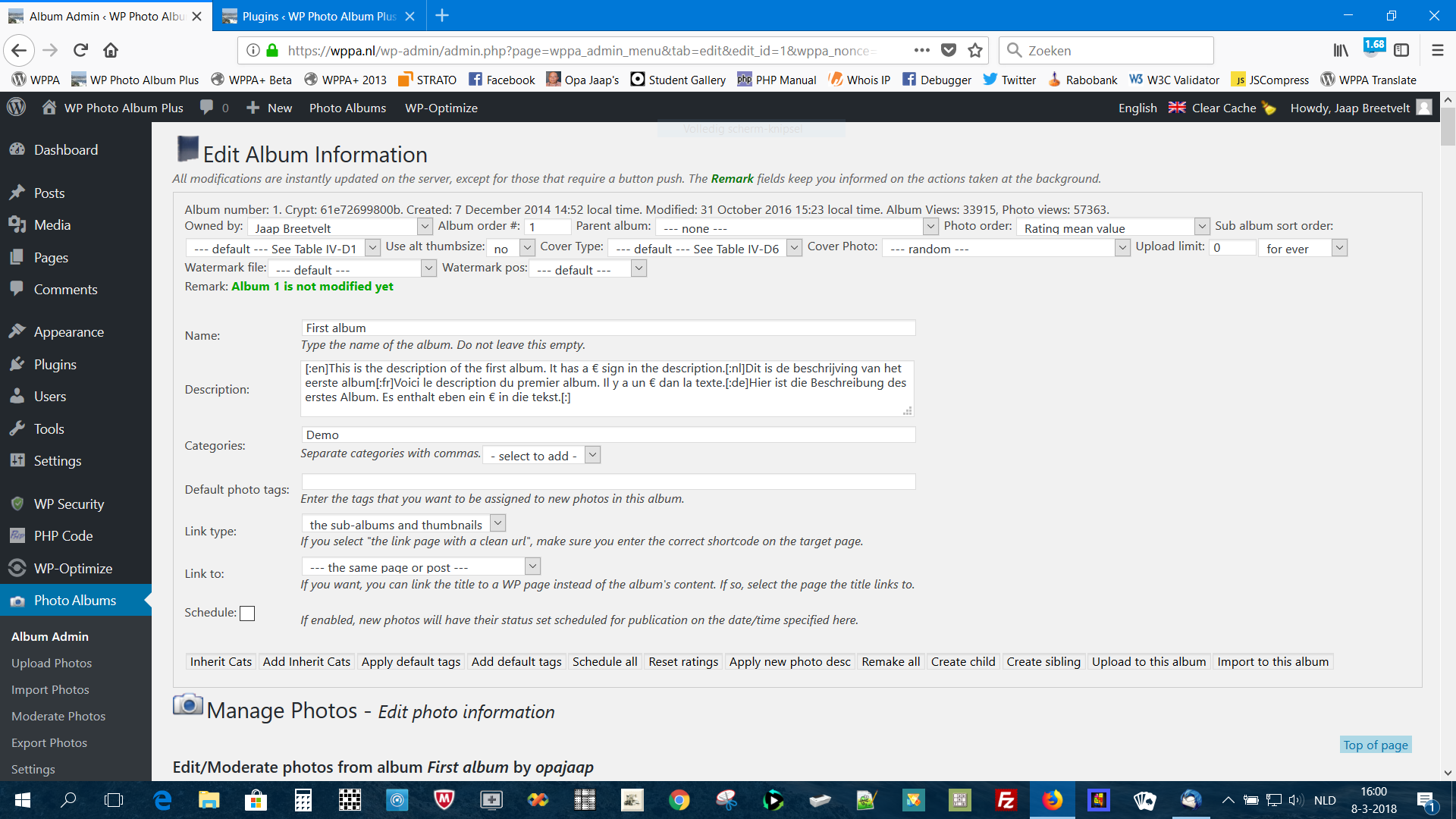
Album admin: the album specifications edit screen 
Album admin: edit photo information screen 
Bulk edit photo information screen 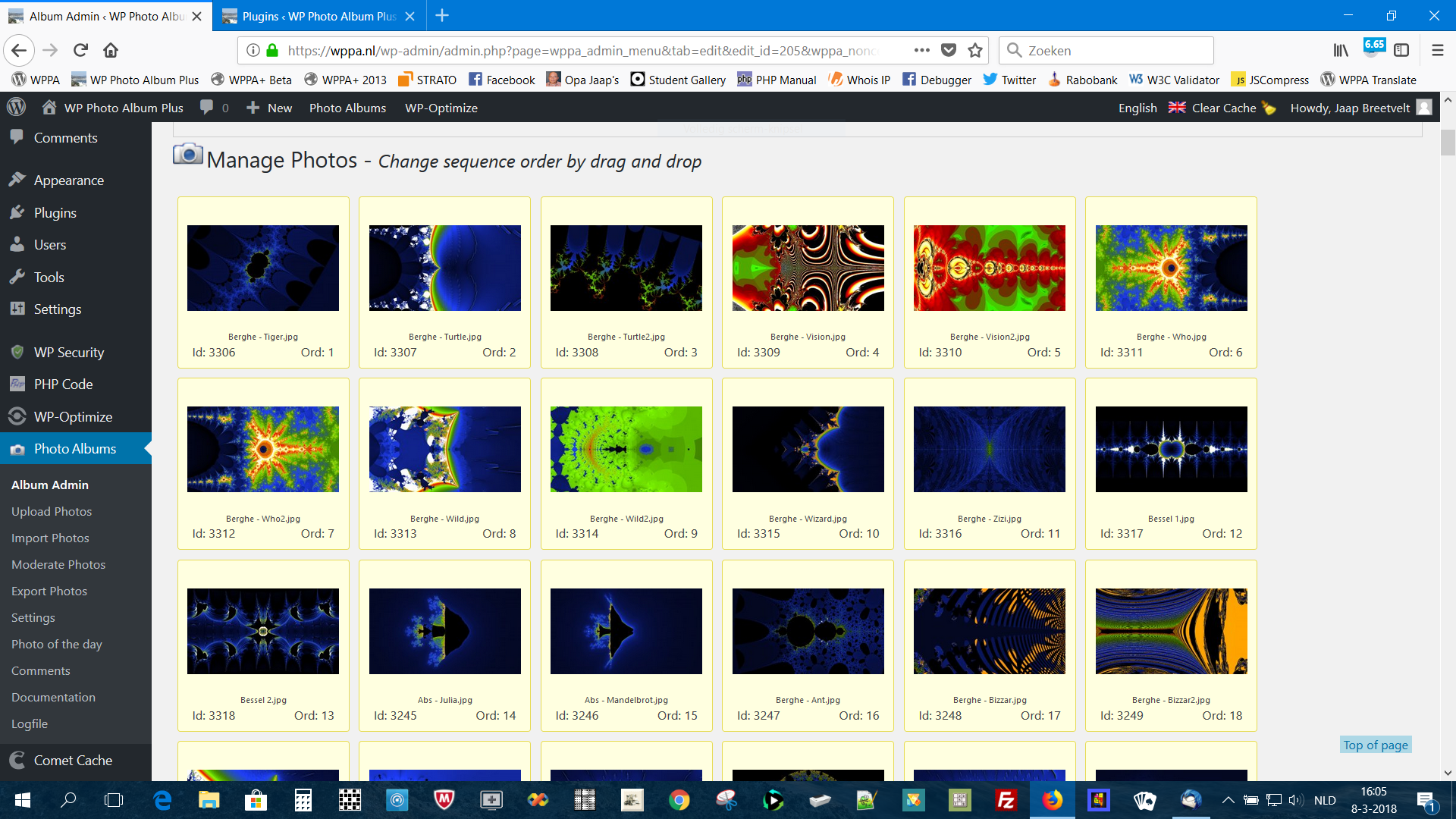
Photo sequence editor screen 
Comment admin and moderation screen 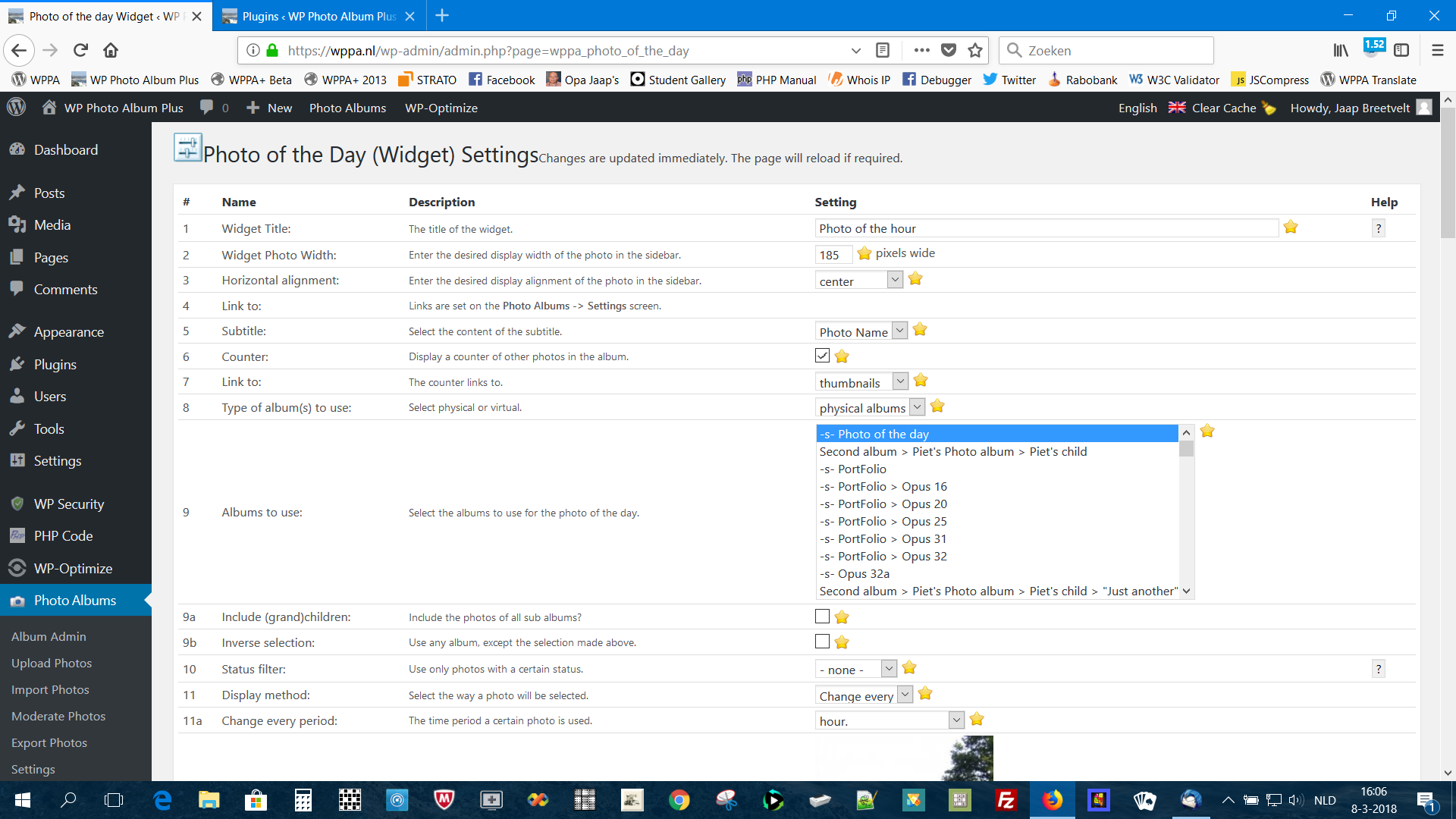
Photo of the day configuration screen 
Embedded lightbox example 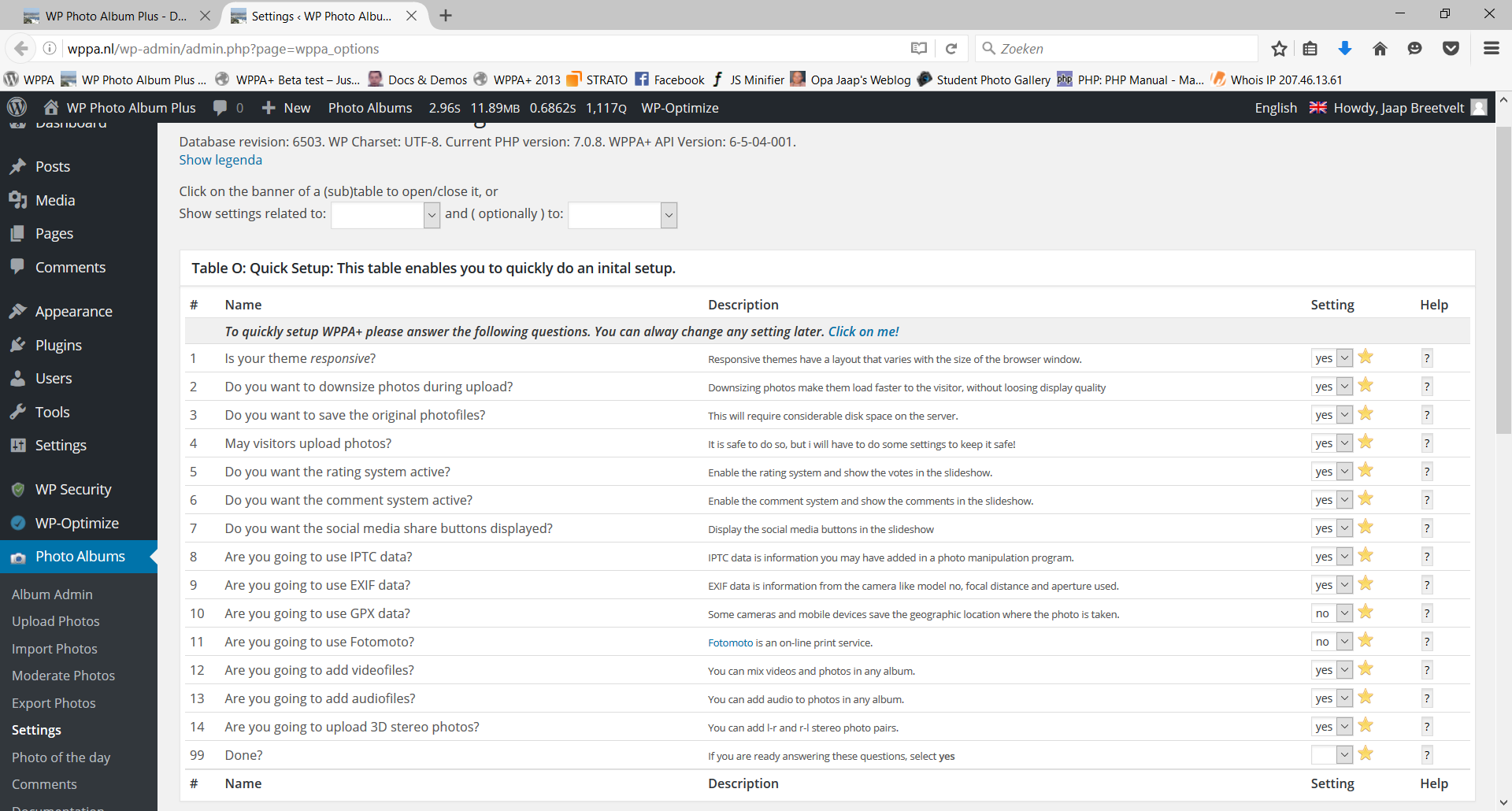
The quick setup screen
Blocks
This plugin provides 5 blocks.
- WPPA slideshow
- WPPA+ photo
- WPPA general
- WPPA potd
- WPPA Upload
Installation
- Standard from the plugins page
Requirements
- The theme should have a call to wp_head() in its header.php file and wp_footer() in its footer.php file.
- The theme should load enqueued scripts in the header if the scripts are enqueued without the $in_footer switch (like wppa.js and jQuery).
- The theme should not prevent this plugin from loading the jQuery library in its default wp manner, i.e. the library jQuery in safe mode (uses jQuery() and not $()).
- The theme should not use remove_action() or remove_all_actions() when it affects actions added by wppa+.
Most themes comply with these requirements.
However, check these requirements in case of problems with new installations with themes you never had used before with wppa+ or when you modified your theme. - The server should have at least 64MB of memory.
FAQ
-
What do i have to do when converting to multisite?
-
Which other plugins do you recommend to use with WPPA+, and which not?
-
- Recommended plugins: qTranslate, Comet Cache, Cube Points, Simple Cart & Buy Now.
- Plugins that break up WPPA+: My Live Signature.
- Google Analytics for WordPress will break the slideshow in most cases when Track outbound clicks & downloads: has been checked in its configuration.
-
Which themes have problems with wppa+ ?
-
- Photocrati has a problem with the wppa+ embedded lightbox when using page templates with sidebar.
-
Are there special requirements for responsive (mobile) themes?
-
- No, WPPA+ is responsive by default
-
After update, many things seem to go wrong
-
- After an update, always clear your browser cache (CTRL+F5) and clear your temp internetfiles, this will ensure the new versions of js files will be loaded.
- And – most important – if you use a server side caching program (like W3 Total Cache) clear its cache.
- Make sure any minifying plugin (like W3 Total Cache) is also reset to make sure the new version files are used.
- Visit the Photo Albums -> Settings page -> Table VIII-A1 and press Do it!
- When upload fails after an upgrade, one or more columns may be added to one of the db tables. In rare cases this may have been failed.
Unfortunately this is hard to determine.
If this happens, make sure (ask your hosting provider) that you have all the rights to modify db tables and run action Table VII-A1 again.
-
How does the search widget work?
-
- See the documentation on the WPPA+ Docs & Demos site: https://wppa.nl/docs-by-subject/search/regular-search/
-
How can i translate the plugin into my language?
-
- See the translators handbook: https://make.wordpress.org/polyglots/handbook/
- Here is the polyglot page for this plugin: https://translate.wordpress.org/projects/wp-plugins/wp-photo-album-plus
-
How do i install a hotfix?
-
- See the documentation on the WPPA+ Docs & Demos site: https://wppa.nl/docs-by-subject/development-version/
Reviews


Contributors & Developers
“WP Photo Album Plus” is open source software. The following people have contributed to this plugin.
Contributors
“WP Photo Album Plus” has been translated into 13 locales. Thank you to the translators for their contributions.
Translate “WP Photo Album Plus” into your language.
Interested in development?
Browse the code, check out the SVN repository, or subscribe to the development log by RSS.
Changelog
See for the full changelog: The documentation website